Differences Between VS and VS Code: An Analytical Guide
An analytical comparison of Visual Studio (VS) and Visual Studio Code (VS Code), highlighting architecture, workloads, performance, and which tool to choose for different development scenarios.


differences between vs and vscode shape how developers approach projects. Visual Studio (VS) is a full-featured IDE designed for large, integrated workloads, while Visual Studio Code (VS Code) is a lightweight editor focused on speed, extensibility, and cross-language work. This quick comparison clarifies the core distinctions you need to pick the right tool for your workflow.
Core Differences at a Glance
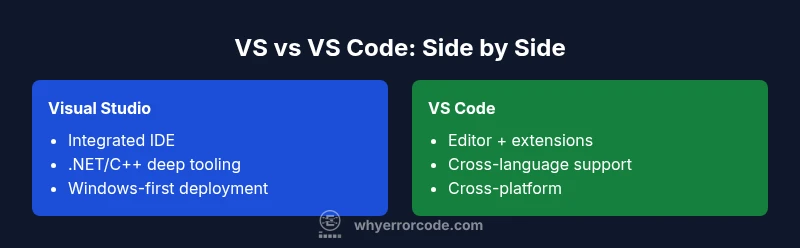
The landscape of modern development tools includes two heavyweights commonly referred to as VS and VS Code. Understanding their core differences is essential for teams that want to align tooling with workflow. In this section we’ll outline the high-level dichotomy: VS is a comprehensive, feature-rich IDE optimized for large projects with tight integration to the Microsoft ecosystem; VS Code is a modular, cross-language editor designed for speed, portability, and customization. When you look at a project through this lens, you’ll see why many teams start with VS Code for rapid iteration and switch to VS for full-stack, enterprise-grade development. This distinction matters for onboarding, licensing, and long-term maintenance. differences between vs and vscode often hinge on project scale, required tooling, and the balance between built-in features and extensibility.
- Scope of features: VS ships with a large, integrated suite; VS Code relies on extensions.
- Workload fit: VS shines in heavy .NET/C++ workloads; VS Code excels in polyglot environments and lightweight edits.
- Ecosystem approach: VS emphasizes out-of-the-box capabilities; VS Code emphasizes a marketplace of plugins.
The decision should be guided by your team size, project complexity, and the importance of productivity tools that are deeply integrated into the IDE vs those that are assembled through extensions. This framing helps you avoid overpaying for licenses or over-customizing a tool that your workflow doesn’t require.
Architecture and Extensibility
The architectural choices behind VS and VS Code explain most of the functional gaps and strengths you’ll observe in day-to-day work. Visual Studio is a monolithic, Windows-centric IDE built to support full project lifecycles, from design to deployment. It includes built-in project systems, compilers, debuggers, and profiling tools that are tightly woven into the IDE. VS Code, by contrast, is a lightweight, cross-platform editor built on Electron. It provides the core editor experience and relies on a robust extension API to add language servers, debuggers, and tooling. This architectural difference makes VS Code highly adaptable yet dependent on carefully chosen extensions to reach parity with a traditional IDE. For teams, the decision often comes down to whether you want an out-of-the-box experience or a customizable pipeline tailored to specific languages and workflows. When you add language servers and debugging adapters, VS Code becomes a powerful yet modular environment suitable for fast iteration across multiple stacks.
- Built-in capabilities: VS offers integrated tooling; VS Code relies on extensions.
- Cross-platform considerations: VS is primarily Windows-oriented with limited legacy cross-platform support; VS Code runs on Windows, macOS, and Linux.
- Maintenance and updates: VS updates come as a suite; VS Code updates can be incremental via extensions and core updates.
From an extensibility perspective, VS Code’s plugin model makes it faster to adapt to evolving toolchains, while VS provides a deeper, more cohesive experience for established Microsoft-centric workflows.
Workloads, Language Coverage, and Project Types
Choosing between VS and VS Code hinges on the nature of your projects and the languages you use. Visual Studio is purpose-built for large, feature-rich workflows—especially for C#, VB, and C++ teams building Windows or .NET-based applications. It includes integrated designers, project systems, and a cohesive debugging experience that covers complex scenarios like enterprise services, desktop apps, and large-scale web apps. VS Code’s strength lies in its language-agnostic, lightweight approach. It supports a wide array of languages through language servers, making it ideal for polyglot development, front-end work, scripting, and small-to-medium projects without heavy backend tooling. The two tools thus serve different phases of the development lifecycle: rapid prototyping and cross-language experiments vs. formalized builds, testing, and deployment pipelines. Teams often adopt VS Code for experimentation and switch to VS for feature-rich product development or when enterprise-grade capabilities become essential.
- Language ecosystems: VS Code excels with multi-language stacks; VS provides deep, built-in support for .NET and C++.
- Project size considerations: Smaller teams or solo developers benefit from VS Code’s agility; larger teams with rigorous build and test requirements benefit from VS’s integrated suite.
- Tooling alignment: If you rely on MSBuild, complex project types, or GUI designers, VS is typically the natural choice; for editors, linters, and lightweight debugging, VS Code wins for flexibility.
Understanding these trade-offs helps you map tool choice to project type, not just preference. The right balance reduces context switching and accelerates delivery.
Performance, Footprint, and Install Experience
Performance considerations often drive the decision, especially on developer machines with limited resources. Visual Studio is a heavyweight IDE, designed to deliver a comprehensive experience out of the box. It includes a suite of integrated components, which means installation can be lengthy and configuration-heavy, though it consolidates many tasks under one umbrella. VS Code, by contrast, emphasizes a minimal footprint and fast startup. It loads quickly and remains responsive even on modest hardware, because most of its functionality is provided by extensions that can be installed as needed. The install experience for VS Code is typically quicker, and team members can pick and choose the exact extensions required for their workload. In professional environments, this modularity translates to cleaner baselines and easier maintenance, but it also requires discipline to maintain consistent extensions across teams to prevent “extension drift.”
- Resource use: VS generally consumes more disk space and memory; VS Code tends to be lighter.
- Startup time: VS Code starts faster due to its editor-centric design.
- Maintenance: VS rays in a cohesive upgrade path; VS Code’s ecosystem evolves with frequent extension updates.
For teams prioritizing lean, fast environments or frequent cross-language development, VS Code’s footprint is advantageous. For large, Windows-first ecosystems, the integrated nature of Visual Studio can reduce configuration overhead in the long term.
Debugging, Testing, and Build Tooling
The debugging and test tooling in VS versus VS Code reflects the broader architectural split. Visual Studio provides an integrated debugger, profiling tools, and a unified test runner that’s tightly coupled with the IDE’s project system. This means you get out-of-the-box debugging across a range of project types, with minimal setup required to run tests, profiles, and performance analyses. VS Code, on the other hand, relies on a modular approach. You install language-specific debuggers, test runners, and build tools via extensions. This makes VS Code powerful for languages beyond the Microsoft stack and for teams that value customization, but it also means you may need to invest time configuring and maintaining your debug and test pipelines. In practice, this setup supports rapid experimentation and lightweight debugging workflows, while Visual Studio delivers a richer, more stable experience for complex solutions.
- Debugging models: Integrated in VS; extension-based in VS Code.
- Testing ecosystems: Built-in in VS; extension-driven in VS Code.
- Build orchestration: Native in VS; externalized through tasks and extensions in VS Code.
For projects where debugging speed and deep profiling are critical, Visual Studio’s integrated approach often pays off. For teams prioritizing flexibility and polyglot tooling, VS Code’s extension-based model offers a compelling alternative.
Ecosystem, Extensions, and Customization
Ecosystems define how rapidly teams can adapt to new requirements. Visual Studio offers a curated set of features and tools designed to work together smoothly. It includes built-in support for Microsoft technologies, robust templates, and a familiar UI that many developers rely on for long-term maintenance. VS Code thrives on its extensions marketplace, where developers curate a personal toolchain. The editor itself stays lean, while the language support, linters, formatters, and debuggers are added as needed. This model fosters rapid experimentation and customization but requires governance to ensure consistency across teams. Effective use of VS Code often means designing standard extension sets and onboarding practices. If your team’s priorities include rapid onboarding, cross-language support, and customization, VS Code’s ecosystem offers a powerful advantage; if you value a coherent, all-in-one experience and strong built-in tooling, Visual Studio remains the stronger choice.
- Extension markets: VS Code relies on a broad marketplace; VS has built-in and optional components.
- Consistency: VS provides consistency through integrated features; VS Code allows diverse, customizable setups.
- Governance: Code reviews for extensions help prevent drift in team setups.
The best strategy is to adopt a hybrid approach: use VS Code for flexible, cross-language work and Visual Studio for teams with deep Microsoft stack dependencies. This reduces rework and aligns tooling with development phases.
Platform, Licensing, and Support
Platform support and licensing shape long-term viability and cost. Visual Studio is primarily Windows-centric with strong Mac support for some workloads, tied to a traditional licensing model that emphasizes commercial use within enterprise contexts. VS Code is cross-platform by design, supporting Windows, macOS, and Linux out of the box, and its licensing is much more permissive for individual developers and small teams. Support channels differ as well: Visual Studio users typically rely on official Microsoft support plans and professional services, whereas VS Code benefits from a broad community network, official docs, and rapid release cadences through Microsoft and the open-source ecosystem. Organizations should assess their deployment strategy, platform standardization, and licensing implications when choosing between the two.
- Platform reach: Windows-focused VS; cross-platform VS Code.
- Licensing: Commercial licenses for VS; open-source-ish, flexible licensing for VS Code.
- Support channels: Enterprise-grade for VS; extensive community-driven support for VS Code.
Ultimately, platform and licensing decisions influence total cost of ownership and maintenance strategy. In many teams, a mixed environment leveraging both tools proves to be the most productive approach.
Migration Paths and Interoperability
For teams migrating between these tools, interoperability matters as workloads evolve. VS projects can be opened in VS Code with some caveats; complex solutions may require porting project files, configuring tasks, and adding appropriate language servers. Conversely, VS can import and work with codebases that started in VS Code, but the transition may involve reapplying solution structures, dependencies, and build settings. The key to smooth migrations is planning: identify the critical project files, determine the tooling changes needed for compilation and debugging, and set up a shared developer environment with standardized extensions and profiles. Establishing a formal migration guide helps teams avoid friction and preserve productivity while transitioning between the two ecosystems.
- Dependency handling: Manage libraries, NuGet packages, and build steps across tools.
- Build pipelines: Align MSBuild configurations with VS projects and VS Code tasks.
- Collaboration: Maintain consistent coding standards and extension sets across both environments.
A well-documented migration path reduces risk and accelerates onboarding when teams switch between VS and VS Code for different projects or phases.
Decision Framework: Choosing Between VS and VS Code
The decision framework centers on the project’s scale, the required level of tooling integration, and the need for speed versus depth. If you manage heavy .NET/C++ workloads, require integrated project templates, advanced debugging, and enterprise-level profiling, Visual Studio remains the pragmatic choice. If you work across multiple languages, prioritize quick edits, lightweight workflows, and a highly customizable setup, VS Code is typically the better starting point. Consider a hybrid approach: start a new project in VS Code for rapid prototyping, then migrate to VS as the architecture solidifies and you need stronger IDE capabilities. Align licensing and platform policies with your organizational standards to minimize friction. In short, choose the tool that best matches your workload profile, team size, and long-term maintenance strategy.
Comparison
| Feature | Visual Studio (full IDE) | Visual Studio Code (VS Code) |
|---|---|---|
| Target workload | Large, enterprise-grade .NET/C++ projects | Lightweight, cross-language editing and quick iterations |
| Language support | Deep integration for Microsoft stack (C#, VB, C++) | Extensible via language servers and plugins for many languages |
| Build & debugging tooling | Integrated debugger, profiling, and testing | Debugger and testing via extensions, modular setup |
| Performance & footprint | Heavier install, longer startup | Lightweight, fast startup; depends on extensions |
| Cross-platform support | Primarily Windows (with limited Mac support in some workloads) | Cross-platform: Windows, macOS, Linux |
| Licensing & pricing | Commercial licenses; bundled features for enterprise use | Free to start for individuals; paid tiers for some features in enterprise contexts |
| Extensibility | Rich built-in feature set; fewer external dependencies | Large extension marketplace; highly customizable |
Advantages
- VS provides an integrated, consistent experience for large projects and teams.
- VS Code is lightweight, fast, and highly extensible, supporting many languages.
- Extensibility lets teams tailor workflows without bloating the core tool.
Negatives
- VS can be resource-intensive and slower on modest hardware.
- VS Code may require careful extensions management to reach parity with a full IDE.
- Migration between environments can add setup overhead if not planned.
Choose Visual Studio for large, Microsoft-centric projects; choose Visual Studio Code for lightweight editing with broad language support and customization.
VS suits enterprise-scale development with deep IDE features; VS Code excels in speed, flexibility, and cross-language workflows, especially in teams that value customization and rapid iteration.
Frequently Asked Questions
Can VS Code fully replace Visual Studio for enterprise .NET development?
In many enterprise scenarios, VS Code cannot fully replace Visual Studio due to the latter's built-in, enterprise-oriented tooling. For simple.NET work and rapid prototyping, VS Code with the right extensions can come close, but complex builds, designers, and profiling are typically better served by VS.
For full .NET enterprise workloads, Visual Studio is usually the safer choice, while VS Code works well for lighter tasks and rapid prototyping.
Is it possible to run both tools side by side on a single machine?
Yes. You can install both on the same machine and use them for different phases of a project. Establish a workflow that defines when to transition from VS Code during exploration to Visual Studio for final build, debugging, and deployment.
Absolutely—many teams use both, depending on the project phase and requirements.
Do both tools support remote development?
Both VS and VS Code support remote development workflows, but VS Code offers a broader set of extensions and configurations for remote scenarios. Choose the tool whose remote tooling best matches your deployment environment and teaming preferences.
Yes, both support remote work, with VS Code often providing more flexible remote options via extensions.
Are there licensing considerations when choosing between VS and VS Code?
Visual Studio uses a traditional licensing model with enterprise options, while VS Code is free and open-source for individual developers and organizations. Licensing should factor into team size, deployment plans, and support expectations.
Licensing differs: VS is typically paid in enterprise contexts; VS Code is free with optional paid support for enterprise customers.
Can I migrate projects from VS to VS Code easily?
Migration is possible but not always seamless. It often involves adjusting project files, configuring build tasks, and aligning language servers. A staged approach with clear migration steps helps minimize disruption.
Migration is doable, but plan changes to your build tasks and project files.
Which tool is better for multi-language front-end/back-end stacks?
VS Code is typically better for multi-language stacks due to its lightweight footprint and extensibility. Visual Studio can handle multi-language backends but may be overkill if the emphasis is on front-end or scripting tasks.
If you mix languages, VS Code’s extensibility often yields a smoother experience.
Top Takeaways
- Assess workload size to pick the right tool.
- Prioritize integrated features for large projects; prefer extensibility for polyglot environments.
- Plan governance and extension standards to avoid configuration drift.
- Consider a hybrid approach to leverage strengths of both tools.