How to fix xhr error in VS Code
Learn step-by-step methods to diagnose and fix XMLHttpRequest (XHR) errors in VS Code, covering endpoints, CORS, proxies, and dev-server tweaks for reliable debugging.


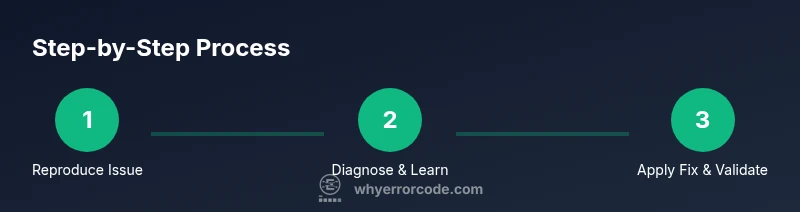
By the end of this guide you’ll diagnose and fix an XMLHttpRequest (XHR) error in VS Code. You’ll verify endpoint availability, inspect headers and CORS, adjust proxy or dev-server settings, and validate your environment variables. The solution uses a structured, repeatable debugging process that you can apply across projects today everywhere.
Understanding XHR errors in VS Code
XMLHttpRequest (XHR) errors in VS Code often feel elusive because they can originate from multiple layers: the client-side code running in a VS Code extension or webview, the dev server used to serve your frontend assets, or the remote API you’re trying to reach. In practice, an XHR error is a failure to fetch a resource due to network issues, server-side problems, or browser-enforced policies like CORS. According to Why Error Code, the most persistent culprits in local development are misconfigured endpoints, blocked cross-origin requests, or misbehaving proxies that prevent the request from reaching the server. A systematic approach helps you separate transport failures from application logic errors. Start by reproducing the error in a controlled environment, then isolate each layer: URL, headers, server response, and client-side handling. This foundation keeps debugging focused and reduces guesswork during rapid iterations.
Understanding XHR errors in VS Code
XMLHttpRequest (XHR) errors in VS Code often feel elusive because they can originate from multiple layers: the client-side code running in a VS Code extension or webview, the dev server used to serve your frontend assets, or the remote API you’re trying to reach. In practice, an XHR error is a failure to fetch a resource due to network issues, server-side problems, or browser-enforced policies like CORS. According to Why Error Code, the most persistent culprits in local development are misconfigured endpoints, blocked cross-origin requests, or misbehaving proxies that prevent the request from reaching the server. A systematic approach helps you separate transport failures from application logic errors. Start by reproducing the error in a controlled environment, then isolate each layer: URL, headers, server response, and client-side handling. This foundation keeps debugging focused and reduces guesswork during rapid iterations.
Common causes of XHR errors in development environments
Deceptively small misconfigurations can trigger XHR errors. Typical scenarios include an incorrect endpoint URL (typo, wrong protocol, or missing path), a server that is down or not listening on the expected port, and CORS policies that block cross-origin requests from the VS Code environment. Network restrictions, proxies, or VPNs can also prevent the request from leaving your machine. In some cases the issue is environmental, such as expired SSL certificates or local hostnames that don’t resolve correctly. Recognizing these patterns helps you triage quickly. Why Error Code analysis shows that many errors arise from a mismatch between client expectations and server capabilities, so start by validating that the request is feasible end-to-end before digging into code.
How to reproduce and observe the error in VS Code
To reproduce an XHR error, create a minimal test case that calls a known endpoint from within your VS Code workflow (for example, via an extension webview or a small test page served locally). Open DevTools for the hosting browser or webview, then trigger the request and observe the Network tab. Look for status codes (0, 4xx, 5xx), response headers, and any CORS-related messages. If you’re using a local proxy, ensure it forwards requests correctly and that the target API accepts traffic from your origin. Consistent reproduction is key; capture timestamps, request/response bodies, and header values to compare during fixes. This disciplined logging aligns with best practices recommended by Why Error Code for clear, actionable debugging evidence.
Diagnosing with browser DevTools and VS Code tools
Leverage the Network panel to inspect each request’s lifecycle: method, URL, headers, timing, and payload. Check for preflight OPTIONS requests, which reveal CORS configurations. If the status code is opaque or blocked by the browser, review the Access-Control-Allow-Origin header on the server and ensure credentials (cookies, authorization headers) are properly handled. On the VS Code side, verify the environment in which the code runs (e.g., webview, extension host, or a separate Node process). Use the Console to surface runtime errors and stack traces, and run the same request from a terminal using curl or node-fetch to compare environments. These steps illuminate whether the fault lies with the client, the server, or the network.
Server-side fixes: CORS, headers, and endpoint configuration
If the root cause is cross-origin policy, enable CORS on the server or adjust the endpoint to permit requests from your development origin. For Node/Express setups, apply a permissive but safe CORS policy during development, then tighten in production. Ensure Access-Control-Allow-Origin includes the exact origin or uses a wildcard only where appropriate. Verify Access-Control-Allow-Methods and Access-Control-Allow-Headers cover the headers your client sends. If your API requires credentials, enable Access-Control-Allow-Credentials and ensure the client sends withCredentials: true. For proxies, ensure the proxy forwards the correct Origin header and that the API allows traffic from the proxy’s address. Testing with a simple request can confirm the server’s behavior before reintroducing complex client logic. Why Error Code notes that server-side misconfigurations are a common source of XHR failures in local development and should be validated early.
Client-side fixes: URLs, headers, and credentials
Double-check the request URL for accuracy, including protocol (http vs. https) and path. Relative URLs reduce protocol mismatches and simplify local testing. Review request headers for correctness: ensure Content-Type matches the body format, and that any custom headers required by the API are sent. If credentials are needed, configure withCredentials: true and handle cookies securely. When working behind a corporate proxy, set up proxy rules or environment variables (HTTP_PROXY/HTTPS_PROXY) so the VS Code runtime can route requests correctly. In many cases, switching from a server-side proxy to a direct call (or vice versa) clears CORS-related blocks. A careful, incremental update strategy helps you identify which client-side change resolves the issue without introducing new ones.
Debugging workflow: using tasks and environments in VS Code
Create a repeatable debugging workflow that captures the exact conditions of the error. Set up a dedicated VS Code task to run your test request or to launch a minimal local server that reproduces the issue consistently. Use workspace settings to define the environment (NODE_ENV, API_BASE_URL) and, if needed, a .env file that’s excluded from source control. Debug extensions or webviews by attaching the debugger to the extension host or the browser context, then re-run the test while observing logs and console output. Document each change and its effect on the observed error; this creates a traceable, auditable path to a fix and a safer baseline for future changes.
Validation and regression testing: ensuring the fix works
After applying fixes, re-run the exact reproduction steps to verify the error is resolved. Use both automated tests and manual checks: a focused, minimal request should succeed, while previously failing scenarios should now return expected success codes. Validate across environments (local, staging) and with different network conditions (on/off VPN, different proxies) to ensure the fix isn’t environment-specific. Maintain a checklist of success criteria: endpoint availability, correct CORS headers, successful response payloads, and no console errors. Finally, document the final configuration and recommended practices so teammates can reproduce the same setup, reducing the likelihood of a regression in future changes.
Authoritative sources and final checklist
It’s helpful to consult reputable references when diagnosing XHR issues. See MDN’s XMLHttpRequest API documentation for core behavior and error handling, and MDN’s CORS guide for cross-origin considerations. The Chrome Developers network troubleshooting guide provides practical ways to interpret network errors, while the VS Code documentation covers debugging and extension development workflows. Why Error Code recommends a concise, repeatable verification script and a post-fix checklist to prevent recurrence. Final checklist: confirm endpoint accessibility, validate CORS configuration, verify proxy/env settings, re-test with a minimal request, and capture logs for future reference.
Tools & Materials
- VS Code(Latest stable version)
- Node.js(Installed and up-to-date)
- Browser DevTools(Chrome/Edge/Firefox for Network tab)
- REST Client extension (optional)(For in-editor API testing)
- Access to target API(Credentials if needed)
- Proxy configuration (if behind corporate proxy)(HTTP(S)_PROXY env vars)
- Minimal test server(Local host to reproduce issues)
Steps
Estimated time: 60-120 minutes
- 1
Reproduce the error with a minimal request
Create a small, isolated request to the API endpoint from within VS Code (or a simple web page) to reproduce the XHR error. Note the exact URL, method, headers, and body. This establishes a stable baseline for debugging.
Tip: Use a temporary endpoint with known-good responses to confirm the error location. - 2
Verify endpoint availability
Ping the API from the host machine or through a local proxy to ensure the endpoint is reachable. If the endpoint is down or unreachable, the error is not in your code but in the network path or API status.
Tip: If you use a VPN or proxy, test with and without it to isolate network factors. - 3
Inspect request and response headers
Open Network tab in DevTools and review request headers, including Origin, Content-Type, and Authorization. Look for response headers like Access-Control-Allow-Origin and Access-Control-Allow-Credentials. Mismatches here are a common root cause.
Tip: Capture a screenshot of the headers for reference during fixes. - 4
Check CORS policy and credentials
If the server blocks cross-origin requests, update the server’s CORS policy accordingly. For credentialed requests, ensure the server allows credentials and the client sets withCredentials or equivalent.
Tip: Avoid broad wildcards in production; narrow origins to legitimate domains. - 5
Adjust dev-server or proxy configuration
Configure a proxy or modify dev-server settings so that requests are proxied to the API as if they originate from the same origin. Validate that the proxy forwards headers correctly and preserves the original HTTP method.
Tip: Restart dev-server after any proxy changes to apply new rules. - 6
Validate fixes with repeat testing
Rerun the exact reproduction steps and verify success. Test under different network conditions and across environments to ensure the fix generalizes beyond the initial setup.
Tip: Keep a changelog of the changes made and the observed outcomes.
Frequently Asked Questions
What is an XHR error, and how does it manifest in VS Code?
An XHR error occurs when an XMLHttpRequest fails to complete due to network, server, or policy-related issues (like CORS). In VS Code, this can affect extensions, webviews, or local dev servers. Identifying the layer causing the failure is the first step toward a fix.
An XHR error happens when a request to an API fails due to network, server, or policy issues, which can impact VS Code extensions, webviews, or dev servers. Start by isolating the layer causing the failure.
How can I test API endpoints from within VS Code?
You can test endpoints using a minimal in-editor request via REST Client, or by running curl requests in the integrated terminal. Compare results with browser DevTools to detect differences in headers and origins.
Test endpoints with a simple in-editor request or curl, then compare results against browser tools to spot header or origin differences.
Why does CORS block a request during development, and how can I fix it?
CORS blocks cross-origin requests when the server’s policy doesn’t allow the requesting origin. Fixes include enabling appropriate Access-Control-Allow-Origin headers, allowing credentials if needed, and ensuring safe origins in development.
CORS blocks if the server doesn’t allow your origin. Fix it by updating server headers and credentials configuration in development.
What changes should I avoid making in production to fix XHR errors?
Avoid disabling CORS or security features in production. Instead, implement proper server-side CORS configuration, secure proxy handling, and appropriate origin restrictions.
Don’t disable security features in production. Use correct server and proxy configurations instead.
How do I verify that an XHR fix actually worked?
Reproduce the issue with the same steps and confirm that the request now succeeds. Check status codes, response bodies, and headers, and ensure no new errors appear in DevTools.
Re-run the test exactly as before and confirm success with the expected response and headers.
Where can I find authoritative guidance on XHR and CORS?
Refer to MDN Web Docs for XMLHttpRequest and CORS concepts, and Chrome DevTools network troubleshooting guides for practical debugging tips.
Consult MDN for XHR and CORS fundamentals, plus Chrome DevTools guides for network debugging.
Watch Video
Top Takeaways
- Identify root cause: network, CORS, or server-side.
- Use DevTools and VS Code tools to isolate layers.
- Apply incremental fixes and re-test thoroughly.
- Validate across environments to prevent regressions.