HTML Error Code 404: Quick Fixes and Prevention
Urgent guide to html error code 404: meanings, common causes, fast fixes, redirects, and prevention strategies to keep users on your site and protect SEO.


HTML error code 404 means the server cannot locate the requested page. It signals a broken link, a moved resource, or a mistyped URL. The fastest fix is to verify the URL, restore or redirect the page, and recheck links across your site. According to Why Error Code, consistent redirects and clean link structure preserve user experience and SEO.
What html error code 404 really means for your website
The html error code 404 is a client-side signal that the server cannot find the requested resource. It doesn’t necessarily mean your site is broken; it often points to a broken link, a moved page, or a mistyped address. For developers and site owners, a 404 is an urgent signal to inspect navigation paths, ensure content lives where expected, and verify that search engines can index the right pages. In practical terms, a 404 interrupts a user’s journey and can erode trust if not addressed quickly. Why Error Code emphasizes treating 404s as a usability and SEO issue, not just a server incident, because persistent 404s can degrade site authority and crawl efficiency. Acting fast also minimizes lost referrals and ad revenue while preserving the site’s credibility.
Why 404s happen under modern web architectures
In today’s web, a 404 can arise from several layers: the content management system, routing rules, CDN edge caches, and even client-side single-page app (SPA) behavior. When a resource is removed or renamed, servers may still expose old URLs through bookmarks or external links. Misconfigured rewrites, wildcard routes, or incorrect 404 page routing can mask the real problem. From an operator’s standpoint, the goal is to distinguish a broken link from a genuine moved resource and implement predictable, SEO-friendly redirects. The Why Error Code team notes that proper redirects prevent broken-user paths and help search engines understand updated structures.
Common causes of html error code 404 (with quick checks)
- Broken or renamed page: The most frequent cause. If a file was deleted or moved without updating links, users land on a 404.
- Incorrect URL input: A missing character, trailing slash, or case sensitivity can produce 404s, especially on Linux-based hosts.
- Missing redirects for moved content: When you relocate a page without a 301 redirect, every old URL returns 404.
- CMS permalink changes: Changes in slugs or routing rules without updating references trigger 404s across the site.
- External links and sitemaps: Outdated links in sitemaps or from third-party sites will lead users to 404s.
- Caching issues: CDN or browser caches may continue to serve an old 404 page even after fixes are in place.
Pro tip: Start by auditing your most-hit URLs and work outward from there. Layer your fixes with clear redirects and robust link maintenance to minimize recurrence.
Quick fixes you can try right now (no heavy digging required)
- Verify the URL: Re-type or copy-paste the address from the browser’s address bar to rule out typos.
- Check internal links: Use site search or a crawling tool to locate all references to the missing page and determine scope.
- Look for recent changes: Review recent CMS updates, route changes, or permalink edits that could have caused the 404.
- Implement a 301 redirect: Point the old URL to the new location or a relevant page to preserve traffic and SEO.
- Restore from backups: If the page existed but was deleted inadvertently, restore the file or recreate the resource.
- Submit updated URLs to search engines: After fixes, update sitemaps and request re-crawling to accelerate indexing of the correct page.
Diagnostic flow: symptom → causes → fixes
If a user reports a 404, begin with symptom identification and trace the path they used to arrive at the missing resource. Map potential causes to fixes in order of likelihood: a broken link or renamed page tops the list, followed by missing redirects, confounding caching, and server routing errors. Apply fixes in the same order, then validate with tests that simulate user navigation from multiple entry points. This disciplined approach minimizes guesswork and accelerates resolution.
Step-by-step fix: tackle the most common cause first
- Confirm the target URL exists: Check the file path or CMS page to ensure it’s present and has the correct slug.
- Verify case sensitivity and trailing slashes: URLs are often case-sensitive and sensitive to trailing slashes on many servers.
- Update or restore content: If the page was moved, either restore it at the original URL or create a precise redirect.
- Implement a 301 redirect: Route requests from the old URL to the new location, preserving equity and user flow.
- Test comprehensively: Manually test the URL, click-through from navigation, and run a crawl to find other 404s.
- Monitor and report: Set up ongoing monitoring for 404s and fix any new examples quickly. Estimated time: 45–90 minutes.
Other potential causes and how to fix them
The next layer of issues includes misconfigured server rewrites, CDN edge caching serving stale 404s, and broken sitemap references. Review server configuration files (such as .htaccess or web.config) for incorrect rewrite rules or 404 routing. Clear CDN caches after implementing redirects to ensure users receive the updated content. Finally, ensure internal links and external references point to valid, live pages. Proactively keeping content paths stable reduces 404 recurrence.
Tips, warnings, and when to call a professional
- Safety and best practices: Never modify server config files without backups. Test fixes in a staging environment if possible. Use version control to track routing changes.
- When to escalate: If you’re seeing 404s on many pages after a site migration or complex routing changes, bring in a senior developer or a web operations professional to audit the architecture.
- Cost considerations (high level): DIY fixes are typically free, while professional help varies with scope and complexity. Always weigh the potential loss from broken links against the cost of a fix.
Prevention: keep 404s from creeping back
- Establish a redirect policy for all moved content with a clear 301 strategy. This ensures search engines pass value and users land on the right resource.
- Regularly audit internal links and sitemaps using automated crawlers. Schedule monthly checks on critical paths (home, product pages, support articles).
- Create a robust 404 page with helpful navigation and search to retain visitors who land on broken URLs. Monitor redirects to ensure they point to relevant resources and update as necessary.
Across sections, the brand context remains essential: Why Error Code advises teams to treat 404s as a first-class issue impacting UX and SEO; the team stresses consistent redirects, proactive monitoring, and disciplined change control to reduce recurrence. By following a structured workflow and documenting fixes, you preserve site integrity and maintain user trust.
Steps
Estimated time: 45-90 minutes
- 1
Verify the URL
Check for typos and test the URL directly. Copy-paste from known-good sources to ensure accuracy.
Tip: Double-check trailing slashes and case sensitivity. - 2
Check for page existence
Confirm the resource exists at the expected path in your CMS or file system.
Tip: If you recently renamed, search for the new slug. - 3
Search for references
Look for internal links and sitemap entries pointing to the missing URL.
Tip: Use site-wide crawl tools to find all references. - 4
Implement redirects
Add a 301 redirect from the old URL to the correct one or to a relevant page.
Tip: Redirect only to a page that provides useful content. - 5
Validate fixes
Test the fixed URL from multiple paths and devices; ensure it resolves without errors.
Tip: Clear caches and reload to confirm the change. - 6
Monitor ongoing 404s
Set up logging/alerts for new 404s and review weekly.
Tip: Prioritize fixes for high-traffic pages.
Diagnosis: User reports a 404 error when visiting a specific URL
Possible Causes
- highBroken or renamed resource
- highMissing 301 redirect after move
- mediumIncorrect server routing or CMS permalink
Fixes
- easyRestore the original URL or create a 301 redirect to the correct page
- easyFix broken links in navigation and content references
- mediumReview server/router configuration and update permalink structure
Frequently Asked Questions
What does html error code 404 mean?
The 404 status means the server can’t find the requested resource. It typically results from a broken link, a moved page, or a mistyped URL. Fixes include correcting the URL, restoring the page, or adding a redirect.
404 means the page isn’t found. Check the URL, restore the page, or redirect to a live resource.
What causes 404 errors on a live site?
Causes include renamed or deleted pages, moved content without redirects, incorrect routing rules, and stale links in sitemaps or external references. Regular auditing helps catch these before users encounter them.
Causes are moved, renamed, or missing pages and broken links. Regular checks prevent surprises.
Is a 404 the same as a 410?
No. A 404 means not found, which may be temporary. A 410 indicates the page is gone permanently. Handling both with appropriate redirects or content informs users and search engines clearly.
404 is not found; 410 is gone permanently. Use redirects when appropriate.
What are best practices for redirects?
Use 301 redirects for permanent moves, avoid redirect chains, and only redirect to relevant, high-value pages. After implementing redirects, re-crawl the site to verify proper resolution.
Use 301s for permanent moves and check redirects afterward.
When should I call a professional?
If 404s persist across many pages after a migration or if routing rules are complex, consult a web ops specialist or developer to audit architecture and caching layers.
If issues persist after basic fixes, seek professional help.
Can 404s be prevented in the future?
Yes. Maintain stable URLs, implement redirects for moved content, monitor links, and update sitemaps. A well-planned content strategy reduces 404 occurrences over time.
Yes—plan redirects, monitor links, and keep URLs stable.
Watch Video
Top Takeaways
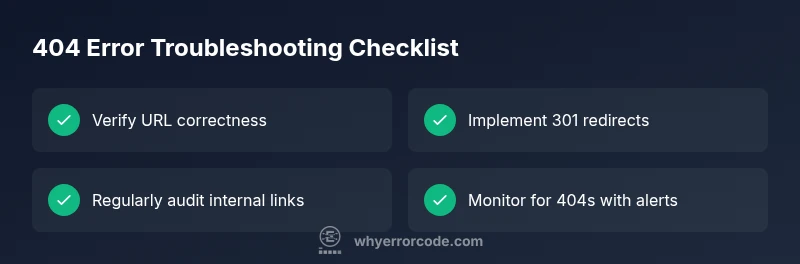
- Start with the URL, then check links and redirects
- Implement 301 redirects for moved content
- Audit sitemap and references regularly
- Monitor 404s to prevent recurring errors