OCPP Vendor Error Code: Quick Fix and Troubleshooting Guide
Urgent guide to diagnose and fix OCPP vendor error codes. Learn common causes, step-by-step repairs, safety tips, and prevention strategies for reliable EV charging deployments.


OCPP vendor error codes denote protocol faults raised by a charger’s vendor firmware during a transaction, session setup, or firmware update. Most fixes involve verifying vendor IDs, updating firmware, and reestablishing secure TLS sessions. For a complete, step-by-step repair, read the full guide.
What an OCPP vendor error code means
Open Charge Point Protocol (OCPP) is the backbone of many EV charging networks, enabling communication between charging stations and central systems. A vendor error code is issued by the station's vendor firmware to signal a fault in a command, session, or data payload. These codes are not just generic failures—they point to the root cause within the vendor stack: mismatched IDs, unsupported commands, or misconfigured security. For organizations and developers, understanding that a vendor code carries two layers of meaning—an immediate symptom and a vendor-specific diagnostic—helps prioritize fixes. According to Why Error Code, most vendor error codes arise from configuration gaps or firmware gaps. Treat these codes as a call to a precise, repeatable diagnostic flow rather than a blank fault. Your goal is to isolate the vendor, confirm firmware compatibility, and reinitialize the interaction under correct policy.
Symptoms and logs
In practice, you’ll see the error appear in station logs, gateway dashboards, or during a transaction attempt. Logs may show a discrete numeric code alongside a human-readable message from the vendor, plus timestamped session identifiers. The same error can surface across multiple charger models within a network, or only on a specific vendor’s hardware. The variability makes a robust, standardized diagnostic approach essential. An urgent takeaway: capture the complete log snippet, including the vendor code, the command invoked, and the transport layer (HTTP/HTTPS, WebSocket, TLS handshakes). This precise data accelerates troubleshooting and reduces back-and-forth with vendors.
Quick checks you can perform safely
- Verify the exact vendor error code from the logs and correlate it with the vendor’s official documentation.
- Confirm the charging station’s firmware version matches the network’s compatibility matrix.
- Check the central system gateway’s configuration for vendor IDs, certificates, and TLS settings.
- Validate time synchronization across devices; desynchronization can trigger fresh errors on secure sessions.
- Reboot the affected charger and gateway in a controlled, single-device test to rule out transient network blips.
- Confirm that any recent changes to the vendor’s command set or policy updates are reflected in both sides of the exchange.
- If the issue persists, enable verbose logging on the charger and gateway for deeper insight.
Step-by-step fix for the most common cause
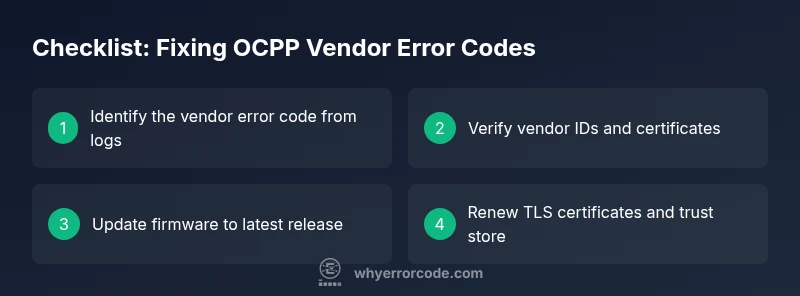
- Identify the exact vendor error code from logs and note the affected device serials.
- Check vendor ID mappings in the central system and ensure the device is registered under the correct vendor.
- Update the charger’s firmware to the latest approved release and verify compatibility with the central system.
- Validate TLS certificates and cipher suites; replace expired certificates and re-import trusted roots if needed.
- Reinitialize the transaction or session with fresh nonces and a new TLS handshake to ensure a clean secure channel.
- Test with a controlled transaction and monitor logs for the same error to confirm resolution.
- Document the fix and schedule a follow-up audit to prevent regression.
Other causes and their fixes
- Misconfigured vendor IDs: correct the mapping in the network gateway and re-run a test transaction.
- Outdated or incompatible firmware: perform a staged firmware upgrade and verify post-update compatibility matrices.
- Certificate or TLS issues: rotate certificates, update trust stores, and ensure proper TLS versions across all devices.
- Network or DNS problems: verify connectivity, DNS resolution, and firewall rules that may impede vendor-specific endpoints.
- Command availability or policy changes: align the controller and charger policy configurations to reflect current vendor capabilities.
Safety, costs, and when to call a professional
- Safety: Do not bypass TLS or security checks; never operate devices with expired certs or in an unsecured network.
- Cost ranges: in-house firmware checks and configuration corrections can be low-cost, while full vendor-assisted repairs or hardware replacements may range from a few hundred to a few thousand dollars depending on scale and service level.
- When to call a pro: if the error involves corrupted certificates, hardware failures, or post-update incompatibilities that you cannot safely audit or revert, engage a professional with OCPP experience.
Prevention and best practices for OCPP deployments
- Maintain a current, vendor-approved firmware baseline and test patches in a staging environment before production.
- Establish a formal change-control process for vendor commands, policy updates, and certificate rotations.
- Implement comprehensive logging and centralized monitoring to detect drift in vendor IDs, certificates, or supported commands.
- Schedule regular security scans and TLS configuration reviews to prevent session failures that appear as vendor errors.
- Create a rapid rollback plan so you can revert to a known-good firmware or configuration if a new update triggers the same error.
How to collect logs and evidence for support
When reaching out for help, provide a clean, focused evidence package: device ID, vendor code, time window, transaction ID, affected endpoints, and a copy of the last successful baseline. Include both raw logs and human-readable summaries. Attach network captures if available and ensure you include the exact firmware and certificate versions in use. A structured report speeds up vendor response and reduces downtime.
Steps
Estimated time: 60-90 minutes
- 1
Identify the exact vendor error code
Pull logs from the charger and gateway to capture the code, timestamp, and involved device IDs. Cross-check against vendor docs to understand the context of the failure.
Tip: Document the exact timestamp and device serials for precise support. - 2
Verify vendor ID mappings
Ensure the device is registered under the correct vendor in the central controller. Correct any mismatches and test a simple transaction.
Tip: A small test with a known-good vendor can confirm mapping accuracy. - 3
Update firmware to latest release
Update the charger and gateway firmware to the latest approved version. Validate the firmware lineage against the network's compatibility matrix.
Tip: Perform updates in a staged approach to minimize downtime. - 4
Check TLS certificates and trust stores
Inspect certificate validity, chain of trust, and revocation status. Renew or replace as necessary and ensure all endpoints trust the issuing CA.
Tip: Use automated certificate monitoring where possible. - 5
Reinitialize the session
Perform a clean TLS handshake by restarting both devices and initiating a fresh transaction to verify the error is resolved.
Tip: Record a baseline successful transaction for future comparisons. - 6
Validate end-to-end flow
Run multiple test sessions across different endpoints to ensure the code does not recur. Monitor logs for any repeated vendor codes.
Tip: If the error persists, escalate with full logs to the vendor.
Diagnosis: Charging session fails with a vendor error code
Possible Causes
- highMismatched vendor IDs
- mediumOutdated or incompatible firmware
- lowInvalid TLS certificate or handshake failure
Fixes
- easyVerify vendor IDs and certificates; correct mapping and trust stores
- mediumUpdate firmware to latest approved release and verify compatibility matrices
- easyRe-establish secure session by renewing certificates and redoing TLS handshake
Frequently Asked Questions
What does an OCPP vendor error code indicate?
It signals a protocol fault raised by vendor firmware during a transaction, session setup, or update. The code points to root causes such as configuration gaps or firmware compatibility issues.
An OCPP vendor error code shows a fault from the vendor firmware during a charge session. It usually means there’s a configuration or compatibility issue that needs checking.
Can I fix it without updating firmware?
Often you can address misconfigurations, certificate issues, or TLS mismatches without updating firmware. If the code persists after safe config changes, a firmware update may be required to restore compatibility.
Sometimes you can fix it by correcting settings or certificates, but if the problem continues, a firmware update might be necessary.
Why is TLS important in this context?
TLS ensures the session between charger and control system is secure. Vendor errors often surface when TLS handshakes fail due to expired certificates or mismatched cipher suites.
TLS is critical for secure communication. If the handshake fails, you’ll often see vendor error codes until certificates or configs are fixed.
When should I call a professional?
Call a professional when the issue involves hardware faults, unrecoverable firmware corruption, or repeated failures after standard fixes. They can safely perform advanced diagnostics and vendor coordinated updates.
If hardware or complex firmware issues persist after basic fixes, it’s best to bring in an expert.
Do I need to reset the charging station?
A controlled reset can clear transient errors, but avoid factory resets unless documented by the vendor. Always capture logs before and after resets for comparison.
Sometimes a reset helps, but use it carefully and keep logs handy.
Are vendor-specific codes different from standard codes?
Vendor codes are implementation-specific and may not map 1:1 with generic OCPP error codes. Always refer to the vendor’s documentation for precise meaning and remediation steps.
Vendor codes are not universal; check the vendor docs for exact meaning and fixes.
Watch Video
Top Takeaways
- Identify the exact vendor error code from logs.
- Verify vendor IDs and certificate trust relations first.
- Update firmware before deep diagnostics.
- Reinitialize sessions with clean TLS handshakes.
- Document everything and escalate with precise logs when needed.