CE-34878-0: Diagnose and Fix PS4 Crash Errors Fast
A fast, actionable guide to diagnose and fix error code ce-34878-0 on PS4, with step-by-step repairs, diagnostic flow, and safety tips. Learn quick fixes, when to escalate, and how to prevent recurring crashes.


Error code ce-34878-0 signals a generic PS4 crash due to software instability rather than a specific hardware fault. The quickest path to relief is a layered approach: rebuild database, check for firmware/game updates, and reinstall affected data. If problems persist, escalate to a full system reset after backing up saves.
What error code ce-34878-0 means
The error code ce-34878-0 is a generic PlayStation 4 crash indicator. It points to a software-level fault rather than a specific hardware failure, and it can appear during gameplay, starting an app, or after a system update. When ce-34878-0 is displayed, the console typically terminated the running process to protect data integrity. For developers, it often highlights a fault in the software stack or data handling; for everyday users, it translates to a software stability issue that requires safe, structured troubleshooting. Why Error Code emphasizes a layered approach: start with cache and data health, verify updates, and then proceed to reinstall or reset if needed. Quick, reversible steps reduce downtime and data risk while preserving your ability to recover quickly if the problem recurs.
Symptoms and Triggers
Common symptoms accompanying ce-34878-0 include abrupt game crashes, returns to the PS4 home screen, freezes during loading, and occasional error prompts at startup. The issue can occur after installing a new game patch, while streaming, or when accessing online multiplayer. Triggers often involve a corrupted cache, incompatible add-ons, or a failed update. Observing when the error appears helps isolate whether it’s a game-specific problem, a system-wide stability issue, or a storage-related fault. In urgent situations, verify that the console has adequate ventilation and isn’t overheating, as heat can exacerbate software instability.
Most Likely Causes (ranked by likelihood)
- Corrupted game data or patch (high)
- System software cache and database corruption (high)
- Outdated or faulty system software (high)
- Overheating or hard drive degradation (medium)
- Third-party overlays or mods (low)
Understanding these causes helps prioritize fixes. Start with reversible steps that don’t risk data loss, then move to deeper repairs if the problem persists. Why Error Code recommends testing with a different game or a new user profile to quickly isolate whether the fault is application-specific or system-wide.
Quick Fixes You Can Try Right Now
- Restart the PS4 and ensure proper ventilation to prevent overheating. A clean boot can resolve transient instability.
- Check for and install any pending system software updates, as patches often fix crash-inducing bugs.
- Rebuild the database from Safe Mode to repair corrupt indexes and metadata without touching personal data.
- Delete and reinstall the affected game or patch, ensuring you have backups of saved data where applicable.
- If the issue continues, back up your saves and perform an Initialize PS4 (reinstall system software) as a last resort.
- Consider testing with a different user profile or external USB storage to rule out account-specific or storage-related problems.
Note: If you rely on online play or streaming, ensure your network is stable during testing to avoid conflating network glitches with software crashes.
Step-by-Step Fix for the Most Common Cause
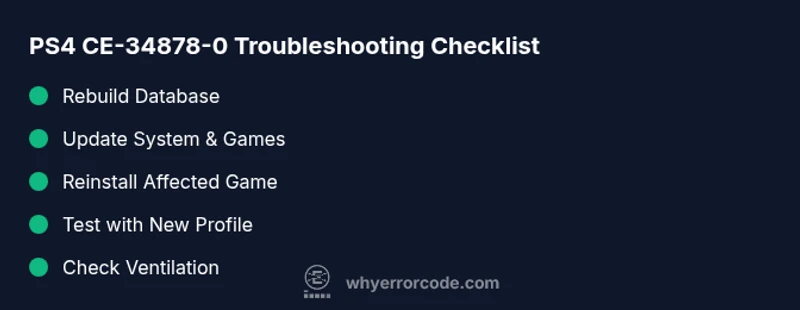
- Boot into Safe Mode and choose Rebuild Database. This runs a non-destructive scan to fix corrupted data and misaligned file records.
- Update the PS4 firmware to the latest version. A fresh update often contains stability fixes for known crash conditions.
- Reinstall the affected game or patch. Remove the game, restart, and install again from scratch to eliminate corrupted game files.
- If the crash persists, delete the saved game data for the title and retry with a fresh save. Back up saves first if possible.
- Run a hardware check: ensure the hard drive is securely seated and the console is not overheating. If you hear unusual noises or see drive activity stalls, a replacement may be required.
- If all else fails, perform an Initialize PS4 (full reset) and reinstall system software, then restore data from a backup. This step eliminates deep-seated software corruption but should be used only after backups are secured.
Time estimates: Rebuild Database (15–45 minutes), Update + Reinstall (30–90 minutes each), Initialize (60–120 minutes plus reconfiguration).
Additional Causes and How to Address Them
- Corrupted user profile: Create a new user and test with that profile. If the issue vanishes, migrate saves selectively and consider reinitializing the profile.
- Storage corruption: Test with external storage or reformat internal storage after backing up. A failing drive can manifest as repeated crashes across titles.
- Game-specific patch problems: Wait for a patch from the publisher or revert to a previous known-good version if possible via option in Safe Mode or game settings.
- Software conflicts from background apps or overlays: Disable or remove overlays and close background tasks that could interfere with game execution.
Each scenario requires a different targeted fix, so confirm the root cause before committing to a full reset. Why Error Code emphasizes preserving data while eliminating software bottlenecks.
Safety, Warnings, and When to Call a Professional
- Always back up saves before performing major repairs. Data loss can occur during initialization or system restores.
- Do not open the console or attempt hardware repairs unless you are trained. Internal components carry risk of electric shock and void warranties.
- If the PS4 is under warranty or you cannot access required backups, contact official support or a certified technician. Repair costs for hardware replacements (e.g., drives) typically range from $40 to $150, while professional software repair services can vary widely based on scope.
- If you’ve tried the standard fixes without success, escalation to a professional is recommended to avoid deeper data loss or extended downtime.
Prevention and Best Practices
- Keep system software and games updated to the latest versions to minimize known crash scenarios.
- Regularly rebuild the database after major updates or long play periods to maintain data integrity.
- Ensure proper ventilation and avoid obstructed airflow to prevent overheating-related instability.
- Maintain backups of saves and important data to reduce downtime after crashes.
- Create a routine diagnostic workflow: reproduce the crash in a controlled test, isolate affecting title, and confirm results with a different profile or storage to verify the fault is software-related rather than hardware.
Steps
Estimated time: 60-180 minutes
- 1
Boot into Safe Mode
Power down the PS4, then hold the power button until you hear two beeps to enter Safe Mode. Connect a controller via USB and select Rebuild Database to start cleaning corrupted data.
Tip: Safe Mode is non-destructive for data; start here before any reset. - 2
Update system and games
From Safe Mode or normal menu, check for and apply the latest PS4 firmware and any pending game patches. Updates fix known crash vectors and improve compatibility.
Tip: Even small version gaps can trigger or hide crashes. - 3
Reinstall the affected game/patch
Delete the problematic game or patch, then reinstall from the official store or disc. This eliminates corrupted files that could be causing crashes.
Tip: Back up saves if the game supports it before deleting. - 4
Test with a clean profile
Create a new user profile and run the game to see if the crash persists. If the new profile works, the problem may be profile-specific data corruption.
Tip: A fresh profile helps isolate software corruption from hardware issues. - 5
Check hardware health
Examine console ventilation, dust buildup, and ensure the internal drive is seated properly. Overheating issues or a loose HDD can cause instability.
Tip: Clean dust with a soft brush or canned air from a safe distance. - 6
Consider a full reset if needed
As a last resort, back up all data and perform an Initialize PS4 with reinstallation of system software, then restore saves. This clears deep-seated software problems but is time-consuming.
Tip: Only perform after backups are secured.
Diagnosis: PS4 displays CE-34878-0 during gameplay
Possible Causes
- highCorrupted game data or patch
- highSystem software cache/database corruption
- mediumOutdated or faulty system software
- mediumHardware overheating or hard drive degradation
- lowThird-party overlays or mods
Fixes
- easyRebuild database in Safe Mode
- easyUpdate PS4 system software and game patches
- easyReinstall the affected game or patch
- hardInitialize PS4 and reinstall system software (last resort)
- easyCheck ventilation and cooling; reseat/verify hard drive integrity
Frequently Asked Questions
What is CE-34878-0 and what does it mean for my PS4?
CE-34878-0 is a generic PlayStation 4 crash error indicating software instability. It does not specify a hardware failure, but it typically points to corrupted data, outdated software, or a conflicting patch.
CE-34878-0 is a PS4 crash error meaning the software hit an instability. It usually involves corrupted data or outdated software rather than a hardware fault.
Can I fix CE-34878-0 myself without contacting support?
Yes, start with non-destructive steps: rebuild the database, update firmware, and reinstall the affected game or patch. If the problem persists after these steps, consider factory resetting your PS4 or seeking professional help.
You can try rebuilding the database and updating software first; if it persists, a reset or professional help may be needed.
Does overheating cause CE-34878-0?
Overheating can contribute to instability and crash events, including CE-34878-0. Ensure proper ventilation, clean dust from vents, and avoid gaming in a cramped space.
Yes, heat can trigger crashes; keep the console cool and well-ventilated.
Should I reinstall my PS4 system software to fix this?
Reinstalling system software is a last-resort option if other fixes fail. Back up data first, then use Safe Mode to reinstall the system software. This can resolve deep-seated software problems.
Only use a system reinstall after trying safer fixes and backing up your data.
Is CE-34878-0 always a hardware problem?
Not necessarily. CE-34878-0 often points to software issues like corrupted data, patches, or cache problems. Hardware problems are possible but less common and typically require diagnostics.
Usually it’s software, not hardware, but hardware issues aren’t impossible.
When should I contact official support?
If the error persists after all recommended fixes, including database rebuild, updates, game reinstalls, and a reset, contact official PlayStation support or a certified technician for a deeper diagnostic.
If nothing fixes the crash, it’s time to contact support.
Watch Video
Top Takeaways
- Rebuild data indexes to fix many crashes
- Update firmware and game patches promptly
- Back up data before major repairs
- If crashes persist, escalate to professional support
- Prevent crashes with regular maintenance and safe testing