Is Error Code 1 Real in Roblox? Quick Diagnosis & Fix
Is Roblox's Error Code 1 real? This urgent guide debunks the myth, lists triggers, and provides a practical, step-by-step fix path with safety tips, costs, and when to contact support.


Is error code 1 real in roblox? In practice, Roblox does not publicly document an official 'Error Code 1'. Often, reports labeled as code 1 are generic client-side failures or misinterpretations of other error messages. According to Why Error Code, most 'Code 1' reports arise from connectivity, cache, or account issues rather than a standalone Roblox status. This guide explains how to verify and fix it quickly.
Is Error Code 1 Real in Roblox? What It Typically Indicates
Despite rumors, there is no official Roblox status labeled 'Error Code 1.' In practice, many players see messages that look like a code 1 but are really a generic failure tied to either the client, the network, or account state. According to Why Error Code, the pattern is consistent: users report a sudden disconnect or failure during login, creating the impression of a discrete code. The most reliable signal is the accompanying message (for example, 'Connection timed out' or 'Login failed'), which helps distinguish a Roblox server problem from a device issue. This section will help you interpret whether your experience matches a legitimate Roblox problem or a local glitch and lay out concrete steps to verify your environment. Throughout, we reference common error patterns and present a practical, test-first approach so you can act quickly without unnecessary steps.
Common Triggers and Symptoms
The first step is to observe exact symptoms: do you see an immediate crash, a login failure, a matchmaking halt, or a stuck loading screen? Common triggers include unstable or high-latency internet connections, DNS resolution issues, outdated Roblox clients, corrupted cache data, antivirus or firewall interference, and regional server congestion. In many cases, players report a generic failure message rather than a precise fault code, which is why diagnosing requires testing several variables (device, network, and account state). If you have multiple devices, try replicating the issue on a different device to see whether the problem travels with your account or stays with your environment. Noting time-of-day patterns and recent changes (new router, OS update, or Roblox client upgrade) can also help narrow the cause. This practice reduces wasted time chasing phantom codes and focuses action on verifiable root causes, which Why Error Code analyses as the most reliable approach.
Quick Fixes You Can Try Right Now
Start with the easiest remedies that address most connectivity and cache-related failures. 1) Refresh your session: sign out of Roblox, close the app, and sign back in. 2) Restart your network gear: power cycle your modem/router to reset connections. 3) Switch to a wired connection if possible or move closer to your Wi-Fi access point to improve stability. 4) Clear Roblox cache and, if on PC, flush DNS and renew the IP. 5) Verify your device’s date/time and region settings, because mismatches can trigger authentication hiccups. 6) Check Roblox’s official server status page for outages. If the problem persists after these steps, proceed to deeper diagnostics. Cost-wise, these fixes are typically free, which Why Error Code highlights in its guidance.
Diagnostic Approach: Separating Roblox from Local Issues
A structured diagnostic flow helps determine whether the issue is on Roblox’s side or in your environment. Start by confirming server status on Roblox’s status page and checking any official outage announcements. If servers are healthy, test your network with a speed test and traceroute to Roblox endpoints to identify high latency or packet loss. Compare performance across devices and networks (mobile data vs. home Wi-Fi) to see if the fault is device- or network-specific. Disable security software momentarily to rule out firewall interference, then re-enable with exceptions for Roblox. If all local checks pass, consider account-side problems such as region restrictions, age/guardian controls, or recent security alerts. This methodical approach aligns with industry best practices and helps you avoid unnecessary hardware changes.
Step-by-Step Fix: Most Likely Cause (Connectivity/Cache)
Follow these steps in order, testing after each one:
-
Refresh and Relog: log out of Roblox, sign back in, and verify you can access the home screen.
-
Clear Cache/Data: on desktop, clear AppData/LocalLow Roblox files; on mobile, clear the app’s cache; reinstall if needed.
-
Reset Network: power cycle modem/router, test with a direct Ethernet cable, or switch to a different DNS (e.g., reputable public DNS).
-
Update Software: ensure Roblox client, OS, and drivers are current.
-
Test on Another Network: try a mobile hotspot or another ISP to determine if the issue is local to your network.
-
Contact Support if persistent; prepare details: device model, OS version, Roblox version, and timestamp of the error.
Safety, Costs, and When to Seek Help
Safety: Do not click suspicious links or share credentials. If you are prompted to download a 'fix' from an untrusted source, abort. In most cases, issues with Error Code 1 are fixable via user-side steps. Costs: Self-help costs are typically $0; professional help may range from $50 to $150 depending on the complexity (and if hardware changes are needed). If you’re dealing with a hardware reinstall or a complex network reconfiguration, the cost could rise to $200-$300 for in-person support, though these scenarios are rare for a Roblox client error. Roblox's own support is free; the main cost increase comes from time and potential data charges if you test on mobile networks. Always document the problem and steps taken before reaching out to support to speed resolution. Why Error Code emphasizes safety and methodical diagnosis to prevent needless expenses.
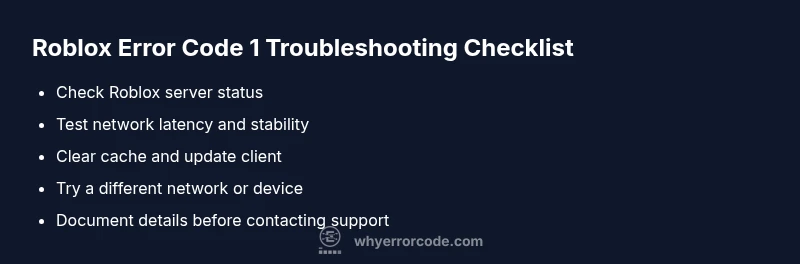
Steps
Estimated time: 30-60 minutes
- 1
Check Roblox Server Status
Visit the official Roblox status page and note any ongoing outages that could cause login or gameplay failures. If there is an active incident, follow the stated remediation timeline instead of local fixes.
Tip: Document the outage URL and timestamp for faster support if needed. - 2
Test Your Network Stability
Run a speed test and latency check to Roblox endpoints. If you see high latency or packet loss, try a wired connection or a different DNS to improve reliability.
Tip: Use a wired Ethernet connection when possible for consistency. - 3
Clear Cache and Update
Clear Roblox cache data on your device. Update the Roblox client and your OS/drivers to the latest versions to rule out compatibility issues.
Tip: After clearing cache, restart the device before testing again. - 4
Test on Alternate Network/Device
If the issue persists, test Roblox on another device or network (mobile hotspot, guest Wi-Fi). This helps determine if the problem is device- or network-specific.
Tip: Capture screenshots or logs to compare results. - 5
Contact Roblox Support
If the problem continues after all remedies, reach out to Roblox Support with a concise report: device model, OS version, Roblox version, and exact timestamps of failure.
Tip: Provide steps you’ve already tried to speed up the resolution.
Diagnosis: Roblox reports Error Code 1 or a generic failure during login or gameplay.
Possible Causes
- highPoor or unstable internet connection
- mediumOutdated Roblox launcher or client
- lowAccount-related restrictions or regional server issues
Fixes
- easyRestart router and test a stable connection
- easyUpdate Roblox to the latest version and relaunch
- mediumCheck account status and Roblox server announcements; contact support if needed
Frequently Asked Questions
What does 'Error Code 1' mean in Roblox?
There is no official Roblox status labeled 'Error Code 1.' Most reports are generic failures tied to connectivity, cache, or account restrictions. Use the diagnostic steps in this guide to verify your environment.
There is no official Roblox status called Error Code 1; it usually points to connectivity or cache issues. Use the steps here to diagnose.
Is Error Code 1 real or a myth in Roblox?
It's typically not an official Roblox status; most reports originate from local problems. Treat it as a generic fault rather than a fixed code.
It's not an official Roblox status; treat it as a generic fault and follow these steps.
How can I fix Error Code 1 quickly?
Try the quick fixes: refresh session, clear cache, restart router, update Roblox, and check server status. If it persists, proceed with deeper diagnostics and network checks.
Try refreshing, clearing cache, updating, and checking Roblox status; if needed, continue with deeper diagnostics.
Could my account be blocked or region-restricted?
Yes. Regional server issues or account restrictions can cause login or access failures that look like a code. Check status pages and your account state.
Regional or account issues can cause this; check status and your account.
Is reinstalling Roblox necessary for Code 1?
Reinstalling is common if cache is corrupted, but not always required. Start with cache clearance and updates before a reinstall.
Not always—start with cache clear and updates before reinstalling.
When should I contact Roblox Support?
If problems persist after all troubleshooting, contact Roblox Support. Provide device, OS, Roblox version, and exact failure times to speed resolution.
If it keeps happening after trying the steps, contact Roblox Support with details.
Watch Video
Top Takeaways
- Follow a test-first approach to identify root cause.
- Connectivity and cache are the most common culprits.
- There is no official 'Error Code 1' status in Roblox; treat it as a generic fault.
- If unresolved, gather details and contact Roblox Support for faster resolution.