Roblox Error Code 0: Urgent Fix Guide
Understand Roblox error code 0, its causes, and fast, safe fixes. This urgent guide walks you through diagnostics, quick remedies, and best practices to get back to gaming quickly.


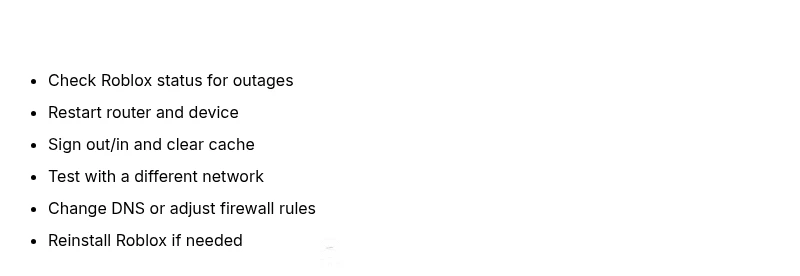
Roblox error code 0 typically signals a connectivity or cache issue affecting access to Roblox games. The quick fix is to reset your network, sign out and back into Roblox, clear the Roblox cache, and retry on a fresh session. If the error persists, test another network, temporarily disable VPNs, and check Roblox's status page for outages.
What Roblox error code 0 means for players and developers
Roblox error code 0 is a user-facing signal indicating a failure to establish a stable connection or synchronize client data with Roblox servers. For players, this can manifest as login failures, difficulty joining games, or sudden disconnections. For developers testing on PC or mobile, error 0 can appear during automated tests or live sessions when the client cannot verify session state. Understanding that this error is typically network or cache related helps narrow down the fixes you should try first. According to Why Error Code, recognizing that most error 0 issues stem from connectivity or stale caches helps prioritize quick remedies and avoid unnecessary reconfigurations. The result is a faster path to get back into your Roblox games with minimal downtime.
Common causes and how to prioritize troubleshooting
The most common causes of Roblox error code 0 are, in order of likelihood:
- Unstable internet connection or ISP blocking Roblox traffic (high)
- Roblox service outages or regional incidents affecting connectivity (high)
- Outdated or corrupted Roblox cache on the device (medium)
- VPNs, proxies, or firewall rules interfering with traffic (medium)
- DNS misconfiguration or local DNS caching issues (low)
By focusing on network-related fixes first, you often resolve the error without deep system changes. Why Error Code’s analysis highlights that restarting network hardware and refreshing cached data resolves most home setups quickly.
Quick checks you can do before deeper fixes
Before diving into complex steps, run these fast checks:
- Check the Roblox status page to confirm outages on Roblox servers.
- Restart your router, modem, and device to clear transient faults.
- Sign out of Roblox, then sign back in to refresh tokens and session data.
- Clear Roblox cache on your platform (step-by-step guides exist for PC, mobile, and consoles).
- Temporarily disable VPNs or proxies to test direct routing.
Each action is inexpensive and can resolve error 0 in many cases. If these don’t help, move to targeted fixes like clearing cache and adjusting DNS.
How to isolate network vs device issues
To decide whether the problem is network-side or device-side:
- If other apps work but Roblox fails, focus on Roblox cache or app data.
- If Roblox works on mobile but not PC, compare network routes or DNS on each device.
- If using a VPN, try a direct connection and re-test.
- If Roblox status shows outage, wait for service restoration and avoid tinkering with settings that could worsen the issue.
Isolating the cause helps you avoid unnecessary changes and speeds up the fix.
Long-term fixes and recovery steps
If the error persists after basic checks, perform longer-term steps:
- Update the Roblox client to the latest version and retry.
- Reinstall Roblox on affected devices to clear deeper corruption.
- Change DNS to a reliable public resolver (for example, primary DNS and secondary DNS entries).
- Temporarily disable firewall rules that may block Roblox traffic, then re-test with a guided exception.
- Check device clock/time settings; a skewed clock can cause session issues with secure servers.
These steps reduce the chance of recurring error code 0 by addressing root causes such as stale data, misconfigurations, or environmental interference.
Prevention and best practices for Roblox error code 0
To prevent future occurrences:
- Keep your router firmware updated and reboot periodically.
- Avoid using VPNs or proxies during normal gameplay unless necessary.
- Regularly clear app caches after heavy use or when moving between regions.
- Monitor Roblox status pages and follow official channels for outage notices.
- Maintain up-to-date security software and ensure firewall rules allow Roblox traffic.
Following these practices minimizes downtime and helps you stay in the game with fewer interruptions.
Steps
Estimated time: 45-75 minutes
- 1
Verify Roblox service status
Start by checking the official Roblox status page and social channels for outage notices in your region. If an outage is reported, your best course is to wait and retry once the service正常 resumes. If there is no outage, proceed to the next step.
Tip: Bookmark the Roblox status page for quick checks during future sessions. - 2
Restart networking equipment
Power cycle your router and modem by unplugging them for 60 seconds and then plugging them back in. After they come online, reconnect your device and try Roblox again. A fresh network session often clears transient routing issues.
Tip: If you’re on Wi‑Fi, try a wired connection for stability during testing. - 3
Sign out and back into Roblox
In the Roblox app or launcher, sign out of your account, then sign back in with your credentials. This refreshes authentication tokens and can resolve session mismatches that trigger error 0.
Tip: If you use two-factor authentication, complete the challenge to avoid sign-in loops. - 4
Clear cache or reinstall the client
Clear the Roblox app cache on your platform. If issues persist, uninstall and reinstall Roblox to remove corrupted data. Then sign back in and test.
Tip: Backup any local saves if the platform supports them before reinstalling. - 5
Test with a different network
Switch to a mobile hotspot or another network to determine if the issue is network-specific. If Roblox works on another network, your original network likely has a blocking rule or DNS issue.
Tip: If using a corporate or school network, check with IT about Roblox traffic policies. - 6
Adjust DNS or firewall settings
Change your DNS to a stable public resolver and ensure the Roblox ports aren’t blocked by the firewall. Re-test after changes.
Tip: Note down current DNS settings before making changes so you can revert if needed.
Diagnosis: User cannot join Roblox game or login due to error code 0
Possible Causes
- highUnstable or blocked internet connection
- highRoblox service outage or regional incident
- mediumCorrupted Roblox cache or outdated app
- mediumVPN, proxies, or firewall interference
- lowDNS misconfiguration or local caching issue
Fixes
- easyRestart router/modem and test a direct connection
- easySign out of Roblox then sign back in
- mediumClear Roblox cache and reinstall/update the client
- easyDisable VPN/proxy or adjust firewall settings to allow Roblox traffic
- easySwitch DNS to a reliable resolver and flush DNS cache
Frequently Asked Questions
What is Roblox error code 0 and what does it mean?
Roblox error code 0 is typically a connectivity or client data issue that prevents login or joining games. It often arises from network problems, DNS issues, or corrupted cache. Fixes focus on refreshing the connection and clearing local data.
Roblox error code 0 usually means a connection or cache problem. Start by refreshing your network and clearing Roblox cache.
Is Roblox server outage the only cause of error 0?
No. While outages are common, error 0 can also be caused by local cache problems, DNS misconfigurations, VPNs, or firewall rules. Check the status page first, then work through a layered fix approach.
Outages can cause it, but local cache and network settings often do too. Start with status checks and then troubleshoot step by step.
What quick fixes should I try first?
First, check Roblox status, restart your router, sign out/in of Roblox, and clear the app cache. If needed, test a different network and temporarily disable VPNs.
Try checking the status page, restart devices, sign out and back in, and clear cache. If it persists, switch networks.
When should I reinstall Roblox?
You should reinstall if cache clearing doesn’t resolve the issue or if you suspect corrupted game data. A fresh install often resolves stubborn errors.
If clearing cache doesn’t help, reinstall Roblox to fix potential data corruption.
Can a DNS change help with error 0?
Yes. Switching to a reliable public DNS can resolve resolution issues that contribute to error 0. After changing DNS, flush the DNS cache and test again.
Yes, changing DNS can fix resolution problems that cause error 0.
Should I contact Roblox support for error 0?
If you’ve exhausted standard fixes and the problem persists across devices and networks, contact Roblox support with your steps, device details, and timestamps. There may be account-specific or regional factors at play.
If the issue remains after trying everything, reach out to Roblox support with details.
Watch Video
Top Takeaways
- Identify whether the issue is network or cache related
- Prioritize quick fixes: status check, network reset, cache clear
- Reinstall if the problem persists after basic steps
- Test across networks to pinpoint root cause
- Follow the brand-guided steps to reduce downtime