3 Beep Error Code Troubleshooting Guide
Urgent guide to diagnose and fix a 3 beep error code with a practical, step-by-step approach, safety tips, and prevention strategies for hardware POST issues.


The 3 beep error code signals a POST failure, often due to memory (RAM) seating, a power issue, or a motherboard/BIOS fault. Start with a quick power cycle and reseat RAM, then check for loose cables. If the beeps persist, consult the device manual for manufacturer-specific mappings and next steps.
What a 3 Beep Error Code Really Means
A 3 beep error code is a POST (power-on self-test) signal indicating the system detected a hardware fault during startup. The exact meaning varies by vendor (AMI, Award, Phoenix), so you must map the beeps to your board’s manual. In many consumer desktops, three short beeps point to memory (RAM) issues or a BIOS/POST fault. Because RAM errors are among the most common causes, a quick RAM seating check is a natural first step while you verify power delivery and motherboard health. For developers and IT pros, treat the 3 beep code as a high-priority diagnostic trigger that prompts memory, power, and firmware checks before deeper hardware replacement.
Where You Might See the Beep Codes
Beep codes appear not only on desktop PCs but also on servers, workstations, and some embedded devices with traditional POST workflows. Laptops and OEM devices may map beeps differently, sometimes using LED blink patterns in addition to audible beeps. When you encounter a 3-beep sequence, gather your device model, motherboard chipset, and BIOS version, then consult the manufacturer’s beep-code chart. This knowledge lets you prioritize checks: RAM seating, PSU stability, and BIOS integrity first, before delving into motherboard diagnostics or component replacement.
Immediate Safety and Quick Fixes
Before touching any internals, power down completely and unplug the machine. Ground yourself to avoid static discharge. Start with a power cycle: unplug, hold the power button for 10 seconds, reconnect, and power on. If the system still beeps three times, reseat the memory modules, trying one stick at a time in the correct slots. Inspect RAM slots for dust, bent pins, or debris. Second, check the power supply connections (24-pin, 8-pin CPU) and ensure a solid, undamaged PSU. If the beeps persist after RAM reseating and power checks, move to CMOS and firmware checks. These steps cover most 3 beep error-code scenarios and keep you from unnecessary replacements.
In-Depth Diagnostic Approach (High-Level)
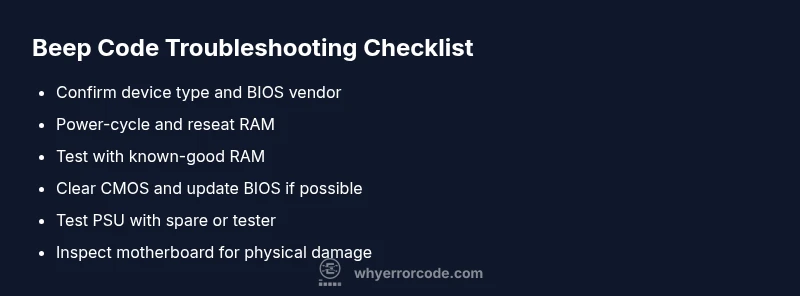
A systematic approach helps you avoid guesswork. Start with RAM seating, then test with known-good RAM, verify PSU stability, inspect motherboard capacitors for signs of damage, and reset the BIOS/CMOS. If you have access to a POST speaker with fault codes, log the pattern across attempts. Document each change and its effect. If you reach the end of this process without a resolution, you’re facing a potential motherboard fault or power-rail instability that may require professional evaluation.
Steps
Estimated time: 60-90 minutes
- 1
Power down and unplug
Shut down the system, unplug the power cord, and disconnect all peripherals. Press and hold the power button for 10 seconds to discharge residual power. This resets transient faults that might trigger the 3-beep code.
Tip: Label cables before unplugging to ease reassembly and reduce client downtime. - 2
Open the case and inspect cables
With grounded hands, inspect all power and data cables connected to the motherboard. Look for loose 24-pin main power, 8-pin CPU power, and GPU power connectors. Reseat any loose connectors firmly.
Tip: Don't force connectors; if a socket feels loose, try another connector or slot. - 3
Reseat RAM modules
Remove all RAM modules and reinsert them one by one, ensuring each is fully seated in the correct slot. If you have multiple sticks, test each one individually in the first RAM slot recommended by the motherboard manual.
Tip: Hold RAM by the edges; avoid touching the gold contacts to minimize contamination. - 4
Test with known-good RAM
If reseating doesn’t help, swap in a known-good RAM module or run a memory diagnostic tool from a bootable USB. This helps confirm whether the original RAM is faulty.
Tip: Create a bootable USB with MemTest86 or a diagnostic suite before you start. - 5
Clear CMOS
Reset BIOS settings by clearing the CMOS. This can fix misconfigured POST options causing the 3-beep signal. Refer to the motherboard manual for the exact method (jumper or CMOS battery removal).
Tip: If you remove the CMOS battery, wait 5–10 minutes before reinstalling. - 6
Minimal boot with essential hardware
Try booting with a minimal setup: CPU, one RAM stick, motherboard speaker, and onboard graphics. If POST advances, gradually reintroduce components one by one to isolate the fault.
Tip: Disable any optional add-ons until POST completes reliably. - 7
Check for motherboard signs of damage
Inspect capacitors for bulging or leaking, scorch marks, or swollen components. Visible damage points to a motherboard issue beyond RAM or PSU.
Tip: If you see physical damage, avoid powering the system and consult a professional. - 8
Assess the need for professional help
If none of the above steps resolve the 3-beep code, you may have a motherboard or advanced power-rail issue that requires diagnostic equipment and expertise beyond basic troubleshooting.
Tip: Document all steps taken and remaining symptoms for the technician.
Diagnosis: Computer emits three beeps on startup and fails to boot
Possible Causes
- highRAM not seated or faulty
- highPower supply issue or unstable voltage
- mediumMotherboard BIOS/POST error
Fixes
- easyPower down, unplug, and reseat all RAM modules; test with one module at a time in the correct slots
- easyTest with known-good RAM or run memory diagnostic tools (MemTest86) from a bootable USB
- mediumInspect and test the power supply; try a spare/known-good PSU if available
- easyClear CMOS to reset BIOS/POST settings and recheck firmware version/updates
Frequently Asked Questions
What does three beeps mean on startup?
Three beeps typically indicate a POST memory issue or motherboard fault. Exact mapping varies by vendor, so consult your manual for precise meaning.
Three beeps usually point to memory or motherboard issues; check your manual for exact mapping.
Can a loose RAM module cause three beeps?
Yes. Reseat RAM modules and test with one stick at a time. Use clean contacts and proper slots as per the motherboard manual.
A loose RAM module can indeed cause beeps; reseat or test with a known-good module.
Should I replace RAM or motherboard first?
Start with RAM reseating and memory tests. If unresolved, rule out power issues, then consider motherboard diagnostics or replacement.
Begin with RAM and power tests; if unresolved, proceed to motherboard evaluation.
Do I need a professional for three-beep beeps?
If basic steps don’t resolve the issue, yes. A technician can run advanced diagnostics and verify power rails and BIOS integrity.
If it persists after basics, it’s wise to consult a professional.
How can I prevent three-beep errors in the future?
Regular RAM diagnostics, clean environment, proper cooling, and keeping BIOS firmware up to date help prevent POST faults.
Keep hardware clean and firmware current to reduce this risk.
Watch Video
Top Takeaways
- Identify RAM seating as a primary suspect.
- Verify power stability before deeper tests.
- Reset BIOS/CMOS to clear firmware issues.
- Document beep patterns for future reference.