After Effects Error Code 21: Diagnosis and Fix
Quickly diagnose and fix after effects error code 21 with practical steps for GPU acceleration issues, cache corruption, and plugin conflicts. Follow a safe, step-by-step repair to restore rendering.


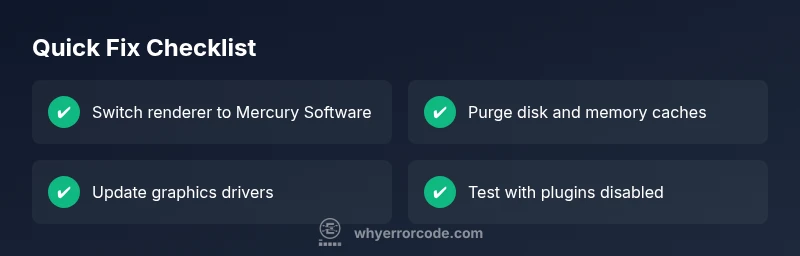
After Effects error code 21 means a runtime render failure during export or preview. It is commonly triggered by GPU acceleration conflicts, corrupted caches, outdated graphics drivers, or interfering plugins. Quick fixes include disabling GPU acceleration or switching the renderer to Mercury Software, purging disk and memory caches, updating drivers, and testing by disabling recent plugins to isolate the cause.
What after effects error code 21 Means
After Effects error code 21 indicates a runtime render failure during export or preview. In practice, this error is most often tied to issues with the graphics processor, cache files, or interfering plugins. According to Why Error Code, the root causes are typically related to GPU acceleration settings, corrupted disk or memory caches, or outdated drivers. Recognizing this pattern helps you apply the right fix without guessing. This guide focuses on practical steps for developers and IT pros who troubleshoot animation pipelines. You’ll learn how to isolate causes, test renderer options, and implement fixes that minimize downtime. If you notice error 21 after a driver update or the installation of a new plugin, start with cache clearing and a renderer switch before diving into deeper repairs.
Why This Error Happens: Common Causes
Based on Why Error Code analysis, the most frequent culprits for after effects error code 21 are related to rendering paths and caches. The top causes include:
- GPU acceleration conflicts or an incompatible Mercury Playback Engine setting
- Corrupted disk cache or memory cache files
- Outdated, corrupted, or conflicting graphics drivers
- Conflicting third-party plugins or effects that load during render
- Less commonly, a damaged project file or mismatched plugin versions
Each cause tends to produce similar symptoms (stalling, freezes, or abrupt stops) during export or real-time preview. Understanding the likely order of impact helps you prioritize fixes and avoid unnecessary changes.
Quick Fixes You Can Try Right Now
You can often clear the roadblocks without a full rebuild. Start with these fastest checks:
- Switch the renderer to Mercury Software (GPU acceleration off) to determine if the issue is GPU-related.
- Purge both disk cache and memory cache, then restart After Effects and test the same project.
- Update graphics drivers from the GPU vendor’s site and install any recommended hotfixes.
- Disable recently added or suspicious plugins and re-test rendering.
- Open a fresh project or a simple composition to confirm whether the problem is project-specific.
Step-by-Step Repair: Most Common Scenario (GPU/Renderer)
Follow these steps in order to address the most frequent root cause:
- Save a backup copy of your project and all assets before making changes. This protects you from accidental loss during renderer changes.
- Change the render engine to Mercury Software (Edit > Preferences > Preview > Renderer) or equivalent in your version. This eliminates GPU acceleration as the culprit and often restores stability.
- Clear both the Disk Cache and the Memory Cache. After Effects > Preferences > Media & Disk Cache, click "Empty Disk Cache," then purge memory and restart the app.
- Update your graphics drivers to the latest recommended version from the manufacturer’s site. If your hardware is old, try a stable, supported driver rather than the newest release.
- Reopen the project, re-render a small segment, and gradually scale to full export. If the error recurs, proceed to test with plugins disabled.
- Disable third-party plugins one by one or start After Effects in safe mode (if available) to identify a conflicting effect. Re-enable plugins only after confirming stability.
Tip: When testing, perform every change on a copy of the project to preserve a working baseline.
Other Potential Causes and Fixes
If the initial steps don’t resolve the issue, investigate these alternative causes:
- Corrupted media cache files: delete cached frames for any media that was recently added or modified.
- Inadequate RAM or insufficient disk space: monitor resource usage while rendering and close unrelated applications.
- Project file damage: import the project into a new composition to see if the error persists; consider recreating the timeline for critical sections.
- Plugin incompatibility: ensure all third-party effects support your After Effects version and operating system.
- Hardware temperature or unstable power supply: verify thermal behavior during long renders; a failing power circuit can cause sudden stops.
Steps
Estimated time: 30-60 minutes
- 1
Back up project and assets
Save a copy of the project and all media assets to prevent data loss during fixes.
Tip: Use a dated folder and keep the original file untouched. - 2
Switch to Mercury Software
In After Effects, switch the Renderer to Mercury Software to test GPU-related issues.
Tip: If rendering completes, your GPU path is the likely culprit. - 3
Purge caches
Clear Disk Cache and Memory Cache, then restart the app and try rendering again.
Tip: Perform both disk and memory purge for best results. - 4
Update graphics drivers
Install the latest stable drivers from the GPU vendor and reboot.
Tip: If you have an older GPU, rely on supported driver versions. - 5
Test with plugins disabled
Disable non-essential plugins to identify conflicts, then re-enable one by one.
Tip: Document which plugin caused the issue for future reference. - 6
Test on a fresh project
Create a small test project to determine if the problem is project-specific.
Tip: If the test passes, gradually migrate components from the original project.
Diagnosis: After Effects shows error code 21 during render/export
Possible Causes
- highGPU acceleration conflicts or a renderer incompatibility
- mediumCorrupted disk cache or memory cache files
- mediumOutdated or conflicting graphics drivers
- lowConflicting third-party plugins or effects
Fixes
- easySwitch the render engine to Mercury Software (disable GPU acceleration)
- easyPurge disk and memory caches, then restart After Effects
- easyUpdate graphics drivers to the latest stable version
- easyDisable recently added plugins and re-test
Frequently Asked Questions
What causes After Effects error code 21?
Error code 21 is typically caused by GPU acceleration issues, cache corruption, or conflicting plugins. It often appears during render or export when the rendering path is unstable.
Error code 21 usually stems from GPU or cache problems and conflicting plugins.
Can switching the renderer fix error 21?
Yes. Switching to Mercury Software can reveal whether GPU acceleration is the root cause. If rendering succeeds, you can re-enable GPU acceleration after updating drivers or removing conflicting plugins.
Switching renderers can quickly show if GPU acceleration is the problem.
Is it safe to purge cache in After Effects?
Purge cache is safe and recommended when troubleshooting. It removes stale data that can cause rendering errors without affecting your actual project files.
Purging cache is a safe first step for troubleshooting.
Will updating graphics drivers solve the problem?
Updating drivers can resolve many compatibility issues causing error 21. If your hardware is older, use the latest stable drivers supported by your GPU.
Driver updates can fix compatibility issues fueling the error.
When should I contact support?
If the error persists after trying the standard fixes, or if downtime impacts a production deadline, contact professional support for hands-on diagnosis and potential software reinstall.
If it keeps happening, it’s time to get expert help.
Watch Video
Top Takeaways
- Purge caches regularly to prevent corruption
- Test renderer switches to isolate GPU issues
- Keep GPU drivers up to date and compatible
- Disable conflicting plugins to identify root cause