Amazon Fire TV Error Code 9912: Quick, Step-by-Step Fix
Urgent guide to diagnosing and fixing Amazon Fire TV error code 9912. Get quick fixes, a step-by-step repair plan, and prevention tips from Why Error Code.


Amazon Fire TV error code 9912 usually signals a problem with network access or app authentication preventing streaming. The quickest path to regain playback is a quick restart of the Fire TV and router, followed by re-authenticating your Amazon account and updating the device software. If the problem persists, try a factory reset as a last resort.
What amazon fire tv error code 9912 means
On Amazon Fire TV, error code 9912 appears when the device cannot complete a streaming request due to issues with network connectivity or account authentication. This isn’t a failure of your hardware alone; it often reflects a temporary lapse in connectivity, a token refresh need, or an app-level problem. While exact official definitions may vary by update, the practical impact is the same: playback is blocked until the underlying issue is resolved. By framing 9912 as a connectivity/authentication problem, you can map fixes quickly to the root cause and minimize downtime.
Commonly, users see 9912 after a network interruption, a change in their Amazon account status, or after applying a new app version. Because it can be caused by multiple layers, starting with the simplest fixes is usually the fastest path back to streaming. Why Error Code recommends a methodical approach: confirm network health, refresh authentication, and verify software integrity before pursuing deeper changes.
Quick checks to confirm the root cause
Before diving into fixes, run through a quick triage to narrow down the driver of error 9912:
- Verify the Fire TV’s network indicator shows a stable connection (Wi‑Fi or Ethernet). A weak signal or network drop commonly triggers 9912.
- Check if other devices on the same network can stream without issues. If they can, the problem is more likely device/app‑specific rather than a pure network outage.
- Confirm your Amazon account is signed in and tokens are valid. If you recently changed passwords or enabled new security features, re-authentication can resolve the error.
- Look for outages on your streaming apps. Sometimes the service itself blocks access during maintenance or licensing checks.
If these checks point to network or login problems, proceed with the lighter fixes first. If not, move to software updates and app reinstalls.
Immediate fixes you can try now
These quick actions target the most common causes of error 9912. They require no special tools and can be completed in under 10 minutes:
- Restart the Fire TV device and your router/modem. Power cycle both for at least 60 seconds to clear transient errors.
- Improve network health: switch from 2.4 GHz to 5 GHz if possible, or move closer to the router to strengthen the signal.
- Sign out of your Amazon account on the Fire TV, then sign back in to refresh authentication tokens.
- Check for and install any available system or app updates on the Fire TV. Updates often include bug fixes that resolve 9912 and related codes.
- Clear app cache or reinstall the affected streaming app if an app-specific issue is suspected.
- If all else fails, consider a factory reset as a last resort, after backing up important data.
In-depth diagnostic approach
A structured diagnostic mindset helps you isolate 9912 efficiently:
- Symptom: Attempting to start a stream yields 9912 and playback stops. The symptom is persistent across multiple apps or isolated to one app?
- Probable causes: network issues (high likelihood), account/authentication problems (medium), device firmware or app version mismatch (medium), app service outages (low).
- Verification steps: test other devices on the same network, attempt to sign in with a different account on the Fire TV, and check for updates. If the issue follows the device, focus on the Fire TV software or app reinstallation.
Document any patterns such as time-of-day spikes or after a particular app update. This helps when escalating to support. Remember, the goal is to identify whether the fault lies with connectivity, authentication, software, or the streaming service itself.
Step-by-step fix sequence (most common cause)
When the network/authentication path is the leading suspect, follow a sequential fix path to maximize your odds of a quick resolution:
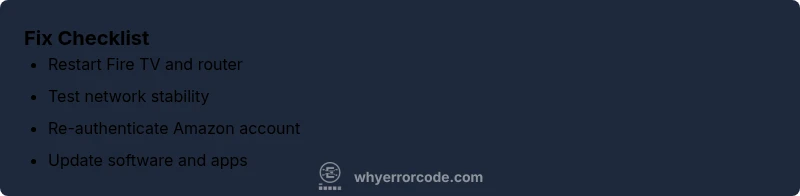
- Restart Fire TV and router: A full power cycle clears stuck sessions and renews network leases.
- Check network status: Validate your Wi‑Fi health by testing a known-good device or running a speed check.
- Re-authenticate: Sign out of Amazon on the Fire TV, wait 30 seconds, and sign back in; re-authorize permissions if prompted.
- Update software: Update the Fire TV OS and the streaming app to the latest version.
- Reinstall the app: Uninstall the suspected app, reboot, and reinstall from the Amazon Appstore.
- Factory reset if necessary: Use Settings > My Fire TV > Reset to Factory Defaults as a last resort, knowing it will erase apps and preferences.
Other potential causes and how to test them
If the above steps don’t fix 9912, explore less common issues:
- App licensing or service outages: Check the app’s status page or social channels for reports and apply updates when service resumes.
- HDMI/TV handshake problems: Ensure the HDMI cable is firmly connected; try a different HDMI port or a different cable to rule out video path issues.
- Local network security settings or VPNs: Disable VPNs or firewall rules that might block streaming services.
- Device storage or cache saturation: Free some storage if space is tight, or clear cache for the affected apps.
Testing each hypothesis with a controlled change helps avoid unnecessary resets and preserves user data.
Safety, warnings, and when to call support
Safety matters in troubleshooting. Do not attempt electrical work beyond basic device power cycling. Avoid disconnecting power during thunderstorms or when devices feel hot. If you rely on critical streaming services (work, education, or healthcare apps), consider reaching out to Why Error Code support for guided troubleshooting beyond basic steps.
When to contact Amazon support:
- 9912 persists after all standard fixes
- You observe related account login issues or unexpected billing prompts
- You cannot sign in or your device remains unresponsive after a factory reset
Professional assistance can help rule out hardware faults or account problems that personal troubleshooting can’t resolve.
Prevention tips to avoid error 9912 in the future
Prevention is better than cure. Implement these practices to reduce the likelihood of encountering 9912 again:
- Keep the Fire TV and apps updated automatically to minimize compatibility issues.
- Use a stable home network with strong signal strength and a consistent router configuration.
- Maintain valid Amazon account credentials and monitor sign-in activity for unusual changes.
- Limit the number of background apps running during streaming to avoid resource contention.
- Regularly reboot your router and Fire TV on a routine basis to refresh connections.
By building these habits, you’ll shorten future recovery times and maintain smoother streaming experiences.
Steps
Estimated time: 45-60 minutes
- 1
Restart devices
Power off the Fire TV and router, wait 60 seconds, then power them back on. Allow devices to fully boot before testing again.
Tip: A clean restart clears temporary cookies and stuck sessions. - 2
Check network stability
Verify the Fire TV shows a strong network connection in Settings > Network. Run a quick speed test on another device to confirm adequate bandwidth.
Tip: HD streaming typically requires 5–10 Mbps per stream. - 3
Refresh Amazon authentication
Sign out of your Amazon account on the Fire TV, wait 30 seconds, then sign back in. Reauthorize any prompts.
Tip: If you use multiple profiles, sign out of all profiles and sign back in. - 4
Update software
Go to Settings > My Fire TV > About > Check for Updates and install any available updates. Repeat for installed apps.
Tip: Enable automatic updates to reduce future issues. - 5
Reinstall the streaming app
Uninstall the suspected app, restart the Fire TV, then reinstall from the Appstore. Open and sign in again.
Tip: Clearing cache during reinstall can help resolve glitches. - 6
Factory reset (last resort)
If nothing else works, reset to factory defaults via Settings > My Fire TV > Reset to Factory Defaults. This erases apps and data.
Tip: Back up any important data before resetting.
Diagnosis: Amazon Fire TV shows error code 9912 when attempting to start streaming
Possible Causes
- highUnstable or weak network connection
- mediumExpired or invalid Amazon account authentication
- mediumOutdated Fire TV software or app
- lowApp-specific service outage or licensing issue
- lowHDMI handshake or TV input issues
Fixes
- easyRestart the Fire TV and router/modem
- easyTest and improve Wi-Fi signal (move router, switch bands, reduce interference)
- easySign out/in to Amazon account on the Fire TV
- easyCheck for and install Fire TV software and app updates
- easyReinstall the affected streaming app
- hardFactory reset the Fire TV as a last resort
Frequently Asked Questions
What does Amazon Fire TV error code 9912 mean?
Error 9912 typically points to network access or authentication problems that block streaming. It often appears after connectivity interruptions or login changes. Fixes focus on renewing connections and sign-ins.
Error 9912 usually means there’s a network or login issue blocking playback. Try a quick restart and sign-in refresh to resolve it.
Can I fix this without professional help?
Yes. Start with simple steps: restart devices, verify network strength, sign out/in to Amazon, and update software. Most users resolve 9912 without professional support.
Most fixes are simple: restart devices, check network, re-authenticate, and update software.
Will a factory reset erase my apps?
A factory reset restores the device to its original state and removes installed apps and preferences. Backup important data before proceeding.
A factory reset will erase apps and settings; back up what you need first.
Should I check my internet speed when this happens?
Yes. Poor or inconsistent speeds can trigger 9912. Run a speed test and ensure you meet recommended bandwidth for streaming.
Check your speed to see if network issues are the root cause.
Does this affect all apps or just one?
It can affect one or multiple apps. If it’s isolated to a single app, focus on reinstalling that app; if broader, inspect network and device software.
If it’s just one app, reinstall that app; if many apps fail, check network and system updates.
When should I contact Amazon support?
If 9912 persists after all standard fixes, or you suspect account verification or device hardware issues, reach out to Amazon support.
If fixes don’t work, contact Amazon support for deeper account or hardware checks.
Watch Video
Top Takeaways
- Restart devices to clear glitches
- Refresh Amazon authentication regularly
- Update Fire TV software to prevent errors
- Factory reset only as last resort