Arena Error Code 89: Urgent Troubleshooting Guide
A comprehensive, urgent guide to diagnosing and fixing arena error code 89. Learn quick fixes, diagnostic flow, step-by-step repairs, safety tips, and prevention strategies to get back to normal operation fast.


Arena error code 89 typically signals a session or connection issue in arena platforms, often caused by network timeouts, expired tokens, or client-server mismatches. The quickest path to relief is to verify your network, re-login, clear cache, and update the app. If the problem persists, check official status pages and prepare to escalate to server-side investigation.
What arena error code 89 means in practice
In the context of competitive arena platforms, arena error code 89 is a generic signal that a session could not be established or maintained reliably. Read as a fault between the client (your device) and the server (the arena service), it often arises when a handshake fails, a session token expires, or a timeout occurs due to network latency. While the exact technical details can vary by platform, the practical impact is the same: you’re dropped from the session or blocked from starting one. Understanding this helps you apply targeted fixes without guessing wildly. According to Why Error Code, this error commonly stems from client-side factors such as connectivity and cache, or from server-side hiccups that require status checks.
Quick fixes you can try immediately
- Check your internet connection: run a speed test and switch networks if possible (e.g., from Wi-Fi to mobile data). A stable connection is crucial for arena sessions.
- Re-login to your account or restart the arena client to refresh authentication tokens and session state.
- Clear cache and data for the arena app, then reopen it to rebuild a clean session.
- Update the app or firmware to the latest version to ensure compatibility with the server.
- Look for public status updates from the platform’s official channels; a server-side issue will often be announced there. If you’re in a shared or enterprise network, verify that there are no firewall rules blocking necessary ports. If the problem persists, move to the diagnostics path.
When to escalate: if your device and network appear normal yet the error occurs consistently on multiple sessions or devices, it likely involves the server or a platform-wide bug.
Diagnostic flow: symptoms, causes, and fixes
Symptoms: You see arena error code 89 when joining a match, starting a session, or during an active session, often with an abrupt drop or retry prompt. You may notice flaky connectivity, delayed responses, or token messages. Causes can range from unstable network and expired credentials to local cache corruption and server-side issues. Fixes progress from easy to hard: start with client-side checks, then verify tokens, then consider server status. Keep a log of when the error occurs to identify patterns. Remember, some fixes may require waiting for the platform to resolve a server-side problem.
Step-by-step fix for the most likely cause
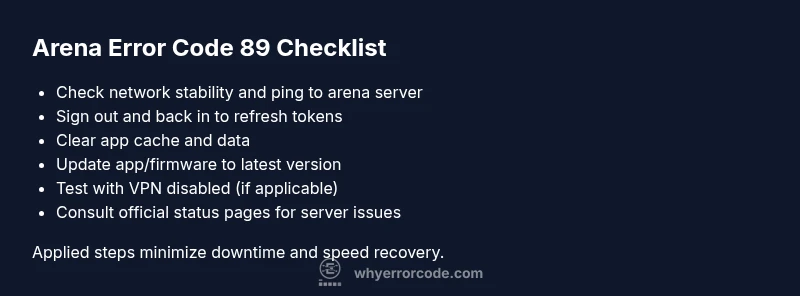
- Verify network stability: ensure a consistent connection and test latency to the arena server.
- Sign out, then sign back in to refresh session tokens.
- Clear app cache or local data and restart the client.
- Update to the latest version of the arena client and any affiliated firmware.
- If using VPN or proxy, disable it to test direct connectivity.
- Try a different device to rule out device-specific factors.
- If the issue persists, check official status pages and prepare to contact support with error timestamps.
Estimated time for this step: 15–30 minutes. Pro tip: document the exact time of occurrence and any error text shown to the screen.
Other potential causes and how to fix them
- Server-side bug or deployment issue: check platform status pages and follow any announced workarounds. This often resolves after a maintenance window.
- Token/credential problems: re-authenticate and verify that your account has the correct permissions for the arena.
- Local network blocks: verify firewall and router settings don’t block arena domains or required ports.
- Outdated client or firmware: ensure you are on the latest release to avoid compatibility issues.
- Hardware-related faults: check for overheating, failing network adapters, or degraded devices that impair connectivity. Each of these can be mitigated by a reboot, replacement, or environment adjustment.
Cost guidance (ranges, not exact): most software-side fixes cost nothing beyond your time. Hardware repairs or replacements, if needed, may range from a modest amount for a replacement network component to higher costs if professional service is required.
Safety, warnings, and when to call a professional
- Do not bypass security prompts or share tokens with others; never run unverified patches from third parties.
- If you suspect a server-wide outage, avoid attempting workarounds that could violate terms of service.
- If data integrity is involved (e.g., match history, tokens, or credentials), contact platform support rather than attempting ad-hoc fixes.
- When in doubt, involve an IT professional or the platform’s support team, especially if the arena is part of a regulated or enterprise environment.
- For potentially costly repairs, obtain a written estimate and confirm warranty or support coverage before proceeding.
Prevention and best practices to avoid future 89 errors
- Maintain stable network infrastructure and test latency to arena servers regularly.
- Use strong, current authentication methods and refresh tokens before sessions expire.
- Clear caches periodically and keep apps up to date to prevent cache corruption.
- Avoid proxy/VPN while gaming if not supported; ensure direct routes to the arena servers.
- Monitor official status pages and subscribe to alerts for planned maintenance or known issues. Implement a lightweight client diagnostic routine to catch problems early.
Quick mental model and what to monitor
- Think in terms of three layers: client (your device), network (your connection), and server (arena platform). Errors like 89 usually indicate a breakdown somewhere between these layers.
- Monitor token lifetimes, session timeouts, network jitter, and server health indicators.
- Build a simple remediation checklist: reconnection, re-authentication, cache clearing, and app update. This consolidates action when a problem recurs.
Steps
Estimated time: 30-45 minutes
- 1
Verify network stability
Run a speed test and ping the arena server to confirm low latency and stable connectivity. If problems are present, switch networks or contact your ISP.
Tip: Document current network performance with timestamps. - 2
Refresh session
Sign out of the arena, wait 30 seconds, then sign back in to refresh tokens and session state.
Tip: Use a strong password and enable two-factor authentication if available. - 3
Clear cache/data
Open the arena app settings and clear cache or data, then relaunch the app to rebuild a clean session.
Tip: Back up any local data if possible before clearing. - 4
Check for updates
Update the arena client and any required firmware to the latest version to ensure compatibility with server endpoints.
Tip: Enable auto-update if available for future protection. - 5
Test without VPN
Disable VPN or proxy and attempt a direct connection to the arena servers to rule out routing issues.
Tip: If VPN is required, ensure it’s the approved configuration for the platform. - 6
Try another device
Log in from a different device to determine if the issue is device-specific or widespread.
Tip: If the problem disappears on another device, focus on the original device’s network and software. - 7
Escalate if unresolved
If the error continues across devices and networks, contact arena support with timestamps and logs.
Tip: Include a concise description of steps already taken to speed up diagnosis.
Diagnosis: Error code 89 appears during arena session establishment or mid-session, causing drops or retries.
Possible Causes
- highUnstable or slow network connection
- mediumExpired or invalid authentication token or session
- mediumCorrupted local cache or cookies
- lowServer-side bug or deployment issue
- lowOutdated client application or firmware
Fixes
- easyTest and stabilize internet connection; switch networks if needed
- easySign out and back in to refresh tokens; re-authenticate
- easyClear app/cache data and restart the arena client
- easyUpdate the app/firmware to the latest release
- easyRestart devices and temporarily disable VPN/proxy to test direct access
- easyIf persists, check platform status pages or contact support for server-side investigation
Frequently Asked Questions
What does arena error code 89 mean in practice?
Error 89 typically signals a session or connection issue between the client and server. It often stems from network timeouts, expired tokens, or server-side hiccups and requires step-by-step checks to isolate the cause.
Error 89 usually means a session or connection problem between your device and the arena server. Start with network checks and re-authentication before calling support.
Can I fix error 89 myself?
Yes, many cases resolve with quick client-side fixes such as refreshing tokens, clearing cache, updating the app, or testing a different network. If it persists across devices, it may be server-side and require official status updates.
Often you can fix it by refreshing, clearing cache, or updating. If it keeps happening on multiple devices, check server status.
When should I contact support?
Contact support if the error recurs after all client-side steps, or if multiple users report the same issue. Provide timestamps, device details, and the steps you’ve already tried to speed up diagnostics.
Call support if it keeps happening after you’ve tried the fixes and note the time and device used.
Does this require a firmware update?
A firmware or app update might be required for compatibility with server endpoints. Check for updates in the app store or device maintenance utility and install if available.
Sometimes an update is needed for compatibility; check for updates and install if available.
How long does a server-side fix typically take?
Server-side issues usually get resolved within a maintenance window or a few hours depending on scope. Monitor status pages and system announcements for the latest timelines.
Server fixes can take a few hours; watch the status page for updates.
What information should I collect before contacting support?
Collect device model, OS version, app version, time of error, network type, and screenshots or logs. A concise summary helps the support team diagnose faster.
Note your device, app version, time of error, network, and any screenshots.
Watch Video
Top Takeaways
- Identify whether the issue is client, network, or server-side first.
- Start with quick wins: reconnect, re-authenticate, and clear cache.
- Follow the diagnostic flow and document timestamps for support.
- Escalate to professional help when server-side problems or device faults are suspected.