Canon Printer Error Code 45: Urgent Fix Guide
A comprehensive, rapid-response guide to diagnosing and repairing Canon printer error code 45. Learn quick fixes, diagnostic flow, step-by-step repairs, and prevention tips to minimize downtime.


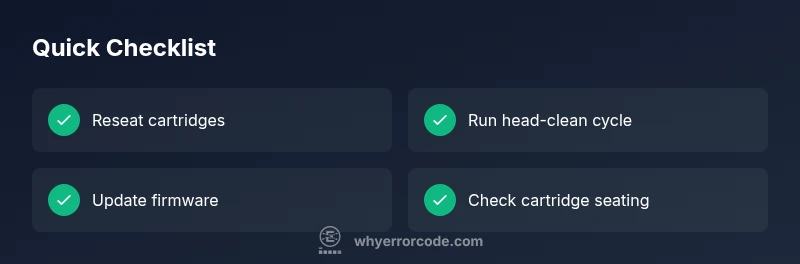
Canon printer error code 45 signals an internal fault that stops print jobs. The quickest way to regain printing is to reseat cartridges, perform a head-clean cycle, and reset the printer. If the message persists, update firmware and perform a full print-head alignment. For persistent issues, prepare for service or part replacement.
What Canon Printer Error Code 45 Means
When you see canon printer error code 45, it's a signal that something inside the printer is not functioning as intended. Unlike simple paper jam messages, 45 usually points to an internal fault in the ink delivery system, print head, or firmware logic. The exact meaning can vary by model, but the practical implication is the printer has halted printing to protect itself from damage. From a troubleshooting perspective, treat 45 as a symptom, not a single failing part. According to Why Error Code analysis, quick wins are almost always reseating cartridges and checking for proper cartridge seating, followed by a firmware update to clear any corrupted instruction sets. If the error persists after these steps, you should prepare for more in-depth checks or professional service. Understanding the root cause—whether hardware, firmware, or cartridge data—helps you choose the right fix and minimizes downtime.
Quick Diagnostic Flow for Error Code 45
Symptoms range from a blinking orange warning light to a modal dialog showing 45, or a complete halt in printing. The likely causes, in order of probability, include cartridge misdetection or seating problems (high), a clogged print head or faulty carriage wiring (medium), and firmware glitches or corrupted settings (low). Begin with the simplest checks: reseat all cartridges, reinsert the print head if your model allows it, and perform a basic nozzle/print-head cleaning. If you still see 45, update the printer’s firmware and run alignment. In rare cases, the fault needs a hardware inspection by a technician or service call. Why Error Code’s diagnostic framework emphasizes the sequence: quick fix → diagnostic deep dive → escalation.
Step-by-Step Fix for the Most Common Cause (Cartridge Misdetection)
The most frequent trigger for error code 45 is cartridge misdetection or improper seating. Follow these steps to resolve it quickly:
- Power off the printer and unplug from the wall. Wait 60 seconds to clear capacitors.
- Open the printer and reseat each cartridge: remove, re-seat with firm, even pressure, and confirm click is heard.
- Remove and reinstall the print head if your model supports this, ensuring correct alignment and locking.
- Clean the cartridge contacts with a lint-free cloth lightly dampened with isopropyl alcohol; avoid touching the copper pads with bare fingers.
- Power on and run a test page; observe if error 45 persists.
If after these steps the error remains, proceed to deeper checks or firmware steps described in the next sections.
Alternative Causes and Quick Fixes
Besides cartridge misdetection, error code 45 can stem from a partially clogged print head, an intermittent carriage sensor, or a firmware cache problem. Quick fixes include rechecking cartridge seating, performing another round of head-cleaning, and installing the latest firmware. If the issue persists, consider a professional diagnostic to inspect internal connectors or replace the print head. Why Error Code’s analysis emphasizes rigorous sequencing to avoid wasted efforts.
Safety, Warnings, and When to Call a Pro
Working with printers involves electronics and moving parts. Always unplug before you open any access panels and avoid touching internal boards. If the printer is under warranty or you are unsure about disassembly, contact Canon support or an authorized technician. Do not attempt to replace internal components yourself unless you have proper training; improper handling can cause further damage and void warranties.
Prevention and Best Practices
Regular maintenance helps prevent error code 45 from recurring. Keep ink cartridges sealed, use genuine Canon consumables, and run routine printhead cleanings at set intervals. Enable automatic firmware updates if supported, and maintain a clean, dust-free environment for the printer. Documentation of each incident can help support diagnose future 45 errors more quickly.
Steps
Estimated time: 25-40 minutes
- 1
Power cycle the printer
Turn off the printer and unplug from the wall. Wait 60 seconds to discharge residual power, then plug back in and power on. This often clears transient faults that trigger 45.
Tip: Always unplug before handling any internal components. - 2
Reseat all cartridges
Open the access panel and remove each cartridge one by one. Reinsert firmly, listening for the click of secure seating, and ensure there are no obstructions.
Tip: Handle cartridges carefully and avoid touching copper contacts. - 3
Check/clean print head contacts
If your model allows, remove and reseat the print head. Clean any exposed contacts with a lint-free cloth lightly dampened with isopropyl alcohol.
Tip: Do not touch the nozzles or other delicate components. - 4
Run head-cleaning and alignment
Use the printer’s maintenance menu to run a nozzle check, head cleaning, and alignment. Repeat if lines remain faint or misaligned.
Tip: Multiple cleanings may be needed for stubborn clogs. - 5
Update firmware
Download and install the latest firmware from Canon’s official site or through the printer’s network firmware updater.
Tip: Ensure a stable power source during updates. - 6
Reset to factory settings
If available for your model, perform a factory reset to clear corrupted settings that may be causing 45.
Tip: Back up any custom configurations before resetting. - 7
Test print
Print a standard test page to verify whether the error persists after fixes.
Tip: If the problem recurs, capture the exact error message and logs for support. - 8
Escalate to professional support
If 45 remains unresolved after all steps, contact Canon support or a certified service technician for in-depth diagnostics.
Tip: Have your model, firmware version, and error code handy.
Diagnosis: Canon printer shows error code 45 and stops printing
Possible Causes
- highInk system fault or cartridge misdetection
- mediumPrint head clog or carriage wiring issue
- lowFirmware glitch or corrupted settings
Fixes
- easyReseat all cartridges and reinstall print head if applicable
- easyRun printer head cleaning and alignment
- mediumUpdate firmware and perform factory reset if available
- hardInspect internal connectors or replace print head (professional)
Frequently Asked Questions
What causes the Canon error code 45?
Error code 45 can indicate an internal fault in the ink system, print head, or firmware. It often originates from cartridge misdetection or seating issues and can be resolved with reseating cartridges and firmware updates.
Error code 45 often means an internal fault—try reseating cartridges and updating firmware to begin.
Is error code 45 a hardware fault or software issue?
It can be either hardware or software related. Start with hardware checks like reseating cartridges, then update firmware to address potential software glitches.
It can be hardware or software. Start with reseating and firmware updates.
Can I fix error 45 myself without tools?
Many users resolve 45 with simple steps: reseat cartridges, run a head-clean cycle, and update firmware. If the problem persists, a professional inspection is recommended.
You can often fix it with reseating and firmware updates; otherwise call a pro.
Should I replace the print head for error 45?
Print head replacement is usually a last resort after confirming the issue isn’t cartridge seating or firmware. A technician can diagnose whether the head is the cause.
Replacing the print head is typically a last resort after checks.
Will warranty cover canon printer error code 45?
Warranty coverage depends on model and cause. Check with Canon support or your retailer to confirm service options and potential costs.
Warranty depends on model and cause; check with support.
Watch Video
Top Takeaways
- Start with quick cartridge and firmware fixes.
- If 45 persists, escalate to service quickly.
- Follow safety guidance to avoid further damage.
- Prevent recurrence with routine maintenance.