Disney Plus Error Code 93 Fix: Ultimate Troubleshooting Guide
A comprehensive, urgent guide to diagnosing and fixing Disney Plus error code 93 across devices. Learn common causes, quick wins, step-by-step repairs, and when to involve support to get streaming back fast.


Error code 93 on Disney Plus typically signals a device or account block preventing playback. The quickest fix is to sign out of all devices, clear the app cache, update the Disney Plus app, and verify your subscription is active. If it persists, test on another device or network and contact support if needed.
What Error Code 93 Means
Error code 93 on Disney Plus is not a generic service outage notification. Instead, it signals an access problem at the device or login level that blocks playback. In plain terms, the app can't verify your session, your device isn't compatible with the current streaming requirements, or your account isn't authorized to view the requested content. Because Disney Plus serves a global audience with region-based catalogs and multiple device ecosystems, an error code 93 often arises when the service cannot validate your identity or determine that your device is allowed to stream. According to Why Error Code, this error frequently stems from authentication problems, cached session data, or outdated software rather than a server-wide issue. If you encounter 93 repeatedly, treat it as a sign to verify both sides of the equation: user account status and device readiness. Start with the simplest checks—log out of the account and sign back in, ensure the app and OS are updated, and temporarily disable any network proxies—to rule out the most common culprits before deeper troubleshooting.
bold":"true"},
Common Causes of Error Code 93
There are several reliable culprits behind Disney Plus error code 93. The most common cause is an outdated app or firmware on your streaming device. A second frequent factor is an authentication issue—your session may have expired, or there could be a mismatch between your account status and the device trying to stream. VPNs or proxies can also trigger Code 93 by masking your real region and confusing the service’s geo-restriction checks. Regional catalog restrictions can lead to this error when content is not licensed in your current location, even if you’re properly signed in. Finally, parental controls or device-specific limitations (older smart TVs, streaming sticks, or set-top boxes) can block playback with a Code 93 message. Why Error Code analysis emphasizes that these causes are often interrelated—start with authentication and software, then verify region and network settings to triangulate the root cause.
bold":"true"},
Quick Fixes You Can Try Right Now
- Sign out of Disney Plus on all devices, then sign back in on the primary device. This clears stale session data that often causes 93.
- Clear the app cache/data on your streaming device to reset stored credentials.
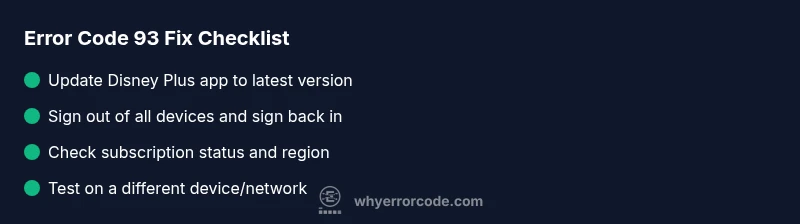
- Update the Disney Plus app to the latest version, and install any pending OS updates on the device.
- Check your Disney Plus subscription status and payment method; ensure you’re authorized to access the content you’re trying to view.
- Disable any VPNs or proxies, then reconnect from a supported network.
- Restart the device and try again, ideally on a stable home network.
- If possible, try a different device (phone, tablet, or smart TV) to confirm whether the issue is device-specific.
- Reinstall the Disney Plus app if cache clearing does not resolve the issue.
If none of these steps fix the error, proceed to the Step-by-Step fix for the most likely cause.
bold":"true"},
Step-by-Step Fix for the Most Likely Cause (Outdated App or Stale Session)
- Sign out of all devices from the account page and close all Disney Plus apps. This resets active sessions across platforms.
- Reopen the primary device and sign back in with your account credentials. Verify that the sign-in completes without errors.
- Clear cache/data for the Disney Plus app; if your device allows, also clear app data entirely. Reopen the app to re-create fresh credentials.
- Update the Disney Plus app to the latest version from your app store. Then check for any system updates on the device’s operating system and install them.
- Verify your subscription is active and that your region matches the content you’re trying to view. If you use a VPN/proxy, disconnect it and test on a direct connection.
- If issues persist, try a different device on the same network to determine if the problem is device-specific. If the alternate device streams normally, you may need to replace or repair the original streaming device.
tip1":"Sign out everywhere first to ensure all devices reset their sessions."
tip2":"A clean cache often resolves Code 93 without any hardware changes."
tip3":"Combining a device update with a sign-in reset yields the highest success rate."
tip4":"If content is region-locked, verify your country settings within Disney Plus for that content."
tip5":"Don’t force update via APKs on non-supported devices; use official app stores to avoid security risks."
tip6":"Estimated time: 45-60 minutes"}],
diagnosticFlow
stepByStep
tipsList
keyTakeaways
videoEmbed
faqSection
mainTopicQuery
Steps
Estimated time: 45-60 minutes
- 1
Sign out of all devices
Open Disney Plus on your primary device, go to Account settings, and choose Sign out of all devices. Confirm and wait a few seconds before signing back in on the main device.
Tip: This clears cross-device sessions that commonly trigger Code 93. - 2
Clear cache/data
Navigate to the app settings on your device and clear the cache, or clear data entirely if the option exists. Reopen Disney Plus to re-establish a fresh session.
Tip: Cached credentials can resemble a stale login; clearing them often fixes 93. - 3
Update the app
Go to the app store and install any available Disney Plus updates. If your OS is outdated, perform OS updates too.
Tip: App updates frequently include the latest authentication fixes. - 4
Verify subscription & region
Check your Disney Plus subscription status, payment method, and ensure you’re streaming content available in your current region.
Tip: Region mismatches and expired payments commonly cause Code 93. - 5
Disable VPN/proxy
If you’re using a VPN or proxy, disable it and attempt to stream without it. VPNs can trigger geo-block checks.
Tip: Streaming over a direct connection reduces errors. - 6
Test another device
If available, try streaming from a different device on the same network to determine if the issue is device-specific.
Tip: Device-specific issues may require hardware repair or replacement.
Diagnosis: Disney Plus error code 93 is displayed when attempting to play content on a device
Possible Causes
- highOutdated Disney Plus app
- mediumExpired or paused subscription or account restrictions
- lowDevice incompatibility or regional restrictions
Fixes
- easyUpdate the Disney Plus app to the latest version
- easySign out of all devices, clear cache, and sign back in
- easyCheck subscription status and payment method; ensure regional access matches content
- easyDisable VPN/proxy and test on a different network
- easyRestart the device and try a fresh sign-in
Frequently Asked Questions
What does Disney Plus error code 93 mean?
Error code 93 indicates an access or authentication issue preventing playback, often caused by outdated apps, expired sessions, or region restrictions.
Error 93 means your device or account can't authorize playback right now; try signing out, updating the app, and checking your region.
Is error code 93 regional?
It can be region-related if the requested content isn’t licensed in your location. Check regional availability and disable any VPNs.
Sometimes 93 happens because the content isn’t available in your country; make sure you’re not using a VPN.
Should I restart my device for 93?
Yes. A simple restart clears memory and resets network connections that may be blocking authentication.
Restarting your device often fixes 93 without further steps.
Can I fix 93 on a smart TV?
Absolutely. Update the TV’s firmware, clear app data, and reinstall Disney Plus on the TV app. If needed, test on another streaming device connected to the same network.
You can usually fix it on a smart TV by updating the TV, clearing cache, and re-installing the app.
When should I contact support?
If the error persists after all quick fixes and a step-by-step restart, contact Disney Plus support or your device manufacturer for deeper diagnostics.
If it keeps happening after you’ve tried all fixes, it’s time to reach out for official help.
Does cost apply for support?
Disney Plus support is typically free via chat or phone. If hardware service is needed, costs vary by region and service provider.
Support is usually free; hardware service costs depend on your region.
Watch Video
Top Takeaways
- Sign out of all devices and refresh sessions.
- Update app and device OS to the latest version.
- Disable VPNs/proxies to test network compatibility.
- Verify subscription status and regional access before deeper fixes.
- If issues persist, test with another device or contact support for guidance.