E87 Error Code Steam: Urgent Diagnostics and Fixes
Urgent guide to diagnosing and fixing the E87 error code in Steam. Learn quick fixes, step-by-step repairs, and safety tips from Why Error Code.


The E87 error code in Steam signals a failed download or update, often caused by corrupted cache, interrupted installs, or network hiccups. A quick fix is to clear Steam's download cache, verify the integrity of affected game files, and restart the client. If the problem persists, update drivers and check Steam's server status.
What the E87 error means for Steam users
According to Why Error Code, the E87 error in Steam typically signals a download or update failure rather than a game-specific bug. It often arises when the Steam cache becomes corrupted, a temporary network hiccup interrupts a transfer, or background services conflict with the launcher. Understanding this helps you prioritize fixes that restore the download pipeline and minimize downtime for your games and apps. This guide from Why Error Code walks you through fast wins and deeper repairs to get you back to gaming quickly.
Symptoms and when it appears
Users usually see E87 during a download or update, with progress showing but the install pausing or failing. You might notice slowed downloads, repeated retry loops, or Steam reporting 'Failed to Install' for specific games. The error can pop up after a system wake, VPN use, or a router reboot. Recognize these symptoms early to apply the most effective quick fixes and avoid unnecessary tinkering.
Most likely causes and risk factors
- High likelihood: Corrupted Steam download cache or damaged local game files. This is by far the most common trigger and often resolves with simple cache clearing or file verification.
- Medium likelihood: Network fluctuations, VPN usage, or firewall blocks that interrupt data transfers or block Steam services.
- Low likelihood: Steam server issues or regional outages that affect multiple users at once.
- Additional factors: Third‑party antivirus or background software interfering with Steam processes or file access can create intermittent failures. Identifying these helps you tailor the fix to your environment.
Quick fixes you can try now
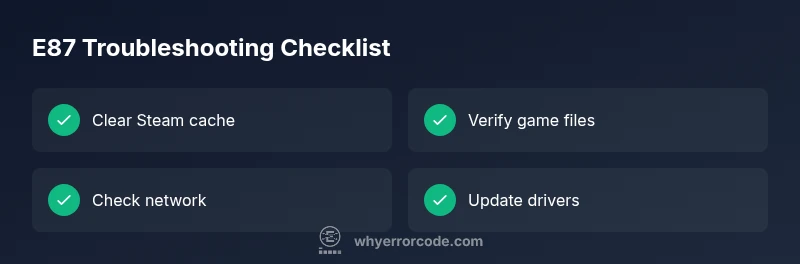
- Clear Steam download cache: Steam > Settings > Downloads > Clear Download Cache, then restart Steam. This resets partial downloads and corrupted state without removing installed games.
- Verify integrity of game files: In Library, right-click the game > Properties > Local Files > Verify Integrity of Game Files. This replaces missing or corrupted assets.
- Restart network gear: Power cycle your router/modem and test a direct Ethernet connection if possible.
- Temporarily disable VPNs or firewall rules that could block Steam traffic, then try the download again.
- Check Steam server status and region restrictions: regional outages or server maintenance can trigger E87 for several users. If the servers are down, waiting it out is often simplest.
Step-by-step overview for deeper repairs
If quick fixes don’t resolve E87, follow the structured repair flow in the next section. It expands on cache handling, file verification, network tuning, driver updates, and Steam reinstallation as a last resort. This approach minimizes downtime and preserves your library.
Other potential causes and how to handle them
Beyond cache and network, issues such as a misconfigured DNS, DNS over HTTPS, or aggressive security software can impede Steam. Ensure DNS settings are stable, disable aggressive content filtering temporarily, and recheck after changes. For corporate or shared networks, talk to the admin about Steam traffic shaping or port restrictions that might affect downloads.
Safety, warnings, and when to call a professional
Always back up important save data before significant repairs. Avoid unplugging hardware during updates and do not bypass system prompts for restarts. If you suspect a hardware fault, OS corruption, or persistent driver conflicts after all user-level fixes, seek professional assistance. If Steam or your OS shows unusual behavior beyond E87, professional diagnostics can prevent data loss.
Steps
Estimated time: 60-90 minutes
- 1
Clear Steam download cache
Open Steam, go to Settings, then Downloads. Click Clear Download Cache and restart Steam. This often clears partial downloads that trigger E87.
Tip: A fresh start often resolves hangups without touching your games. - 2
Verify game files
In your Library, right-click the affected game > Properties > Local Files > Verify Integrity of Game Files. Allow Steam to replace corrupted files.
Tip: This confirms which files are intact and which need replacement. - 3
Test network stability
Reboot your modem/router; try a wired connection if possible and run a quick speed test to ensure consistent bandwidth.
Tip: Avoid VPNs or proxy settings during testing to isolate the issue. - 4
Update drivers and OS
Update your GPU drivers from the official site and install any pending Windows updates, then reboot.
Tip: Outdated drivers can cause compatibility hiccups with Steam downloads. - 5
Check Steam server status
Visit Steam's status page or a trusted outage tracker and confirm there are no regional outages affecting your area.
Tip: If servers are down, no local fix will solve the problem. - 6
Reinstall Steam (last resort)
If all else fails, back up your games and reinstall Steam. This resets the launcher without permanently removing your library.
Tip: Use Steam's backup tools to minimize data transfer during reinstallation.
Diagnosis: Steam client shows E87 error during download or update
Possible Causes
- highCorrupted download cache or damaged local game files
- mediumNetwork fluctuations, VPNs, or firewall blocks
- lowSteam servers experiencing issues or regional outages
Fixes
- easyClear download cache in Steam settings
- easyVerify integrity of game files for affected titles
- mediumUpdate GPU drivers and perform a Windows update check
- hardReinstall Steam as a last resort (preserves games)
Frequently Asked Questions
What does the E87 error code mean in Steam?
E87 points to a download or update failure in the Steam client, often caused by cache corruption or network interruptions. Start with quick fixes like clearing the cache and verifying files before deeper repairs.
E87 means a Steam download or update problem. Start with cache clearing and file verification, then move to driver updates if needed.
Will E87 affect all games or only one title?
E87 is generally tied to the Steam client or a specific download task rather than a single game. If symptoms persist across multiple titles, the issue is likely client-wide.
Usually it affects the Steam client or the download task rather than a single game, especially if multiple games fail to update.
Can I fix E87 without reinstalling Steam?
Yes. Most cases resolve with cache clearing, file verification, network checks, and driver updates. Reinstallation is only recommended if these steps fail.
Yes, you can usually fix it without reinstalling Steam by trying the cache clear, file checks, and network tweaks.
Is there a cost to fix E87?
Software-only fixes are typically free for users. If professional help or hardware replacement is needed, costs vary by service and region.
Software fixes are usually free; professional help or hardware replacement can incur costs depending on your location.
Why did E87 appear after a Windows update?
OS updates can alter network settings or drivers, exposing compatibility issues with Steam downloads. Recheck drivers and settings after updates.
Sometimes Windows updates change settings that affect Steam; update drivers and recheck settings after updates.
How long does it take to fix E87?
Resolution time varies with the issue. Many users resolve it within a single session using quick fixes; more complex cases may require a follow-up, including reinstallation.
Response time varies; most people fix it in one session with quick fixes, some cases need more steps.
Watch Video
Top Takeaways
- Verify cache and game files first
- Rule out network and server issues
- Progress to driver and OS updates if needed
- Reinstall Steam only as a last resort