EA App Error EC-201: Urgent Troubleshooting Guide
Encountering EA app error EC-201? This urgent guide walks you through quick fixes, diagnostics, step-by-step repairs, and prevention tips to restore access quickly.


ea app error code ec 201 means a startup authentication failure, usually caused by token expiration or network blocks. The quickest fixes are to check your internet connection, restart the EA app, and sign out then sign back in to refresh credentials. If problems persist, disable VPNs or firewall blocks, update the EA app, clear cache, and retry on a different network.
What ea app error code ec 201 Means
In the world of EA's software, the error code ec 201 indicates a startup authentication failure within the EA app. When you launch the client or attempt to start a game, the app tries to validate your license and session tokens with EA servers. If the token is expired, revoked, or the connection to EA's authentication service is blocked, the app will halt and display EC-201. According to Why Error Code, EC-201 is one of the more common startup issues, especially on networks with aggressive firewall rules or when a device has recently changed networks or credentials. The short, practical interpretation is: your device cannot establish a trusted session with EA's authentication system quickly enough. This isn’t necessarily a sign of a broken account; rather, it’s a friction point in the authentication handshake between your device and EA's servers. For developers and IT pros, EC-201 can be reproduced in environments with strict corporate proxies, VPNs, or credential caches that haven't refreshed in time. The good news is that most people can resolve EC-201 with a small set of deliberate steps, without needing advanced troubleshooting or a full system reinstall.
Diagnostic Flow for ec 201
To diagnose ec 201 efficiently, you should move from observable symptoms to root causes, then to concrete fixes. Symptoms typically include: the EA app failing to start, a persistent EC-201 splash or error dialog, or an inability to sign in despite correct credentials. The most likely causes, in order of probability, are: 1) Network connectivity issues—your device cannot reach EA authentication servers reliably; 2) Expired or invalid authentication tokens—stored credentials must be refreshed; 3) Server-side errors or licensing verification problems—EA's servers may be temporarily unavailable or your license token may be flagged. Less common but plausible contributors include misconfigured DNS, VPNs or firewall rules that block outbound connections, and corrupt local cache. For each cause, apply a recommended fix and re-test. If you work within a managed network, consult your IT admin about outbound ports and proxy settings. If you're a developer or tester, reproduce the issue on a clean profile to confirm token refresh resolves the problem. In all cases, maintain a log of steps and outcomes to support any escalation.
Quick Fixes You Can Try Now
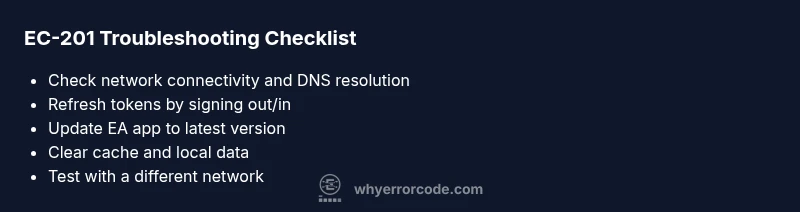
Some EC-201 issues resolve with fast, low-effort actions. These quick fixes typically work for most users and carry no risk to data. First, check your internet connection: ensure you have stable Wi‑Fi or a wired ethernet link, and pause any bandwidth-heavy background tasks. If you use a VPN, firewall, or antivirus with strict rules, temporarily disable them to test whether they are blocking OAuth traffic to EA servers. Next, sign out of the EA app, then sign back in to refresh session tokens. Reboot your computer or console to clear transient software state. Update the EA app to the latest version from the official store, and clear the app cache or local data to remove corrupted files. If you still see EC-201, try a different network (for example, a mobile hotspot) to isolate local network issues. For enterprise environments, ensure DNS resolves correctly and that corporate proxies are not intercepting authentication traffic. The cost of these steps is basically free, aside from your time; in worst-case scenarios, professional support may cost a moderate amount, but DIY fixes remain the fastest path to a resolution.
Steps
Estimated time: 20-35 minutes
- 1
Verify network connectivity
Open a browser and load a non-EA site to confirm outbound connections are working. Run a speed test to verify latency and packet stability. If DNS or connectivity issues show up, resolve them before retesting the EA app.
Tip: A quick ping to EA authentication endpoints can confirm flakiness. - 2
Sign out and sign back in
In the EA app, sign out of your account, then sign back in to refresh OAuth tokens. If you use two-factor authentication, prepare your second factor during sign-in to avoid delays.
Tip: Use a trusted network during sign-in to prevent token reprovisioning from failing. - 3
Update the EA app
Check for app updates in your platform’s store and install the latest version. Updates often fix bugs related to authentication and licensing checks.
Tip: Restart the device after updating to ensure all components load correctly. - 4
Clear cache and local data
Clear the EA app cache and, if available, local data related to authentication. This removes corrupted files that can block EC-201 from resolving.
Tip: Back up login details before clearing data to avoid losing access. - 5
Temporarily disable VPN/firewall
If you’re using a VPN or strict firewall rules, disable them temporarily to test whether they’re blocking authentication traffic to EA servers.
Tip: If this resolves EC-201, adjust the VPN/proxy settings rather than leaving them off. - 6
Test on alternate network and check status
Connect via a different network (mobile hotspot, another ISP) and verify EA server status pages for reported outages or license issues.
Tip: Server-side issues often resolve within minutes to a few hours.
Diagnosis: EA app shows error code EC-201 on startup or while launching games.
Possible Causes
- highNetwork connectivity issues
- mediumExpired/invalid authentication tokens
- lowServer-side outages or licensing verification problems
Fixes
- easyCheck internet connection and test with a stable network
- easySign out and sign back in to refresh tokens
- easyUpdate the EA app to the latest version
- easyClear the EA app cache/local data
- easyTemporarily disable VPNs/firewalls that may block authentication
Frequently Asked Questions
What does EC-201 mean in the EA app?
EC-201 is a startup authentication failure. It means the EA app cannot validate your license or session with EA servers at launch. This is usually caused by expired tokens, blocked connections, or temporary server issues. Following a structured fix sequence typically resolves it quickly.
EC-201 means the EA app can’t authenticate at startup. Start with token refresh and network checks, then update the app.
Can EC-201 be caused by my account status or license?
Yes. If your license token is invalid or the account is flagged, the app may refuse to start and show EC-201. Verifying your account status through the official EA account page helps determine if licensing is the root cause.
Licensing issues can trigger EC-201; confirm your account status and licensing before deeper troubleshooting.
Will reinstall fix EC-201?
A reinstall can sometimes address corrupted files causing EC-201, but it should be a last step after trying token refresh, updates, and cache clearing. If the problem persists after reinstall, contact EA support.
Reinstalling can help if files are corrupted, but try the simpler steps first.
Does using a VPN cause EC-201?
VPNs and certain proxies can block authentication traffic, leading to EC-201. Disable the VPN or adjust its configuration to allow EA services, then test again.
VPNs can interfere with EA authentication. Turn it off and retry.
How long does EA server recovery take for EC-201?
Server-side issues are variable; most outages resolve within minutes to a few hours. Check the EA status page for real-time updates and follow recommended steps during downtime.
Server issues resolve in minutes to hours; check status pages for updates.
Watch Video
Top Takeaways
- Refresh tokens via sign-in to restore sessions
- Update EA app to fix known EC-201 bugs
- Use a different network to isolate local issues
- Temporarily disable VPNs/firewalls to test connectivity
- Consult status pages for server-side outages and licensing problems