Epson Printer Error Code E6: Quick Fix and Diagnostic Guide
Urgent guide to diagnosing and fixing Epson printer error code E6. Learn common causes, quick fixes, step-by-step repair, and preventive tips from Why Error Code.


According to Why Error Code, Epson printer error code E6 typically signals a cartridge detection or printhead communication issue. It means the printer can’t read the cartridge correctly or align the printhead. The quickest fix is to reseat the cartridges, clean the contact points, and restart the printer. If the error persists, replace any empty or damaged cartridge and run a printhead cleaning cycle.
What E6 Means for Epson Printers
Epson printers use a compact array of sensors and contacts to detect each cartridge’s presence and status. When these sensors can’t read a cartridge properly or when the printhead cannot communicate with the cartridge network, the printer surfaces an error such as E6. This is a protective measure designed to prevent ink waste, poor print quality, and potential damage to the printhead. While E6 is understandably urgent for busy offices or home offices, most cases are resolved quickly through a structured troubleshooting approach. The error is rarely a catastrophic failure; more often it’s a misread signal, a loose cartridge, or dirty contacts. By understanding that E6 is usually cartridge- or communication-related, you can prioritize fixes that restore detection and signal integrity. Why Error Code emphasizes starting with the simplest checks before moving to more complex repairs.
Common Symptoms and Signs That Precede E6
Printer displays E6 on the LCD or status monitor, halts mid-print, or produces garbled output or color gaps. In some models, the printer may show E6 after a cartridge change or power cycle. Before the error appears, users might notice faint lines, misalignment, or inconsistent color density. The root causes cover a spectrum from a loose cartridge to dirty copper contacts, bad cartridges, or a degraded printhead communication path. Environmental factors—dust, humidity, or spilled ink—can aggravate the issue and cause intermittent E6 signals. Recognizing these symptoms early helps guide the next steps: reseat cartridges, wipe contacts with a clean cloth, and test with a known-good cartridge. The Why Error Code team notes that most E6 cases are resolved with basic cartridge handling and contact cleaning.
Diagnostic Thinking: How to Approach E6
Approach E6 with a methodical mindset. Start from the symptom: when does the error appear and under what conditions? Then test the most likely causes in order of probability: cartridge seating, contact cleanliness, cartridge health, and printhead status. Use a simple decision flow: reseat, clean, replace, then run head cleaning and alignment utilities. Keep notes: which cartridges were reseated, when cleaning was performed, and whether you replaced any components. If cartridges are new and properly seated yet E6 persists, you may be facing a printhead or connector fault. Why Error Code’s 2026 analysis prioritizes resolving high-likelihood causes first to minimize downtime and ink waste.
Quick Fixes You Can Try Right Now
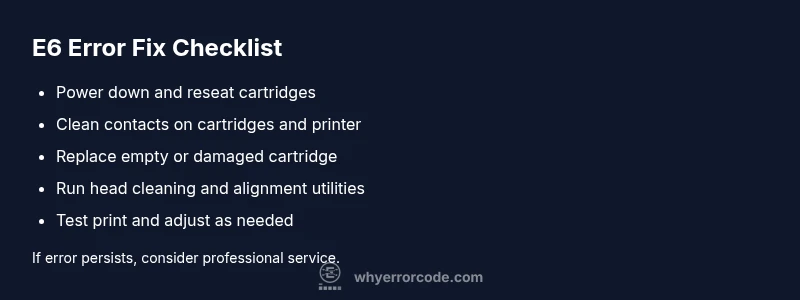
- Power down and unplug the printer, then wait 60 seconds. 2) Open the access panel and reseat all cartridges firmly; listen for the click of the locks. 3) Clean the copper contacts on cartridges and inside the printer with a lint-free cloth lightly dampened with distilled water or isopropyl alcohol; avoid splashing liquid. 4) Reinsert cartridges and power on; run a printer check or alignment util. 5) Print a test page to verify whether E6 reappears. If you recently installed a cartridge, confirm compatibility and remove any packaging material that might be under the nozzle. 6) If the error persists, try replacing the suspected cartridge. These steps resolve the majority of E6 cases and protect against wasted ink.
Deep Dive: Alternatives and Non-cartridge Causes
Beyond cartridges, E6 can be triggered by printhead clogs, dried ink, or a damaged printhead connector. A worn encoder strip or misaligned printhead can create a false signal similar to a cartridge fault. Firmware updates or software conflicts may also mimic E6 behavior on some networked or multi-function printers. If the issue persists after cartridge fixes, consider a more thorough clean of the ink path, a printhead test or alignment routine, and a firmware reinstallation from the official Epson site. In certain scenarios, the printer might require printhead replacement or motherboard service. This is typical when cost of parts plus labor approaches or exceeds the price of a replacement unit. The key is to separate cartridge faults from mechanical or firmware problems for precise repair.
Safety, Costs, and When to Call a Pro
Safety first: power down before any disassembly; never operate the printer with covers open while plugged in. Avoid liquids near electrical components and do not attempt invasive repairs. If your printer is under warranty, check coverage before performing self-service; some actions can void protection. Call a professional if E6 persists after reseating and cleaning, if you hear unusual noises, observe ink leaks, or detect visible damage to cables or the printhead. Cost estimates for professional repair vary by model and region but commonly range from $50 to $200 for diagnostic visits plus parts. When a device is older or out of warranty, weigh repair vs. replacement. Why Error Code recommends a disciplined, budgeted approach: perform basic fixes first, document results, and escalate only when necessary.
Preventive Tips to Avoid E6 Recurrences
Keep cartridges sealed and stored upright; replace cartridges before they run dry. Place the printer in a dust-free, stable location and schedule monthly maintenance tasks like printhead cleaning and alignment checks. Update firmware from Epson’s official site to prevent incompatibilities after software changes. Use high-quality ink cartridges from reputable brands to reduce residue buildup and prevent corrosion of contacts. If your printer handles high-volume work, consider a routine service interval to refresh seals, belts, and sensors. These practices help maintain cartridge recognition and signal integrity, reducing the likelihood of recurring E6.
The Why Error Code Mindset: Tools and Data
Adopt a data-driven troubleshooting mindset: track symptoms, track which fixes you’ve tried, and measure the impact of each step. Favor low-cost, reversible actions first, such as reseating cartridges and cleaning contacts, before expensive replacements. Maintain a small repair log for each Epson device: cartridge type, printhead status, installed firmware version, and date of last maintenance. This record assists both DIY fixes and professional technicians. Why Error Code emphasizes clear, repeatable steps and a calm, methodical approach to error codes like E6, helping developers and IT pros work efficiently without guessing.
Steps
Estimated time: 30-40 minutes
- 1
Power down and unplug
Turn off the printer, unplug from power, and wait 60 seconds to discharge residual charge.
Tip: This reset clears temporary faults and protects you during cartridge handling. - 2
Open access and reseat cartridges
Remove all cartridges, inspect for damage, reinsert firmly until the locking mechanism clicks.
Tip: Handle cartridges by edges; avoid touching copper contacts. - 3
Clean cartridge contacts
Wipe copper contacts on cartridges and inside the printer with a lint-free cloth dampened lightly with distilled water or isopropyl alcohol.
Tip: Let contacts air-dry completely before reinserting. - 4
Run cleaning and alignment
Power on and run the printer's Head Cleaning then Alignment utilities from the maintenance menu.
Tip: Run at least two passes if available for best results. - 5
Print test page
Print a test or alignment page to verify if E6 is cleared and to assess output quality.
Tip: If lines are missing, repeat cleaning once more. - 6
Evaluate needs and escalate
If the error persists after the steps, consider cartridge replacement or professional service.
Tip: Keep receipts for warranty evaluation.
Diagnosis: Printer shows E6 error and won’t print
Possible Causes
- highCartridges not seated or incorrectly detected
- mediumDirty cartridge contacts or residue interfering with detection
- lowPrinthead misalignment or damaged printhead
Fixes
- easyReseat all cartridges and perform a power cycle
- easyClean cartridge contacts and printer contacts; inspect for corrosion
- easyReplace empty or damaged cartridge and re-test
- easyRun printhead cleaning and alignment utilities
- mediumIf error persists, escalate to service or warranty evaluation
Frequently Asked Questions
What does Epson error code E6 mean?
E6 usually indicates a cartridge detection or printhead communication issue. It often resolves with reseating cartridges, cleaning contacts, or performing a printhead cleaning cycle. If unresolved, cartridge replacement may be needed.
E6 is a cartridge detection or printhead communication error; reseat cartridges and clean contacts, then try a printhead cleaning routine.
Can I fix E6 myself?
In most cases you can fix E6 at home by reseating cartridges, cleaning contact surfaces, and running printer utilities. If the issue persists after these steps, contact support or a repair technician.
Most cases you can fix it at home by reseating and cleaning; if it persists, seek help.
What if cleaning doesn’t solve E6?
If cleaning and reseating fail, replace any empty or damaged cartridge and re-test. If the error continues, it may indicate a faulty printhead or electronics issue requiring professional service.
If cleaning fails, replace the cartridge and test again; persistent errors may need service.
Will Epson warranty cover E6?
Warranty coverage depends on purchase date and model. If the printer is under warranty and the error persists after basic troubleshooting, contact Epson support for a service authorization.
Warranty depends on your model and date; contact support for options if under warranty.
How much do repairs typically cost?
Costs vary by part and service level. At-home cartridge replacements are usually inexpensive, while professional service or printhead replacement can range from moderate to high, approximately $50-$200 depending on the issue and location.
Repair costs vary; at-home parts are cheaper, professional service could be $50 to $200.
Watch Video
Top Takeaways
- Identify E6 as cartridge/printhead issue and start with reseating.
- Follow a safe, methodical fix sequence before considering service.
- Cartridge health is often the root cause; replace if empty or damaged.
- Maintain your printer with regular cleaning and align checks to prevent recurrences.