Error Code 0xa0000400 Windows 11 Upgrade: Urgent Fixes and Diagnostics
Diagnose and repair error code 0xa0000400 during Windows 11 upgrade with urgent fixes, a diagnostic flow, step-by-step repairs, safety tips, and prevention strategies from Why Error Code.


Error code 0xa0000400 during a Windows 11 upgrade typically signals a blocked update path or corrupted update components. The quickest path to relief is to reset Windows Update components, free disk space, and run a quick DISM/HealthCheck. If problems persist, consider using the Media Creation Tool to upgrade offline.
What the error means for your Windows 11 upgrade
When you see error code 0xa0000400 during a Windows 11 upgrade, it signals a disruption in the upgrade path rather than a simple failure of your hardware. In practical terms, the installer cannot access the files it needs, or it encounters corrupted update components, blocked permissions, or a faulty update cache. The upgrade process stops, and Windows may roll back to your current build to avoid partial installation. The result is a blocking error that prevents deployment of the new OS feature set until the underlying cause is repaired. This guidance from Why Error Code emphasizes addressing the update pipeline first to minimize data risk and preserve existing configurations while you troubleshoot. You’ll learn how to verify readiness, perform safe fixes, and confirm success before attempting another upgrade.
Note how the error code feels primarily software-related, but it can involve hardware or BIOS settings if the upgrade path detects incompatibilities. With an urgent Windows 11 upgrade issue, the priority is to stabilize the update flow and confirm a clean environment before committing to a full OS upgrade.
Why this error occurs during Windows 11 upgrades
The error code 0xa0000400 during Windows 11 upgrades commonly stems from a few core software issues that block the installer from progressing. The most frequent culprits are insufficient disk space, a corrupted Windows Update cache, or broken update components. Other frequent causes include antivirus interference, unstable network connections, outdated drivers, and BIOS/UEFI settings that misreport hardware compatibility. Less common but possible is a damaged user profile or a failing disk surface. In practical terms, you should treat software stack problems as the leading cause and hardware or firmware issues as secondary suspects. A methodical approach — starting with the simplest fixes and moving toward deeper repairs — yields the fastest resolution while minimizing data risk. The Why Error Code methodology emphasizes reproducible steps and verified results so you can be confident you’ve fixed the root cause.
Quick fixes you can try right now (no tools required)
- Restart the computer and try the upgrade again. A fresh boot state often clears transient faults that trigger 0xa0000400.
- Free up disk space on the system drive (at least 10–20 GB if possible) and run Disk Cleanup or Storage Sense.
- Disconnect non-essential USB devices and external drives that could interfere with the upgrade.
- Temporarily disable third-party antivirus or security software during the upgrade, then re-enable after success.
- Run the built-in Windows Update Troubleshooter and apply any offered fixes.
- Ensure the device has a stable network connection and correct date/time settings.
- If you’re using VPNs or firewall rules, temporarily disable them to test whether they block update payloads.
These steps are safe, reversible, and often resolve the majority of 0xa0000400 cases without tools. If the issue persists, proceed to the step-by-step repair for the most common cause.
Step-by-step repair for the most common cause
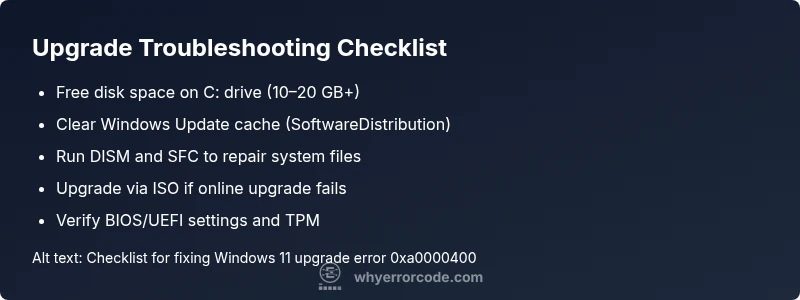
- Free up disk space and verify drive health: Delete temporary files, move large files off the system drive if possible, and run a basic disk check. Ensure at least 10–20 GB free space.
- Tip: Use Storage Sense to automate cleanup and set a conservative retention policy to prevent future space shortages.
- Stop Windows Update services and clear cache: Open an elevated Command Prompt and run net stop wuauserv, then net stop cryptSvc, bits, and msiserver. Delete the SoftwareDistribution and Catroot2 folders, then restart the services.
- Tip: Back up the SoftwareDistribution folder before deletion in case you need to restore a previous state.
- Run DISM and SFC: In an elevated prompt, run DISM /Online /Cleanup-Image /RestoreHealth followed by sfc /scannow. This repairs corrupted system files that blocks upgrades.
- Tip: Be patient; DISM can take a while on slower machines, but it’s a key reliability step.
- Try an in-place upgrade with the Windows 11 ISO: Download the latest Windows 11 ISO, mount it, and run setup.exe from within Windows. Choose to keep files and apps if possible.
- Tip: Ensure you’re logged in with an administrator account and have recent backups before proceeding.
- Check BIOS/UEFI and firmware: If hardware compatibility warnings persist, verify that your BIOS is up to date and that Secure Boot and TPM are configured according to Microsoft’s upgrade requirements.
- Tip: If you’re uncomfortable editing firmware settings, consult your motherboard or system vendor’s documentation or contact support.
- If upgrade still fails, perform a clean installation as a last resort: This avoids the upgrade path entirely but requires reconfiguring apps and restoring data from backups.
- Tip: This option is last-resort; ensure comprehensive backups and a documented recovery plan before proceeding.
Other potential causes and how to address them
Beyond the most common upgrade blockers, several other factors can trigger 0xa0000400. Hardware compatibility issues, BIOS/UEFI misconfigurations, or driver incompatibilities can create a frozen upgrade path. A failing storage device or memory errors can also disrupt the process, especially on older hardware. In these scenarios, the repair path shifts from software-only fixes to firmware updates, hardware diagnostics, or in some cases a device replacement. Always validate SMART status on disks, run memory tests, and review device event logs for clues. If you identify a potential hardware fault, prioritize replacement or professional service rather than continuing repeated upgrade attempts.
Practical approach: rule out software issues first, then confirm hardware health, and only escalate to professional help when hardware faults or data safety concerns arise.
Safety, backups, and when to contact a professional
Always back up critical data before performing upgrade attempts. Use multiple backups (local and cloud) and verify restore capability. Keep devices plugged in during upgrades to avoid power loss. If you’re managing servers, business PCs, or devices with critical data, consider engaging a professional for a controlled upgrade or in-place upgrade that preserves your environment. Remember that certain fixes involve editing BIOS/UEFI settings, which can carry risk if not done correctly. If you’re unsure, it’s safer to escalate to a qualified technician or vendor support. The urgency of this issue means you should not rush a repair that could compromise data integrity or device stability.
Preventing this error in future upgrades
- Maintain adequate free disk space on all system drives and monitor storage health regularly.
- Keep Windows Update components healthy by running maintenance tasks and avoiding frequent forced shutdowns during updates.
- Ensure hardware drivers, firmware, and BIOS/UEFI settings align with Microsoft’s upgrade requirements.
- Create a routine of backups before major upgrades and test restoration procedures.
- Run periodic DISM/SFC health checks to catch corruption early before upgrades are attempted.
Diagnostic mindset for ongoing reliability
Adopt a disciplined troubleshooting mindset when dealing with upgrade errors. Start with clearly defined symptoms, collect system information (build version, TPM mode, BIOS version, driver versions), and reproduce the issue with controlled variables. Prioritize fixes by likelihood of impact, verify each change with a small upgrade attempt, and maintain a rollback plan. Document findings and outcomes to accelerate future troubleshooting. With a structured approach, error code 0xa0000400 becomes manageable rather than mysterious, enabling faster upgrades and fewer surprises.
Steps
Estimated time: 60-120 minutes
- 1
Back up important data
Before making any changes, back up personal files to an external drive or cloud storage. This protects against data loss if the upgrade fails mid-process.
Tip: Verify backups by attempting a quick restore test on a small file. - 2
Free space on the system drive
Delete temporary files, old backups, and unused apps to free at least 10–20 GB. A fuller drive reduces the risk of upgrade-side storage errors.
Tip: Use Storage Sense to automate cleanup going forward. - 3
Reset Windows Update components
Stop update services, delete SoftwareDistribution, and restart services to clear corrupt cached data.
Tip: Keep a copy of the commands you run to document your process. - 4
Run DISM and SFC
Execute DISM /Online /Cleanup-Image /RestoreHealth and then SFC /scannow to repair corrupted system files that block upgrades.
Tip: Run these commands one after another without closing the command prompt. - 5
Try in-place upgrade with ISO
Mount the latest Windows 11 ISO and run setup.exe from within Windows to perform an in-place upgrade while preserving data.
Tip: Choose the option to keep personal files if available. - 6
Check BIOS/UEFI settings
Verify TPM, Secure Boot, and firmware versions align with upgrade requirements. Update firmware if recommended by the vendor.
Tip: Consult the motherboard or device manual for exact steps.
Diagnosis: Error code 0xa0000400 appears during a Windows 11 upgrade, causing the install to stall or fail.
Possible Causes
- highInsufficient disk space on the system drive (C:)
- highCorrupted Windows Update components or cache
- mediumBIOS/UEFI compatibility issue or outdated drivers
Fixes
- easyFree up disk space and clean the system drive
- easyReset Windows Update components and clear SoftwareDistribution
- easyRun DISM and SFC to repair system files
- mediumPerform an in-place upgrade using the Windows 11 ISO
- mediumCheck BIOS/UEFI settings and firmware updates for compatibility
Frequently Asked Questions
What does error code 0xa0000400 mean during Windows 11 upgrade?
This error typically indicates a problem with the update path, such as corrupted update components or a blocked update cache. It prevents the upgrade from completing and may trigger a rollback to the current Windows version.
Error 0xa0000400 means the upgrade path is blocked by software issues like corrupted update components, which prevents the upgrade from completing.
Is this error caused by hardware or software?
While software issues are the most common cause, hardware or firmware problems (like BIOS/UEFI or TPM settings) can contribute if the upgrade detects incompatibilities.
Usually software, but hardware compatibility can play a role if the system reports mismatches.
Can I fix it myself without reinstalling Windows?
Yes. In most cases you can fix it with safe software repairs (disk space, Windows Update cache, DISM/SFC) or an in-place upgrade using the ISO. Hardware issues may require professional help.
Most times you can fix it with software repairs; hardware problems may need expert assistance.
Will this error affect my personal files?
Upgrading via an in-place upgrade is designed to preserve your files, but there is always a risk during any upgrade. Back up first to be safe.
Files are usually preserved with in-place upgrade, but back up first just in case.
Should I use the Media Creation Tool to upgrade instead?
Using the ISO via the Media Creation Tool is a common workaround when the online upgrade path fails. It can preserve apps and settings, depending on your chosen options.
Yes, the ISO method is a strong alternative if the online upgrade stalls.
What if the upgrade still fails after trying fixes?
If fixes fail, consider a clean reinstall as a last resort and ensure you have complete backups and a recovery plan. You may also seek professional support for data-safe remediation.
If all else fails, a clean reinstall with backups is the last resort; consider professional help.
Watch Video
Top Takeaways
- Identify if storage or software corruption is the primary blocker
- Start with safe fixes (space, cache, DISM/SFC) before hardware checks
- Use an in-place upgrade with ISO to preserve data when possible
- Always back up data and plan for rollback before major changes