Error Code 401 on Tivimate: Urgent Troubleshooting
Urgent guide to resolving Tivimate error code 401, covering meanings, common causes, quick fixes, and a step-by-step repair path to restore streaming access.


Error code 401 on Tivimate typically means an authentication failure or invalid access token. The quickest fixes are to re-login, refresh credentials, and verify your subscription status. If the issue persists, ensure your device clock is correct, update the Tivimate app to the latest version, and recheck the provider's authentication server.
What error code 401 on Tivimate means
Error code 401 on Tivimate indicates an authentication failure or invalid access token when Tivimate tries to fetch streams from your IPTV provider. This is not a general connectivity error; it specifically points to credentials, tokens, or access rights that don’t align with the current session. In Tivimate, a 401 is often returned when the provider’s server cannot verify your account or when the session token used to fetch streams has expired. Clock drift on your device can also cause token validation to fail, so accurate time is part of the fix. Recognizing 401 early helps you focus on authentication and token refresh steps rather than broad network diagnostics. In practice, you might see a message such as “Unauthorized” or “Authentication failed,” and many users regain access by re-authenticating or refreshing tokens. A quick check of the provider’s status page can rule out server-side outages as well.
Common causes behind Tivimate 401 authentication errors
A 401 in Tivimate is most often caused by authentication problems rather than a simple network glitch. The leading culprits include expired or invalid access tokens, credentials that no longer match the subscription, or a revoked token by the provider. Token lifetimes can be short, especially for subscriptions with frequent renewal, so re-authenticating is frequently required. Second-tier causes include provider-side server issues or token revocation after policy changes, and local clock drift that makes token timestamps look invalid. Finally, misconfigured app data (cached credentials or corrupted storage) can trigger repeated 401s until reset. By isolating whether the error persists after re-login, you can differentiate between token issues and local cache problems.
Quick fixes you can try now
- Log out of Tivimate and log back in with fresh credentials to force token renewal.
- Re-enter your IPTV subscription details or M3U URL and verify that the stream source is still active.
- Check your internet connection and switch to a stable network if possible; avoid flaky Wi-Fi or VPNs during login.
- Update Tivimate to the latest version to ensure compatibility with provider servers and token validation methods.
- Clear Tivimate’s cache/data, then restart the app to refresh stored tokens and settings.
- Verify the device’s system time and timezone; correct any drift, then reopen Tivimate.
- If allowed, try a different network or device to determine if the issue is provider-side or device-specific.
Step-by-step repair for the most common cause: expired or revoked token
- Log out of Tivimate completely and close the app.
- Reboot the device to ensure a clean start for token refresh.
- Reopen Tivimate and re-authenticate with your IPTV provider credentials or re-enter the M3U/EPG details.
- If the provider uses OAuth or a refresh token, trigger a token refresh or sign in via the provider’s portal.
- Validate that the token is accepted by opening a test channel; if it fails, repeat with a fresh credential set.
- Confirm the device time is correct (auto-set via internet), then re-test streaming.
Other potential causes and remedies
- Provider-side outages or token revocation: Check the provider’s status page and your account dashboard for notices.
- Cached data corruption: Clearing cache often resolves stale tokens or malformed data.
- Network or DNS issues: Switch networks or reset DNS settings to ensure the app can reach authentication endpoints.
- App configuration mismatch: Double-check that the M3U URL, portal credentials, or login data match the current provider requirements.
Safety tips and when to call a professional
- Never share your IPTV credentials in insecure channels; use official apps and portals only.
- If you suspect a provider-wide issue beyond token refresh, contact your service provider for confirmation and remediation steps.
- If you manage business-critical streaming, consider professional IT support for token lifecycle management and secure credential storage.
Steps
Estimated time: 25-45 minutes
- 1
Check network and login status
Verify you have a stable internet connection and that the IPTV provider status is operational. If you recently changed credentials, ensure you’ve saved the new login details in Tivimate.
Tip: Have your provider login info handy and note the exact error message shown by Tivimate. - 2
Log out and re-authenticate
In Tivimate, sign out of the IPTV profile, then sign back in with refreshed credentials or re-import the M3U URL. This forces token renewal and re-validation with the provider.
Tip: If two-factor authentication is enabled, complete the second factor promptly to avoid session timeout. - 3
Refresh tokens or reauthorize
If your provider uses OAuth or secure tokens, trigger a token refresh through the provider portal or Tivimate’s account settings, then test a channel.
Tip: Some providers require you to reconfirm device permissions after token rotation. - 4
Check device clock and DNS
Ensure the device clock is set to automatic time and time zone. Correct time drift can invalidate tokens. If needed, flush DNS or switch DNS servers to rule out resolution issues.
Tip: Small time differences can trigger token rejections; syncing time resolves many 401 issues. - 5
Test with a fresh stream source
Add a new or different M3U URL or provide a fresh login to confirm the issue isn’t source-specific. This isolates provider-side problems.
Tip: Avoid reusing questionable or outdated M3U lists; use a known-good source during testing. - 6
Reinstall if necessary
If the error persists, uninstall Tivimate, reinstall the latest version, and re-enter credentials from scratch. This resolves stubborn cached data or corrupted app files.
Tip: Back up your playlists and settings before reinstalling.
Diagnosis: Tivimate shows error code 401 when attempting to start or play a channel
Possible Causes
- highExpired or invalid access token or credentials
- mediumProvider-side token revocation or authentication changes
- lowDevice clock/time drift causing token validation failure
Fixes
- easyLog out and re-authenticate; re-enter credentials or reauthorize via provider
- easyUpdate Tivimate and refresh tokens; ensure M3U/credentials are current
- easySync device time or disable manual time setting; reboot and retry
Frequently Asked Questions
What does error code 401 mean on Tivimate?
401 indicates an authentication failure. The app cannot verify your access token or credentials with the provider. Start by re-authenticating and refreshing tokens.
Error 401 means authentication failed. Re-authenticate and refresh tokens to regain access.
Is 401 always caused by expired tokens?
Not always, but it's the most common cause. Other possibilities include provider-side revocation, wrong credentials, or clock drift on your device.
Most 401s come from expired tokens or revoked access, but other issues can trigger it too.
What should I do first when 401 appears?
First, log out and re-login to refresh tokens. Verify credentials and the M3U URL, then check your device clock and network stability.
Log out, log back in, and check time and network before diving deeper.
Can a 401 be provider-side only?
Yes. If the provider revoked access or updated tokens, Tivimate may display 401 until reauthorization is completed on their end.
Sometimes the provider handles it; you’ll need to reauthorize from their side.
When should I reinstall Tivimate?
If cached data or files are corrupted after multiple attempts, reinstalling can clear stubborn issues. Back up settings first.
Reinstall as a last resort if nothing else works.
Should I contact a professional?
If token management affects business operations or you suspect a server-side integration problem, consult professional IT support or the provider’s technical team.
Consider professional help if token lifecycles or provider integrations are involved.
Watch Video
Top Takeaways
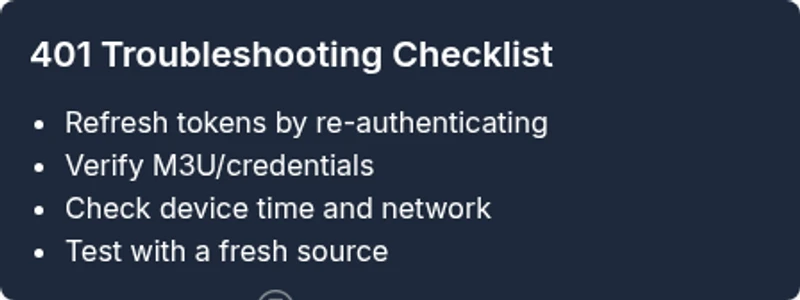
- Identify 401 as an authentication issue, not a simple network error.
- Re-authenticate and refresh tokens first before deeper troubleshooting.
- Verify device time, credentials, and provider status to resolve most cases.