Error Code 9 iTunes: Quick Fixes and Troubleshooting
Urgent guide to understanding and solving iTunes error code 9. Learn what it means, the most common causes, and step-by-step fixes to restore updates or restores quickly and safely.


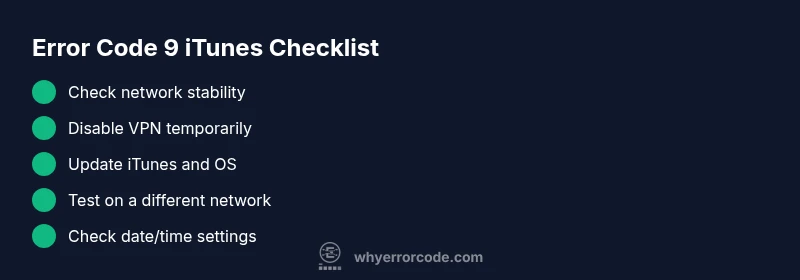
Error code 9 itunes indicates a network-related interruption during restore or update. It usually means the computer couldn't reach Apple servers or the device couldn't establish a reliable connection. Quick fixes: check internet, disable VPN, temporarily disable security software, ensure the date/time are correct, and retry with a USB cable; if persistent, try a different network or update iTunes.
What Error Code 9 Means for iTunes
According to Why Error Code, error code 9 in iTunes is most often a connectivity problem rather than a fault within the iTunes app itself. When you initiate a restore, update, or library sync, iTunes must talk to Apple servers. If the connection drops, stalls, or is blocked by a network device, you’ll encounter this error. Recognize it as a network symptom first, not a device-wide failure. The urgency comes from the fact that prolonged outages or misconfigurations can lead to data sync delays or failed device updates which, in turn, affect backups and app availability on your iPhone or iPad. Keeping a calm, methodical troubleshooting mindset helps you isolate whether the problem is local (your network) or external (Apple servers).
Symptoms and Scenarios
Typical signs of error code 9 iTunes include a failed restore, a stalled update, or a library synchronization that ends abruptly with the error notice. Users often report this on Windows PCs, Macs, or even when using Apple devices with a direct USB connection. The error might appear after a long download or during a server-heavy operation like a large backup. In urgent environments—such as freelance development or IT support—this error blocks critical device provisioning. The key characteristic is network instability or blockage rather than a corrupted file in the iTunes library. If multiple machines on the same network exhibit the error, focus on the network stack or the router. If it’s isolated to one PC or one device, concentrate on software configuration and local connections.
Primary Causes (Most Likely First)
- Unstable or blocked internet connection — high likelihood. A flaky Wi‑Fi signal, congested router, or ISP throttling can interrupt communications with Apple servers.
- VPNs, proxies, or firewall settings blocking Apple services — medium likelihood. Security layers can misroute or drop iTunes traffic.
- Outdated iTunes, macOS, or Windows drivers — low to medium likelihood. Legacy software may fail to negotiate secure connections with Apple’s servers.
Other factors like time/date drift or corrupted network profiles can contribute but are less common. Tailor your checks to the symptoms you observe (wireless vs wired, corporate vs home network).
Quick Fixes You Can Try Right Now
- Check your internet connection and stability. Run a speed test and verify latency is low enough for large downloads.
- Disable VPN, proxies, or antivirus temporarily to see if iTunes can connect without interference.
- Ensure the system date and time are accurate; enable automatic time zone settings.
- Try a different network (mobile hotspot, different Wi‑Fi network) to rule out router-level blocking.
- If you’re on USB, try a fresh cable and a direct port to avoid connector issues.
If the problem persists after these steps, proceed with the step-by-step repair below for a deeper fix.
In-Depth Step-by-Step Fix for the Most Likely Cause
- Step 1 — Stabilize the Network: Ensure your primary network isn’t dropping packets. Reboot the router, reconnect, and run a quick speed test to confirm consistent throughput. Tip: If the connection is unstable, use a wired Ethernet connection when possible.
- Step 2 — Update and Patch: Update iTunes to the latest version and confirm your operating system is current. After updating, restart the computer and try the operation again. Tip: Check for pending OS updates in Settings and install any non-restart-required patches first.
- Step 3 — Time and Date: Verify that your device and computer have correct date/time settings, ideally set to automatic. A mismatch can break secure connections and certificate validation. Tip: Disable any manual time zone overrides before retrying.
- Step 4 — Isolate Security Tools: Temporarily disable antivirus or firewall rules that could block Apple domains. If the restore/update succeeds, reconfigure the software to allow iTunes without global disablement. Tip: Add Apple domains to a safe list rather than leaving protection off.
- Step 5 — Reconnect and Retry: Reconnect your device with a fresh USB cable and port; reinitiate the restore/update. If the error recurs, try a completely different network or a different computer to identify where the fault resides. Tip: Document exact error messages for support calls. Estimated time: 25-40 minutes.
tip1_1 :
tip2_1
tip3_1
tip4_1
tip5_1
Steps
Estimated time: 25-40 minutes
- 1
Back up data and prepare
Before deeper fixes, back up your iTunes library and device data. This protects your apps, photos, and contacts in case of failures during the troubleshooting process.
Tip: Use iCloud or a local backup with the latest version of iTunes or Finder. - 2
Update software
Install the latest iTunes version and apply pending OS updates. A clean, up-to-date environment reduces compatibility issues that trigger error code 9.
Tip: Restart after updating and retry the operation. - 3
Verify network stability
Test your network for stability and speed. Switch from Wi‑Fi to a wired connection if possible, and temporarily disable VPN.
Tip: Use a speed test to confirm consistent latency under load. - 4
Temporarily disable security tools
Turn off antivirus/firewall rules that might block iTunes access to Apple servers, then reenable them after testing.
Tip: Avoid leaving protection off longer than necessary. - 5
Retry on a different network
If the problem persists, connect to a different network (mobile hotspot or alternate router) and retry the restore/update.
Tip: Document the new network settings if it works.
Diagnosis: iTunes shows error code 9 during restore or update
Possible Causes
- highUnstable or blocked internet connection
- mediumVPN or firewall blocking Apple services
- lowOutdated iTunes or drivers
Fixes
- easyCheck and stabilize internet connection
- easyDisable VPN or adjust firewall rules
- mediumUpdate iTunes and device drivers or OS
Frequently Asked Questions
What does error code 9 mean in iTunes, and when does it occur?
Error code 9 in iTunes typically signals a connectivity problem during a restore, update, or library sync. It indicates iTunes cannot reliably reach Apple servers due to network issues, VPNs, proxies, or security software blocking traffic.
Error code 9 usually means there’s a network block or instability when iTunes tries to contact Apple servers during a restore or update.
Can antivirus or firewall software cause error code 9?
Yes. Security software can block iTunes traffic to Apple servers. Temporarily disable or configure exceptions to test connectivity, then re-enable protection.
Security software can block iTunes—try disabling it briefly to test connectivity, then add iTunes as an allowed program.
Should I use a different network to fix error 9?
Trying a different network (another Wi‑Fi network or a wired connection) often resolves error 9 by eliminating router or ISP-related blocks.
A different network can quickly reveal if the issue is network-specific rather than software-related.
Will updating iTunes and drivers fix error 9?
Keeping iTunes and drivers up-to-date helps ensure compatibility with Apple servers and reduces the chance of protocol mismatches that trigger error 9.
Updating can fix underlying compatibility issues that cause connectivity failures.
What should I do if error 9 persists after trying fixes?
If error 9 persists, contact Apple Support or a professional technician. There may be deeper network, hardware, or account-related factors.
If it keeps happening, seek expert help to diagnose the broader cause.
Is iTunes still relevant for Windows users with error 9?
Yes. Windows users encountering error 9 should apply the same network and software checks, as the root cause is typically connectivity-related regardless of OS.
Windows users aren’t excluded—same steps apply across platforms.
Watch Video
Top Takeaways
- Identify error 9 as a connectivity issue
- Check network, VPN, firewall, and date/time
- Update iTunes and drivers to reduce compatibility problems
- Test with an alternate network to isolate the fault
- Back up data before deep fixes and seek professional help if unresolved