Error Code 503 on Epic Games: Urgent Fixes and Diagnostics
urgent guide to diagnosing and fixing Epic Games 503 service unavailable errors with quick fixes, diagnostic flow, and step-by-step instructions.


An error code as 503 epic games signals the Epic Games services are temporarily unavailable. It usually means the servers are overloaded or undergoing maintenance. Quick fixes include checking the Epic Games status page, retrying after a short wait, restarting the launcher, and testing a different network. If the problem persists, consult this guide for deeper diagnostics.
What the 503 Service Unavailable Means for Epic Games
The 503 error is a signal that Epic Games services cannot currently handle your request. When you see this in the Epic Games Launcher or a Fortnite match lobby, it usually points to temporary server-side issues rather than a fault on your device. According to Why Error Code Analysis, 2026, this error often arises during peak activity, large updates, or scheduled maintenance. While some users may experience this across all platforms, others may see intermittent flakes limited to a region. Recognize that this is typically a transient condition, not a chronic fault with your hardware. Understanding the meaning helps you decide whether to troubleshoot locally or simply wait for the provider to restore capacity. In many cases, you’ll see a brief window before the service resumes, which is why the first step is to verify status quickly and avoid unnecessary fixes.
Common Symptoms You'll See When Epic Games Encounters a 503
Typical symptoms of a 503 Epic Games event include: a persistent “Service Unavailable” message, the launcher stalling on sign-in or game launch, failed matchmaking with a 503 error, or a regional disparity where some players connect while others cannot. On consoles, you might notice a brief loading screen that never completes, while PC users may get a launcher retry loop. It’s common to observe these symptoms across multiple games and apps that rely on Epic Games services. If you notice the error only on one device, local network factors could be at play; if it’s universal, the issue is almost certainly server-side. Why Error Code’s team emphasizes checking the official status pages first, then proceeding with quick, patient testing to isolate the root cause.
Top Causes in the Epic Games Ecosystem
Server overload is the leading cause of a 503 in Epic Games environments. Maintenance windows and rolling upgrades can also trigger temporary unavailability. Regional outages, gateway routing problems, or DNS resolution failures can create the illusion of a broad outage even when only certain routes are affected. Additionally, client-side caching issues or misconfigured firewalls may contribute to the symptom, especially if you consistently see the 503 while others in your region connect normally. Why Error Code analysis shows that server-side overload remains the most frequent culprit, with regional routing and DNS issues following closely behind. This layered view helps you prioritize fixes quickly.
Quick Fixes You Can Try Now
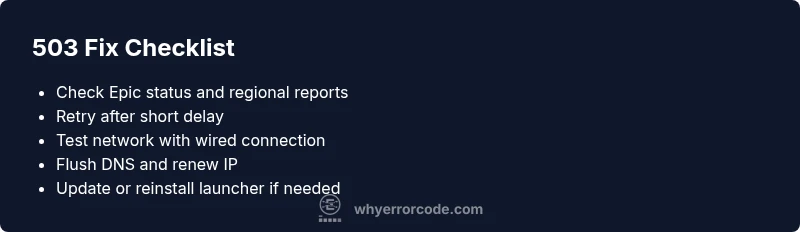
- Check the official Epic Games status page and official social channels for any maintenance announcements or incident reports. - Retry the action after a short wait (1–2 minutes) to determine if the service is recovering. - Restart the Epic Games Launcher or affected game to clear transient client-side states. - Switch networks or use a wired connection to rule out wireless instability. - Flush DNS on your device and renew IP configuration to clear stale routes. - Disable any VPN or proxy temporarily to test direct access. If you’re a developer or admin, consider lowering request rates for your own services until the provider recovers.
Step-by-Step Repair for the Most Likely Cause (Regional Outage)
- Confirm outage scope on the Epic Games Status page; note affected regions and timeframes. 2. Wait 1–3 minutes and retry the action to gauge whether the service is stabilizing. 3. Switch from Wi‑Fi to a wired connection or try a different network to rule out local network issues. 4. Flush DNS and renew IP (Windows: ipconfig /flushdns; macOS: sudo dscacheutil -flushcache; Linux: systemd-resolve --flush-caches). 5. Power cycle your router/modem and rejoin the network after 2 minutes. 6. If the problem persists, reinstall or update the Epic Games Launcher and sign in again. 7. Reach out to Epic Games Support if the region remains affected beyond a reasonable window.
Other Causes and How to Validate
If the outage appears localized, validate by testing from another device or network and check if other regional services are impacted. A misconfigured firewall or parental controls can also block required endpoints, so temporarily disable them or create an allow-list for Epic Games domains. A DNS cache issue can masquerade as a regional problem; test with a public DNS (e.g., 8.8.8.8 and 8.8.4.4) for a quick validation. Confirm that the problem follows the same pattern across platforms to distinguish client-side from server-side issues. Use traceroute/ping tests to identify where latency or drops occur along the path to Epic Games endpoints.
Pro Tips, Safety Warnings, and When to Call a Pro
- Pro tip: Keep a log of timestamps, regions, and actions tried to speed up support and incident analysis. - Warning: Do not ignore safeguards; repeatedly attempting to access a failing service can trigger temporary IP blocks or account flags in some environments. - Note: If you depend on Epic Games services for development or production, set up outage alerts and a simple recovery plan to minimize downtime. If issues persist beyond the standard maintenance window, contact support with your diagnostic notes, and consider escalation through official forums.
Steps
Estimated time: 30-60 minutes
- 1
Verify outage status
Open status.epicgames.com and confirm whether 503 incidents are active or planned maintenance is underway. Note the time window and region affected.
Tip: Keep a log of timestamps for faster support. - 2
Retry with a short delay
If an outage is underway, wait 1–3 minutes and retry the action that triggered the error to gauge if service has resumed.
Tip: Queue attempts to avoid hammering the service. - 3
Test across networks
Switch from Wi-Fi to a wired connection or use a mobile hotspot to check if the issue is network-related.
Tip: Disable VPN temporarily to test direct routing. - 4
Reset network equipment
Power cycle your modem and router, wait 2 minutes, then reconnect and test again.
Tip: Test one device at a time to isolate variables. - 5
Flush DNS and renew IP
On Windows run ipconfig /flushdns; on macOS use dscacheutil -flushcache; Linux use systemd-resolve --flush-caches. Reconnect after a moment.
Tip: Consider using public DNS like 8.8.8.8 as a test. - 6
Update or reinstall the Epic Games Launcher
Make sure you’re on the latest launcher version; reinstall if necessary and sign in again.
Tip: Back up important credentials before reinstall.
Diagnosis: Error code 503 Epic Games appears when launching Fortnite or the Epic Games Launcher
Possible Causes
- highEpic Games server overload or maintenance
- mediumRegional outage or routing issue
- lowLocal network DNS issues or ISP routing problems
Fixes
- easyCheck the official Epic Games status page and social channels
- easyRetry after 1-2 minutes; avoid repeated rapid attempts
- easySwitch networks or use a wired connection; flush DNS
- easyRestart launcher or device; re-login to the account
Frequently Asked Questions
What does a 503 error mean on Epic Games?
A 503 error means the Epic Games services are temporarily unavailable due to server overload or maintenance. It’s usually not a problem with your device. Check status pages and retry after a short wait, then follow the steps in this guide if the issue persists.
A 503 means Epic Games is temporarily unavailable. Check status pages and retry after a bit; follow these steps if it continues.
Is Epic Games down for maintenance?
Maintenance can cause 503 errors. Check the official Epic Games status page for announcements or incident reports. If maintenance is underway, you’ll typically see a defined window for restoration.
Maintenance can trigger 503s. See the status page for outage windows.
How long do 503 errors last on Epic Games?
Duration varies with the scope of the outage or maintenance. In many cases, services resume within minutes to a few hours. If it lasts longer, follow the diagnostic steps in this guide and check official updates.
Duration varies; most often minutes to hours. Check updates and run through the guide.
Should I contact support for a 503 error?
Yes, if the error persists beyond the standard maintenance window or affects multiple users in your region. Include timestamps and the steps you’ve tried to speed up resolution.
Yes, contact support if the issue lasts beyond a maintenance window with your diagnostics handy.
Can VPNs or DNS caching cause 503 errors?
VPNs or stale DNS records can contribute to connection issues that resemble a 503. Disable VPNs and flush DNS to test direct access. If the problem goes away, re-enable VPN with proper routing settings.
VPNs or cached DNS can mimic 503 issues. Try disabling them to test direct access.
Watch Video
Top Takeaways
- Verify Epic Games status before troubleshooting
- Try quick network-based fixes first
- Isolate whether the issue is regional or device-specific
- Escalate with logs if the problem persists beyond a maintenance window