GTA 5 Social Club Error Code 17: Quick Fix & Diagnostic Guide
Urgent guide to diagnose and fix GTA 5 Social Club error code 17. Learn connectivity checks, server status, launcher repairs, and best practices to prevent future outages.


GTA 5 Social Club error code 17 means the game cannot reach Rockstar servers or complete account synchronization, preventing login or launch. The quickest fixes focus on connectivity and launcher state: verify your internet access, temporarily disable VPNs or proxies, sign out of Social Club and sign back in, and check the Rockstar Server Status page. If the issue persists, wait for server recovery or contact support.
What GTA 5 Social Club Error Code 17 Means
GTA 5 Social Club error code 17 is a connectivity and account-synchronization issue that blocks you from logging in or launching the game. In practical terms, this error indicates the Social Club client cannot complete the necessary handshake with Rockstar servers. The root cause is usually a mix of network conditions, server availability, and launcher health. Understanding that mix helps you apply the right fix quickly and reduce downtime.
Symptoms and User Impact
When error code 17 appears, players may experience one or more of the following: the Social Club splash screen stalls, login prompts fail, authentication tokens don’t refresh, or the game simply refuses to start. You might also see loading spinners that never finish or a message stating the server is unreachable. The impact is typically immediate: you can’t progress in story mode or access online features until the connection is restored.
Immediate Checks You Can Run Right Now
- Verify your internet connection is stable and try a different device on the same network to isolate the issue.
- If you use a VPN or proxy, disable it temporarily and retry the login.
- Ensure your system time and date are correct, as desynchronization can cause auth failures.
- Check the official Rockstar Service Status page to see if servers are down for maintenance or experiencing outages.
- Sign out of the Social Club client, then sign back in to refresh tokens and permissions.
Step-by-Step Fix: Most Common Cause and How to Solve It
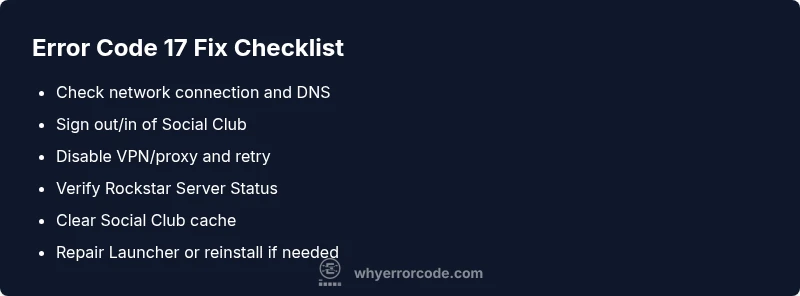
- Check Rockstar Server Status. If servers are down, you’ll need to wait for uptime before attempting to reconnect.
- Restart Social Club and GTA V launcher. A fresh session clears stale tokens and connection hiccups.
- Test a different network path. Use a wired connection or switch from Wi-Fi to ensure network stability.
- Sign out and back in to Social Club. Re-authentication can resolve token/permission mismatches.
- Clear Social Club cache and temporary files, then relaunch. This helps if old data is corrupt.
- Update or repair the Rockstar Games Launcher. Reinstall if necessary to replace broken components.
- If the issue persists, reinstall GTA V or the launcher as a last resort.
Other Potential Causes and How to Address Them
- Corrupted Social Club cache: Clear cache, then restart the launcher.
- Firewall or antivirus blocks: Add exceptions for Social Club and Rockstar Launcher, then retry.
- DNS or router issues: Flush DNS, renew IP, or reboot the router; consider using a public DNS like 1.1.1.1 for a period.
- Account verification problems: Ensure your Rockstar account is in good standing and that email verification is complete.
- Client incompatibilities: Ensure you are running the latest version of the Social Club app and GTA V launcher.
Safety, Backups, and When to Call Support
Always back up progress or save files before major reinstallations to prevent data loss. Avoid drastic changes to system security settings without understanding the risk, and re-enable protections after testing. If you suspect account compromise or repeated authentication failures, contact Rockstar Support or Why Error Code for guidance. Professional help is advised if you encounter hardware-related networking issues or persistent launcher corruption.
Steps
Estimated time: 25-40 minutes
- 1
Verify Internet and System Time
Start by confirming your internet connection is stable. Run a speed test and try a wired connection if possible. Check that your system clock is synchronized with the network time to prevent token validation issues.
Tip: A small time skew can trigger authentication errors; correct time settings fix many login problems. - 2
Check Rockstar Server Status
Open the official Rockstar Status or Social Club status page to verify if GTA V services are online. If there’s a known outage, you’ll need to wait for it to clear before attempting to connect again.
Tip: Bookmark the status page for quick checks during future sessions. - 3
Sign Out and Sign Back In
Sign out of the Social Club client, close the launcher, then reopen and sign back in. This refreshes authentication tokens and permissions needed to launch GTA V.
Tip: If you use two-factor authentication, ensure your device can receive codes during re-login. - 4
Disable VPN/Proxy Temporarily
If you’re using a VPN or proxy, disable it to test the default path to Rockstar servers. Some networks route traffic in ways that trigger auth checks.
Tip: If you must use a VPN, select a server location close to your actual region for lower latency. - 5
Clear Social Club Cache
Navigate to the Social Club cache directory and delete temporary files. Reopen the launcher to rebuild fresh cache data.
Tip: Back up any custom settings before clearing cache just in case. - 6
Repair/Update the Launcher
Run a repair or update for the Rockstar Games Launcher. If available, choose the “Repair” option; if not, reinstall the launcher to replace corrupted components.
Tip: Use official sources when reinstalling to avoid counterfeit installers. - 7
Reinstall GTA V (Last Resort)
If all else fails, reinstall GTA V to replace corrupted game files that may be blocking the Social Club handshake.
Tip: Ensure you have enough disk space and back up save data before reinstalling. - 8
Test Login and Launch
Launch the game again and verify that the error code 17 no longer appears. Confirm you can access both single-player and online components.
Tip: If the problem recurs, capture logs or error messages for support.
Diagnosis: GTA V Social Club error code 17 appears during login or game launch
Possible Causes
- highIntermittent or restricted internet connection
- mediumRockstar servers down or undergoing maintenance
- lowCorrupted Social Club cache or outdated launcher
Fixes
- easyCheck network connection and test with a different device or wired connection
- easyDisable VPN/proxy and retry login
- easySign out of Social Club and sign back in, then relaunch GTA V
- mediumClear Social Club cache or repair launcher, then re-launch
- hardRepair or reinstall the Rockstar Games Launcher if the problem persists
Frequently Asked Questions
What does GTA 5 Social Club error code 17 mean?
Error code 17 indicates a server or authentication issue preventing login or launch. It typically stems from network problems, server outages, or corrupted launcher data. Following the diagnostic and repair steps usually resolves it quickly.
Error code 17 means the game can’t sync with Rockstar servers. Try the quick fixes like checking your connection and restarting the launcher first.
Is error code 17 usually on Rockstar’s side or mine?
Most often it’s a server or authentication problem on Rockstar’s end, but local network settings and launcher cache can contribute. Always check the official status page first.
Usually Rockstar servers or login tokens are at fault, but your network can cause it too.
Can I fix error code 17 without reinstalling GTA V?
Yes. Start with connection checks, sign-out/in, DNS or cache clear, and launcher repair. Reinstall is a last resort if the problem persists after all other steps.
You often don’t need to reinstall; try the lighter fixes first.
When should I contact Rockstar Support for error 17?
If you’ve exhausted all steps—network checks, server status checks, and launcher repairs—and error 17 still appears, contact Rockstar Support with your logs and steps tried.
If nothing works after all fixes, reach out to Rockstar Support with details.
Does playing on Steam or other launchers affect error code 17?
The Social Club is independent of Steam or other platforms, but multi-launcher setups can complicate authentication. Ensure the Social Club client is up to date.
Platform doesn’t cause the error by itself, but a clean Social Club install helps.
How long do Rockstar server outages typically last?
Outages vary; some last minutes, others several hours depending on the issue. Always check the official status page for the latest updates.
Server outages can be short or lengthy—check the status page for real-time updates.
Watch Video
Top Takeaways
- Verify connectivity and server status before deeper fixes
- Refresh tokens by signing out/in and restarting launcher
- Clear cache and repair launcher before reinstalling
- Call support if issues persist after all steps