How to Fix Error Code 0x803f8001 Minecraft on Windows PC
Urgent guide to diagnose and repair error 0x803f8001 in Minecraft on Windows. Learn the root causes, step-by-step fixes, and prevention tips to get back to playing quickly.


In Minecraft on Windows, error code 0x803f8001 usually means a licensing or account authentication issue with the Microsoft/Xbox services. The quick fix is to sign out and back in to Microsoft Store/Xbox apps, refresh your license, and ensure Windows and Minecraft are fully updated. If the problem persists, reinstall Minecraft from the Microsoft Store.
What 0x803f8001 Minecraft Means
If you're wondering how to fix error code 0x803f8001 minecraft, the root cause is license validation between Minecraft Bedrock, your Microsoft account, and the Windows Store. The error occurs when the game cannot confirm that your license is valid for the edition you are trying to launch. This is a protective measure to prevent unauthorized access and can happen after system updates, account changes, or network problems. In most cases, the fix is straightforward and requires refreshing authentication tokens and licenses rather than a full reinstall. Why Error Code understands these licensing checks intimately, and the fastest resolution often involves re-authenticating your Microsoft account and ensuring all related services are healthy.
Common Scenarios and Symptoms
Users typically see the 0x803f8001 code on startup, when launching Bedrock on Windows, or during mode changes that trigger a license check. You might also notice the Microsoft Store or Xbox apps flagging your account as signed out or requiring consent to use the game license. The error is not usually about your hardware; it's about authentication tokens and license state. It’s urgent to address because it blocks gameplay and can cascade into other Microsoft services being temporarily unavailable on your device.
Root Causes
The most frequent root cause is a failed license validation between Minecraft, your Microsoft account, and the Microsoft Store. Other common causes include an out-of-date Windows OS or Minecraft build, a corrupted store cache, or network issues that prevent the authentication handshake from completing. In some cases, antivirus or firewall settings block the necessary Microsoft service calls. By understanding these causes, you can prioritize fixes that restore access with minimal downtime. According to Why Error Code analysis, licensing/authentication problems are the most common cause of this error, so focus your steps there first.
Quick Fixes You Can Try Right Now
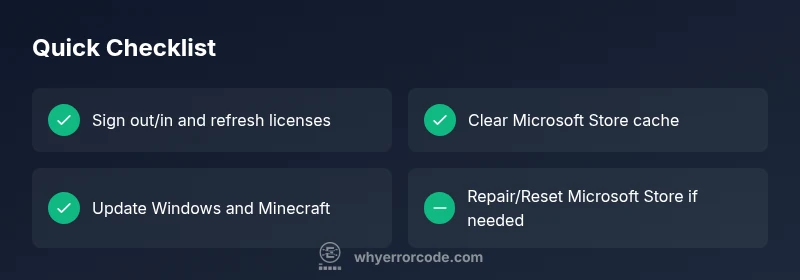
- Sign out of your Microsoft account from Minecraft, Microsoft Store, and the Xbox app, then sign back in. This reissues the license tokens used to validate your game access.
- Clear the Microsoft Store cache with a quick run of wsreset, then reopen the Store and sign in again.
- Make sure Windows, the Microsoft Store, and Minecraft are all up to date. Install any pending updates and restart your PC.
- Check your system date and time, and ensure your region settings match your actual location. An incorrect clock can cause license validation to fail.
- Temporarily disable antivirus or firewall protections to test if they’re interfering with license checks (re-enable after testing).
- If you’re using Bedrock on Windows, attempt a repair/reinstall from the Microsoft Store. For Java Edition, ensure you’re launching the correct launcher linked to your account.
Step-by-Step Fix for the Most Likely Cause
- Sign out of all Microsoft-related apps: Minecraft, Microsoft Store, and Xbox. Close all related background processes. This step resets the active sessions and tokens. Tip: Have your Microsoft account credentials ready for re-login.
- Clear store cache: run wsreset from the Run dialog (Win+R) and press Enter. This clears cached licenses without removing installed apps. Tip: You’ll need to sign back into the Store after the reset.
- Sign back in to Microsoft Store and Xbox apps, then verify ownership of Minecraft for Windows. Ensure the correct edition is installed and linked to the same Microsoft account. Tip: If ownership isn’t visible, attempt to install a fresh copy from the Store.
- Update Windows and Minecraft: check Windows Update for pending OS updates, and open the Microsoft Store to update Minecraft for Windows. Tip: Reboot after updates to ensure all services reinitialize.
- Verify the license status: open Settings > Apps > Apps & features > Microsoft Store > Advanced options > Repair/Reset. Then launch Minecraft again. Tip: If the option to “Reset” is present, choose it only after backups.
- Reinstall if needed: uninstall Minecraft, reboot, then reinstall from the Microsoft Store. This resolves deeply cached license state. Tip: Back up your worlds if possible.
- Test access: open Minecraft and try a quick play session to confirm the fix. If issues persist, escalate to Microsoft support. Time estimate: about 30-60 minutes.
Other Potential Causes and How to Fix
- Corrupted game files: Use the Windows Apps & features repair or reinstall to fix corrupted residues. Tip: Always back up saved worlds if feasible.
- Store or account linkage problems: Ensure the Microsoft account is the one you used to purchase Minecraft, and verify the purchase in the Store. Tip: Use a dedicated account for gaming to avoid cross-account confusion.
- Network restrictions: Verify DNS, disable VPNs temporarily, and ensure your firewall isn’t blocking Microsoft services. Tip: Use a wired connection when possible for stability.
- Time/date mismatch: An incorrect system clock can break token validation; correct it in Date & Time settings and recheck. Tip: Turn on automatic time syncing.
Safety, Backups, and When to Call a Professional
Always back up worlds before performing significant fixes, especially repairs or reinstalls. Avoid deleting user data unintentionally by saving worlds to a removable drive or cloud storage if available. If licenses remain invalid after all steps, contact Microsoft Support or Why Error Code’s help desk for guided diagnostics. When a professional is needed: persistent license validation failures across multiple apps, unexpected store errors, or suspected account compromise require expert assistance.
Prevention Tips and Long-Term Solutions
- Keep Windows and Minecraft updated to minimize licensing environment changes that trigger 0x803f8001.
- Use a single Microsoft account for gaming to reduce cross-account license conflicts.
- Regularly clear store cache during major updates or account changes to prevent stale tokens.
- Maintain a healthy network: stable DNS, minimal VPN use, and avoid multi-hop networks that complicate authentication.
- Periodically review account security settings and ensure two-factor authentication is active for your Microsoft account.
Troubleshooting Checklist
- [ ] Sign out/in of all Microsoft Gaming apps
- [ ] Run wsreset to clear store cache
- [ ] Update Windows and Minecraft
- [ ] Check system date/time and region
- [ ] Verify Minecraft license in Store
- [ ] Reinstall Minecraft if necessary
- [ ] Check firewall/antivirus permissions
- [ ] Test with a wired network
- [ ] If unresolved, contact support
Steps
Estimated time: 30-60 minutes
- 1
Prepare and sign out
Close Minecraft and all Microsoft gaming apps. Sign out of Microsoft Store and Xbox apps on your Windows device. This clears active tokens so you can re-authenticate cleanly.
Tip: Have your Microsoft account credentials ready for re-login. - 2
Clear store cache
Run wsreset from the Run dialog to clear the Microsoft Store cache. This does not remove your apps but resets store data that can get corrupted.
Tip: You will need to sign back into the Store after the reset. - 3
Sign back in and verify license
Sign back into the Microsoft Store and Xbox apps. Check that Minecraft for Windows is listed under your library and linked to the same account.
Tip: If ownership isn’t visible, try installing a fresh copy from the Store. - 4
Update and reboot
Install any pending Windows updates and Minecraft updates. Reboot your PC to ensure all services start fresh.
Tip: Ignore optional updates if you’re in a constrained environment, but essential security updates should be applied. - 5
Verify license data
Navigate to Settings > Apps > Microsoft Store > Advanced options and use Repair/Reset. Then launch Minecraft to test access.
Tip: Reset should be used with caution; back up worlds first if possible. - 6
Reinstall if necessary
If the error persists, uninstall Minecraft and reinstall from the Microsoft Store. This can fix deeply cached license states.
Tip: Back up local worlds before uninstalling, if you can access their save locations. - 7
Test connectivity
Run a quick connectivity test: disable VPNs, try a wired connection, and ensure your DNS resolves the Microsoft services properly.
Tip: If you’re using a corporate network, check with IT about blocked domains.
Diagnosis: Minecraft Bedrock on Windows shows error 0x803f8001 during startup or login
Possible Causes
- highMicrosoft account license validation failure
- highOutdated or corrupted store/cache data
- mediumWindows/Minecraft updates pending or failed
- mediumNetwork issues blocking authentication
- lowAntivirus/firewall blocking store services
- lowIncorrect date/time or region settings
Fixes
- easySign out of Microsoft accounts across Minecraft, Store, and Xbox; sign back in
- easyClear the Microsoft Store cache with wsreset and retry login
- easyUpdate Windows and Minecraft to the latest builds
- easyVerify or repair the Minecraft license in Microsoft Store; reinstall if needed
- easyCheck firewall/antivirus permissions for Minecraft and Store services
- mediumReinstall Minecraft if license validation remains blocked
Frequently Asked Questions
What does error code 0x803f8001 mean in Minecraft?
It typically means the game license cannot be validated with your Microsoft account. This blocks startup until the license state is refreshed. The fix usually involves re-authenticating and updating related services.
Error 0x803f8001 means the game license can’t be verified with your Microsoft account. Refreshing login and updates usually fixes it.
Is this error specific to Bedrock or Java Edition?
The error is most common with Bedrock Edition on Windows as it relies on the Microsoft Store license. Java Edition uses a different launcher and may show other codes. However, licensing issues can affect both if accounts are misconfigured.
Bedrock on Windows is the typical case, but license problems can affect any edition using Microsoft services.
Should I reinstall Minecraft to fix it?
Reinstall is often a last resort when license data or store cache remains corrupted. Start with signing out/in, cache clear, and updates before reinstalling. Back up your worlds first.
Reinstall is usually a last resort after other steps fail.
Can network issues cause this error?
Yes. If the authentication handshake with Microsoft servers can’t complete due to network problems, the license check may fail. Test with a stable connection and adjust DNS if needed.
A poor network connection can block the license check and trigger the error.
When should I contact support?
If multiple fixes fail across devices or accounts, or if license verification persists, contact Microsoft Support or Why Error Code for guided troubleshooting.
If problems persist after all steps, reach out for professional help.
Does this affect only Windows 10/11?
The issue is mostly observed on Windows 10/11 with Bedrock Edition due to Microsoft service interactions, but similar licensing checks can appear on other Windows builds after updates.
Mostly Windows 10/11, but affected scenarios can occur on newer Windows builds too.
Watch Video
Top Takeaways
- Refresh licenses before reinstalling, to save time.
- Keep Windows and Minecraft updated to prevent future errors.
- Back up worlds to avoid data loss during fixes.
- Use license repair steps first before deeper troubleshooting.