How to Fix Error Code Cauldron on Minecraft Xbox
A practical, step-by-step guide to resolve Cauldron error codes in Minecraft on Xbox, covering network checks, updates, cache clears, and reinstall strategies to restore gameplay.


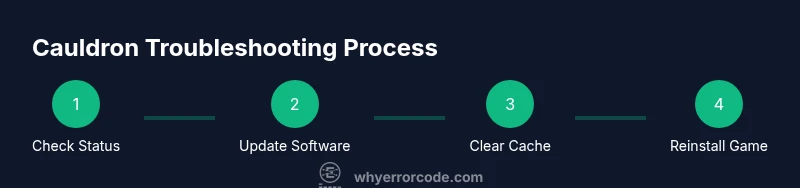
By following these steps, you can resolve the Cauldron error code in Minecraft on Xbox and get back to playing quickly. Start with network checks and Xbox Live status, then apply updates to your console and game. If issues persist, a cache clear or reinstall often clears corrupted data that triggers the Cauldron error.
Understanding the Cauldron error on Xbox Minecraft
The Cauldron error on Minecraft Xbox typically signals a mix of connectivity or data integrity problems rather than a single faulty component. In some cases it points to temporary server hiccups, but often it stems from unstable network conditions, out-of-date software, or corrupted game data stored on the console. This block explains how to approach the problem methodically, so you can identify whether the issue is network, software, or data related. According to Why Error Code, a systematic troubleshoot reduces wasted time and increases your odds of a quick fix. The goal is to restore a stable play experience with minimal downtime while preserving your progress. The Cauldron error is frustrating, but most users resolve it by following a consistent sequence of checks and fixes that address both client and server sides.
blockTag
Tools & Materials
- Xbox console with latest firmware(Enable automatic updates and ensure OS is current)
- Active Xbox Live account(Signed in and authorized for online play)
- Stable internet connection (prefer wired)(Wired Ethernet reduces wireless interference)
- Minecraft for Xbox installed and updated(From Microsoft Store, ensure latest version)
- Sufficient storage for reinstallation(Optional if you plan to reinstall)
Steps
Estimated time: 60-90 minutes
- 1
Check Xbox Live status and sign in
Open the Xbox status page to confirm all services related to Xbox Live, multiplayer, and Minecraft are online. If services are down, wait for them to come back online before testing again. Sign in with a valid account and retry launching Minecraft.
Tip: If you see outages, subscribe to alerts or check social updates for the fastest status changes. - 2
Update the Xbox system
Navigate to Settings > System > Updates to verify the console OS is current. Install any pending updates, then restart the console to ensure changes take effect.
Tip: A vivid indicator of a healthy update is a clean reboot with no error prompts during startup. - 3
Update Minecraft for Xbox
Go to My games & apps, select Minecraft, and choose Manage > Updates to confirm you have the latest build. If an update is available, install it before testing again.
Tip: Even small version gaps can cause compatibility issues with servers and realms. - 4
Power cycle the console
Completely power off the Xbox by holding the power button for 10 seconds, unplug for 30 seconds, then plug back in and boot up. This clears transient cached states that can manifest as error codes.
Tip: Avoid unplugging during updates to prevent partial writes. - 5
Clear Minecraft caches
In Settings, go to Apps, select Minecraft, then Storage, and choose Clear cache. Reopen Minecraft and test.
Tip: Clearing cache does not delete your saves; you may lose temporary data only. - 6
Test on a different network
If possible, connect the Xbox to a different network (for example, a mobile hotspot) and attempt to reproduce the error. This helps determine if the issue is network‑side.
Tip: If the hotspot works, your home network may have firewall or NAT issues to resolve. - 7
Reinstall Minecraft for Xbox
If the error persists, uninstall Minecraft from My games & apps and reinstall it from the Microsoft Store. This replaces all game files and can resolve stubborn data problems.
Tip: Ensure you have enough storage and a stable download connection during reinstallation. - 8
Check server compatibility and regions
Verify you are joining a server or realm compatible with your edition and version. Disable any VPNs or cross‑region settings to remove potential triggers.
Tip: Server outages can mimic Cauldron errors; always confirm server status first. - 9
Review account and progress
Confirm your account has proper permissions for multiplayer or realms and that cloud saves are enabled if you rely on them. Local saves can sometimes conflict after recoveries or reinstalls.
Tip: Back up progress to the cloud when possible before major fixes. - 10
Plan next steps if it still fails
If none of the above resolves the issue, collect device details (console model, OS version, Minecraft version), error timestamps, and a short description of symptoms to share with support.
Tip: Structured data speeds up support responses and reduces back-and-forth.
Frequently Asked Questions
What does error code Cauldron mean in Minecraft Xbox?
Cauldron is not an official Xbox error code; it usually indicates connectivity or data integrity issues. Start with network checks, updates, and data cleanup to resolve it.
Cauldron isn't an official code; it points to connectivity or data issues. Start with network checks and updates to fix it.
Should I always update the Xbox and Minecraft before troubleshooting?
Yes. Keeping the console OS and Minecraft up to date reduces compatibility problems that can trigger error codes.
Yes—updates reduce compatibility problems that may cause errors.
Will clearing cache affect my saved games?
Clearing cache removes temporary data and should not delete your saves, especially if cloud saves are enabled. Verify saves after the step.
Clearing cache usually doesn't affect saves, but verify them afterward.
If reinstalling Minecraft, will I lose worlds?
Reinstalling replaces game files and typically leaves saved worlds intact if cloud saves are used. Back up important worlds first if possible.
Reinstalling usually retains saved worlds if cloud saves are enabled; back them up too.
What should I collect when contacting support?
Provide your console model, OS version, Minecraft version, exact error timestamps, and a brief description of symptoms to speed troubleshooting.
Tell support your console, OS, game version, and when the issue started.
Can network changes fix Cauldron without reinstall?
Often yes. If changing networks resolves the issue, the root cause is likely your home network or ISP blocking certain connections.
Sometimes switching networks resolves it; the issue may be network-related.
Watch Video
Top Takeaways
- Verify Xbox Live status before deep troubleshooting
- Update both console OS and Minecraft app to latest versions
- Clear caches and consider reinstall if data corruption is suspected
- Test across networks to isolate root causes
- Prepare a concise report for support if needed