How to fix the drowned error code in Minecraft PS4
Learn proven steps to fix the drowned error code in Minecraft on PS4. This guide from Why Error Code covers updates, connectivity, data integrity, backups, and safe reinstall procedures to get you back to gaming fast.


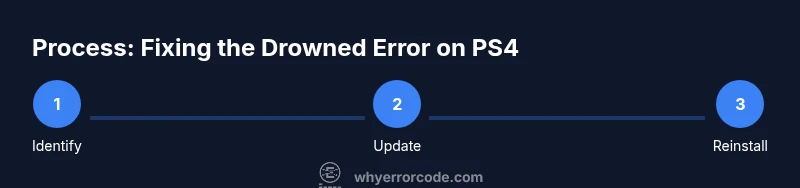
By following these steps, you’ll resolve the drowned error code in Minecraft PS4 and get back to playing quickly. Start by verifying your game version and PSN status, then perform a safe reset of your console, back up your worlds, and reinstall Minecraft if the issue persists. This guide covers both quick fixes and deeper troubleshooting.
Understanding the drowned error in Minecraft PS4
The drowned error code on PS4 typically indicates a failure in the game’s data path or a disruption between your console and the Minecraft servers. According to Why Error Code, this issue is often triggered by a combination of network instability, game version mismatches, or corrupted save data. Recognizing the common patterns helps you choose the right fixes quickly and avoid endless, unnecessary steps. In practice, this guide translates that understanding into a practical, safe troubleshooting flow tailored for PlayStation 4 players. Expect a mix of quick checks you can do in a few minutes and deeper steps that protect your worlds.
Throughout this process, you’ll see references to your network setup, game updates, and data integrity—areas where many drowned errors originate. By staying organized and keeping backups, you minimize risk and maximize your chances of a clean fix.
Common causes of the drowned error on PS4
- Network instability or high latency between your console and Sony/Mojang servers.
- Outdated Minecraft patch or PS4 system software.
- Corrupted save data or a problematic world file.
- NAT type restrictions or improper port access that block online verification.
- Cross-play or server migration issues that briefly destabilize connections.
Understanding these categories helps you triage quickly: start with your network, then confirm app updates, then rule out data corruption. Why Error Code analysis notes these as frequent culprits in 2026, reinforcing the need for a structured approach.
Immediate steps to try before diving deeper
- Document the exact error message, time it occurs, and what you were doing (loading a world, joining a server, etc.). This helps when searching logs or reaching support.
- Check the PlayStation Network status and Minecraft version to ensure there’s no ongoing outage or pending update.
- Perform a safe reboot of your PS4 by turning it off completely and powering back on if needed.
- Try a basic test: open Minecraft in offline mode with a local world to verify the issue is not solely server-related.
- If the problem persists, proceed to the deeper network and data steps outlined below, keeping backups handy. This keeps your data safe while you troubleshoot.
Network and PS4 settings checks
NAT type and gateway settings can influence connectivity to Minecraft servers. Verify your NAT type is not strictly strict, preferably type 1 or 2 on most networks, and switch to a wired connection if possible for stability. Restart your router, reassign DNS if necessary, and test on a different network if available. These changes often resolve hiccups that trigger the drowned error during online play.
Additionally, ensure your PS4 system software is up to date and that your PSN account isn’t experiencing temporary login issues. These checks stop a number of causative problems before deeper data work is required.
Minecraft-specific checks and world data
If the error occurs only when loading a particular world, that world file or its save data may be corrupted. Start Minecraft with a fresh, new world to confirm if the issue is world-specific. If the new world loads normally, consider moving your valuable builds to a safe backup, then remove or repair the problematic world from the save folder.
Keep cloud backups enabled if you have PS Plus, and consider exporting the world to a USB drive as an extra safeguard. This approach minimizes potential data loss if you need to reinstall Minecraft or reset save data.
Safe data backup and world management
Before any reinstall or data-clearing steps, back up all Minecraft worlds. Use PS Plus cloud saves for automatic backups, or manually copy save files to a USB drive where supported. In PS4, you can back up entire user data to USB to minimize risk. After backing up, verify the backups by restoring a test save to ensure the data is intact before performing destructive operations.
If you’re unsure which worlds are affected, prioritize the most recent or most valuable builds for backup first. Having a reliable backup makes the rest of the process far less stressful.
Reinstalling Minecraft safely
If the drowned error persists after all non-destructive steps, a reinstall of Minecraft is a reasonable next move. Delete the Minecraft app, restart the PS4, then reinstall from the PlayStation Store. After reinstall, restore your cloud saves or USB backups and test with a fresh world. Reinstalling helps replace potentially corrupted game files and clears stubborn cache issues without affecting other PS4 data.
During reinstall, avoid removing your entire user profile unless you have verified backups of all important saves. This minimizes the risk of unintended data loss.
Testing with a clean slate and world removal if needed
After reinstalling, test Minecraft with a brand-new world to confirm the issue is resolved. If the new world loads without incident, gradually reintroduce your existing worlds—one at a time—to identify any lingering problem.
If a specific world still causes trouble, consider archiving it and re-creating the world from backups. This approach ensures you keep the majority of your progress while eliminating corrupted data as the root cause. Stay organized with a simple backup plan to prevent future heartbreak.
When to contact support and what to collect
If the drowned error remains unresolved after all recommended steps, contact Minecraft support or Sony support with a detailed report. Gather essential information: your PS4 model and OS version, Minecraft version, NAT type, time of error, any error codes, and a summary of the steps you’ve taken. Logs or screenshots of the error, plus your backup status, expedite the investigation and lead to faster resolution.
Proactively sharing these details shows you’ve done due diligence and helps the support teams reproduce the issue more quickly.
Tools & Materials
- PlayStation 4 console(Power cycle steps and safe mode options may be used during troubleshooting)
- Minecraft for PS4 (disc or digital)(Ensure you’re on the latest patch before troubleshooting)
- Stable internet connection (preferred wired)(Wired connection reduces jitter and latency during testing)
- USB drive or external HDD(For manual backups of save data)
- PlayStation Plus cloud save (optional but recommended)(Enables easy, automatic backups of Minecraft worlds)
- Alternate network access (optional)(Test on a different network if available to rule out local ISP issues)
Steps
Estimated time: 60-90 minutes
- 1
Document the error
Note the exact error message, when it occurs, and what you were doing in Minecraft PS4. This information helps you search for fixes and gives support a precise starting point.
Tip: Capture screenshots or a short video if the error appears during a specific action. - 2
Check for updates
Verify that Minecraft for PS4 and your PS4 system software are up to date. Outdated software can trigger or mask errors.
Tip: Enable automatic updates where possible to reduce stale versions. - 3
Reboot the PS4
Fully power off the PS4, wait 30 seconds, then power back on. A clean reboot clears transient issues that can produce error codes.
Tip: If you’re in a hurry, use the quick restart option but avoid interrupting downloads. - 4
Rebuild the database
Boot into safe mode if needed and select Rebuild Database. This action reorganizes data without deleting user data and can fix corrupted data paths.
Tip: This may take time; plan for a 15–30 minute window depending on drive size. - 5
Back up your worlds
Create a backup of Minecraft worlds to cloud storage or a USB drive before making changes that affect save data.
Tip: Verify backup integrity by attempting a restore on a test profile if possible. - 6
Reinstall Minecraft
Delete the Minecraft app from PS4 and reinstall from the PlayStation Store. This replaces potentially corrupted game files.
Tip: Do not delete your user profile; rely on backups for worlds. - 7
Test with a clean world
Launch Minecraft with a fresh world to confirm whether the issue is global or world-specific.
Tip: If the new world works but your old worlds don’t, reserve those worlds for backup and restoration later. - 8
Check network status and settings
Revisit NAT type, router settings, and PSN status to rule out ongoing network issues.
Tip: Try a wired connection and a different DNS (e.g., 1.1.1.1) to test stability. - 9
Collect data for support if needed
If problems persist, gather device info, error timestamp, steps taken, and backup status for support.
Tip: Clear, concise notes speed up the review process.
Frequently Asked Questions
What does the drowned error code mean in Minecraft PS4?
The drowned error is not a standard PS4 code; it typically signals a network, data, or server issue affecting Minecraft on PS4. It often resolves with updates, connection checks, or data repairs. Always begin with basic fixes before deeper work.
The drowned error usually points to network or data problems in Minecraft on PS4. Start with updates and connection checks, then move to data repair if needed.
Can I fix this without reinstalling Minecraft?
Yes. Most issues can be resolved by checking updates, testing network stability, clearing caches, and backing up data. Reinstalling is only necessary if the problem persists after all other steps.
You can usually fix it without reinstalling by updating and checking your network, then clearing cache and backing up data.
Will this affect my saved worlds during troubleshooting?
Troubleshooting can affect saves only if you perform data-clearing steps. Always back up worlds to cloud storage or a USB drive before making changes, and restore from backup if something goes wrong.
Saves are safe if you back them up first; avoid deleting world data unless you have a backup.
Should I reset my PS4 or change NAT settings to fix this?
Resetting the PS4 and adjusting NAT settings are common stabilizers for online play. Try a wired connection, adjust DNS if needed, and ensure PSN is functioning before deeper troubleshooting.
A wired connection and healthy PSN status often fix online issues; NAT improvements help with connectivity.
What if the error persists after all steps?
If the issue persists, collect detailed logs and reach out to Support with your device model, OS version, Minecraft version, error timing, and steps you tried. This speeds up diagnosis and resolution.
If it still won’t fix, gather details and contact support with what you did and when the error happens.
Top Takeaways
- Back up worlds before major fixes
- Update all software first, then test
- Isolate whether the issue is world-specific
- Reinstall Minecraft as a last resort
- Consult support with precise details if needed