Medicare hicaps error code 500: Urgent Troubleshooting Guide
Urgent guide to diagnosing and fixing Medicare hicaps error code 500. Learn what it means, fast checks, and step-by-step fixes to restore HICAPS processing quickly.


Medicare hicaps error code 500 typically signals a server or network problem affecting HICAPS transactions. The most common quick fixes are to verify network connectivity, restart the terminal, and install any pending software updates. If the issue persists, check the system time, clear the transaction queue, and contact Medicare HICAPS support for server-side confirmation.
What Medicare hicaps error code 500 really means
Medicare hicaps error code 500 is not just a single-line message. It often signals a fault somewhere between your clinic’s HICAPS terminal and the Medicare/HICAPS processing servers. In practice, this error stops the card-present transaction from completing and can cause patient queues to back up. From a troubleshooting perspective, it usually indicates a server-side interruption or a temporary network fault rather than a fault with the patient’s card or your clinic software.
Understanding the root cause quickly is critical. According to Why Error Code, recognizing whether the issue is on the server side or your network helps you triage fast and avoid chasing unlikely client-side causes. The impact on patient flow and clinic revenue can be immediate, so a disciplined, data-driven approach matters. The goal is to restore normal processing with minimal downtime and to confirm whether the fault is transient or persistent.
Quick checks you can do first
Before diving into deeper troubleshooting, start with a handful of quick checks that resolve many 500 errors without specialized tools. Verify the clinic’s Internet connection is stable; if your environment supports it, run a simple ping or traceroute to the HICAPS gateway to rule out DNS or routing issues. If you’re on Wi‑Fi, consider switching to a wired Ethernet connection to remove interference. Check the HICAPS terminal time and timezone; even small time skew can trigger server-side rejections. Clear any stuck transactions from the queue, then restart the terminal to refresh sessions. Finally, ensure you’re running the latest software and firmware; vendors periodically release fixes for known outages or protocol changes.
Common causes behind error 500
Top causes typically fall into server-side outages, network problems, or software compatibility issues. A temporary outage or degraded service on the Medicare HICAPS servers is the most frequent culprit, often resolved within minutes to hours. Network problems—bad DNS, routing problems, or intermittent Internet access—can cause the terminal to fail the handshake with the server. Outdated or incompatible software or firmware on the terminal may also generate 500 responses after changes in server APIs. Less common but possible: corrupted transaction data lingering in the queue or misconfigured time settings on the device.
Why Error Code notes that, while these issues can occur independently, they frequently interact. A server outage paired with a shaky network creates the longest downtimes, so focus first on connectivity and then on server status when triaging.
Step-by-step fix: the fastest path to a resolution
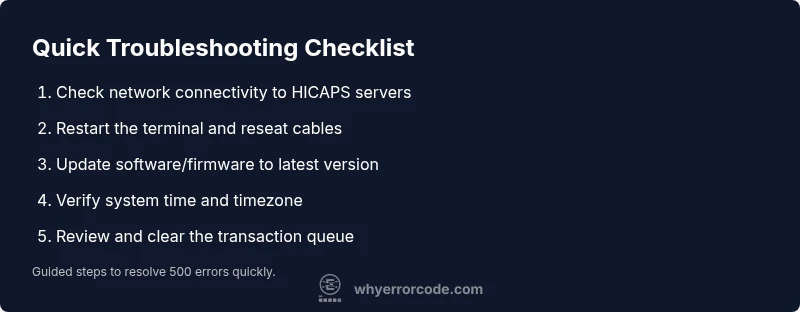
The fastest way to recover from Medicare hicaps error code 500 is a structured set of steps that tests the simplest possibilities first and progresses to more involved actions if needed. Step 1: Confirm the exact error and reproduce it with a recent timestamp on the affected terminal. Step 2: Check network health by testing connectivity to the HICAPS endpoints. Step 3: Restart the terminal and reseat any network cables. Step 4: Apply the latest software/firmware updates and reboot. Step 5: Verify date/time accuracy and timezone settings. Step 6: Inspect the transaction queue and clear any blocked items. Step 7: If the error persists, collect logs and contact the provider’s support with precise reproduction steps. Pro tip: keep a running log of actions and timestamps. If you have access to a test environment, reproduce there to verify the fix without affecting live patients.
Other possible causes and how to handle them
If the basic fixes fail, consider less common scenarios. A misconfigured firewall or security appliance between your clinic and HICAPS can alter packets and provoke error 500 responses. A transient configuration change on the server side can also create intermittent failures across multiple terminals. Inspect intermediate proxies or gateway devices, verify port access, and ensure SSL/TLS handshake settings align with server requirements. Finally, ensure any third‑party middleware integrated with the HICAPS workflow is up to date and compatible with current server APIs.
Adopt a systematic approach: isolate variables, test one change at a time, and document outcomes. If you can reproduce the error after each change, you can identify the most impactful fix and expedite escalation.
Safety, warnings, and when to call a professional
Error 500 on Medicare hicaps can affect patient throughput and clinic revenue. The safest approach is to follow vendor-supported steps and avoid making ad‑hoc changes to security appliances or internal server settings. Do not disable security features or bypass prompts to force a transaction through. If you are unsure about any step or the environment involves multiple network segments or regulated data, contact certified IT professionals or the provider’s technical support. In cases of persistent outages, you may need a formal incident response and potential service credits from the provider. Always back up transaction data before making changes and document every action for audit purposes.
Prevention tips and best practices
To minimize future hiccups, keep software and firmware up to date, maintain a stable network, and test transactions regularly during maintenance windows. Establish an escalation playbook so staff can quickly gather logs and reproduce steps for support. Maintain daily reconciliation of transactions to identify any unposted payments resulting from 500 errors and minimize revenue leakage. Consider redundant network paths for critical clinics and document incident responses to shorten recovery time for future outages.
Steps
Estimated time: 25-40 minutes
- 1
Confirm the error and reproduce
Document the exact error message, timestamp, and terminal ID. Attempt a new transaction to verify that the error persists, noting any patterns like specific payment types.
Tip: This helps you establish a reproducible scenario for support. - 2
Check network health
Verify the clinic's internet connection is stable. Ping the HICAPS server and run a basic network test to rule out DNS or routing issues.
Tip: If you see intermittent latency, switch to a wired connection. - 3
Restart and verify connections
Power down the terminal, unplug and reseat all network cables, then power it back on. Confirm the terminal shows a healthy connection status.
Tip: A clean restart resolves many temporary glitches. - 4
Update software/firmware
Install any available updates for the terminal software and firmware. Reboot after the update completes to apply changes.
Tip: Updates often fix compatibility with server changes. - 5
Validate time settings
Check that the terminal’s clock matches the network time and timezone. Time drift can trigger server rejections that look like 500 errors.
Tip: Use automatic time synchronization where possible. - 6
Test a transaction and collect logs
Run a small test transaction and capture error codes, logs, and timestamps. Save a screenshot if possible for support.
Tip: Logs speed up problem resolution when escalating. - 7
Escalate with support
If the error persists after all steps, contact Medicare HICAPS support and share your logs, terminal ID, and timestamps.
Tip: Provide clear reproduction steps to shorten the resolution time.
Diagnosis: Error code 500 shown on Medicare hicaps terminal during patient checkout
Possible Causes
- highTemporary outage on the HICAPS server
- highNetwork connectivity issues between terminal and server
- mediumOutdated or incompatible terminal software
- lowStuck or corrupted transaction data in the queue
Fixes
- easyCheck network connectivity and retry
- easyRestart terminal and re-seat network cables
- mediumUpdate terminal software/firmware to latest version
- easyVerify date/time and timezone settings
- easyReview and clear the transaction queue
- mediumCollect logs and escalate to support with details
Frequently Asked Questions
What does Medicare hicaps error code 500 mean?
Error 500 generally signals a server-side fault or a network communication issue. It often requires checking network health, confirming time synchronization, and updating software before escalating to provider support.
Error 500 usually means a server or network fault. Start with basic checks and updates.
Is the error due to my terminal or the Medicare system?
Both are possible. Start with network health and software updates; if unresolved, check logs and contact support for server-side confirmation.
Both can cause it; begin with network checks and updates, then loop in support.
Can I fix it myself?
Yes for many common fixes like network checks, restarts, and software updates. If the error continues, escalate to official support.
Many fixes you can do yourself, but escalate if it persists.
What about the cost to fix this error?
Costs vary with the provider and region. Self-service fixes are free, while professional support may range from a low-cost diagnostic to paid service calls.
Costs depend on who fixes it; you might incur a small fee for professional help.
When should I call a professional?
If basic checks fail or outages persist beyond a reasonable window, contact Medicare HICAPS support or your IT provider for deeper diagnostics.
Call support if it stays unresolved after basic steps.
How can I prevent this error in the future?
Maintain up-to-date software, monitor network health, and test transactions regularly. Document incidents to improve rapid response.
Keep software updated and test transactions routinely to prevent surprises.
Top Takeaways
- Diagnose by path: server outage, network, then software.
- Restart, update, and synchronize time first.
- Capture logs and escalate with precise details.
- Escalate promptly if unresolved to minimize patient impact.