Microsoft Office error code 1067: Quick Diagnosis and Fixes
Urgent guide to diagnose and fix Microsoft Office error code 1067. Learn quick repairs, step-by-step fixes, safe backups, and when to reinstall for a reliable Office startup.


The error code 1067 in Microsoft Office generally indicates an unexpected termination of the Office process during startup or operation. It usually points to installation corruption, conflicting add-ins, or service issues rather than a simple configuration error. Start with quick repairs, update Office and Windows, and run system checks to rule out corrupt files before deeper troubleshooting.
What Microsoft Office error code 1067 means in practice
Error code 1067 is a Windows-style termination signal that Office apps may surface when an essential component crashes during startup or while performing a task. In practical terms, this means the Office process shut down unexpectedly, often leaving you with incomplete updates, corrupted files, or blocked launches. The root cause can be anything from a damaged installation to conflicting background services. For IT pros and everyday users, recognizing that 1067 is a symptom rather than a single fault helps you approach fixes systematically. According to Why Error Code, this error frequently arises from installation integrity issues, stale components, or interference from security software. Addressing these underlying factors first typically yields the fastest resolution and reduces the chance of recurrence.
By treating 1067 as a signal of deeper health problems in the Office stack, you can map a repair path that minimizes downtime and data risk. Keeping backups, applying updates, and testing after each step helps you confirm progress before moving on to more invasive fixes. This approach aligns with best practices in troubleshooting and supports both developers and IT staff who rely on stable productivity tools.
Why this error happens in Windows and Office
There isn’t a single wire-tight cause of error 1067, but several well-known culprits often line up. A corrupt Office installation or stale components can trigger startup crashes. Misconfigured user profiles or corrupted licensing data can produce unexpected terminations during activation or first-run tasks. Conflicting add-ins, third-party antivirus scans, or background services that block Office can also surface 1067 at launch. In enterprise environments, policy-enforced settings, optional feature updates, and delayed service packs can compound the issue. From Why Error Code’s perspective, the most reliable path is to verify the core Office files first, then expand to environment checks to identify less-common triggers. By keeping a structured checklist, you can systematically eliminate suspects and reduce the likelihood of a recurrence.
Understanding where 1067 fits in the Office ecosystem helps you prioritize fixes: start with the simplest repair that has the broadest impact, then verify after each step before moving to deeper changes. This makes the process predictable and reduces the risk of data loss or extended downtime for teams relying on Office seamless operation.
Quick fixes you can try now
- Run a quick repair of Microsoft Office from the Apps & features settings to repair missing or corrupted components. This option is non-destructive and usually resolves most startup crashes.
- Update Office and Windows to the latest builds. Patches often include fixes for known incompatibilities that trigger error 1067.
- Run System File Checker (sfc /scannow) and DISM to repair corrupted Windows system files that Office depends on.
- Temporarily disable third-party antivirus or firewall overlays to test whether security software is blocking Office startup. Re-enable after testing.
- Launch Office with administrative privileges to rule out permission-related issues affecting startup.
- If the problem persists, consider a clean reinstall of Office to replace all core binaries with fresh copies.
Step-by-step fix for the most common cause: corrupted installation
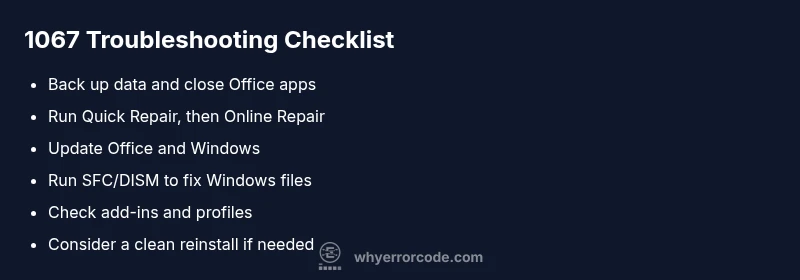
- Back up all critical Office documents and close every Office app to ensure a clean start.
- Open Settings > Apps > Microsoft Office > Modify and choose Quick Repair; run until completion. If it fails, repeat with Online Repair.
- After repair, reboot the computer and launch an Office app to observe if the error recurs.
- If it still appears, run the System File Checker (sfc /scannow) and then DISM /Online /Cleanup-Image /RestoreHealth to restore missing or corrupted Windows files.
- Update Office and Windows to the latest versions, then recheck functionality.
- If issues persist, perform a clean reinstall of Office, ensuring all related components are removed before reinstalling from scratch.
- Reboot again and test by opening a new document to confirm normal startup.
Tip: Keep a record of each step and its outcome to identify which fix actually resolved the problem, especially in a shared or corporate device.
How to run Office Repair (quick vs online) in Windows
Running a repair can fix many 1067-related issues without a full reinstall. Quick Repair fixes most corrupted files locally; Online Repair performs a more thorough restoration but takes longer and requires an internet connection. Access these options via Settings > Apps > Microsoft Office > Modify. Start with Quick Repair, then proceed to Online Repair if needed. After the repair, launch Office to verify if the error is resolved.
Tip: If you manage multiple machines, consider scripting a rollout of repair via enterprise tooling to maintain consistency across devices.
Checking for conflicting add-ins and profiles
Add-ins can trigger 1067 by injecting code during startup or document load. Start Word/Excel in Safe Mode (hold Ctrl while launching) to bypass add-ins and see if the error persists. If Safe Mode resolves the issue, disable all add-ins and re-enable them one by one to identify the culprit. Also check whether a corrupted Office user profile is causing the problem; creating a new profile can test this theory without affecting existing data.
Tip: Document which add-ins you disable to reinstall or re-enable them later without missing essential tools.
Verifying system health with SFC/DISM and Windows Update
System health checks ensure Windows components Office relies on are intact. Run sfc /scannow to repair protected system files, then use DISM to repair the Windows image. After these checks, run Windows Update to bring system libraries and Office dependencies up to date. A clean, updated environment reduces the risk of 1067 reoccurrence and improves overall Office stability.
Tip: Run SFC/DISM in an elevated command prompt to avoid permission-related failures and ensure the repairs apply to protected system areas.
When to perform a clean reinstall of Office
If repairs fail to fix the issue, a clean reinstall is warranted. Uninstall Office completely, remove residual folders (for example, under Program Files and AppData), then reinstall the latest Office suite from the official source. This approach resolves deeply embedded corruption and ensures a clean baseline. Expect a short downtime while reinstalling and reconfiguring printers, add-ins, and templates.
Tip: Before reinstalling, deactivate any license tied to Office if required, and verify your Microsoft account credentials to avoid activation problems after reinstall.
Enterprise and licensing considerations
In managed environments, error 1067 can be influenced by group policies, deployment rings, or compatibility modes. Coordinate with IT to roll out fixes via a tested update channel and ensure licenses are properly assigned. If the issue mirrors a broader Office suite problem, a targeted advisory from the vendor may be required. For contractors and freelancers, make sure you have a valid license and a backup key before making major changes.
Tip: Document policy changes and keep a log of affected devices to help with audits and future troubleshooting.
Data safety and backups before fixes
Always back up active documents and template files before performing repairs or reinstalls. Create a system restore point in case a repair step introduces new issues, especially on machines with customized workflows. If you’re on a corporate device, coordinate with the IT department to ensure backup and restore procedures comply with company policy. After fixes, verify all critical templates, macros, and add-ins are functioning correctly to minimize business disruption.
Proactive prevention to reduce future 1067 errors
Keep Office and Windows updated with automatic updates enabled. Regularly run built-in Office diagnostics and, if applicable, use enterprise deployment tools to maintain consistent configurations across devices. Avoid launching Office with incompatible add-ins or third-party software that intercepts startup processes. Establish a routine health check that includes SFC/DISM runs and periodic reinstallation tests to confirm the integrity of Office components over time.
Steps
Estimated time: 60-90 minutes
- 1
Close all Office apps and back up documents
Save any open work and completely exit Word, Excel, PowerPoint, and any background Office processes. Verify that there are no orphaned Office tasks in Task Manager before proceeding.
Tip: Back up critical templates and macros to a separate location before repairs. - 2
Run Quick Repair
Open Settings > Apps > Microsoft Office > Modify and choose Quick Repair. Let the repair complete and restart the machine to test if the issue is resolved.
Tip: If Quick Repair fails, proceed to Online Repair for a deeper fix. - 3
Run Online Repair if needed
Repeat the Modify process and select Online Repair. This may take longer but replaces more components. Reboot after the process and test Office startup.
Tip: Ensure you have an active internet connection during Online Repair. - 4
Check system health with SFC/DISM
Open an elevated command prompt and run sfc /scannow followed by DISM /Online /Cleanup-Image /RestoreHealth to repair Windows system files Office relies on.
Tip: Run these commands in safe mode if you encounter permission issues. - 5
Update Office and Windows
Check for and install the latest Office updates and Windows updates. A fresh patch may resolve underlying incompatibilities triggering 1067.
Tip: Restart after updates before testing Office again. - 6
Test for add-ins and profile issues
Launch Office in Safe Mode to bypass add-ins. Disable all add-ins, then re-enable one by one to identify the culprit. If profile corruption is suspected, create a new user profile and test.
Tip: Document which add-ins you disable to reinstall later if needed. - 7
Consider a clean Office reinstall
If the error persists, uninstall Office completely, remove residual folders, then reinstall the latest Office version from the official source. This provides a clean baseline.
Tip: Deactivate licenses if required before a reinstall and verify your account credentials afterward.
Diagnosis: Microsoft Office exits or shows error code 1067 during startup or operation
Possible Causes
- highCorrupt Office installation
- mediumOutdated Office version or Windows components
- lowConflicting add-ins or third-party antivirus interference
Fixes
- easyRun Quick Repair, then Online Repair if needed
- easyRun System File Checker (sfc /scannow) and DISM
- easyUpdate Office and Windows to latest builds
- hardPerform a clean reinstall of Office
Frequently Asked Questions
What does Microsoft Office error code 1067 mean?
Error code 1067 indicates the Office process terminated unexpectedly, often due to installation corruption, conflicting add-ins, or a blocked startup. Treat it as a symptom rather than a single fault and follow a repair-first approach to restore normal operation.
Error 1067 means Office stopped unexpectedly. Start with repairs and updates to restore normal startup.
Can antivirus software cause Office 1067?
Yes, security software can interfere with Office startup by blocking essential services or file access. Temporarily disabling it for testing can help identify if it’s the source, but re-enable protection immediately after testing.
Antivirus can block Office from starting. Test by disabling briefly, then re-enable protection.
Is it safe to repair or reinstall Office?
Repairing Office with built-in tools is safe and non-destructive for most users. A clean reinstall is more invasive but often necessary for persistent 1067 issues. Always back up data first.
Office repair is safe; reinstall if needed, but back up first.
Will 1067 affect all Office apps or just one?
1067 can affect a single app or multiple Office components depending on what caused the termination. Running repairs and updates typically address all affected areas.
It can affect one or several Office apps; fixes usually cover all.
How long does a repair typically take?
A Quick Repair may take 10–20 minutes, while Online Repair can take 20–60 minutes depending on system speed. A full reinstall could require longer downtime.
Repairs usually take 10 to 60 minutes, reinstall longer.
When should I contact Microsoft Support for 1067?
If repairs and reinstallations fail or if the error recurs after updates, contact Microsoft Support for deeper diagnostics and licensing checks. In enterprise environments, involve your IT department for policy-driven fixes.
If fixes don’t work, contact Microsoft Support or your IT team.
Watch Video
Top Takeaways
- Start with a quick repair before deeper fixes
- Update all software to eliminate known issues
- Back up data before major repairs
- Use a clean reinstall if repairs fail
- Test add-ins and profiles to prevent recurrence