Plaxis Error Code 110: Diagnosis, Fixes, and Prevention
Urgent guide to plaxis error code 110: diagnose licensing or authentication issues, apply fast fixes, and follow a step-by-step plan to restore access and prevent downtime.


Plaxis error code 110 signals a licensing or authentication issue that blocks startup or project loading. The quickest fix is to verify your license status, refresh or reactivate the license, and confirm the license file path and server accessibility. If the license server is unreachable or the license is expired, contact your license administrator and reattempt activation.
What plaxis error code 110 means
plaxis error code 110 is a blocking error that appears during startup or while loading a project, often associated with licensing, activation, or authorization checks. In PLAXIS terms, this code signals that the application cannot verify a valid license or access the required license token to run calculations. The error may occur if the license server is unreachable, the license file is corrupted or expired, or the environment variables that point to the license path are misconfigured. Because licensing checks are integral to proper operation, error 110 typically prevents session initiation until the license issue is resolved. This urgent condition requires a fast, systematic response because downtime can impact project timelines, especially in collaborative environments.
Before diving into deeper diagnostics, collect basic context: your PLAXIS version, license type (node-locked vs floating), whether you recently changed VPN or firewall settings, and any recent OS updates. If you are part of a team, confirm that other users on the same license pool can start PLAXIS; a floating license you can't reach could indicate license drift or server overload. The key is to separate license problems from project file issues so you don't chase symptoms.
Quick fixes you can try now
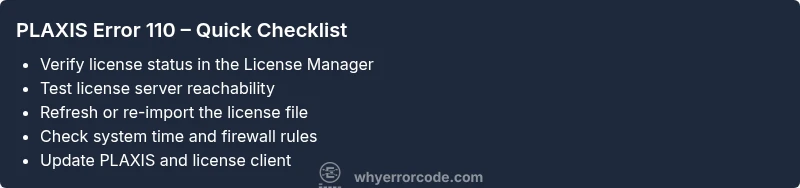
If plaxis error code 110 appears, try these fast checks before escalating to deeper troubleshooting:
- Check license status in the official License Manager or license portal. Confirm the license is active, not expired, and assigned to your user or machine correctly.
- Refresh or reactivate the license. For floating licenses, ensure the license server is reachable and the correct port is open. If you have a node-locked license, re-apply the license file to the correct directory.
- Validate the license path and environment variables. Look for variables like PLAXIS_LICENSE or FLEXLM or their equivalents and verify they point to the right license file or server.
- Verify network connectivity to the license server. Temporarily disable VPNs or firewalls that could block license traffic, or add exceptions for the license server address.
- Run PLAXIS with elevated privileges. Sometimes a lack of permissions prevents license validation from completing.
- Check for software updates or patches. An interim fix may be included in a newer release or patch that resolves a licensing validation bug.
- If you use a USB dongle license, confirm the dongle is seated properly and test on another port.
If these quick checks fail, gather logs and prepare for a deeper diagnostic flow. Professional assistance may be required when license servers are managed by a central IT team or a vendor.
Diagnostic Flow: Symptoms, Causes, and Fixes
Symptoms: You see error code 110 during PLAXIS startup or when opening a project; licensing dialogs fail to validate; the software stops after the initial splash.
Possible causes (priority ordered):
- {"cause": "License server unreachable or license expired", "likelihood": "high"}
- {"cause": "Corrupted or misconfigured license file", "likelihood": "medium"}
- {"cause": "Incorrect system time/date or time zone settings", "likelihood": "low"}
- {"cause": "Network firewall blocking license traffic", "likelihood": "medium"}
- {"cause": "License client components corrupted or out of date", "likelihood": "low"}
Solutions:
- Ensure the license server is reachable, restart the license service, or re-acquire a valid license. (easy)
- Replace the license file with a fresh copy from the admin portal and re-activate. (medium)
- Check and correct system time, date, and time zone; re-validate the license after syncing. (easy)
- Add exceptions or disable blocking firewall rules for the license server ports. (easy)
- Update PLAXIS and its license client to the latest version and re-test. (medium)
Step-by-Step Fix: License Activation and Validation (Most Common Cause)
- Close PLAXIS and save any open work. Note the exact error message and collect the license server details.
- Open the License Manager or license portal and confirm your current license status (active, assigned, expiration date).
- If using a floating license, verify the license server hostname and port; ping the server to test reachability.
- Re-activate or refresh the license. If you have a license file, re-import it to the correct directory and confirm the path in your environment variables.
- Check system time and date settings. If out of sync, correct them and re-run the license validation.
- Launch PLAXIS again as an administrator. If you still see 110, check firewall rules and add exceptions for the license service.
If activation succeeds, perform a quick test by opening a simple project and running a small analysis to ensure the license is fully validated. If issues persist, capture logs (license server responses) and escalate to your IT or vendor support.
Tip: Always back up license files before replacing them, and document the steps you took for future audits.
Other Causes and Their Fixes
- Corrupted installation or license client: run a repair install or clean reinstallation of PLAXIS and the license client, then re-activate. (medium)
- DNS or network changes: verify DNS resolution for the license server and update any hosts file entries if your network uses internal licensing. (easy)
- Permissions issues on the license directory: ensure the user account has read/write access to the license path; re-run activation as administrator. (easy)
- License pool overload or concurrency: check with IT if the pool has reached its limit; move to another license or increase pool capacity if permitted. (medium)
- Incompatible OS or missing prerequisites: verify supported OS version and required libraries; install missing components as advised by the vendor. (low)
Tips & Warnings
- Safety: Do not modify system security settings beyond what’s necessary to restore licensing, as this can affect other applications.
- Pro-tip: Keep a log of license server status, activation timestamps, and any error codes to speed up escalation.
- Warning: If the license server is managed by an external vendor, avoid unilateral changes; contact the administrator before reconfiguring shared resources.
- Note: If you’re in a regulated environment, document license compliance checks for audits and future troubleshooting.
Verification and Next Steps
After completing fixes, verify that PLAXIS starts normally and that a basic analysis runs without error codes. Monitor license communication for several sessions to ensure a stable state. If error code 110 reoccurs, escalate to your license administrator and vendor support with a summary of actions taken and logs collected.
Steps
Estimated time: 20-40 minutes
- 1
Check license status
Open the license manager and confirm the license is active, not expired, and assigned to your user or machine. Document any error codes returned by the server.
Tip: Take a screenshot of the license status for support. - 2
Refresh or reactivate license
If you use a floating license, ensure the license server is reachable and restart the license service. For node-locked licenses, re-import the license file to the correct directory.
Tip: Perform this step with PLAXIS closed to avoid cache issues. - 3
Check environment variables
Verify PLAXIS_LICENSE or FLEXLM settings point to the correct license file or server. Correct any typos or outdated paths.
Tip: After changes, re-open PLAXIS and monitor for changes. - 4
Validate network connectivity
Test connectivity to the license server (ping or traceroute). Temporarily disable local VPNs or add firewall exceptions for the license port.
Tip: If you cannot reach the server, contact IT to check routing rules. - 5
Sync system time
Ensure the system clock is accurate and the time zone is correct. License validation can fail if the clock is off.
Tip: Enable automatic time synchronization if available. - 6
Test PLAXIS startup
Launch PLAXIS as administrator and attempt to load a simple project. If the error persists, collect logs and escalate to support.
Tip: Keep a clean test project to avoid data loss while troubleshooting.
Diagnosis: PLAXIS shows error code 110 during startup or project load
Possible Causes
- highLicense server unreachable or license expired
- mediumCorrupted license file or misconfigured license path
- lowIncorrect system time/date settings
- mediumFirewall or network policy blocking license traffic
Fixes
- easyVerify license status and server reachability; refresh or reactivate license
- mediumReplace or re-import license file and correct license path
- easySync system clock and time zone; revalidate license
- easyConfigure firewall/antivirus to allow license traffic; test again
- mediumUpdate license client or PLAXIS to the latest version and retry
- easyIf using a dongle, reseat the dongle and test on another USB port
Frequently Asked Questions
What does plaxis error code 110 indicate?
Error 110 generally points to licensing or authentication problems that prevent PLAXIS from validating a usable license. This blocks startup or project loading until the license can be verified. Network access, license file integrity, and server availability are common contributors.
Error 110 usually means a licensing or activation problem that stops PLAXIS from starting. Check the license status and network access, then re-activate if needed.
Can reinstalling PLAXIS fix error 110?
Reinstalling PLAXIS can repair corrupted license client components, but the root cause is still licensing validation. You should re-activate the license after reinstalling and verify server connectivity.
Reinstalling can fix corrupted license components, but you still need to validate the license and connectivity afterward.
Is internet access required to fix error 110?
Yes, internet access is typically required to validate the license with the server, refresh floating licenses, and reach activation portals. Ensure firewall rules permit license traffic when troubleshooting.
Usually you need internet access to validate and refresh your license during troubleshooting.
What should I do if the license appears valid but error 110 persists?
Collect license server logs, verify time synchronization, and check for port blocks or DNS issues. If the issue persists, escalate to IT or vendor support with detailed steps taken.
If the license looks good but it keeps failing, grab logs and contact support with what you tried.
When is it appropriate to contact vendor support?
If standard fixes fail and the license server status cannot be resolved locally, contact vendor support or your IT department to investigate server-side licensing or pool configuration.
If the problem sticks after fixes, reach out to vendor support with logs and steps you've tried.
Can a corrupted license file cause error 110?
Yes. A damaged license file can trigger error 110. Replace it with a clean copy from the license administrator and re-activate to restore access.
A damaged license file can cause 110. Replace it with a clean copy and try activation again.
Watch Video
Top Takeaways
- Verify license status before deep troubleshooting
- Refresh or reactivate the license to restore access
- Check network, server reachability, and time settings
- Escalate to IT/vendor if the issue persists