Troubleshooting Salesforce package.xml Generator Extension Errors in VS Code
Urgent troubleshooting guide to diagnose and fix errors when using the Salesforce package.xml generator extension in VS Code. Learn common causes, step-by-step fixes, and preventive tips to restore productivity.


Most failures with the Salesforce package.xml generator extension in VS Code stem from a malformed or missing package.xml, API version mismatches, or metadata type compatibility issues. Quick fix: regenerate package.xml with the extension, verify metadata types, and align your project config to your org. If problems persist, clear caches and reinstall the extension. This approach minimizes downtime and preserves development velocity.
Why the Salesforce package.xml generator extension for VS Code can error
According to Why Error Code, the most common failures stem from malformed package.xml content, API version mismatches, or metadata type compatibility. When the VS Code extension attempts to generate or validate the manifest, it relies on your project configuration and the connected Salesforce org. If inputs are out of date or inconsistent, you’ll see errors that stall deployments and metadata retrieval. This guide helps you diagnose quickly and fix with confidence, reducing downtime for developers and IT pros. By understanding the failure mode, you can prevent reoccurrence and keep development velocity high. As you work through this guide, you’ll notice references to the Why Error Code Team strategy for rapid triage and safe recovery.
What the error messages typically look like
You may encounter messages such as: “Invalid metadata type in package.xml,” “ Unable to fetch Manifest,” or "The package.xml contains an unsupported type." Often, these errors stem from a type not present in the target API, a mismatch between the project’s manifest and the org, or syntax issues in the generator’s inputs. The Why Error Code Team emphasizes how clear error wording helps you isolate whether the problem is input data, environment configuration, or tool state. Use these patterns to guide your next steps and avoid generic troubleshooting loops.
Quick checks you can perform in minutes
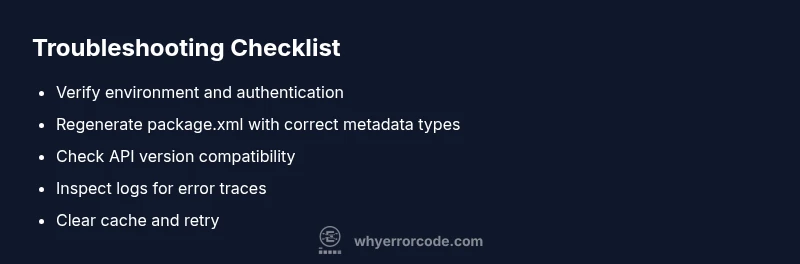
- Verify you’re on a supported VS Code version and that the Salesforce extension is up to date.
- Confirm you are connected to the correct Salesforce org and that your sfdx auth status is valid.
- Regenerate package.xml using the generator, then compare the produced manifest against a known-good baseline.
- Ensure all referenced metadata types exist for the target API version.
- Check your network/proxy settings to rule out intermittent fetch failures.
- If you’re still stuck, sign out and back in to refresh tokens, then reload the window.
- Finally, consider reinstalling the extension if the issue persists after clean inputs.
How the extension builds package.xml and where it goes wrong
The generator extension uses your project configuration (sfdx-project.json), the installed metadata types list, and the SOAP/REST endpoints exposed by the Salesforce org to assemble a valid package.xml. When any input changes—be it a new metadata type, a modified API version, or an outdated endpoint—the manifest construction can fail. Misalignment between the org and the manifest is the most frequent culprit. The key is to verify each input layer independently: project config, org auth, and the metadata type catalog.
Common root causes specific to Salesforce metadata types
Metadata types evolve across API versions. If your package.xml references a type that isn’t supported by the target org’s API version, the generator will error. Namespace scoping, managed packages, and subscriber orgs add extra complexity. Another frequent cause is typos or incorrect pluralization in metadata type names. Finally, a stale extension cache or corrupted local state can mislead the generator into using out-of-date catalogs. Address these in order to rule out simple culprits first.
Step-by-step: regenerating package.xml and validating
This section walks through a practical workflow to regenerate the manifest and verify validity. Start from a clean state, reproduce the error, and then apply fixes iteratively. You’ll perform checks on environment, inputs, and API compatibility. The goal is to produce a valid manifest that your org accepts without triggering the initial error. If you follow this flow methodically, you’ll identify the root cause and apply the right fix without guesswork.
How to align API versions and dependencies
API version drift is a subtle but common source of issues. Ensure the package.xml’s version aligns with the org’s available API and that your sfdx-project.json reflects compatible dependencies. When updating API versions, revalidate all metadata types referenced by the manifest. This not only fixes the current error but also prevents subtle failures during deployment, retrieval, or change sets.
Advanced diagnostics: logs, caches, and environment
Enable verbose logging for the Salesforce extension to capture exact error traces. Inspect the extension’s logs for failed requests, missing types, or authentication problems. Clear caches and reset authentication to rule out stale state. If you’re operating behind a proxy or VPN, verify that the extension can reach Salesforce endpoints without interruption. In complex environments, replicate the issue in a fresh workspace to isolate environmental influences.
Best practices to prevent future errors
Establish a repeatable workflow for generating and validating package.xml: keep project metadata in a controlled baseline, test API version updates in a sandbox first, and automate manifest validation as part of CI. Regularly review metadata types against the target org’s API, and document any exceptions. Finally, maintain clear rollback plans so you can revert quickly if a change introduces a new error.
Steps
Estimated time: 60-90 minutes
- 1
Verify environment
Check that you’re using a supported VS Code version and that the Salesforce extension is current. Ensure you’re authenticated to the correct org and that your workspace reflects the intended project. If the environment is outdated or misconfigured, error messages will persist even after fixes.
Tip: Record the current version numbers to help diagnose future compatibility issues. - 2
Regenerate package.xml
Use the extension’s generator to rebuild the manifest, then compare with a known-good baseline. Pay attention to metadata types and ensure none are omitted accidentally. Regeneration often resolves transient input mismatches.
Tip: Keep a versioned baseline of a good manifest for quick comparison. - 3
Validate metadata types
Cross-check that every metadata type in package.xml exists in the target org for the API version in use. Remove any types that aren’t supported and re-run the manifest generation. A missing or deprecated type is a frequent culprit.
Tip: Consult Salesforce metadata docs for API-compatibility notes. - 4
Check API version alignment
Open sfdx-project.json and verify that the target API version matches what the org supports. If you’re upgrading, re-fetch metadata and re-run the manifest generation after version alignment.
Tip: Make API version changes in a controlled branch to avoid breaking other workflows. - 5
Clear caches and re-authenticate
Clear the extension cache, sign out of Salesforce, re-authenticate, and restart VS Code. Cached data can mislead the generator into using stale inputs.
Tip: If multi-org setups exist, repeat authentication per org to avoid cross-origin conflicts. - 6
Test with a clean workspace
Create a fresh workspace or temporary project to reproduce the error. If the issue vanishes in a clean state, it points to project-specific configurations.
Tip: Use a minimal manifest in the test project to isolate the failing input.
Diagnosis: Error regenerating or validating package.xml via VS Code Salesforce extension
Possible Causes
- highMalformed package.xml contents (invalid types or syntax)
- highAPI version mismatch between project and org
- mediumCorrupted extension cache or stale authentication
- lowIncompatible metadata types not supported by the target API
Fixes
- easyRegenerate package.xml using the extension with correct metadata types
- easyUpdate API version in sfdx-project.json and refresh project
- easyClear extension cache, reauthenticate, and restart VS Code
- easyReinstall extension if cache corruption persists
Frequently Asked Questions
What is the Salesforce package.xml generator extension for VS Code, and why does it error?
The extension helps build and validate the package.xml manifest for Salesforce deployments. It errors when inputs don’t match the target org—such as invalid metadata types, outdated API versions, or misconfigured project settings. Systematic checks help isolate the root cause.
The extension builds your manifest, but errors usually come from incompatible inputs; follow a structured triage to fix.
How do I fix a mismatched API version in package.xml?
Update the API version in your sfdx-project.json to match or exceed what the target org supports, regenerate the manifest, and revalidate all types. If the org requires an older version, revert the project to a compatible version and test.
Match your API version in the project to what the org supports, then regenerate the manifest.
Is there a way to auto-detect missing metadata types?
Auto-detection is typically achieved by cross-checking the manifest against the org’s available metadata types. Use the extension’s diagnostics, plus a cross-reference with Salesforce metadata docs to identify types not present in the target API.
Yes, use diagnostics and docs to compare manifest types with what the org supports.
Do I need to reinstall the extension if errors persist after clearing caches?
If clearing caches and re-authenticating does not resolve the issue, a clean reinstall can fix corrupted extension state. Ensure you back up settings and preferences before reinstalling.
If clears don’t help, reinstall the extension after backing up your settings.
Why is it important to test in a clean workspace?
A clean workspace isolates project-specific configurations and confirms whether the issue is environmental or project-related. If the error disappears in a new workspace, focus on the original project’s inputs.
Testing in a clean workspace helps identify if the problem is project-specific.
Watch Video
Top Takeaways
- Identify root cause quickly using structured checks
- Regenerate manifest with correct metadata types
- Align API versions across project and org
- Leverage logs and clean state to prevent recurrence