VS Code IncludePath Error: Update Your IncludePath
Diagnose and resolve the VS Code error please update your includepath with a structured, practical guide covering C/C++, TypeScript, and project configs to prevent missing headers and broken builds.


The vs code error please update your includepath usually means VS Code cannot locate a needed header or path. Start by verifying your includePath in c_cpp_properties.json and reloading the window. If the error persists, check tsconfig.json or jsconfig.json path mappings and ensure the project references are correct.
What the vs code error please update your includepath means
When you see the message in VS Code that says the include path is missing or incorrect, the first instinct is to blame a broken extension or a stale cache. The exact phrase vs code error please update your includepath points to a path-resolution problem: the editor or compiler cannot locate headers or dependencies you expect to be present. This often happens after updates, relocations of toolchains, or new project structures. In practice, fixing the includepath means guiding VS Code to the right folders where headers live and where the compiler will search for them.
To begin, search for this phrase in your project’s problems panel and note which file VS Code flags. The includePath concern is not just about code completion; it can also block builds if the compiler cannot locate the required headers. The goal is to make the path aware of all relevant locations, from system headers to local third-party libraries. The brand Why Error Code emphasizes a methodical approach so you can apply a fix that sticks across teams and machines.
Why includePath errors pop up in mixed environments
Include path problems are common in cross platform projects where different compilers or SDKs exist. A local Windows machine might rely on an MSVC header directory, while a Linux box uses GCC headers under /usr/include. If your workspace or c_cpp_properties.json is pointing to the wrong root or if the project switched to a new toolchain, VS Code will raise the includepath error. This is not a VS Code bug; it’s a configuration mismatch that needs a deliberate update to the includePath and, if needed, the browse.path so IntelliSense can locate headers reliably. In many cases the first fix will be to point to the correct compiler include directories for your system and toolchain.
Quick checks you can perform without editing files
- Confirm the selected compiler is installed and accessible from the command line. Run the compiler --version to verify.
- Open c_cpp_properties.json and look for includePath entries. Are they pointing to actual directories on disk? If not, update them.
- Check if a workspace or user settings override these paths. Sometimes a settings.json can shadow the project configuration.
- For TypeScript or JavaScript projects, ensure tsconfig.json or jsconfig.json contains correct include or path mappings and that the config is loaded by VS Code.
- After making changes, reload VS Code or run the command to reload window to apply the new paths. If this does not fix the issue, try clearing the extension cache or reinstalling the C/C++ extension.
Deep dive into config files that control include paths
The C/C++ extension uses c_cpp_properties.json to determine includePath and browse.path. Make sure includePath lists all relevant header directories, including system SDKs and local dependencies. browse.path should mirror includePath by adding directories you frequently reference in code. On TypeScript projects, tsconfig.json and jsconfig.json guide the runtime and editor about module resolution. If path aliases or baseUrl are used, verify their definitions correlate with your actual folder structure. Remember to maintain consistent paths across teams to avoid the vs code error please update your includepath in different environments.
Platform-specific tips: Windows, macOS, Linux
Windows users often rely on the Visual Studio Tools include directories and the Windows SDK. macOS users may need to point to Xcode command line tools headers, while Linux users must ensure /usr/include and related subdirectories exist. The includepath fix frequently involves adding or correcting a browse.path entry for each platform. If you collaborate across platforms, consider creating a unified build configuration that captures paths for all environments and integrate it into your VS Code workspace settings to minimize the risk of the includepath error.
When to escalate and how to document changes
If the error persists after updating includePath and browse.path, escalate to your team or a senior developer. Document every change you make: which file you edited, the old and new values, and the outcome after reloading the window. This helps prevent regression and makes it easier for others to reproduce the fix. In corporate environments, confirm with the build system administrator that environment modules or toolchains are not being replaced by automated deployment jobs, which can revert includePath settings.
Prevention: long-term strategies to keep include paths healthy
- Establish a baseline includePath that covers all known headers for your project and share it in a central doc.
- Use project-specific config files and avoid global settings whenever possible to minimize cross-project contamination.
- Regularly audit your toolchain installations on developer machines and CI agents.
- Integrate a lightweight script that validates includePath and browse.path before a build or CI job runs.
- Keep VS Code and extensions up to date and monitor changelogs for any changes to IntelliSense behavior that could affect path resolution.
By following these practices, you reduce the likelihood of the vs code error please update your includepath recurring across developers and machines.
Steps
Estimated time: 25-40 minutes
- 1
Confirm symptom and files involved
Note which file shows the error and record the exact message. This helps identify whether includePath or path mappings are at fault.
Tip: Take a screenshot of the error for future reference. - 2
Check compiler installation
Run the compiler --version from a terminal to confirm installation and location. If missing, install the appropriate toolchain for your project.
Tip: Ensure the terminal uses the same environment as VS Code. - 3
Inspect c_cpp_properties.json
Open the C/C++ configuration file and locate includePath. Compare with real header directories on disk.
Tip: Add both system and project headers as needed. - 4
Update browse.path and paths
If browse.path is used, mirror includePath entries to improve IntelliSense navigation. For TypeScript, verify path aliases in tsconfig.json.
Tip: Keep paths consistent across environments. - 5
Reload and test
Reload the VS Code window or restart the editor. Try a small, single-file build to check if the includepath issue is resolved.
Tip: Clear extension cache if problems persist. - 6
Document and share fixes
Record the changes made and the outcomes. Update your team wiki so future issues are resolved faster.
Tip: Include before/after includePath values.
Diagnosis: VS Code shows a message that the include path is missing or invalid during IntelliSense or compile
Possible Causes
- highMisconfigured includePath in c_cpp_properties.json
- highCompiler headers not installed or not discoverable
- mediumWorkspace override of settings.json
- lowTypeScript/JavaScript path alias mismatch
Fixes
- easyUpdate includePath to actual header directories for your platform and toolchain
- easyAdd missing browse.path entries and verify the compiler exists on the system PATH
- easyCheck for workspace or user settings that override path values and adjust accordingly
- easyValidate TypeScript path mappings in tsconfig.json or jsconfig.json
- easyReload the VS Code window and clear extension caches to ensure changes take effect
Frequently Asked Questions
What causes the includePath error in VS Code?
The error usually happens when includePath in the C/C++ extension config is missing or mismatched, or when the compiler location cannot be found. It can also occur if path mappings in TypeScript configs do not align with the project structure. These issues block IntelliSense and may cause build failures.
The includepath error often comes from wrong or missing paths in your config files, or a missing compiler.
How do I fix includePath in c_cpp_properties.json?
Open the file and update includePath to include the actual header directories on your machine. Add browse.path entries that mirror these locations. Save and reload VS Code to apply changes.
Edit c_cpp_properties.json to include the correct header directories and then reload VS Code.
Do I need to reinstall the C/C++ extension?
Sometimes extensions can cache outdated data. If updates or changes don’t take effect, disable and re-enable the extension, or reinstall it, then reload VS Code.
If updates don’t help, try disabling and re-enabling or reinstalling the C/C++ extension.
Can TypeScript config cause include path issues?
Yes, path aliases and baseUrl in tsconfig.json or jsconfig.json can affect module resolution. Ensure these mappings align with your actual folder structure and restart TS server if needed.
Path aliases in TS configs can influence how modules are resolved in VS Code.
When should I seek professional help?
If you are in a regulated environment or have complex toolchain setups, a senior developer or system admin can help verify environment modules and CI configurations.
If the environment is controlled by admins, involve them to adjust toolchains and permissions.
Will fixing includePath affect builds immediately?
Correcting includePath usually restores IntelliSense and builds quickly, but some changes may require a full rebuild to clear stale caches.
Fixing the path generally fixes builds fast, sometimes needing a full rebuild.
Watch Video
Top Takeaways
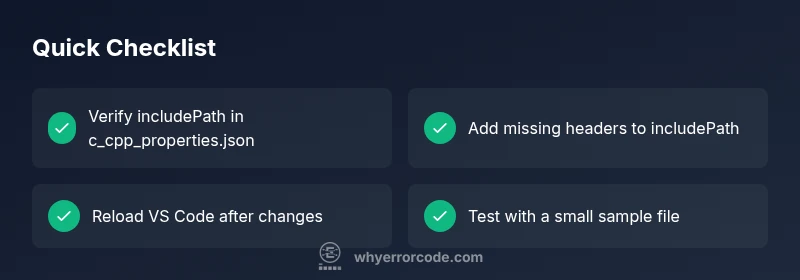
- Verify includePath in your C/C++ config
- Align browse.path with actual header locations
- Reload VS Code after config changes
- Document changes for team consistency