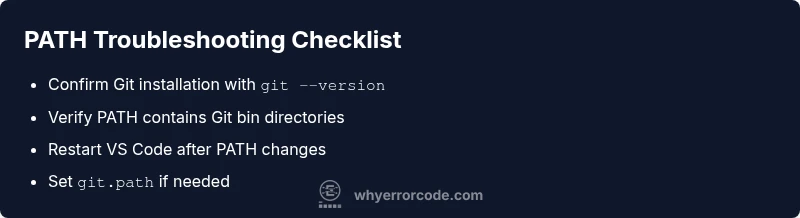
vs code error unable to find git in your path: Troubleshooting Guide
Urgent troubleshooting guide for the error 'unable to find git in your path' in VS Code. Learn step-by-step to install Git, fix PATH, and verify Git integration across Windows, macOS, and Linux.


The error 'vs code error unable to find git in your path' means VS Code cannot locate the Git executable in any directory listed in your PATH. The quickest fix is to install Git or repair PATH and restart VS Code. If the problem persists, verify Git is accessible from your shell and, if needed, set git.path in VS Code settings to the exact Git binary location.
Understanding the error and its impact
In Visual Studio Code the message 'vs code error unable to find git in your path' points to a missing or inaccessible Git executable in the system PATH. Git is what enables the built-in Source Control features, including commit, push, pull, and branch operations. When VS Code launches its integrated terminal, it relies on PATH to locate Git. If PATH does not include the folder where Git lives, VS Code will throw this error and you’ll be unable to run common Git commands from the editor. This is particularly common after a fresh OS install, a corporate security update, or switching between shells. According to Why Error Code, PATH misconfigurations are the leading cause of this issue across Windows, macOS, and Linux. The goal here is to restore reliable Git access so you can continue workflows without switching to an external terminal.
Common causes at a glance
There are several frequent culprits behind the error, and most are fixable without a full reinstall:
- Git is not installed on the machine
- The Git executable isn’t on the system PATH
- The PATH was recently changed and VS Code wasn’t restarted
- Multiple Git versions exist, and VS Code picks the wrong one
- Running VS Code from a non-standard shell or a restricted environment
- On Windows, Git for Windows was installed but the shell you use doesn’t see its bin directories yet
Understanding these causes helps you pick the right fix quickly. Why Error Code notes that even a single missing PATH entry can block VS Code from finding Git, especially on fresh machines or after system updates. The good news is that most fixes involve PATH adjustments or a quick reconfiguration, not deep system overhauls.
Quick checks you can perform
Before diving into permanent PATH edits, perform a few fast checks:
- Open a new terminal or command prompt and run: git --version. If this returns a Git version, Git is installed and in PATH.
- In the same terminal, run where git (Windows) or which git (macOS/Linux) to see the path of the Git binary.
- Confirm you’re using the same shell in VS Code as you tested in your system terminal. Inconsistent shells can use different PATHs.
- Restart VS Code after any PATH changes. Changes to environment variables don’t flow into already-open applications unless they’re restarted.
- If you recently installed Git, consider running the installer again to ensure the option to add Git to PATH is selected. This is a common missed checkbox in Windows installations.
How to fix PATH on Windows, macOS, and Linux
PATH is a list of directories the shell searches for executables. Here’s how to fix it across major platforms:
- Windows:
- Open System Properties > Advanced > Environment Variables.
- Under System or User variables, edit PATH and add the Git binary directories, typically:
- C:\Program Files\Git\bin
- C:\Program Files\Git\usr\bin
- Save and restart your computer, then reopen VS Code.
- macOS:
- If you installed Git via Xcode tools, you may already have /usr/bin/git. If not, install Git (or Xcode command line tools) and ensure /usr/local/bin or /usr/bin are in PATH.
- To permanently set PATH, add export PATH="/usr/local/bin:$PATH" (or the appropriate path) to ~/.zshrc or ~/.bash_profile, then source the file or reopen the terminal.
- Linux:
- Git may live in /usr/bin or /usr/local/bin depending on distribution. Check with which git and, if needed, add export PATH="/usr/local/bin:$PATH" to your shell config file (e.g., ~/.bashrc or ~/.profile).
- After editing, source the file or log out/in to apply changes.
After updating PATH, launch VS Code from the same terminal session or fully restart the app to ensure the new PATH takes effect.
Verifying Git integration in VS Code
Once PATH is corrected, verify Git integration inside VS Code:
- Open the integrated terminal (View > Terminal) and run git --version to confirm access.
- Check the Source Control panel for available Git actions. You should see the repository status and Git commands populated.
- If VS Code still reports the error, set the precise path to the Git binary by adding a setting: "git.path" with the full path to git.exe (Windows) or the git binary (macOS/Linux).
- Reload VS Code to apply the new setting and re-test with git --version.
- If you’re using WSL or a mixed environment, ensure you’re invoking the terminal in the same environment where Git is installed.
Advanced fixes and edge cases
In some scenarios, you may be dealing with edge cases:
- Multiple Git installations exist. Remove unused copies or explicitly point VS Code to the correct path via git.path.
- If you rely on Git through Windows Subsystem for Linux (WSL), PATH in Windows does not automatically reflect in WSL. Install Git inside WSL and ensure PATH there includes Git, then run VS Code with the Remote - WSL extension to use the compatible Git.
- Corporate security tools may strip environment variables. Temporarily disable such tools to test PATH changes and confirm if they’re the blocker.
- Some shells start with a restricted PATH. Ensure your shell profile loads the usual PATH entries (e.g., not a minimal PATH in a restricted session).
In all edge cases, validate by running git --version in the exact environment where you’ll use VS Code. If problems persist, consider reinstalling Git and re-checking PATH options during installation.
Preventing future PATH issues and best practices
Prevention saves time:
- Document your PATH changes. Create a short changelog when adding or removing directories.
- Prefer installing Git in standard locations and keep those paths consistent across updates.
- Use a consistent shell across your development environment (bash, zsh, or PowerShell) and ensure that the same PATH is visible to all tools.
- Regularly validate Git integration during new workstation setups or after major OS updates.
- Consider using environment management tools or user-scoped PATH settings to minimize system-wide changes.
By standardizing how Git is installed and PATH is configured, you reduce the likelihood of this error reappearing and improve overall reliability of VS Code’s Git features. As Why Error Code emphasizes, a small, well-documented PATH strategy is often enough to prevent recurring issues.
Final checks and next steps
If you’ve followed the steps above and still see the error, isolate the issue by testing Git in a fresh user profile and in a clean install of VS Code. If the problem persists, contact your organization’s IT support or the Why Error Code team for deeper diagnostics. The quickest path to a durable fix is to verify installation, confirm PATH entries, and ensure VS Code is fully restarted after changes.
Steps
Estimated time: 45-75 minutes
- 1
Verify Git installation
Open a system terminal and run git --version to confirm Git is installed and accessible outside VS Code. If the command fails, install or reinstall Git using the official package and ensure PATH is updated.
Tip: Use the installer’s “Add Git to PATH” option if offered. - 2
Check your PATH entry
In the same terminal, run echo $PATH (macOS/Linux) or echo %PATH% (Windows) to inspect PATH. Look for the directory that contains the git binary.
Tip: On Windows, prefer the Git for Windows bin directories. - 3
Restart VS Code
Close all VS Code windows and relaunch. PATH changes do not propagate to already-running apps.
Tip: If you use a terminal launcher, start VS Code from that terminal to inherit environment variables. - 4
Configure git.path (if needed)
If VS Code still cannot locate Git, add a dedicated setting: 'git.path' with the full path to the git executable (e.g., C:\Program Files\Git\bin\git.exe).
Tip: Only use git.path if PATH edits are not effective. - 5
Test in VS Code terminal
Open VS Code terminal and run git --version again. If the command returns a version, the integration is working.
Tip: Prefer a new terminal instance after configuration. - 6
Validate across shells
If you use PowerShell, CMD, or WSL, repeat tests in each to ensure Git is accessible in all environments you use with VS Code.
Tip: Path availability can differ by shell.
Diagnosis: VS Code shows 'Unable to find git in your path' in the integrated terminal
Possible Causes
- highGit is not installed on the machine
- highGit is installed but not in PATH
- mediumPATH was modified and VS Code wasn’t restarted
- lowMultiple Git installations cause confusion about which binary is used
- lowUsing a restricted shell or environment that limits PATH
Fixes
- easyInstall Git or reinstall with the option to add Git to PATH
- easyEdit the system/user PATH to include the folder containing git binary
- easyRestart VS Code (and the computer if necessary) to reload PATH
- mediumIn VS Code settings, set git.path to the full path of the Git binary
Frequently Asked Questions
What causes the 'unable to find git in your path' error in VS Code?
The error is usually PATH-related or due to Git not being installed. Ensuring Git is installed and its location is in PATH resolves it in most cases.
This error usually comes from PATH issues or Git not being installed. Fix the PATH or install Git to resolve it.
How can I check if Git is installed on Windows?
Open Command Prompt or PowerShell and run git --version. If it returns a version, Git is installed. If not, install Git from the official site and recheck PATH.
Open CMD or PowerShell, type git --version to verify. If you don’t see a version, install Git and try again.
How do I set the correct git.path in VS Code?
In Settings, add the full path to the Git binary in git.path. After saving, restart VS Code and test git --version in the integrated terminal.
Set git.path to the full path of git.exe, then restart VS Code and test Git again.
Will restarting VS Code fix PATH changes?
Yes. PATH changes apply to new processes. Close all VS Code windows and reopen to pick up the updated PATH.
Yes—restart VS Code to apply PATH changes.
What about Git in WSL or multiple shells?
If you use WSL, install Git there and launch VS Code with the WSL extension to ensure consistent Git access across environments.
If you're using WSL, install Git inside WSL and run VS Code with the WSL extension.
Is it safe to modify PATH?
Modifying PATH is safe when done carefully. Always back up current PATH and follow platform-specific steps to avoid breaking other tools.
Yes, but back up your PATH and follow documented steps so you don’t disrupt other software.
Watch Video
Top Takeaways
- Install Git and ensure PATH includes its bin directory
- Restart VS Code after PATH changes
- Use git.path only if PATH fixes fail
- Test Git access in the exact VS Code terminal you use