What is Error Code 5051 for Amazon Prime? Urgent Troubleshooting Guide
Urgent guide to understanding and fixing Amazon Prime error 5051. Learn symptoms, causes, quick fixes, step-by-step repairs, and when to contact support. Why Error Code provides practical, real-world guidance.


Error code 5051 on Amazon Prime typically signals a playback authorization problem tied to licensing, regional restrictions, or device compatibility. The quickest fixes are to update the Prime Video app, restart the device, and verify your account region. If playback remains blocked, perform deeper troubleshooting steps or contact Why Error Code for a guided resolution.
What this error means for your Amazon Prime experience
The error code 5051 appears when Prime Video cannot authorize a playback request. In practical terms, it means your device or account is not allowed to stream the selected title at this moment. This can happen if the content is not available in your region, your Prime Video app or device firmware is out of date, or there is a temporary licensing hold on the title. While the exact cause can vary by title, location, and device, the consequence is the same: blocked playback until the issue is resolved. Treat 5051 as a blocked access signal rather than a generic software fault. Addressing it quickly requires a structured approach that covers account settings, app health, device compatibility, and network conditions.
Symptoms you might notice with 5051
You may see 5051 when selecting a title, during playback, or after signing in. Messages can include phrases like “This title isn’t available in your region,” “Playback blocked,” or “Content restriction.” The error tends to appear across multiple devices—smart TVs, streaming sticks, mobile apps, web players—indicating a region or license-check issue rather than a lone device fault. If you’ve recently moved regions, changed payment methods, or updated hardware, expect a higher likelihood of seeing this code until checks align.
Why this happens: licensing, region, and device checks
Amazon Prime Video enforces licensing and regional rights for every title. When your account region or device policy mismatches the content’s rights, playback gets blocked with 5051. Common triggers include country/region changes, VPN usage, outdated apps, or an unsupported device model. A temporary licensing hold or a service-wide gating can also trigger the error even if your setup was working yesterday. Understanding these layers helps you narrow the cause before attempting fixes.
Diagnostic flow: how we analyze the root cause
To troubleshoot 5051 efficiently, start with a quick verification of your environment and work outward. Check app and firmware updates, confirm your account region is correct, and test playback on a different device. If the issue persists, test with a different title in your library, and check for regional restrictions on that title. When you suspect a service-side issue, monitor Prime Video status pages or community alerts. This layered approach helps you distinguish licensing constraints from device or network problems.
Quick fixes for the most common causes
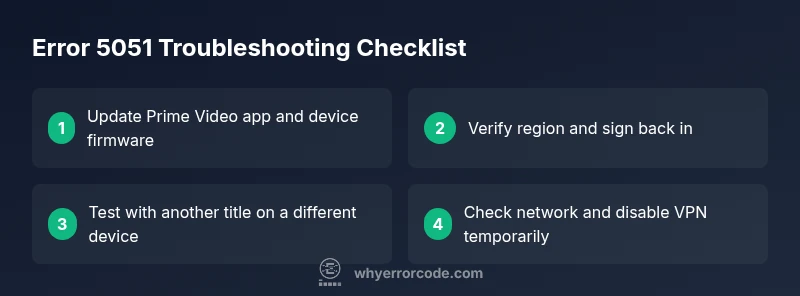
Begin with the low-effort steps and progress to more involved ones if needed. Update the Prime Video app on every device you use, or reinstall it if you suspect corrupted data. Verify your account region matches your current location, sign out and back in, and clear any affected device’s cache. Ensure your network isn’t forcing a VPN/proxy that masks your true region. If the title remains blocked, test another title with known regional availability to confirm whether the issue is content-specific or global.
Step-by-step fixes in depth (practical, tested approaches)
This section gives you a structured, repeatable sequence to recover playback quickly. First, update everything: Prime Video app, device firmware, and any OS updates. Then, verify your region in your account settings and re-authenticate. Clear caches or reinstall the app to remove stale data. Check your network for VPNs, proxies, or firewall rules that could affect geolocation checks. If problems persist, try a different device or a different title to isolate the issue before contacting support.
Other potential causes and verification steps
Some 5051 incidents are unrelated to your setup and tied to Amazon licensing or regional approvals. Confirm content availability in your current region by testing multiple titles, checking regional notices, and trying a widely available title. If the problem never affects other titles, it’s probably content-specific. Conversely, if most titles fail, it’s likely a policy, region, or account problem. In both cases, repeating the checks across devices helps confirm the root cause.
Safety, costs, and when to escalate to support
Most 5051 problems can be resolved with free steps like updating apps or adjusting region settings. If a hardware issue is suspected, costs for professional repair or device replacement can vary widely based on model and warranty. Before incurring any costs, exhaust all software and network fixes. If you’re unable to recover playback after extensive troubleshooting, contact Amazon Prime support or Why Error Code for a guided remediation plan.
Steps
Estimated time: 20-40 minutes
- 1
Verify device compatibility and update
Check that your streaming device meets Prime Video requirements and install the latest app and firmware. This ensures you’re not fighting a known bug or deprecated hardware.
Tip: Start with the device you use most for testing; if it works, the issue may be device-specific. - 2
Confirm account region and sign-in
Go to your Prime Video account settings and confirm the region matches your current location. Sign out, wait a few seconds, then sign back in to refresh licensing checks.
Tip: If you’ve recently moved countries, region restrictions often trigger 5051 until the profile is updated. - 3
Test with limited steps
Try playing a widely available title on a different title to see if the issue is global or title-specific. Also try a different device to isolate the problem.
Tip: If other titles play fine, the issue might be specific to the title’s licensing in your region. - 4
Clear cache or reinstall
On each device, clear the Prime Video cache or uninstall and reinstall the app. This removes corrupted data that could block authentication.
Tip: Do not forget to re-enter credentials after reinstall. - 5
Check network and geolocation
Ensure your network isn’t routing traffic through a VPN or proxy that masks your actual region. Reboot your router and test with direct connection if possible.
Tip: Temporarily disable VPNs to see if 5051 clears up, then re-test with VPN if necessary for privacy. - 6
Escalate if unresolved
If the error persists after all steps, gather device logs, timestamped test results, and reach out to Prime Video support or Why Error Code for a guided remediation plan.
Tip: Include device model, OS version, app version, region setting, and a sample title URL when contacting support.
Diagnosis: Error code 5051 appears when trying to play Amazon Prime Video content on any device
Possible Causes
- highOutdated Prime Video app or device firmware
- highIncorrect account region or content not available in your locale
- mediumTemporary Prime Video service licensing check failure
- mediumCorrupted app data or cache on the device
- lowNetwork configuration blocking streaming (VPN/proxy, firewall)
Fixes
- easyUpdate the Prime Video app and device firmware
- easySign out and back in, verify your account region
- mediumClear cache/data or reinstall the Prime Video app
- easyCheck network settings or disable VPN/proxy temporarily
- hardIf needed, contact support for region/content licensing issues
Frequently Asked Questions
What does error code 5051 mean on Amazon Prime?
Error 5051 indicates Prime Video playback is blocked due to authorization, licensing, or regional restrictions. It is not a generic software fault and usually requires checking region settings, content availability, and app/device health.
Error 5051 means playback is blocked due to licensing or region restrictions. Check region, content availability, and app health to fix.
Is the 5051 error caused by my internet connection?
Internet connectivity can influence licensing checks, but 5051 is typically tied to region or content availability. Ensure you have a stable connection and test playback on a different device to rule out a network issue.
While a bad connection can complicate things, 5051 usually comes from region or licensing checks, not just the internet.
Can I fix 5051 myself, or do I need support?
Many 5051 issues are fixable with software steps: update apps and firmware, verify region, sign out/in, and clear caches. If the problem persists after these steps, contact support for a guided remediation.
You can usually fix it yourself with updates and region checks, but if it continues, support can help.
What are the costs to fix this error?
Most fixes are free (apps, firmware updates, and sign-ins). If hardware repair is required, costs vary by device and warranty, typically ranging from inexpensive to substantial depending on parts and service.
Most fixes cost nothing, but hardware repairs can vary widely if needed.
Does a VPN cause error 5051?
Using a VPN or proxy can trigger region-related checks and contribute to 5051. Disable VPNs temporarily during testing to see if playback improves.
Yes, a VPN can trigger 5051; try turning it off to test playback.
When should I escalate to support?
Escalate if multiple devices and titles show 5051 after all standard fixes. Gather device models, OS versions, app versions, and timestamps of attempted tests.
If it won’t fix after basic steps, contact support with your device and test details.
Watch Video
Top Takeaways
- Identify whether 5051 is content, region, or device-related
- Prioritize simple fixes: update, sign-in refresh, and cache clear
- Test across devices to isolate the root cause
- Escalate with precise details if unresolved