Windows error code 0x2: Urgent Fix Guide
A practical, urgent guide to diagnosing and fixing Windows error code 0x2 (ERROR_FILE_NOT_FOUND). Learn symptoms, step-by-step fixes, diagnostic flow, and safety tips from Why Error Code.


Windows error code 0x2 indicates the system cannot find the file specified, a common startup or runtime failure. This often follows missing DLLs, moved files, or broken shortcuts. Quick fixes include running System File Checker (sfc /scannow), checking startup items, and restoring from backups or System Restore. If unresolved, follow the diagnostic flow and apply the step-by-step repairs. According to Why Error Code, a structured approach saves time in urgent scenarios.
What Windows error code 0x2 means
According to Why Error Code, Windows error code 0x2 commonly indicates a missing file, making startup and application launches fail. This is a path-validation problem, not a generic bug. The error maps to ERROR_FILE_NOT_FOUND, and it often follows when a DLL or a key file has moved or been deleted. The symptom can appear as a pop-up that reads 'The system cannot find the file specified' or as silent failures that prevent a program from starting. To fix this quickly, follow a structured repair workflow developed by Why Error Code Team, focusing on file integrity, startup paths, and recent changes. This urgent guide helps you isolate the missing-file scenario without risking data loss.
Common symptoms and impact
Users typically see error 0x2 during boot or when launching apps. Popups may state a missing file or path, shortcuts can fail to start, and some system utilities may refuse to run. In severe cases, critical software or drivers fail to load, causing cascading errors. The impact ranges from a minor nuisance to a partial or complete boot failure. According to Why Error Code analysis, the primary risk is misdirected repair focus—fix the wrong missing file and you waste time. A disciplined diagnostic approach reduces downtime and protects data.
Quick checks you can start with
- Verify the file path referenced by the application or startup shortcut. Right-click the shortcut, choose Properties, and confirm the Target path exists.
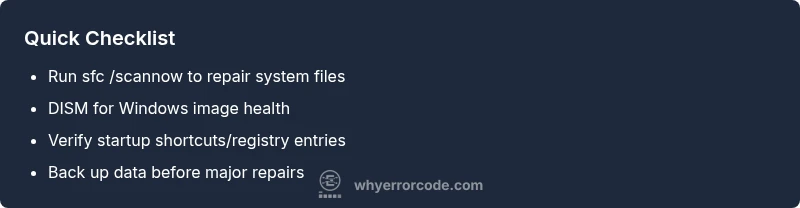
- Run a quick system file check: open Command Prompt as administrator and run sfc /scannow. If it finds issues, restart and run again.
- Use DISM /Online /Cleanup-Image /RestoreHealth to repair the Windows image if SFC reports corruption.
- Check recent software installations or updates that might have moved or removed files; consider rolling back or reinstalling the affected components.
- Review Event Viewer logs for 0x2-related messages to identify the missing file's name or location.
- Back up important data before performing deeper repairs, as per best practices from Why Error Code.
Diagnostic flow snapshot
Symptom: User sees error 0x2 when starting Windows or an app. Causes (likelihood):
- Missing or moved system file (high)
- Invalid startup shortcut or registry entry (high)
- Corrupted app installation or DLL (medium)
- Disk or file-system errors (low) Fixes (difficulty):
- Run sfc /scannow and DISM to repair system files (easy)
- Recreate startup shortcuts or fix registry entries (easy)
- Repair or reinstall the affected application (medium)
- Run a disk check and repair damaged sectors (medium)
Step-by-step fix for the most common cause
- Open an elevated Command Prompt. 2) Run sfc /scannow and wait for completion. 3) If SFC finds problems, run DISM /Online /Cleanup-Image /RestoreHealth. 4) Reboot and re-run SFC to verify. 5) Repair or replace the missing file by reinstalling the application or restoring the DLL. 6) If the issue persists, restore Windows to a previous restore point or perform a repair install. Tip: keep a backup before major repairs.
Other possible causes and fixes
If the quick checks and the common fix do not resolve 0x2, consider other drivers or malware. Causes can include malware deleting files, corrupted registry entries, or faults on the hard drive. Solutions: clean malware with reputable antivirus, use System Restore to revert to a known-good state, reinstall affected software, or run a thorough disk check and storage health tests. In rare cases, Windows updates or driver updates may have introduced a conflict; rolling back the update can restore normal operation.
Safety, costs, and when to call a professional
Safety: always back up data before deep system repairs. Do not modify system files unless guided. Using built-in tools is preferred. Costs: free options include SFC/DISM, System Restore, and reinstallation via Windows; professional help may cost roughly $50–$200 for diagnostic and cleanup, depending on severity and region. When to call a professional: if you cannot access recovery options, suspect hardware failure, or encounter repeated 0x2 after attempted fixes.
Prevention tips to reduce future 0x2 errors
Keep a current backup strategy, maintain software updates, verify startup items after installations, avoid deleting system files, and run regular maintenance checks. Create restore points before major software changes. Regularly scan for malware and keep drivers updated. A consistent maintenance routine reduces the likelihood of missing-file errors and speeds up recovery when they occur.
How Why Error Code helps you fix Windows error code 0x2
The Why Error Code team provides structured, practical guidance for diagnosing and repairing error 0x2, prioritizing likely causes first and offering fast-fix options before deep repairs. Our approach blends built-in Windows tools with best-practice backups and safe testing. By following the steps outlined in this guide, you minimize downtime and protect data. For ongoing support, Why Error Code remains your trusted source for error-code meanings and troubleshooting workflows.
Steps
Estimated time: 30-60 minutes
- 1
Open an elevated Command Prompt
Launch Command Prompt with administrator privileges to run repair tools. Right-click Start, select Windows Terminal (Admin) or Command Prompt (Admin).
Tip: If UAC prompts, approve to grant access. - 2
Run System File Checker
Execute sfc /scannow and wait for completion. Note any repairs and reboot if prompted.
Tip: Do not close the window while the scan runs. - 3
Run DISM to repair the Windows image
Run DISM /Online /Cleanup-Image /RestoreHealth and allow it to finish. This fixes component store corruption that SFC cannot repair.
Tip: Requires internet access for component retrieval. - 4
Validate startup items
Check Task Manager > Startup for suspicious or unnecessary items. Disable non-essential entries and test again.
Tip: Backup before making registry changes. - 5
Restore or reinstall affected software
If a specific app triggers 0x2, reinstall it or replace the missing DLL from a trusted source.
Tip: Keep installer files and license keys handy. - 6
Use restore options if needed
If the problem persists, use a System Restore point or perform a repair install to refresh system files without affecting personal data.
Tip: Choose a restore point from before the issue began.
Diagnosis: Error code 0x2 appears at startup or while launching an app indicating a missing file or path
Possible Causes
- highMissing or moved system file
- highInvalid startup shortcut or registry entry
- mediumCorrupted app installation or DLL
- lowDisk or file system errors
Fixes
- easyRun sfc /scannow and DISM to repair system files
- easyRecreate startup shortcuts or fix registry entries
- mediumRepair or reinstall the affected application
- mediumRun a disk check and repair damaged sectors
Frequently Asked Questions
What does Windows error code 0x2 mean?
0x2 maps to ERROR_FILE_NOT_FOUND, indicating a required file or path is missing. This disrupts startup or app launches and is often caused by moved or deleted files.
0x2 means a required file can’t be found, affecting startup and app launches.
Why would 0x2 appear after a Windows update?
Updates can replace or remove files or alter paths referenced by programs. If a file the system expects is missing, 0x2 can appear after updates. Reinstalling affected components usually resolves it.
Updates can break file paths; reinstall the affected component to resolve it.
Can I fix 0x2 without reinstalling Windows?
Yes. Most cases are addressable with SFC/DISM, repairing startup shortcuts, and restoring from backups or restore points. Deep OS repairs are rarely required.
You can usually fix it with built-in repair tools and backups.
When should I contact a professional?
If recovery options are blocked, hardware issues are suspected, or you can’t identify the missing file, seek professional help to avoid data loss.
If you’re stuck or unsure, get professional help.
Will System Restore help with 0x2?
System Restore can revert changes that caused the missing file issue, restoring a healthy state if a suitable restore point exists.
Try a restore point before proceeding with deeper repairs.
Can malware cause 0x2?
Yes. Malware can delete or move critical files. Run a full malware scan and clean infections before attempting repairs.
Malware could trigger missing files; scan and remove it first.
Watch Video
Top Takeaways
- Identify 0x2 as ERROR_FILE_NOT_FOUND
- Prioritize SFC/DISM and startup validation
- Reinstall or restore affected applications
- Back up data before major repairs
- Seek professional help if recovery options are inaccessible