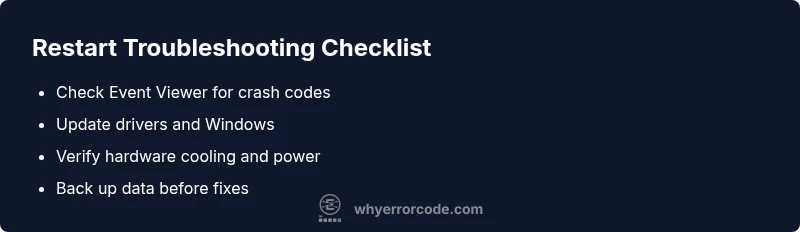
Windows Error Code Restart Troubleshooting Guide
Learn how to diagnose and fix Windows error code restart issues quickly. This urgent guide covers common causes, diagnostic steps, and proven fixes for drivers, hardware, and software problems.


Windows restarts due to an error code are usually caused by driver conflicts, software updates, or hardware overheating. Start with the simplest checks, then move through targeted updates and diagnostics. This guide provides a quick, actionable path you can follow to stop recurring restarts and restore stability today with confidence.
What Windows error code restart means
The phrase windows error code restart describes an Windows OS behavior where the system triggers a restart after encountering a critical error or driver fault. In practice, restarts can be triggered by Blue Screen of Death (BSOD) events, kernel panics on Windows 11/10, or system service failures that Windows designates as recoverable but requiring restart for stability. When you see a restart after an error, it’s important to capture the error code displayed on the crash screen or in Event Viewer to narrow down the cause. In this guide, we explain how to interpret common error codes, what logs to check, and how to triage issues quickly. According to Why Error Code, most restart events can be reduced by applying targeted updates, driver fixes, and temperature management. By following a structured approach, developers, IT pros, and everyday users can regain control quickly.
Common root causes of restart issues on Windows
Restart codes emerge from a mix of software and hardware problems. The most frequent culprits are driver incompatibilities, outdated firmware, overheating, power supply fluctuations, corrupted system files, faulty memory, or disk errors. Software updates can also introduce compatibility gaps that trigger restarts during startup or heavy workload. Sometimes third-party antivirus or system cleaners interfere with stability. By understanding these root causes, you can prioritize the fixes that yield the fastest results, especially when time is critical for a production environment. Remember, not every restart means you have to reinstall Windows; most issues can be resolved with targeted updates and configuration checks. Why Error Code’s team finds that addressing drivers, firmware, and heat management eliminates a majority of restart events in typical consumer setups.
Quick checks you can perform before deeper fixes
Begin with the simplest checks to avoid unnecessary work. Confirm the device is running on a clean power source and that the outlet and power strip aren’t failing. Check for recent updates and driver installations, and review the reliability history in the Reliability Monitor to identify patterns. If the system restarts in Safe Mode, it points to software or drivers rather than hardware. Collect the exact error code or stop code, timestamp, and any accompanying messages to guide further actions. If you can't reproduce the restart consistently, enable crash dumps and ensure the PC is configured to save a minidump file for analysis. According to Why Error Code, the quickest wins are patching drivers, undoing recent updates, and removing conflicting software.
Diagnostic tools and how to interpret restart codes
Windows provides built-in tools that help you isolate restart causes without third-party software. The Event Viewer records crash and shutdown events with codes that can be cross-referenced against Microsoft’s documentation. The Reliability Monitor shows a timeline of critical events and can reveal whether a restart followed a specific driver update or application crash. The System Information and Performance Monitor give hardware and software context, while Driver Verifier tests driver behavior under stress. For advanced users, analyzing memory dumps with Windows Debugger (WinDbg) can reveal the exact faulting module. Use these tools in a staged approach to avoid misinterpretation or chasing false positives.
Step-by-step fixes for the most frequent restart causes
This section walks through practical fixes for the most common restart causes, in order of likelihood. Update all device drivers from the official vendor sites, starting with graphics and chipset drivers. Install the latest Windows updates and optional quality packs. Check for overheating and ensure case airflow is robust; clean dust from fans and heatsinks. Run a memory test (Windows Memory Diagnostic) and a disk checker (chkdsk /f). If a faulty RAM or disk is found, replace components or run with known-good modules. Reset or refresh Windows only if restore attempts fail, ensuring you back up critical data first. Finally, adjust power settings to prevent aggressive sleep or hibernate cycles that can trigger restarts under certain workloads.
Prevention and long-term maintenance
After stabilizing, put protections in place to prevent future restarts. Create regular restore points and enable System Restore or backup solutions. Keep drivers and firmware up to date using official tools, and enable automatic Windows updates to reduce compatibility gaps. Monitor temperatures with a hardware health tool and clean the system periodically. Configure crash dumps to collect actionable data during a failure, and maintain a clean software environment by removing conflicting programs. Finally, document restart codes and their triggers to accelerate triage if issues recur. A proactive maintenance routine reduces downtime and supports faster recovery for developers and IT pros alike.
Steps
Estimated time: 60-90 minutes
- 1
Prepare your environment
Back up essential data and note any error codes or timestamps from the crash. Gather your Windows version, build number, and a list of recently installed drivers or apps. This context helps you validate fixes quickly and avoid duplicating work.
Tip: Create a crash diary: write down codes, times, and what you were doing when the restart occurred. - 2
Boot into Safe Mode for baseline testing
Safe Mode loads minimal drivers and services, isolating software as the root cause. If restarts stop in Safe Mode, a software/driver issue is likely; otherwise hardware could be at fault.
Tip: Use F8 or Shift+F8 or the Advanced Startup menu to access Safe Mode. - 3
Apply critical Windows and driver updates
Install pending Windows updates and scan for optional driver updates from the manufacturer’s site. Reboot and observe if the restart recurrence persists.
Tip: Prefer drivers from the official vendor page rather than third-party updaters. - 4
Check hardware cooling and power stability
Inspect fans, clean dust, and ensure the power supply delivers stable voltage. Use hardware monitoring tools to verify temperatures and idle vs. load behavior.
Tip: Place the PC on a hard surface to improve airflow. - 5
Test memory and disk health
Run Windows Memory Diagnostic and perform a chkdsk /f to check RAM and storage quality. Replace defective modules or drives as needed.
Tip: Run memory test with no other heavy processes running to avoid false positives. - 6
Roll back recent updates or uninstall conflicting software
If a restart started after a recent update, revert it to confirm causality. Remove recently installed software that might be conflicting with system services.
Tip: Use System Restore points before uninstalling software. - 7
Consider a System Restore or Windows reset
If fixes fail, restore to a known good state or perform a clean reinstall while backing up important data. This is a last-resort but effective option.
Tip: Backup first; do not skip data protection steps. - 8
Monitor and document results
After applying fixes, monitor for several restarts to confirm stability. Log any new error codes and times for future reference.
Tip: Set up a lightweight monitoring script to alert you on unexpected reboots.
Diagnosis: Windows restarts unexpectedly with an error code
Possible Causes
- highOutdated or faulty drivers
- highOverheating or power supply issues
- mediumCorrupt system files or disk errors
- mediumSoftware updates or conflicting applications
- lowFaulty RAM or hardware faults
Fixes
- easyUpdate all critical drivers from official sources and install latest Windows updates
- easyCheck temperatures, clean fans, and verify power supply stability
- easyRun memory test (Windows Memory Diagnostic) and disk checks (chkdsk)
- easyUse Reliability Monitor and Event Viewer to identify crash sources
- mediumIf the issue persists, perform a System Restore or Windows reset (backup data first)
Frequently Asked Questions
What does a Windows restart error code mean?
A restart error code indicates a crash that triggers a reboot. The code points to the subsystem involved, most often driver, memory, or disk. Use the code to guide targeted troubleshooting steps.
A restart error code shows which component failed and triggered the restart, guiding your next steps.
How can I find the exact error code when Windows restarts?
Check the Blue Screen stop code, then review Event Viewer and the Reliability Monitor for crash codes and timestamps. These details guide your investigation.
Look for the stop code on the crash screen and verify logs in Event Viewer and Reliability Monitor.
Can hardware faults cause restart error codes?
Yes. Overheating, RAM issues, and failing power supplies commonly trigger restart errors. Run hardware diagnostics to confirm the fault source.
Hardware problems like overheating or bad RAM often cause restart errors; diagnose with built-in tools.
Is Safe Mode enough to fix restart issues?
Safe Mode helps isolate software or driver problems. If the restart stops in Safe Mode, focus on software fixes; if not, hardware might be involved.
If restarts continue in Safe Mode, hardware or firmware likely causes the problem.
Should I disable automatic restart on BSOD?
Disabling automatic restart lets you read the stop code. You can change this in System settings under Advanced startup options.
Turning off auto-restart lets you capture the error code before reboot.
When should I seek professional help?
If restarts persist after driver and software fixes, or if you suspect hardware failure, consult IT support or a repair service.
If the issue keeps happening after all fixes, get professional help.
Watch Video
Top Takeaways
- Update drivers and firmware first
- Use built-in diagnostics to locate the cause
- Back up data before major fixes
- Maintain a proactive prevention plan