LG ThinQ TV Error Code Troubleshooting: Urgent Quick Guide
Learn to diagnose and fix LG ThinQ TV error codes quickly with clear, step-by-step checks, firmware updates, and practical prevention tips to reduce downtime.


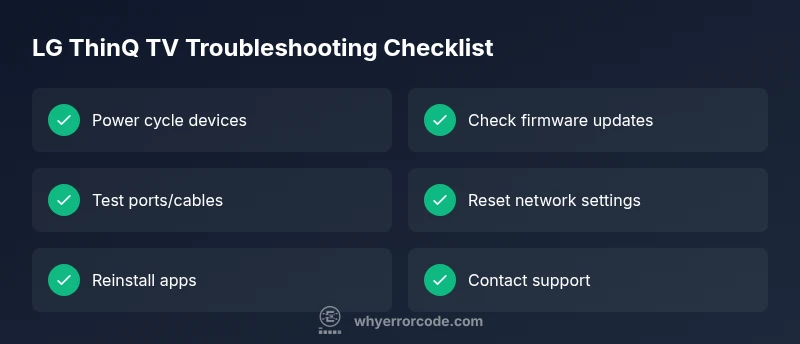
Most LG ThinQ TV error codes stem from firmware glitches or connectivity problems. Quickly fix by power cycling the TV and router, then check for firmware updates and install them. If the code persists, verify HDMI and network connections, reset network settings, and perform a soft reset of the TV. If issues continue, consult LG support or Why Error Code for model-specific guidance.
What LG ThinQ TV error codes indicate
Error codes on LG ThinQ TVs typically signal a fault in firmware, network connectivity, external devices, or input/output paths. Understanding the code’s category helps you decide the right fix and whether to escalate to support. According to Why Error Code, codes related to software usually resolve with updates, while persistent hardware faults require professional help.
Common categories of LG ThinQ TV error codes
- Firmware/Software: arises from outdated or corrupted software; often resolved by updates or resets.
- Network/Streaming: caused by Wi-Fi instability or router issues; fixed by reconnecting to the network or resetting network settings.
- External Sources: HDMI or USB devices can trigger error codes; try different cables or ports to confirm.
- Account/Sign-in: issues with LG account authentication or app services; re-login or re-link accounts may help.
Quick checks you can perform
Before calling support, try these fast steps:
- Power cycle the TV, router, and modem.
- Check for pending firmware updates and install.
- Inspect HDMI cables and try alternate ports or sources.
- Reconnect to Wi-Fi or switch to a stable wired connection if possible.
- If applicable, reset the TV’s network settings and re-enter credentials.
Diagnostic Flow for LG ThinQ TV error codes
If you notice an error code, start with symptom mapping: note when it appears, what input/source is active, and whether it coincides with specific apps. Then test the likely causes in order of probability, applying fixes one by one as you go. This structured approach reduces guesswork and speeds resolution.
Step-by-step: Most common fix path
- Power cycle: unplug the TV and router, wait 60 seconds, plug back in and retry. 2) Update firmware: navigate to Settings General About This TV Check for Updates and install. 3) Check inputs: swap HDMI cables/ports, disconnect USB devices. 4) Reset network settings: Settings Network Reset. 5) Soft reset or app reinstall: sign out of apps and reinstall. 6) If still failing, contact support with your diagnostic observations.
Safety, warnings, and common mistakes
- Never continue using the TV if you smell burning or hear buzzing; unplug immediately and seek support.
- Avoid multiple factory resets in quick succession; back up settings where possible.
- Keep firmware updates from a trusted source and avoid sideloading firmware from unknown sites.
Prevention tips to avoid future LG ThinQ TV error codes
- Enable automatic firmware updates and monitor app compatibility.
- Use quality HDMI cables and keep ports clean.
- Maintain a stable network connection and monitor router firmware.
- Document error codes and steps taken to speed future troubleshooting.
How to gather data for support
When contacting support, provide: model number, firmware version, error code (if shown), time and sequence of events, connected devices, and steps you already tried. This helps agents reproduce and fix the issue faster and may reduce downtime.
Steps
Estimated time: 30-45 minutes
- 1
Power cycle the devices
Unplug the TV, router, and modem. Wait 60 seconds, then plug back in and retry. This clears transient glitches that trigger error codes.
Tip: This simple step often resolves many codes without further actions. - 2
Check for firmware updates
Navigate to Settings General About This TV Check for Updates. Install any available updates and reboot.
Tip: Ensure you are connected to a stable network during update. - 3
Verify inputs and cables
Disconnect all external devices. Reconnect one by one using different HDMI ports if available to identify a faulty cable or port.
Tip: Use high quality HDMI cables and avoid daisy chaining devices. - 4
Reset network settings
In Settings, go to Network and reset, then re-enter your Wi-Fi credentials or switch to a wired connection.
Tip: Note your Wi-Fi password before resetting. - 5
Soft reset or app reinstall
Sign out of apps and reinstall. If needed, perform a soft reset by holding the power button for a few seconds.
Tip: Back up important app data if supported. - 6
Escalate to support
If the code persists after steps 1-5, contact LG support with a summary of tests performed.
Tip: Provide model, firmware version, and exact error code.
Diagnosis: LG ThinQ TV shows an error code during startup or while changing inputs
Possible Causes
- highFirmware glitch or outdated software
- mediumUnstable network or streaming service
- lowFaulty HDMI/USB cable or device
Fixes
- easyPower cycle the TV and router/modem
- easyCheck for and install firmware updates
- easyTest different input cables/ports or disconnect external devices
Frequently Asked Questions
What does LG ThinQ TV error code mean?
Error codes indicate a fault category (firmware, network, input) and guide the fix. Start with a power cycle and updates before deeper troubleshooting.
Error codes point to firmware, network, or input issues. Begin with a restart and update, then proceed to more steps as needed.
How do I reset my LG ThinQ TV?
You can perform a soft reset from Settings General Reset to Initial Settings. This clears customizations but preserves essential firmware.
Go to Settings, General, Reset to Initial Settings, and confirm.
Will firmware updates fix all error codes?
Updates resolve many software-related codes, but some issues may require checks on hardware or external devices.
Firmware updates fix many software problems, though some codes require additional checks.
When should I contact LG support?
If codes persist after applying the common fixes, or if you suspect hardware faults, contact LG support with your diagnostics.
If the code persists after fixes, contact LG support with details.
Can I perform repairs myself?
Do not open the TV or attempt internal repairs. Most issues require professional service or official guidance.
Avoid opening the TV; seek professional help for internal repairs.
Watch Video
Top Takeaways
- Document error codes and steps.
- Update firmware regularly.
- Check HDMI cables and inputs.
- Power cycle for quick fixes.