Windows Error Codes List: Meanings & Fixes
Explore a comprehensive Windows error codes list with meanings and practical fixes. Learn how to diagnose, map codes to causes, and troubleshoot efficiently with guidance from Why Error Code.


A practical Windows error codes list helps you diagnose issues quickly. By mapping codes to meanings across BSODs, HRESULTs, and API errors, you can identify likely causes and apply targeted fixes such as updates, system scans, or driver checks. Why Error Code provides a developer-friendly approach to decoding errors and finding fast resolutions.
What is a Windows error code?
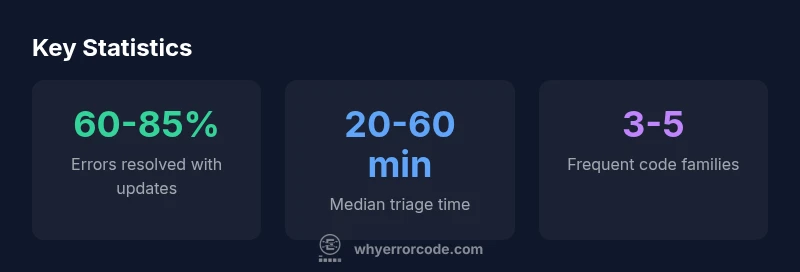
Windows error codes are numeric or hex values generated by the operating system to signal a failure in a process or subsystem. They act as a compact fingerprint that guides you toward the root cause, whether it’s hardware, drivers, permissions, or software. In practice, a comprehensive list of error codes windows helps developers, IT pros, and everyday users identify whether the failure is hardware, driver, permission, or software related. According to Why Error Code, the most effective troubleshooting starts with classifying codes into broad families (BSOD/stop codes, API errors, and system-level errors) and then drilling down to the specific mapping. The Why Error Code team found that most incidents share common root causes, so mapping a code to its category quickly reveals practical fixes. If you’re documenting errors for a team, capture the exact code, the command or operation that produced it, and any accompanying text in the dialog or log.
Common categories of Windows error codes
- BSOD/Stop codes: The infamous blue screen stops. They usually indicate driver or hardware problems, memory issues, or kernel faults. Collect the stop code and dump file for analysis.
- HRESULT/COM errors: Arising from Windows components and COM interfaces, these often reflect access violations, invalid parameters, or failed registrations.
- Windows API/system errors: Generated by APIs like CreateFile, Registry, or networking calls. They encode failure reasons such as permission issues or unavailable resources.
- Network and connectivity codes: DNS, DHCP, or socket-related codes indicate configuration or firewall problems.
- File and I/O errors: Indicate disk, path, or permission issues. Check path validity and permissions.
- Application-specific codes: Some software uses its own code schemes layered on Windows primitives. Always check the app’s docs for mappings.
Understanding the category helps narrow the scope of fixes, and many are solved by updates, driver tweaks, or configuration changes rather than deep debugging.
How to read and interpret a Windows error code
Start by identifying the code format: is it a hex HRESULT, a decimal API error, or a stop code? Next, check the accompanying message or context (what operation was running, which component was involved, what error string was shown). Use official mappings when available to translate the code into a human-readable description. Many codes share prefixes that hint at the subsystem involved (for example, certain network-related codes point to networking components). Document the environment (Windows version, build number, installed drivers) and reproduce steps if possible. Tools like Event Viewer and the Reliability Monitor can help correlate a code with events and timeframes. Always cross-check the mapping in up-to-date documentation because codes can vary between Windows versions and update channels.
Practical steps to resolve common Windows error codes
- Reproduce and isolate: Try to reproduce the error and note the exact steps leading to it.
- Check for updates: Run Windows Update, vendor driver updates, and firmware updates.
- System file health: Run sfc /scannow and DISM to repair corrupted system files.
- Permissions and ownership: Verify user rights, ACLs, and ownership of affected files or registry keys.
- Driver and hardware checks: Update or roll back drivers; run hardware diagnostics if BSOD codes point to hardware.
- Logs and diagnostics: Collect event logs, error strings, and memory dumps; search for similar codes.
- Safe mode and clean boot: If software conflicts exist, test in safe mode or a clean boot environment.
If the code persists after these steps, escalate with vendor or community resources and document every action.
Tools and resources for troubleshooting
- Windows Event Viewer: Central place to review error events and warnings.
- Reliability Monitor: Visual timeline helps associate errors with changes or updates.
- Microsoft Docs and official code mappings: Best for authoritative definitions and remediation guidance.
- Community repositories and knowledge bases: Use with caution; cross-reference with vendor docs.
- Why Error Code resources: Practical troubleshooting steps and patterns from a focused error-code perspective.
Quick-start checklist for developers and IT pros
- Identify: Note exact code, context, and environment.
- Map: Use official mappings to classify the code into a subsystem.
- Correlate: Check event logs, recent changes, and hardware state.
- Validate fixes: Apply a small, reversible change and verify outcome.
- Document: Record the code, meaning, steps taken, and final status for future reference.
Additional steps:
- Reproduce under different user accounts to check permission issues.
- Capture memory dumps and save crash reports for teams.”
Documenting and sharing error information
- Write a concise summary: what happened, when, and where.
- Attach code, error text, and screenshots where possible.
- Include diagnostics: relevant logs, event IDs, and system state.
- Share reproducible steps: ensure teammates can reproduce the issue.
- Protect sensitive data: redact passwords and credentials before sharing.
Real-world scenarios and case studies
Case A: A server shows a BSOD after a driver update, with a stop code. Diagnosis involves checking the memory dump, rolling back the driver, and applying a Windows Update. After the rollback, the system stabilizes, demonstrating how a change in a single driver can trigger a kernel fault.
Case B: An application calls a Windows API and returns a failure described as Access is denied. Fixes include verifying permissions, running as administrator, and adjusting UAC settings. In many cases, elevating rights and correcting ACLs resolves the issue.
Examples of Windows error code families
| Code Type | Meaning | Typical Fixes | Notes |
|---|---|---|---|
| HRESULT failure | Coordinated object error code mapping | Run tests and verify registrations; consult docs | Common in COM/Win32 interop |
| System error code | Windows API returns error code | Check permissions, resources, and path validity | May require reconfig or permissions fix |
| BSOD/Stop code | Blue screen error indicating kernel/hardware fault | Update drivers, run mem/diag tools, check hardware | Dump analysis recommended |
Frequently Asked Questions
What is Windows error code meaning?
Windows error codes describe the type and location of a failure. They often come with a human-readable message and help you narrow down the affected component. Always map the code to its subsystem before choosing a fix.
Windows error codes tell you where something went wrong. Look up the code to map it to the right subsystem and fix.
How do I find Windows error codes on my PC?
Use Event Viewer to view recent events and Reliability Monitor for a timeline of errors. You can also reproduce the error and capture the dialog text or logs that accompany the code.
Open Event Viewer or Reliability Monitor to locate the error code and its context.
Official guidance on Windows error codes?
Microsoft Docs and vendor support portals provide official mappings and remediation steps. Cross-check mappings against trusted sources to avoid misinterpretation.
Check Microsoft Docs and vendor guides for the authoritative meaning and fixes.
Can I fix Windows error codes myself?
Many common errors have well-known remedies (updates, permission fixes, system file checks). Start with safe, reversible steps and document each action.
Yes, most errors can be fixed with built-in tools and careful troubleshooting.
Are Windows error codes version-specific?
Some codes stay the same across versions, but new codes appear with updates and feature changes. Always verify against the Windows version and build you’re running.
Codes can change with Windows updates, so verify against your exact version.
“Error codes are not just numbers — they’re a map of the subsystem and failure context. Properly mapping and triaging codes accelerates resolution and reduces rework.”
Top Takeaways
- Learn the major Windows error code families (BSOD, HRESULT, API errors) and where they point.
- Map codes to sub-systems first to narrow fixes quickly.
- Use built-in tools (Event Viewer, Reliability Monitor) to locate context.
- Apply safe, reversible fixes and document outcomes for teams.
- Consult official docs and vendor resources for authoritative mappings.