What Does Error Code AS-3 Mean on Epic Games?
Explore what AS-3 means on Epic Games, common causes, quick fixes, and a practical, step-by-step guide from Why Error Code to diagnose and resolve the issue quickly.


AS-3 on Epic Games typically indicates a connectivity or authentication issue that prevents signing in or launching games. It often appears when the launcher cannot reach Epic servers, your account verification is pending, or your network blocks access. Start with a quick check of your internet, sign out and back in, update the launcher, and verify the game cache before pursuing deeper fixes.
What AS-3 Means on Epic Games
AS-3 is an error code you might see when launching games or signing into the Epic Games Launcher. While Epic does not publicly publish a complete list of every code, practical troubleshooting confirms that AS-3 usually points to a connectivity or authentication issue rather than a problem with your hardware alone. In other words, your client is having trouble verifying your account or reaching Epic services. According to Why Error Code analysis, the most common triggers are service outages, account verification delays, or network blocks. The quick path to resolution is to reestablish trust between your device and Epic's servers: verify status, confirm your account status, and stabilize your connection. A calm, methodical approach helps you avoid chasing rare edge cases. This article walks you through a practical diagnostic flow, concrete steps, and escalation paths if the problem persists, so you can get back to gaming with minimal downtime.
Quick Fixes You Can Try Right Now
Here are fast, high-impact fixes you can try in the first minutes. They target the most common AS-3 triggers—outages, sign-in hiccups, or a shaky connection.
- Check Epic Games Status: visit the official status page and check social updates for outages.
- Test Your Internet: run a quick speed test, try a different network (mobile hotspot or wired connection).
- Re-sign into the Launcher: sign out, close the launcher, reopen, and sign back in.
- Update and Clear Cache: ensure the launcher is up to date and clear the launcher cache if the option exists.
- Disable VPNs/Proxies: temporarily turn off any VPN or proxy to rule out routing blocks.
Diagnostic Flow: Symptoms, Causes, and Early Remedies
AS-3 commonly appears during sign-in or game launch with symptoms like launcher errors, failed authentication prompts, or intermittent access. Typical causes, ordered by likelihood, include: - Epic service outage or maintenance (high), - Account verification pending or locked (high), - Network or DNS problems (medium), - Firewall/antivirus or VPN interference (medium), - Local cache corruption (low).
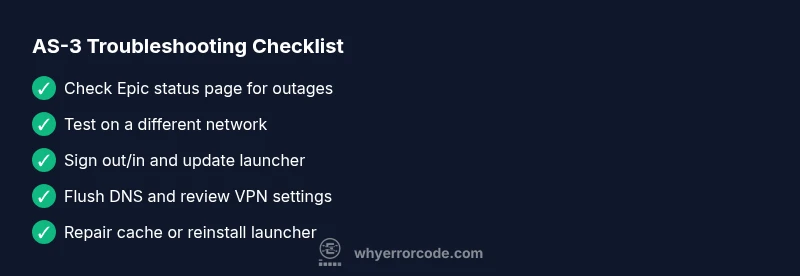
Early remedies focus on validating external factors before touching your device: check status pages, verify account status, test multiple networks, flush DNS, disable VPNs, and repair the launcher cache. These steps can quickly distinguish server-side problems from client-side glitches.
Step-by-Step Fix: Reconnecting and Verifying Your Epic Games Account
- Verify status and account state: check Epic’s status page and ensure your account isn’t restricted.
- Sign out and back in: log out of the launcher, restart it, and sign back in to refresh tokens.
- Update and repair: install any available launcher updates and run a repair if the option exists.
- Network sanity check: connect to a different network (mobile hotspot) and flush DNS.
- Firewall/VPN check: temporarily disable VPNs or add Epic domains to allowlists; adjust firewall rules if needed.
- Cache repair or reinstall: repair the launcher cache; if unresolved, consider reinstalling the launcher or affected games.
Handling Less Common Causes and Escalation Paths
If AS-3 persists after the quick fixes, explore less common causes. DNS misconfiguration, corrupted game files, or aggressive antivirus settings can block Epic services even when the outage is resolved. Be mindful of regional routing, parental controls, or managed networks. At this point, gather logs, timestamps, and a list of steps you’ve tried; contact Epic Games Support with this data to speed up resolution. Why Error Code analysis shows that escalation is often necessary when multiple standard fixes fail.
Safety, Costs, and When to Seek Professional Help
AS-3 is rarely dangerous to your data, but it can ruin playtime. Work through the standard fixes before engaging paid support. If you must seek help, expect remote assistance to range from free self-help tooling to paid support sessions. Typical professional help for software issues can range from $50 to $150 for remote guidance, and higher for on-site service. The Why Error Code Team emphasizes not delaying if the issue blocks critical work or risk data loss; persistent AS-3 may indicate deeper account or network problems that warrant professional review.
Prevention Tips to Avoid AS-3 in the Future
- Maintain a stable internet connection and monitor outages using official status feeds.
- Regularly update the Epic Games Launcher and verify game files after major patches.
- Use sane DNS settings and a clean network environment; disable VPNs during gaming sessions if not required.
- Enable account security features (2FA) and keep recovery options up to date to reduce sign-in friction.
- Document recurrence patterns (time of day, region, network) to help support diagnose quickly when issues arise.
Steps
Estimated time: 20-45 minutes
- 1
Verify service status and account state
Check the Epic Games status page for outages and confirm that your account isn’t restricted or awaiting verification. This establishes whether the issue is network/server-side before you perform device-focused fixes.
Tip: Bookmark the status page and set alerts for outages. - 2
Sign out/in and refresh the launcher
Log out of the Epic Games Launcher, fully close the app, reopen it, and sign back in. Refreshing tokens can clear authentication hiccups that trigger AS-3.
Tip: Ensure you’re using the official launcher from Epic’s site. - 3
Test network and DNS
Connect to a different network (mobile hotspot or another router) and flush DNS to remove stale records. This helps rule out DNS or routing issues causing AS-3.
Tip: Set DNS to 8.8.8.8 and 1.1.1.1 temporarily for testing. - 4
Repair launcher cache and update
Perform a launcher repair if available and ensure the launcher is up to date. A corrupted cache can produce persistent errors that basic fixes miss.
Tip: Restart the launcher after repairing to ensure changes apply. - 5
Check security software and VPNs
Temporarily disable VPNs or firewall rules that could block Epic domains, and add Epic services to allowlists if needed.
Tip: Re-enable protections after testing to maintain security. - 6
Escalate with logs if needed
If AS-3 remains, gather logs, timestamps, and steps tried, then contact Epic Games Support for advanced diagnostics.
Tip: Provide a concise incident timeline to speed up assistance.
Diagnosis: Error code AS-3 appears during sign-in or game launch on Epic Games Launcher
Possible Causes
- highEpic Games server outage or maintenance
- highAccount verification pending, locked, or mismatch
- mediumNetwork connectivity or DNS issues
- mediumFirewall, antivirus, or VPN interfering with connections
- lowCorrupted launcher or local game cache
Fixes
- easyCheck Epic status page and outage detectors
- easySign out of launcher, sign back in, verify account status
- easyRestart router/modem and test on alternate network
- easyFlush DNS and temporarily disable VPNs/proxies
- mediumRepair launcher cache or reinstall launcher
- mediumVerify game files or perform a clean reinstall of affected games
- easyContact Epic Games Support with logs if the issue persists
Frequently Asked Questions
What does AS-3 mean on Epic Games?
AS-3 is an error indicating a connectivity or authentication problem that blocks sign-in or launch. It often points to server reachability or verification issues rather than a hardware fault. Follow the guided fixes to restore access.
AS-3 usually means a connectivity or authentication problem with Epic Games. Start with quick fixes to restore access.
Is AS-3 dangerous to my account or data?
No, AS-3 is not a security breach or data loss indicator. It’s a connection or verification issue. Follow safe troubleshooting steps and avoid sharing credentials.
AS-3 isn’t a security breach; treat it as a connectivity problem and proceed with safe fixes.
How long does it take to fix AS-3?
Resolution time varies by the underlying cause. Quick fixes can resolve most issues within minutes, but outages or account problems may take longer, up to an hour or more.
Fix times depend on the cause; many cases resolve quickly, but some outages take longer.
Should I reinstall the Epic Games Launcher?
Reinstalling is usually a last resort after other fixes fail. It can reset configurations and cache; try repairing first.
Reinstall as a last resort after trying repairs and other steps.
What if Epic Games is down in my region?
Regional outages are common; check status pages and social channels for updates. Avoid repeated login attempts during outages to prevent account lockouts.
If your region is down, wait for service to recover and monitor updates.
Can contacting support help with AS-3?
Yes. If the issue persists after completing the standard fixes, contact Epic Games Support with a summary of steps tried and any logs you have.
Yes—get help if it keeps happening after you’ve tried the basic fixes.
Watch Video
Top Takeaways
- Check status first to rule out outages
- Run through quick fixes before deeper repairs
- Repair caches if problems persist
- Escalate with logs if unresolved