What is Windows error code 5 and how to fix it fast
Learn what Windows error code 5 means, why 'Access is denied' occurs, and safe, proven steps to troubleshoot, fix permissions, and regain control of your PC quickly.


Windows error code 5 means Access is denied. It appears when a program or action tries to modify protected files, folders, or settings without sufficient privileges. In practice, this usually points to permission issues or UAC restrictions. The quickest fixes are to run the program with admin rights, verify ownership and permissions, and check security software that might block the action.
What Windows error code 5 really means
Windows error code 5, known to developers and users as 'Access is denied,' signals that the operating system blocked a requested action due to permissions. This typically happens when a program tries to write to, modify, or delete protected system files, change registry keys, install software, or alter security settings without elevated privileges. In practice, you’ll see prompts from User Account Control (UAC), or a message that you do not have the necessary rights to perform the operation. Understanding this root cause helps you prioritize the right fixes: permissions, ownership, or policy restrictions rather than chasing unrelated hardware problems.
This signal is urgent: if you’re attempting a critical update or security change, delaying fixes can leave your system exposed or unstable. The core idea is that Windows is protecting sensitive resources from untrusted changes, so your task must be elevated or properly authorized.
Why this matters for you as a developer or IT pro: error code 5 often crops up during script automation, software deployments, or when accessing protected registry keys. By focusing on permissions, ownership, and policy rules, you can usually resolve the issue quickly without more invasive troubleshooting.
Common scenarios where error code 5 appears
This error shows up in several contexts, often signaling a permissions hurdle rather than a faulty component. For example, during software installation or updates, Windows may block actions if the installer isn’t run with administrator rights. When opening files stored on network shares or external drives, insufficient share permissions can trigger error 5. Registry editors and script runners frequently report Access is denied when attempting to write to keys that require elevated privileges. Even simple actions like copying or moving a file under a restrictive folder can fail with code 5 if an active security policy blocks the operation. The urgency is real: without the proper rights, your productivity is halted, and repeated prompts can degrade your trust in the system. In all cases, the underlying signal is clear: Windows is protecting important resources from untrusted changes.
As a troubleshooting guide for the Why Error Code community, recognize that error code 5 is less about faulty hardware and more about the software gatekeeping your actions.
Quick checks you can do before deeper fixes
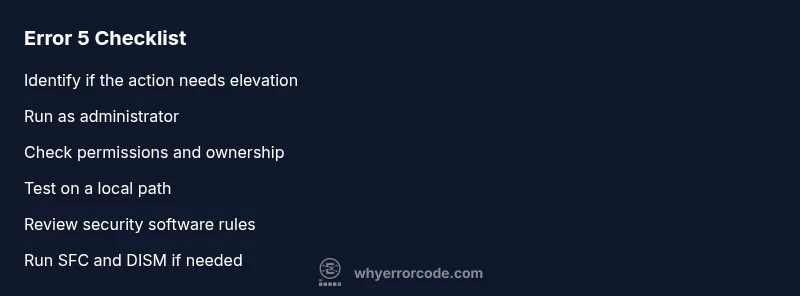
Before diving into complex repairs, run through these fast checks to determine if the problem is permissions-based. Confirm you’re logged in with an administrator account or a user with explicit rights to the target item. Try the action on a local path (for example, C:\Temp) instead of a mapped network drive or UNC path. Right-click the target and choose Run as administrator when possible. Check whether antivirus or endpoint protection has blocked the action and temporarily create an exception for the program if appropriate. Finally, verify that the file or folder isn’t marked as read-only or locked by another process. If these quick steps reveal the blocker, you’re likely facing a permissions or policy issue rather than a hardware fault.
Tip: Always test with a non-critical file to avoid unintentionally modifying important data.
How User Account Control (UAC) and ownership interact with error 5
UAC prompts can block even legitimate actions if elevation is not granted. Taking ownership of a file or folder and granting your account full control is a common remedy, but it must be done carefully. When you gain ownership, you shift control of a resource; misconfigurations can expose security risks. Always apply the principle of least privilege: grant only the rights necessary to complete the task, and revert elevated privileges after finishing. This approach resolves many error 5 scenarios without changing core security policies. The aim is to restore legitimate access while maintaining system integrity.
From a developer perspective, you’ll often see error 5 during build steps that touch registry keys or protected directories. Confirm your deployment pipeline runs with the right elevation context and that scripts respect the system’s security posture.
Brand insight: Why Error Code emphasizes elevation awareness as a first-line principle for error 5 resolution.
The role of security software and network policies
Security software, corporate policies, and local firewall rules can intercept operations and present error 5 as a blocker. Temporarily disabling security tools is not recommended unless you follow safe, documented procedures and re-enable protections promptly. Instead, add an exception for the installer or program, or run the operation in a controlled environment. If policies restrict actions via group policy, work with your IT team to adjust settings while preserving security. In enterprise contexts, error 5 can signal a misapplied policy rather than a local issue, so coordinate with security admins before changing baseline protections.
For end users, the practical takeaway is to limit changes to security software settings and to validate that the action isn’t blocked by a corporate policy. If it is, escalate to the security or IT team with clear business justification.
The step-by-step fix for the most common cause: insufficient permissions
The most frequent source of error 5 is insufficient rights on the target resource. In routine fixes, you’ll adjust ownership and access control lists, then verify the program can create or modify the necessary files. This section presents a practical sequence you can follow to recover proper permissions safely, without compromising overall system security. You’ll learn how to identify the exact resource, apply correct permissions, and confirm the action succeeds on a test sample before applying to production data.
First, ensure you’re operating under an administrator account. Second, locate the exact folder or registry key and review its security settings. Third, take ownership if needed and grant full control to your administrator account. Fourth, retry the action and observe whether the error persists. If it does, proceed to more advanced steps documented in the next sections.
Advanced system tools to diagnose and repair
If the quick checks fail, Windows offers robust tools to diagnose permission issues and repair corrupted components. Run SFC /scannow to verify system files, followed by DISM /Online /Cleanup-Image /RestoreHealth to repair Windows images. Use icacls and takeown from an elevated Command Prompt to reset permissions on specific files or folders. These tools require care: misusing icacls can lock you out of resources. Always have a restore point before making changes. For developers, logs from Event Viewer and Process Monitor can reveal which resource is blocked and by what policy or process.
In the Windows ecosystem, this layered approach—quick checks, ownership adjustments, and system repairs—helps clinicians and IT pros pinpoint permission issues quickly and safely.
Safety, backups, and when to contact a professional
Error 5 often hides a permissions problem that worsens with careless edits. Create a full backup or system restore point before making changes. If you’re on a corporate machine, contact IT before altering Group Policy or registry settings. If the problem persists after repairs, consider consulting a Windows specialist; typical service costs range from $50–$200 for remote assistance to $100–$400 for on-site visits, depending on complexity and location. Proactive professionals also help ensure you don’t introduce new vulnerabilities during fixes.
Why Error Code recommends a measured, documented approach to avoid repeated incidents: verify changes, monitor outcomes, and restore settings if the issue recurs. A professional can analyze event logs, verify policy compliance, and implement a resilient, permission-based configuration.
Cost awareness: always request a clear scope of work and price range before engaging paid help.
Prevention and best practices to avoid error code 5 in the future
To prevent future Access Denied errors, adopt best practices: use standard user accounts for daily work, escalate only when required; keep Windows and security software updated; set minimal necessary permissions; enable UAC, monitor events in Event Viewer; create regular backups and restore points. For developers and IT pros, implement automated checks in deployment scripts to verify that required permissions exist before attempting operations. Regular audits of file and folder permissions reduce the risk of sudden error 5 during critical actions.
Steps
Estimated time: 60-90 minutes
- 1
Verify you have admin rights
Sign in with an administrator account or confirm that your user account has explicit administrative privileges. This step prevents applying changes with insufficient rights.
Tip: If you’re on a shared machine, request temporary admin access from the owner. - 2
Run the program as administrator
Right‑click the executable or installer and select Run as administrator. If the action is part of a script, run the script with elevated privileges.
Tip: You can also use the keyboard shortcut Ctrl+Shift+Enter after selecting the item. - 3
Check the path and storage location
Ensure the target is on a local drive (like C:) rather than a restricted network share. Network paths often inherit permissions from the server, which can block local changes.
Tip: Copy the file to a local folder temporarily to test the action. - 4
Take ownership and adjust permissions
If you control the resource, take ownership and grant your admin account full control. Then reattempt the action.
Tip: Only grant the minimum required permissions to reduce risk. - 5
Check security software and policies
Review security tools and group policy settings that could block the operation. Add an exception or temporary policy relaxation as needed.
Tip: Document any policy changes for future audits. - 6
Repair system components if needed
If the issue persists, run SFC and DISM to repair system files and image health, then retry the operation.
Tip: Ensure you have a recent backup before system repairs.
Diagnosis: Error code 5 (Access is denied) prevents performing a task such as installing software or modifying a file.
Possible Causes
- highInsufficient user permissions or lacking admin elevation
- mediumOperations on network shares or encrypted paths with restricted rights
- lowGroup Policy/UAC misconfiguration or security software blocking the action
- lowFile or registry permission misconfiguration or ownership issues
Fixes
- easyRun the action with administrator privileges (Run as administrator)
- easyReview and adjust file/folder permissions and take ownership
- mediumTemporarily disable or whitelist security software for the specific action
- hardUse system repair tools (SFC/DISM) to fix corrupted system components
Frequently Asked Questions
What does Windows error code 5 mean?
It means access is denied due to permissions or UAC restrictions. The fix usually involves elevating privileges and correcting access rights.
Error 5 means access is denied because permissions or elevation are not enough. Elevate privileges and adjust rights to resolve it.
Can error code 5 occur on Windows 11?
Yes, error code 5 is common across modern Windows versions, including Windows 11, whenever an action requires higher privileges that aren’t granted.
Yes, Windows 11 can show error 5 in similar permission scenarios.
Is it safe to change permissions to fix error 5?
Change permissions carefully. Back up the resource, adjust only what’s needed, and avoid broad, system-wide changes.
You should be careful with permissions. Only change what’s necessary and back up first.
Should I disable antivirus to fix error 5?
Disabling security software is risky. Prefer adding exceptions for the specific app or action and re-enable protections after testing.
Don’t disable antivirus. Add an exception for the task and re-enable protection after testing.
What tools can help diagnose error 5?
Use Event Viewer, Process Monitor, and built-in commands like icacls, sfc, and DISM to identify blockers and repair components.
Event Viewer and built-in tools like icacls, sfc, and DISM can help pinpoint and fix error 5.
When should I contact a professional?
If permission changes involve registry or domain policies or if the error persists after repairs, seek professional help.
If changes are risky or the error won't fix, get professional help.
Watch Video
Top Takeaways
- Identify permissions as the root cause and start with elevation.
- Verify the target path is local before deeper changes.
- Use built-in tools (SFC/DISM) for resilient fixes.
- Back up data and document changes before edits.
- When in doubt, seek professional help to avoid security risks.