What Does Error Code 5 Mean? Urgent Diagnostic & Fix Guide
Urgent guide to understanding error code 5: meanings, quick fixes, step-by-step resolutions, safety tips, and prevention. Learn how permissions, policies, and security settings trigger Error 5 and how to resolve them fast.


What does error code 5 mean? In many systems, error code 5 signifies an access denied or permission-related failure when a request or operation is blocked. It commonly appears when a user or process lacks the required privileges, or when security policies prevent access to a resource. The quickest fix is to verify permissions, run with elevated rights if appropriate, and check for policy or anti-virus restrictions.
What Error Code 5 Means Across Contexts
Error code 5 is a signal that access to a resource or action has been blocked by a permission or policy rule. The core idea is that the system checked who you are and what you’re allowed to do, and concluded the request should not proceed. This is different from a resource-not-found or a server error; it’s about authorization. In practical terms, you’ll see Error code 5 when rights are insufficient, when a security policy prevents access, or when a protective feature blocks an operation. According to Why Error Code, the most reliable fixes target permissions, policy boundaries, and careful testing of access rights before attempting deeper troubleshooting. Across Windows, Linux, and networked systems, the underlying cause is consistently tied to credentials, privileges, and boundary rules that must be respected by the user or process requesting access.
Symptoms and Situations Where Error Code 5 Emerges
Symptoms often include an immediate denial message, failed file operations, or blocked service startups. On a local workstation, you might see a prompt indicating insufficient privileges when trying to save a file in a protected directory or install software. In server or cloud environments, Error 5 frequently maps to an access-control failure, such as an ACL that denies your user or service account, or a policy that restricts the requested action. Web APIs may return error code 5 as an UnauthorizedAccessException or a 403-like response when the caller’s scope or role doesn’t include the required permission. The recurring pattern is clear: the system recognises you, but it refuses the action because your access level isn’t enough.
Prioritized Causes (What to Check First)
Top causes, in order of likelihood:
- Insufficient user permissions (high): The most common reason; check file, folder, or resource permissions and ensure the user or group has the necessary rights.
- Security policy or group policy restrictions (medium): Domain or device policies can block actions despite user rights.
- Endpoint protection or firewall blocks (low): Antivirus or EDR tools may block executables, ports, or services even when permissions look correct.
- Misconfigured ACLs or ownership (low): Incorrect ownership or misapplied ACLs can effectively deny access.
For many environments, addressing permission gaps and policy boundaries resolves the issue without deeper repair.
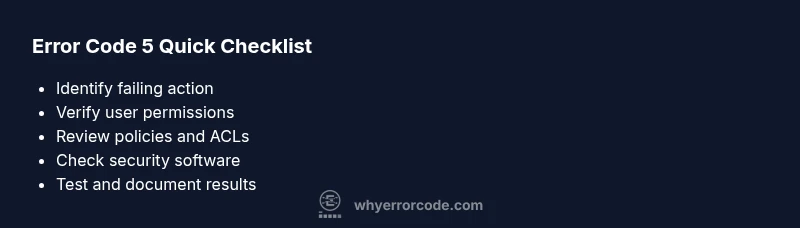
Quick Fixes You Can Try Right Now
If you’re faced with Error code 5, start with fast checks:
- Run as administrator or with elevated privileges when appropriate.
- Verify the exact resource permissions (files, folders, registry keys, services) and adjust as needed.
- Temporarily disable security overlays that could block access (antivirus, firewall rules) only if you’re certain it’s safe and you understand the risk.
- Re-test the action to confirm if the issue is resolved or if additional policy changes are required.
Steps
Estimated time: 20-40 minutes
- 1
Identify the exact action causing the error
Replicate the error and note the resource, user context, and time. Confirm whether it occurs for a specific file, service, or API call.
Tip: Use logs or a reproduction script to capture details. - 2
Check user identity and privileges
Verify the current user or service account and its group memberships. Compare against the required role or privilege for the action.
Tip: Ask for elevated rights only for the needed operation. - 3
Inspect permissions and ownership
Review ACLs, ownership, and rights on the target resource. Ensure the correct user or group has read/write/execute as appropriate.
Tip: Use audit tools to confirm effective permissions. - 4
Review security policies and policies
Check local or domain policies that may block the action, including AppLocker, GPOs, or IAM constraints.
Tip: Document policy changes before applying them. - 5
Test with a safe elevation
Re-run the action with elevated rights or in a test environment to verify if the permission change resolves the issue.
Tip: Avoid broad privilege grants; use the principle of least privilege. - 6
Sanity check security software
If the problem persists, review antivirus/EDR logs to see if a block is issued for the specific action or resource.
Tip: Whitelist only what is strictly necessary.
Diagnosis: Error code 5 encountered when attempting to access a resource or run a command
Possible Causes
- highInsufficient user permissions
- mediumBlocked by security policy or group policy
- lowAntivirus or endpoint protection blocking access
Fixes
- easyRun the action with elevated privileges (administrator or root)
- easyCorrect file/folder or resource permissions and ownership
- mediumReview and adjust security policies or group policy settings
- mediumTemporarily whitelist or disable conflicting antivirus/EDR rules
Frequently Asked Questions
What does error code 5 mean in Windows?
In Windows, error code 5 typically means access is denied due to insufficient permissions or blocked by a policy. It indicates the current user or process does not have the rights required to perform the action. Resolving it usually involves adjusting permissions or reviewing security policies, then testing again.
Error code 5 in Windows usually means access is denied because the current user or process lacks the necessary permissions. Adjust permissions or policies, then test the action again.
Is error code 5 always a permissions issue?
Most often, yes. Error code 5 is commonly caused by insufficient rights or policy blocks. However, it can also result from conflicting security software or misconfigured ACLs. Start with permissions and policy checks, then broaden your review if needed.
Usually it's a permissions issue, but sometimes security software or ACL misconfigurations can cause it too. Start by checking rights and policies.
How can I fix error code 5 quickly?
Try running the action with elevated privileges, verify and adjust the necessary permissions, and temporarily review security software rules. If the issue persists, consult policy settings and consider a test in a controlled environment.
Run as administrator, fix permissions, and check security rules. If needed, test in a controlled environment.
Can antivirus software cause error code 5?
Yes. Some antivirus or EDR solutions block actions they deem risky, which can surface as error code 5. Review logs, temporarily whitelist the application if safe, and ensure you re-enable protection afterward.
Antivirus can block actions, showing error 5. Check logs and whitelist carefully if safe.
When should I call a professional for error code 5?
If permissions and policy checks don’t resolve the issue, or you’re dealing with critical systems, data safety, or complex ACLs, seek a qualified IT professional. They can perform secure diagnostics and ensure policy compliance.
Call a professional if basic fixes don’t resolve it or if the system is production-critical.
Watch Video
Top Takeaways
- Identify the exact permission gap and fix it first
- Try elevated access before deeper configuration
- Test access after each change to avoid cascades
- Document changes and monitor for recurrence