Error Code 17 Roblox Fix: Urgent Troubleshooting Guide
Learn how to diagnose and fix Roblox error code 17 quickly. This urgent guide covers network checks, cache resets, and account verification to restore gameplay fast.


Error code 17 Roblox fix means a startup/session issue often tied to network, account, or client cache. The quickest path to restoration is to verify your internet connection and Roblox server status, then sign out and back into Roblox and clear the local cache. If the issue persists, perform the diagnostic steps outlined below.
What Error Code 17 Means for Roblox Players
Error code 17 is a startup error that appears when Roblox cannot establish a stable session with its servers. It is not a single-purpose fault; rather, it often points to a combination of connectivity problems, account session issues, or local cache corruption. The moment you see 17, your priority is to verify basics before diving into deeper diagnostics. According to Why Error Code analysis, these issues commonly arise during peak server load or when your network is unstable. The fix is usually a mix of quick, reliable steps that reset the session and reestablish a clean connection. By understanding the typical causes, you can triage the problem more efficiently and reduce downtime for players and teams.
Common Triggers and Symptom Patterns
Roblox error 17 can show up across different platforms—PC, Mac, mobile, or consoles—whenever a session fails to anchor properly. Common symptoms include a frozen splash screen, failed login prompts, or an abrupt return to the launcher with code 17 in the corner. Patterns often reveal themselves: a recent network change, VPN usage, firewall restrictions, or a stalled Roblox client cache. The presence of a transient server outage can also trigger 17, especially during weekends or global events when traffic spikes. Recognize that this error is generally transient, not a permanent fault in your account.
Quick Checks You Can Do Right Now (No Tools Required)
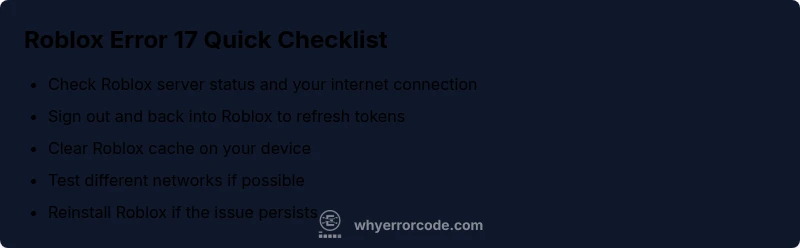
If you need immediate relief, start with these non-technical checks. First, verify Roblox server status via the official status page or trusted community dashboards. Next, test a stable internet connection by running a fast speed test and trying a different network if possible. Sign out of Roblox, close the app, and sign back in to refresh authentication tokens. Clear the Roblox cache on your device—on Windows, use the Settings menu; on mobile, go through the app settings to clear cache. Finally, restart your device and router to rule out local routing issues. If you still see 17, move to deeper network checks and account verification. These steps are typically cost-free and reversible, making them the safest starting point.
Deeper Network and Account Troubleshooting
When quick fixes don’t resolve error 17, examine network specifics: DNS settings, firewall rules, and VPN status. Switch to a known-good DNS (like 8.8.8.8) and temporarily disable any VPN or proxy that could be routing Roblox traffic poorly. Ensure your system clock and date are accurate, as time drift can break token validation. If you use parental controls or security software, verify Roblox is whitelisted. On the account side, sign out everywhere and re-authenticate on the primary device. If you’re part of a family sharing plan, confirm there are no device restrictions or login caps. Finally, consider reinstalling the Roblox client, but only after backing up progress where possible.
Device-Specific and Platform-Specific Considerations
PC and Mac users often benefit from running Roblox as an administrator and ensuring the game is installed in a stable location with no conflicting background processes. Mobile players should clear app data or cache in the device settings and ensure the latest version of the app is installed. Console users should verify their console network settings and account status on the platform’s network page. In all cases, a clean environment—free of stale tokens or conflicting apps—greatly reduces the chance of a recurring error 17. If you notice that one device consistently works while others fail, focus troubleshooting on the problematic device’s network configuration and app state.
When to Seek Professional Help and How Costs Break Down
If error 17 persists after exhaustive self-troubleshooting, professional support may be warranted. Expect costs to vary based on whether you need remote assistance, hardware checks, or platform-specific service. Self-guided fixes cost nothing beyond your time. Remote professional help typically ranges from low to mid hundreds of dollars in some cases, while on-site hardware service, if required, can range higher. The key is to document steps you’ve already tried and the exact timing of the error, as this speeds up support. The aim is to restore stable access with minimal downtime and restore confidence in the platform.
Steps
Estimated time: 20-40 minutes
- 1
Close Roblox and Sign Out
Exit the app completely, sign out of your account on all devices, and ensure background processes aren’t holding an active session.
Tip: Make sure to quit the app from the task switcher to fully terminate the session. - 2
Clear Cache and Data
Clear cached data for Roblox on your device. On Windows, clear app data; on mobile, use the app's clear cache option or your system settings.
Tip: After clearing, restart the device to ensure fresh tokens are generated. - 3
Test Your Network and DNS
Run a quick speed test, switch to a stable DNS (e.g., 8.8.8.8), and disable VPN/proxy if active.
Tip: Restart networking gear after changing DNS settings. - 4
Reinstall or Update Roblox
Install the latest Roblox client or update the app on your device. Ensure the OS version is compatible with the latest Roblox build.
Tip: Back up any local progress if possible before reinstalling. - 5
Verify Roblox Server Status and Contact Support
Check official Roblox status pages; if issues persist, gather error details and contact support with a timestamp.
Tip: Provide the exact error code and steps you’ve already tried to expedite help.
Diagnosis: Error code 17 displayed during Roblox startup
Possible Causes
- highWeak or unstable internet connection
- mediumRoblox server outage or maintenance
- lowCorrupt game cache or outdated app
Fixes
- easyRestart your router and test a different network
- easySign out of Roblox and sign back in; clear local cache
- mediumReinstall Roblox or update to the latest client
Frequently Asked Questions
What does Roblox error code 17 mean?
Error code 17 is a startup/session error indicating Roblox cannot establish a stable connection or authentication. It often results from network issues, server maintenance, or local cache problems. The typical fix sequence starts with quick network checks and ends with cache refreshes.
Error code 17 means Roblox can’t start a session, usually due to network or cache problems. Start with quick checks, then refresh the cache to fix it.
Can error code 17 happen on mobile and PC?
Yes, error code 17 can appear on both mobile and PC platforms. The underlying causes—network, account tokens, or cache—are platform-agnostic, though the exact steps to fix may vary by device. Start with device-specific cache clearing and network checks.
It can happen on both mobile and PC; use platform-specific steps to clear cache and verify your connection.
Will resetting my network or router fix this?
Resetting your router can resolve local network issues contributing to error code 17. If you regain connectivity but still see 17, move on to account re-authentication and cache clearance. Don’t rely solely on a router reset if service outages are ongoing.
Resetting the router helps with local network problems, but if Roblox servers are down, you’ll still see the code.
Should I reinstall Roblox to fix error 17?
Reinstalling Roblox is a common step when cache corruption or a faulty update is suspected. Ensure you back up progress if possible, then reinstall and sign in again. If the issue persists after reinstall, it’s likely a server or account-related problem.
Reinstall if caches are corrupted or updates are faulty, but check server status too.
How long does it typically take to fix error 17?
The fix duration varies. Quick checks can resolve 17 within minutes, but deeper issues or server outages may take longer, up to a few hours. If issues persist beyond a few hours, contact Roblox support with details.
Most fixes take minutes, but server issues or account problems can take longer. If it lasts hours, seek support.
When should I contact Roblox Support for Error 17?
If you’ve completed the standard troubleshooting steps and still see error 17, or if you suspect a server-side or account issue, contact Roblox Support. Provide the exact error code, platform, time of occurrence, and steps already tried.
If it persists after basic fixes, contact Roblox Support with details.
Watch Video
Top Takeaways
- Try quick checks first to save time
- Cache and sign-in resets solve most 17 cases
- Check Roblox server status before deep troubleshooting
- Network changes can unlock a stuck session
- If issues persist, record steps and seek support
- Proactive whitelisting can prevent future recurrences