Error Code 1001 Roblox: Urgent Troubleshooting Guide
Urgent Roblox error code 1001 guide: what it means, immediate fixes, a diagnostic flow, and a step-by-step rescue plan to get you back into games fast. Includes safety tips and when to seek support.


Error code 1001 Roblox usually signals a network or authentication issue that stops you from joining a game. The quick fix is to restart Roblox, verify your internet connection, and check Roblox server status. If problems persist, update the app, clear cache, and try a different network. This guide explains what happens and how to fix it fast.
What happens if you get error code 1001 roblox
When Roblox displays error 1001, your client can't reach the game server or authenticate your session. This often means the game instance is temporarily unreachable, the login token is stale, or there is a disruption between your device and Roblox servers. In urgent terms, you’re blocked from entering a game until the underlying issue is identified and resolved. The error is typically transient, but persistent 1001 can signal deeper problems with your network, device configuration, or Roblox's own services. By understanding the root cause, you can triage quickly and avoid unnecessary tinkering.
Symptoms, causes, and quick fixes
Identifying the exact trigger is crucial because symptoms can overlap with unrelated issues. Common symptoms include a brief error pop-up with code 1001, an inability to join a game lobby, or sudden disconnects after login. The typical causes fall into three lanes: (1) local connectivity or DNS problems, (2) Roblox-side service outages or regional issues, and (3) client-side data problems like cached files or an outdated app. Quick fixes are generally safe and low-friction: restart the app, check your internet, try a different network, and ensure you’re on the latest Roblox client. If the issue persists, clearing cache or reinstalling the app often resolves stubborn glitches.
Likely causes and their impact
- Network instability or DNS misconfig (high impact): small delays or blocked requests commonly trigger 1001.
- Roblox service outage or regional maintenance (high impact): server-side problems can block all players in a region.
- Cached data or outdated client (medium impact): stale files may fail authentication or routing.
- Security restrictions or VPNs (low impact): strict firewalls or VPN routes can disrupt traffic to Roblox servers.
In most cases, you’ll resolve within minutes with the right sequence. The aim is to separate client-side problems from server-side events and then apply the smallest effective fix first.
Quick verification steps
- Ping your router or run a speed test to confirm baseline connectivity.
- Open Roblox in a fresh browser tab or another device on the same network to isolate device-specific issues.
- Check Roblox’s status page or third-party outage trackers for regional outages.
- Ensure your Roblox client is updated to the latest version and that you’re signed in with a valid account.
Step-by-step quick fixes you can perform without tools
Start with the simplest actions and progress to more involved steps:
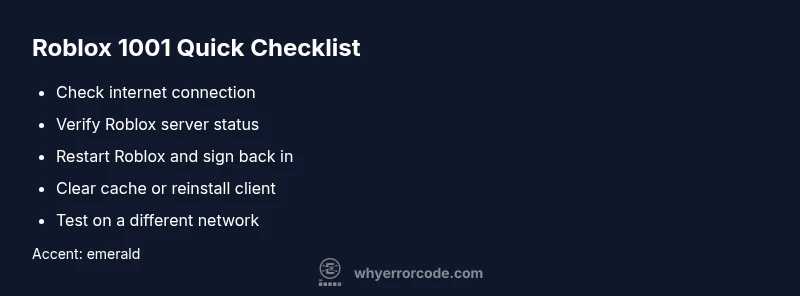
- Restart Roblox and sign out/sign back in.
- Restart your router and reconnect.
- Switch to a wired connection or a different wireless network if available.
- Clear Roblox cache or reinstall the client if the issue persists. These steps cover the most common causes first and reduce the need for deeper adjustments.
When to escalate to deeper troubleshooting
If 1001 remains after basic checks, there may be a deeper issue with DNS resolution, firewall rules, or a corrupted game cache. Prepare to perform network-level changes like changing DNS servers, temporarily disabling VPNs, or resetting network settings on your device. If you still cannot access Roblox after these steps, it’s time to collect logs and reach out to Roblox support with a precise description of what you attempted, including the exact error code and timestamps.
Safety and privacy considerations during troubleshooting
Avoid divulging login credentials, and never share sensitive information in public channels. If you disable security features for testing, be sure to revert them afterward. Use trusted networks, and only apply changes you understand. If you’re ever unsure, pause and seek official guidance to avoid compromising your device or account.
For developers and testers in Roblox environments
Developers testing Roblox experiences can see error code 1001 when a test client cannot reach the test server. In test environments, verify that the test server is running, firewall rules aren’t blocking the port, and your test client uses the correct authentication token. Document any deviations and reproduce steps to help support teams pinpoint whether the issue is on the client or server side.
Steps
Estimated time: 25-35 minutes
- 1
Confirm the issue and capture details
Note the exact error message, timestamp, device, OS version, and network type. This helps narrow down whether it’s client-side or server-side. Reproduce the error and take a screenshot if possible.
Tip: Keeping a small log makes it faster to get help from support. - 2
Restart and reauthenticate
Close Roblox completely, reopen, and sign back in. Ensure you’re using the latest build. If you use two-factor authentication, confirm its status too.
Tip: Sign out and back in on all devices where you play. - 3
Check network and Roblox status
Test connectivity with a different network, such as mobile data or a hotspot. Check Roblox's official status page or third-party monitors for outages in your region.
Tip: If outages are reported, wait for Roblox to restore service. - 4
Clear cache and update or reinstall
Clear Roblox cache or reinstall the client to remove corrupted files. After reinstall, run the updater to ensure the latest version is installed.
Tip: Back up important save data if applicable before reinstall. - 5
Isolate network settings
If you’re using VPN or custom DNS, disable them temporarily to test direct connection. Reset network settings on your device if necessary.
Tip: Test without VPN and with default DNS first. - 6
Escalate with logs if unresolved
If the issue persists after all steps, contact Roblox support with the steps you took, attachments, and device logs.
Tip: Provide precise timestamps and error code 1001 details to speed up resolution.
Diagnosis: User reports error code 1001 Roblox and cannot join a game
Possible Causes
- highPoor internet connection or DNS misconfiguration
- highRoblox service outage or regional server issue
- mediumCached data or outdated Roblox client
- lowAccount restrictions or VPN/firewall interference
Fixes
- easyCheck internet connection and try a different network
- easyRestart Roblox and sign back in; verify server status
- easyClear cache or reinstall the Roblox client
- mediumTemporarily disable VPNs or adjust firewall settings; test again
- mediumIf the problem persists, contact Roblox support with error code 1001 details
Frequently Asked Questions
What does Roblox error code 1001 mean?
Error 1001 typically points to a network or login/authentication problem preventing access to a game or lobby. It is usually resolved by network tweaks or client refresh, but outages on Roblox's side can also trigger it.
Error 1001 usually means a network or login issue that blocks access to Roblox games.
Can I fix error 1001 without reinstalling Roblox?
Yes. Start with a simple reset: restart Roblox, sign out and back in, verify server status, and test on another network. If that doesn't help, clearing cache or a reinstall may be needed.
Most fixes can be done without reinstalling Roblox.
Will using a VPN help with error 1001?
A VPN can sometimes bypass local routing issues, but it can also cause more blocks. If you use one, disable it temporarily to test connectivity, then re-enable only if needed.
A VPN might help in some cases but can also cause more problems, test without it first.
Is there a Roblox server outage for error 1001?
Yes, outages can trigger 1001. Check Roblox's official status page or trusted outage trackers for regional problems and planned maintenance.
Outages can cause error 1001; check the status page.
How long does it take to fix 1001 usually?
Most clients resolve within minutes after performing the quick fixes. If issues persist, escalation may take longer depending on server status and device factors.
Fixes are usually quick, but depends on server status and device details.
What information should I collect before contacting support?
Gather error code 1001, timestamp, device/OS, Roblox client version, network type, steps to reproduce, and any screenshots or logs.
Bring the error code, time, device, and steps to reproduce when you contact support.
Watch Video
Top Takeaways
- Identify client vs server origin quickly.
- Restart, verify status, and refresh the Roblox client first.
- Clear cache or reinstall if needed.
- Escalate with logs to Roblox support when necessary.