Roblox Error Code 401: Quick Fix Guide
Urgent guide to diagnose and fix Roblox error code 401, covering causes, fast remedies, and when to escalate. Learn how token expiry, time drift, and cache issues trigger 401 and how to recover access quickly.


Error code 401 Roblox indicates an authentication failure when accessing Roblox services. The quickest fix is to sign out, clear cookies or app data, and sign back in with a fresh session. If issues persist, verify system time, reset your password if needed, and ensure your account hasn’t been flagged. Why Error Code’s quick guide shows the exact steps to regain access.
What Roblox Error Code 401 Really Means
Error code 401 on Roblox is fundamentally an authentication failure. In practical terms, Roblox’s servers can’t verify your login token or session, so access is blocked until the credential is refreshed. Think of 401 as a doorbell that won’t ring unless you present valid proof you’re allowed to enter. This can happen after token expiry, login changes, or security restrictions triggered by unusual activity. For developers integrating Roblox APIs, 401 also signals that the access token used in API calls is missing or invalid and must be refreshed or replaced. According to Why Error Code, the most reliable remedy starts with re-authentication and clearing stale session data, which often resolves the issue without needing deeper troubleshooting.
Roblox 401 vs. Other Auth Errors
While 401 shares symptoms with other auth-related errors (like 403 or 429), it specifically points to authentication problems rather than permissions or rate limits. In Roblox terms, you’re being refused entry because the system cannot verify your identity. Distinguishing 401 from server-side outages is crucial: if multiple users report outages, the root cause may be on Roblox’s end, not your device. Always start with client-side checks (login, cookies, device time) before suspecting server problems.
How Tokens and Sessions Work in Roblox
Roblox uses session tokens to authorize requests across the platform. Tokens have a finite lifetime and are refreshed automatically in many apps. If a token becomes invalid—because it expired, was revoked, or the client clock is wrong—the server returns 401. Understanding this flow helps you triage quickly: check login status first, then verify that your device time aligns with real time, and finally purge stale credentials from your device or browser.
Symptoms and Timing: When 401 Becomes Visible
Common symptoms include a persistent login screen loop, an error banner stating 401 when trying to join a game, or API calls failing with an authentication error. Timing matters: if you recently updated the Roblox app, cleared data, or changed passwords, 401 may appear immediately after those actions as tokens are refreshed. If the problem persists for more than a few minutes after re-authentication, you may be facing a broader account-security flag or a regional blockage.
Quick-Fix Checklist (Try First)
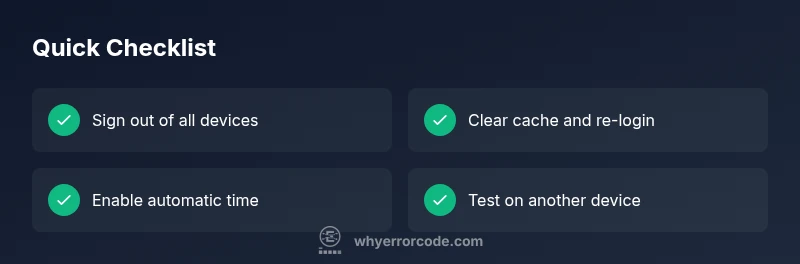
- Sign out of Roblox on all devices and sign back in with a fresh session.
- Clear browser cookies and Roblox app data; restart the app.
- Confirm system time is correct or set to automatic.
- Disable VPNs or proxies that might interfere with token validation.
- Update the Roblox app to the latest version on all devices.
- If you use two-factor authentication, ensure it’s functioning and your device has network access.
Deeper Dive: Why Time and Cache Matter
Two factors often drive 401 errors: clock drift and cached credentials. If your device’s clock is skewed, tokens may appear invalid to Roblox servers. Similarly, stale cache can hold old tokens that Roblox no longer accepts. Regularly syncing time and clearing cache after password changes can drastically reduce recurrence. If you still see 401 after a cache purge and re-login, it’s a strong signal to inspect account security settings and consider contacting support.
Step-by-Step Plan to Reauthenticate (Most Common Cause)
Follow these steps to reauthenticate and flush stale credentials:
- Sign out of all Roblox sessions.
- Clear cache and cookies (web) or clear app data (mobile).
- Restart the device and reopen Roblox.
- Sign in with a fresh password if prompted.
- Ensure automatic time updates are enabled.
- Verify network stability and disable VPNs.
- Attempt to join Roblox with a fresh session.
If 401 persists, proceed to deeper checks or contact support.
When 401 Indicates a Deeper Issue
If the error continues after re-authentication and cache clears, it might indicate account security flags, a compromised session, or a Roblox-side token issue. In such cases, you should review recent account activity, scan for unauthorized access, and consider reaching out to Roblox support for a security review.
Preventive Best Practices
- Regularly sign out of inactive devices and clear caches periodically.
- Keep your Roblox app updated to minimize token-related problems.
- Use a reliable internet connection and avoid networks that block Roblox domains.
- Enable 2FA to add a layer of protection and minimize unauthorized sessions.
Quick Recap: What to Do Next
- Sign out everywhere, 2) Clear cache and data, 3) Re-login, 4) Check device time, 5) Verify network, 6) Contact support if it persists.
Steps
Estimated time: 15-25 minutes
- 1
Sign out of all Roblox sessions
Open Roblox on each device, go to account settings, and sign out. This clears active tokens and ensures a clean login. Proceed to the next step after signing out.
Tip: If you don’t see a sign-out option, revoke sessions from security settings. - 2
Clear cache and cookies
On web, clear your browser cookies for Roblox and refresh the page. On mobile, clear app data or reinstall the app to remove stale tokens.
Tip: A reboot after clearing data helps ensure new tokens are requested. - 3
Re-login with a fresh session
Launch Roblox and sign back in using your username and password. If you use 2FA, complete the second-factor prompt as required.
Tip: If you changed your password recently, use the new password to log in. - 4
Check system time and network
Verify your device clock is set to automatic and correct. Ensure you have a stable internet connection without restrictive proxies.
Tip: Synchronizing time can resolve token validation instantly. - 5
Test access on a different device
If possible, attempt to log in from another device or browser to determine if the issue is device-specific.
Tip: A successful second device usually points to local data as the culprit. - 6
Escalate to Roblox Support if needed
If 401 persists after steps 1–5, collect logs and screenshots and contact Roblox support for a security review.
Tip: Provide timestamps, device info, and steps already taken to speed up the process.
Diagnosis: User cannot access Roblox; error code 401 displayed during login or while making API requests
Possible Causes
- highExpired or invalid authentication token
- mediumDevice time drift causing token validation failure
- lowCached credentials and cookies causing stale session
Fixes
- easySign out of Roblox on all devices, then sign back in to refresh tokens
- easyClear browser cookies and Roblox app data, then restart the app
- easyVerify and set correct device time automatically
- easyDisable VPNs or proxies that may block Roblox authentication
- easyUpdate Roblox to the latest version on all devices
Frequently Asked Questions
What does Roblox error code 401 mean?
Roblox error 401 means the platform cannot authenticate your session. This usually points to expired or invalid tokens, or a mismatch in device time. Re-authenticating and clearing local data typically resolves it.
Roblox error 401 means authentication failed; re-authenticate and clear data to fix.
How can I fix Roblox error 401 quickly?
Sign out everywhere, clear cache and cookies, then sign back in. Ensure device time is correct and that you’re not using a VPN that blocks Roblox tokens.
Sign out, clear data, re-login, and check time.
Can Roblox server outages cause error 401?
401 is primarily an authentication issue. Server outages can cause broader access problems, but 401 usually indicates a problem on the client-side or with session tokens.
Usually authentication issues on your end, not general outages.
Should I change my Roblox password because of 401?
Not always. Change password if you suspect your account is compromised; otherwise, re-authenticating and clearing data often resolves 401.
Change password only if you suspect a security issue.
Why does my device time affect 401 errors?
Token validation relies on a correct clock. If your device time is off, tokens may look invalid and Roblox returns 401.
Time skew can trigger 401 authentication failures.
When should I contact Roblox support for 401?
If you’ve reauthenticated and cleared data but still see 401, or you suspect a security breach, contact Roblox support for a security review.
If it persists after steps, reach out to Roblox support.
Watch Video
Top Takeaways
- Refresh tokens by re-authenticating to fix 401
- Clear caches when authentication fails
- Token validity depends on correct system time
- VPNs/proxies can interfere with Roblox authentication
- Escalate to support if issues persist after steps