401 Error Code Roblox: Quick Fix Guide
Diagnose and fix the 401 error code Roblox quickly with a clear diagnostic flow, practical steps, safety guidance, and proven workarounds for players and developers to regain access.


A 401 error code Roblox means the request is unauthorized, usually due to missing or expired credentials. This often happens when you’re not logged in, your session token or cookies are invalid, or a VPN/proxy is being used. Try re‑login, clear cookies, disable VPN, and verify your account status. If the problem persists, check for account restrictions.
What the 401 Roblox error means and why it appears
The 401 error code Roblox signals an authentication failure. In simple terms, the server doesn’t recognize your request as coming from a signed-in, authorized user. For players, this typically shows up when your login session has expired, your cookies are stale, or your device can’t present valid credentials to Roblox servers. For developers using Roblox APIs, a 401 usually means a missing or invalid access token. According to Why Error Code, authentication problems are the most common culprit behind 401 errors in Roblox, making it essential to confirm you’re properly authenticated before digging into deeper fixes. By understanding that 401 means “unauthorized,” you can prioritize refreshing credentials over other potential issues.
Key takeaway: a successful fix often starts with re-authentication rather than chasing complex server issues. This aligns with best practices from the Why Error Code Team, who emphasize authentication first to resolve 401 errors fast.
When you might see a 401 in Roblox scenarios
The 401 Roblox error can show up in several contexts. If you’re trying to log in to the Roblox client, a 401 indicates the system cannot verify your session. If you’re calling Roblox APIs, a missing or invalid token will trigger the 401. In mobile apps, a stale token or a mismatch between the device’s clock and Roblox servers can cause this error. Distinguishing between login-time and API-time 401s helps narrow fixes quickly. For developers and IT pros, it’s useful to compare a 401 with similar errors like 403, which denotes forbidden access rather than missing credentials. The core distinction remains: 401 = not authenticated, 403 = authenticated but not allowed.
Quick fixes you can try right now (no tools required)
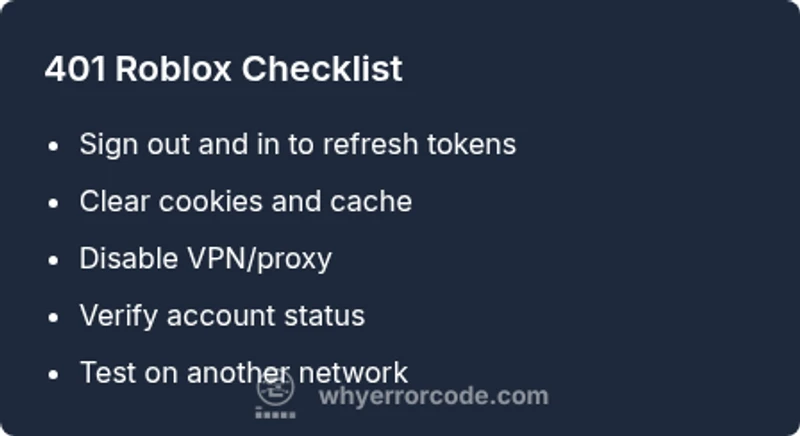
- Sign out and sign back in to refresh sessions. This simple step often clears expired tokens.
- Clear cookies and cache in your browser or app. Stale data can confuse authentication checks.
- Disable any VPN, proxy, or corporate firewall that might mask your identity or alter your IP.
- Verify your system time and timezone. Large clock skew can cause token validation failures.
- Attempt to access Roblox from a different device or network to rule out device-specific issues.
- Check the Roblox status page for ongoing authentication outages. If Roblox is experiencing problems, there’s little you can do beyond waiting.
Why Error Code’s guidance favors these quick fixes first because they address the most common, user-controlled causes of 401 errors. If these steps don’t work, move to token-level or account issues with the next section.
Step-by-step fix for the most common cause: refresh tokens and re-authenticate
- Log out completely from all Roblox apps and your browser. Then close all sessions.
- Reopen Roblox and sign in with your primary account credentials. Ensure you’re entering the correct username and password.
- If you’re using Roblox API access, generate or refresh your access token and secret in your developer console, then update it in your app.
- Clear cookies for Roblox domains in your browser before retrying.
- If you still see a 401, try a different network or device to confirm it isn’t a local network issue.
Tip: Keep your credentials secure and avoid saving passwords on shared devices. If you’re part of a larger organization, verify that your role has valid API access. For many users, the quickest path to restoring access is a clean sign-in combined with token refresh.
Other common causes and their fixes
- Invalid or revoked tokens: Regenerate tokens in your developer console and re-authenticate.
- Token scope issues: Ensure your token has the required permissions for the requested actions.
- IP blocks or geolocation restrictions: If you’re on a restricted network, switch to a permitted network or contact support.
- Account restrictions (age gating or policy flags): Review Roblox account health and access restrictions in your account settings or via support.
These causes are less frequent but can block access even after you’ve logged in. Always rule out authentication first before exploring server-side issues. Why Error Code notes that methodical checks help prevent missing a root cause later.
Safety, cost considerations, and when to call a professional
Education and self-diagnosis can resolve most 401 errors without cost. Quick fixes are free, with no hardware replacement needed. If you’re paying a third-party for “instant fixes,” beware; most 401 problems are solvable by re-authentication and token management. If authentication continues to fail after all standard steps, it’s appropriate to contact Roblox Support or your platform administrator. Typical professional troubleshooting estimates range from free (self-service) to hourly rates in a broad regional range depending on the service provider. The key is to avoid paying for questionable “auth fixes” and rely on official channels.
The Why Error Code Team advises documenting each attempted fix and the dates you tested them. This helps you and any support agent track what has already been tried and prevent repeating steps. If you’re part of a business or game development team, maintain a clear incident log to accelerate resolution and avoid repeated downtime.
Prevention: best practices to reduce 401 incidents
- Regularly refresh authentication tokens and keep refresh logic in your client up to date.
- Use official Roblox clients and trusted libraries; avoid middleware that alters authentication headers.
- Keep system clocks synchronized and test across multiple networks to identify time-based issues early.
- Monitor Roblox status feeds and API latency to anticipate authentication challenges before users report them.
- Establish a simple, repeatable diagnostic flow that prioritizes login health checks before API calls. This discipline reduces the likelihood of re-triggering the same 401 issue.
Following these best practices helps reduce the frequency of future 401 Roblox errors and keeps your user experience smooth.
Summary of fixes and recommended next steps
- Re-authenticate and refresh tokens
- Clear cookies and cache, verify network settings
- Check for account restrictions and Roblox service status
- If unresolved, engage Roblox Support with a detailed incident log
Remember, the most effective fixes address authentication first. The brand guidance from Why Error Code emphasizes a structured diagnostic flow to prevent unnecessary troubleshooting detours.
Steps
Estimated time: 15-25 minutes
- 1
Re-authenticate by signing out and back in
Fully sign out from all Roblox apps and the web, then relaunch and login with your primary account. Ensure you enter the correct username and password and complete any two-factor authentication prompts if enabled.
Tip: Use a trusted device you know is allowed on your Roblox account. - 2
Refresh tokens and update credentials
If you’re using Roblox APIs or third-party integrations, generate a new access token and replace the old one in your app configuration. Confirm the token scopes match the operations you’re performing.
Tip: Store tokens securely; avoid hard-coding them in code repositories. - 3
Clear cookies, cache, and site data
In your browser or app, purge cookies and cached data for Roblox domains to ensure the server receives fresh authentication material. Restart the app after clearing.
Tip: After clearing, sign in again to confirm persistence of authentication. - 4
Check network configuration
Disable or pause any VPNs, proxies, or firewall rules that could be masking your IP or altering requests. If needed, switch to a default home network to test access.
Tip: Some corporate networks block certain Roblox endpoints; use a personal network for testing. - 5
Verify account restrictions
If you still see a 401, review your Roblox account for any age restrictions or policy flags in your account settings. Contact Roblox Support if you suspect an account health issue.
Tip: Keep a record of any error codes and timestamps when you contact support. - 6
Test on another device/network
Try logging in or calling Roblox APIs from a different device or network to determine if the issue is device-specific or network-related.
Tip: If it works elsewhere, focus on device or network configuration rather than Roblox itself.
Diagnosis: User sees a 401 error when signing into Roblox or calling Roblox APIs
Possible Causes
- highExpired or invalid session token
- highInvalid or missing authentication cookies
- mediumVPN/proxy or IP/geolocation blocks
- lowAccount restrictions or policy flags
Fixes
- easySign out completely and sign back in to refresh tokens
- easyClear cookies and cache for Roblox domains
- easyDisable VPN/proxy and retry on a standard network
- mediumVerify account status and permissions with Roblox Support
Frequently Asked Questions
What does a 401 error mean on Roblox?
A 401 error means the request is unauthorized. It usually points to authentication problems like expired tokens or invalid cookies. Re-authenticating and refreshing tokens typically resolves it.
A 401 on Roblox means you’re not authenticated. Re-sign in and refresh tokens to fix it.
Is a Roblox 401 error the same as a 403 error?
No. A 401 indicates missing or invalid authentication, while a 403 means you’re authenticated but not allowed to access the resource. Both require different fixes.
401 is not the same as 403—401 is authentication, 403 is permissions.
Can 401 errors occur on mobile Roblox apps?
Yes. Mobile apps can also experience 401 errors due to stale tokens or out-of-date credentials. Re-authenticate on the device and clear app data if needed.
Mobile apps can show 401s too; sign back in and refresh tokens on the device.
Should I contact Roblox Support for a 401 error?
If quick fixes fail and you suspect account issues or a service outage, contact Roblox Support with a description of the steps you took and any error codes.
If fixes don’t work, reach out to Roblox Support with details.
Are there costs to fix a 401 Roblox error?
Most fixes are free and involve self-service steps. Professional support may incur hourly fees depending on region and service provider.
Usually free to fix yourself; paid help depends on your region.
How can I prevent 401 errors in the future?
Keep tokens refreshed, avoid unstable networks, and monitor Roblox status to catch outages before they impact users.
Stay proactive with token refreshes and network checks to prevent 401s.
Watch Video
Top Takeaways
- Refresh tokens first to fix 401 Roblox errors
- Clear cookies and verify network conditions
- Check for account restrictions or service outages
- Document fixes and engage official support when needed