Fortnite Error 91 Fix: Quick Troubleshooting Guide
Urgent guide to fix Fortnite error code 91. Learn network, file, and server checks to restore matchmaking and get back to Battle Royale fast.


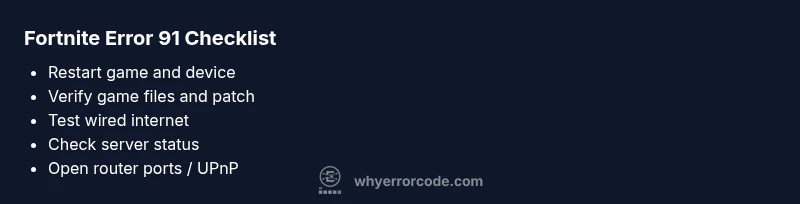
Error code 91 in Fortnite usually indicates a network handshake or server connectivity problem preventing you from joining matches. The quickest path to relief is: restart the game and device, verify game files and patch level, and reset your network (router/modem) for a clean handshake. If issues persist, check Fortnite server status and firewall settings to rule out blocks. See the full guide for deeper fixes.
What Error Code 91 Means for Fortnite Players
When Fortnite shows error code 91, it's signaling a problem at the network handshake stage between your device and Epic's servers. In plain terms, your game can't establish a stable connection to the matchmaking service, so you can't join lobbies or queues. This is typically a temporary glitch in connectivity rather than a fatal game error. According to Why Error Code, the root causes range from local network restrictions and outdated game files to transient server issues on Epic's end. The urgency comes from the fact that even small delays can produce cascading disconnects, preventing you from playing when you want to. The fix involves a mix of quick checks and targeted diagnostics. Start with simple, reversible steps, then move to more involved repairs only if necessary. By understanding the underlying network handshake, you can rapidly identify whether the problem is on your device, your local network, or the Fortnite servers. This article gives you a practical, urgent playbook to get back in-game as fast as possible.
Quick Fixes You Should Try Right Now
Begin with the fastest, least risky actions. First, exit Fortnite completely and restart your device and router. A clean reboot can clear stuck network sockets and reset temporary cache that might block the handshake. Next, verify the game files and install the latest patch; corrupted assets or a partial update can throw error codes. If you’re on PC, use the Epic Games Launcher’s verify option; on consoles, ensure the game is fully updated and installed. Test a wired Ethernet connection if possible; wifi instability is a common culprit for error 91. Temporarily disable any VPNs or proxy services, then re-test. Review Fortnite’s official server status page to confirm there isn’t a known outage affecting matchmaking. Finally, check firewall and antivirus settings to ensure they’re not blocking Fortnite traffic, and add exceptions if needed. If you follow these steps in order, you’ll often restore access without deep troubleshooting. If the issue persists, proceed to deeper network diagnostics.
Steps
Estimated time: 30-60 minutes
- 1
Restart Fortnite and device
Fully close the game and relaunch it. Reboot your PC/console and, if possible, restart your modem/router to clear any stale network state. This resets the handshake path and can fix transient issues.
Tip: Note any error codes that appear after reboot to correlate with later steps. - 2
Verify game files and update
Run the verify/repair option in the Epic Games Launcher or platform equivalent to repair corrupted assets or missing files. Install any pending updates to ensure you’re on the latest patch for Fortnite.
Tip: Prefer a wired connection during verification to reduce packet loss. - 3
Test network conditions
Check your internet speed and stability. If the problem persists, try a different network (mobile hotspot, another Wi‑Fi) to determine if the issue is network-specific.
Tip: Use a speed test during peak hours to see if latency spikes align with errors. - 4
Switch to a wired connection
If you’re on Wi‑Fi, connect an Ethernet cable. Wired connections reduce jitter and improve stability, which helps the handshake between client and Epic servers.
Tip: Disable Wi‑Fi after connecting via Ethernet to avoid auto-switching. - 5
Configure NAT and firewall
Ensure your NAT type isn’t strict. If possible, enable UPnP on your router or port-forward Fortnite ports (e.g., 6000–6002, 5222) to allow inbound/outbound traffic.
Tip: Document your current router settings before making changes. - 6
Reinstall Fortnite if necessary
As a last resort, uninstall and reinstall Fortnite to replace deeply corrupted files. This guarantees a clean handshake path with Epic servers.
Tip: Back up save data if applicable to avoid loss.
Diagnosis: Player sees error code 91 and cannot join a Fortnite match
Possible Causes
- highPoor or blocked network connections
- highServer status or queue issues
- mediumNAT type restrictions or strict NAT
- lowAntivirus/firewall blocking Fortnite traffic
Fixes
- easyReset router/modem and test with a wired connection
- easyVerify game files and apply available updates
- mediumOpen required ports or enable UPnP on the router
- easyTemporarily disable firewall/antivirus or create exceptions
Frequently Asked Questions
What does Fortnite error code 91 mean?
Error 91 usually signals a network handshake failure. It means your client can’t establish a stable connection with Epic's servers, preventing matchmaking.
Error 91 means a problems with the network handshake, so try basic connectivity checks first.
How do I verify Fortnite game files?
Open the launcher and use its verify/repair option to scan and repair Fortnite files. Reinstall if corruption persists. Keep patches up to date.
Use the launcher to verify your game files, then update if needed.
Can NAT type cause error 91?
Yes. A strict NAT can block connections to Epic servers. Adjust NAT by enabling UPnP or port-forwarding Fortnite ports.
A strict NAT can block matches, so adjust router settings if possible.
Should I use a VPN to fix error 91?
Using a VPN is generally not recommended for gaming, as it can add latency and cause more problems. If you must, test with a trusted service after basic fixes.
Usually, don’t use a VPN for Fortnite; it can worsen performance.
When should I contact Epic Games support?
If you’ve exhausted local fixes and still see Error 91 after an hour of attempts, contact Epic Games Support with your logs and steps you tried.
If fixes don’t solve it after trying for a while, reach out to Epic.
Do server outages cause error 91?
Outages or regional issues on Epic's side can trigger Error 91. Check the official Fortnite status page for outages and planned maintenance.
Server issues on Epic’s end can cause it; verify status pages.
Watch Video
Top Takeaways
- Start with quick fixes: restart, verify, update
- Use a wired connection to stabilize latency
- Check server status before deeper changes
- Contact support if issues persist after 60 minutes