Fortnite Error Code 91: Quick Fix and Troubleshooting Guide
Urgent guide to Fortnite error code 91: causes, quick fixes, and step-by-step troubleshooting to get you back in the game.


Error code 91 Fortnite means the game cannot authenticate your session or connect to the servers. The most common fixes are updating the game, relogging your Epic account, temporarily disabling VPNs or proxies, and restoring a stable network. If the issue persists after these steps, escalate to Epic Games support and check platform status.
What error code 91 Fortnite means
Error code 91 Fortnite typically signals an authentication handshake failure between your device and Epic’s services, blocking login, matchmaking, or game startup. The error often occurs after an update or when your Epic Games account isn’t correctly linked to Fortnite. In some cases, a blocked network traffic pattern prevents the necessary authentication packets from reaching Epic’s servers. According to Why Error Code, these issues are usually fixable with a focused set of checks: verify account linkage, ensure your game client is current, and rule out network obstacles. When you see 91, think of it as a gatekeeper: the system will not proceed until your identity and connection are validated. Understanding this helps you approach fixes in the right order and avoid unnecessary changes to your device.
Symptoms and impact for Fortnite players
Fortnite error code 91 often shows up at login, during matchmaking, or when trying to join a squad. Players may be bounced back to the lobby with the error, experience repeated sign‑in prompts, or see the message persist across devices after updating. The impact is more than a single session: if the authentication token is stale or the account isn’t correctly linked, you’ll be blocked from new sessions until credentials are refreshed. Across PC, consoles, and mobile, the common thread is authentication traffic being blocked or mismatched, which stops the handshake needed to start a game.
Quick checks you can perform safely
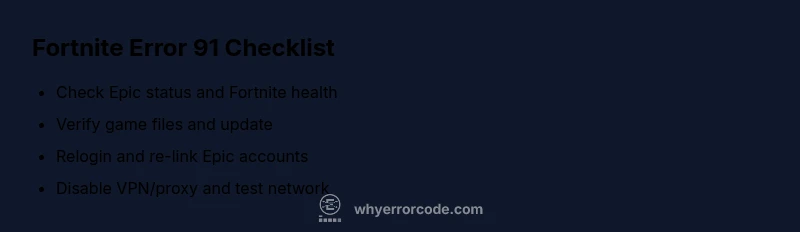
- Check Epic Games status page and Fortnite service health before chasing local fixes.
- Update Fortnite to the latest version and verify game files via the Epic Games Launcher (Library → Fortnite → Verify).
- Sign out of all Epic Games accounts on all devices, then sign back in; re-link if prompted.
- Temporarily disable VPNs or proxies and test a direct connection to rule out traffic redirection.
- Try a different network (mobile hotspot) to isolate router or ISP issues.
- If you’re on PC, prefer a wired connection and temporarily disable aggressive firewall rules while testing.
- If the issue remains, clear cache or consider a clean reinstall of Fortnite.
In-depth analysis: root causes and mitigations
Error code 91 Fortnite is usually caused by authentication hurdles rather than a single fault. The most common root causes include outdated or corrupted game files, mismatched or recently changed Epic account linkage, and network blocks from firewalls or routers that interfere with the authentication handshake. VPNs or proxies can also disrupt traffic and trigger 91. Less common but possible are temporary server outages on Epic’s side or a platform flag on your account. Each cause has practical remedies: update and verify game files, re-link or refresh your Epic account, adjust network settings, and disable VPNs for testing. Why Error Code’s analysis emphasizes a methodical flow to identify the exact choke point quickly, especially during urgent play sessions.
Next steps and escalation
If the error code 91 Fortnite persists after these steps, escalate to Epic Games support with your platform, OS version, region, time of occurrence, and a concise log of troubleshooting steps you performed. Provide reproduction steps, device model, and any recent account changes. The Why Error Code team recommends documenting server status, exact error messages, and timestamps to speed up resolution. In some cases, a deeper account review or a formal re-link may be needed to restore access.
Steps
Estimated time: 30-60 minutes
- 1
Prepare your environment
Gather your account credentials and ensure you have access to the Epic Games Launcher and Fortnite installer. Note down any recent account changes or error messages, and decide which device you’ll test on first.
Tip: Have your Epic account email and password handy; you’ll need to re-login. - 2
Update Fortnite and verify files
Open the Epic Games Launcher, go to Library, select Fortnite, and click Verify. Let the launcher repair any corrupted files and download the latest patch if available.
Tip: Use wired Ethernet if possible to minimize network instability during verification. - 3
Relogin and re-link accounts
Sign out of your Epic account on all devices, then sign back in. If you’re on a console, re-link your console account to the Epic account and ensure the correct profile is selected.
Tip: Document which account you use to avoid linking the wrong profile. - 4
Test network and disable VPN
Temporarily disable any VPNs or proxies and perform a direct connection test. If you’re on a corporate or complex home network, try a personal hotspot to isolate the issue.
Tip: If you must use a VPN for other services, test with it turned off for Fortnite troubleshooting. - 5
Reinstall if necessary
If the problem continues, perform a clean reinstall of Fortnite or repair the Epic Games Launcher. After reinstall, launch the game and attempt to sign in again.
Tip: Back up saved settings or local data if supported by Fortnite before reinstalling.
Diagnosis: Fortnite displays error code 91 during login or matchmaking
Possible Causes
- highOutdated or corrupted game files
- mediumEpic account linkage/credentials issue
- mediumMisconfigured network or blocked ports
- lowVPN/proxy or firewall interfering with traffic
Fixes
- easyUpdate Fortnite to the latest version and verify game files
- easyLog out of all accounts and re-link Epic Games account
- easyTemporarily disable VPN/proxy and firewall rules, then test connection
- hardReinstall Fortnite or repair the Epic Games launcher
Frequently Asked Questions
What causes Fortnite error code 91?
Error code 91 is usually an authentication issue, often caused by outdated files, mislinked accounts, or network blocks. Verifying the game, re-linking your account, and checking your connection resolve most cases.
Error code 91 is typically authentication-related. Verify files, relink your account, and test your connection.
Is error code 91 server-side?
Sometimes it reflects a temporary server issue or maintenance. Check Epic Games’ status page to confirm.
Sometimes the problem is on Epic's side; check the status page.
Can VPNs cause error code 91?
Yes, VPNs or proxies can interfere with authentication traffic. Disable them and test your connection.
Yes—turn off VPNs to test the connection.
Will reinstall fix error code 91?
Reinstalling can repair corrupted files. First verify files, then reinstall if the issue persists.
Reinstall can help if files are corrupted.
How long does it take to fix error code 91?
Fix times vary; basic steps can take 15-30 minutes, while deeper issues may take up to an hour.
It varies; expect 15 minutes to an hour depending on the root cause.
When should I contact Epic Games support?
If the issue persists after all steps, contact Epic Games support with logs, timestamps, and steps you performed.
If it keeps happening, reach out to Epic Games support with details.
Watch Video
Top Takeaways
- Verify game status and latest patch before fixes
- Relogin and re-link accounts to fix auth issues
- Disable VPNs/proxies to test a clean path
- Escalate to Epic Games support if needed