Roblox Error Code 279: Fast Fixes and Troubleshooting Guide
Urgent guide to Roblox error code 279 with practical fixes, diagnostic flow, and step-by-step instructions for players, parents, and IT pros.


Roblox error code 279 indicates the game client cannot reach Roblox servers due to network or security blocks. The quickest fixes include checking your internet connection, temporarily disabling VPNs or proxies, ensuring your router’s NAT type is open, and updating or reinstalling the Roblox app. If the problem persists, flush DNS, test a different DNS, and check for Roblox service outages. If needed, contact support.
What Roblox error code 279 means
Roblox error code 279 is a connectivity error that prevents the game client from establishing a stable link with Roblox servers. In practical terms, your device can reach the internet, but the Roblox servers cannot complete the handshake required to start or maintain a session. According to Why Error Code, 279 often signals a local network or device-level block rather than a fault on Roblox's end. It’s a message you’ll typically spot when the client fails to join a game after a few seconds of attempting to connect. The Why Error Code team found that most users fix this by addressing network configuration, firewall rules, or security software settings that might be blocking Roblox traffic. This is not a one-click error; it usually requires a series of checks across devices, networks, and app versions. If you’re troubleshooting, stay methodical and document each change for faster backtracking on future issues.
How this error presents itself
You’ll often see a retry loop that ends with Error Code 279 when attempting to join a game, or when loading a Roblox experience that never fully connects. The message may appear after you click Play or when you’re trying to switch servers. Latency spikes, DNS hiccups, and intermittent disconnections can also accompany 279, especially on shared public networks or flaky home Wi‑Fi. In urgent scenarios, the issue is usually resolved by tightening network access for Roblox in security software, or by selecting a different network path. In all cases, verify that your device time is synchronized and that your Roblox client is up to date, as outdated software can exacerbate connection problems.
Common Causes of Error 279
- Network connectivity issues: A weak or unstable internet connection, high jitter, or packet loss can stop Roblox from reaching its servers. A quick test with speed/latency tools on a PC or mobile device can reveal obvious problems.
- VPNs, proxies, or firewall blocks: Any VPN or proxy you’re using might route Roblox traffic through blocked paths, or a firewall/antivirus might block the ports Roblox uses.
- NAT and router settings: Strict or moderate NAT types, UPnP disabled, or port restrictions can hinder the connection to Roblox servers.
- Roblox service outages: Sometimes the problem isn’t on your end; regional outages or maintenance can show Error 279 across multiple devices.
- DNS and time synchronization: Incorrect DNS settings or a misaligned clock on the device can interfere with server handshakes.
Quick Fixes You Can Try Now
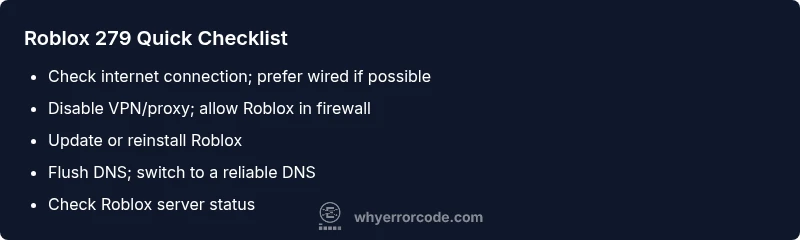
- Check your internet connection and try a wired Ethernet connection if possible; restart your router and modem to refresh the network. If you can, test with a different network (mobile hotspot) to isolate the issue.
- Disable VPNs or proxies temporarily and ensure Roblox traffic is allowed by your firewall/antivirus. Create an exception for Roblox or temporarily pause security software to test.
- Update or reinstall the Roblox client on your device. A corrupted installation can fail to complete the handshake with Roblox servers.
- Flush DNS and consider switching DNS providers (e.g., to a reliable public DNS). This can fix domain-resolution problems that block connectivity to Roblox.
- Check Roblox’s official server status page to see if there’s a known outage or region-specific problem. If an outage is reported, you’ll need to wait for service restoration.
- If you’re on a corporate or school network, check with the network administrator to ensure Roblox ports aren’t blocked.
- For mobile users, disable data saver modes that may throttle or block background connections and ensure the app has unrestricted data usage.
In-Depth Network and System Checks
If quick fixes didn’t resolve the issue, perform deeper checks:
- DNS health: Run a DNS lookup for roblox.com to confirm resolution, and try alternative DNS servers like Google's 8.8.8.8 or Cloudflare's 1.1.1.1.
- NAT type verification: On home networks, review NAT type in your router’s settings. If you have a strict NAT, enable UPnP or set up port forwarding for Roblox-ports (UDP/TCP as recommended by your router’s vendor).
- Traceroute and latency: Use traceroute (or tracert on Windows) to Roblox servers to identify where delays or drops occur. If hops near your network show high latency, the issue is likely upstream.
- Client logs: Check Roblox and OS logs for authentication errors or blocked connections. These messages can point to a specific block (e.g., a firewall rule or antivirus module).
- System time: Ensure the device clock is synchronized with an internet time server. Desynchronization can cause certificate and handshake failures that resemble 279.
Device-Specific Guidance (PC, Mobile, Console)
- PC/Mac: Verify Windows Defender/Firewall rules allow Roblox inbound and outbound traffic. Disable any third-party firewall temporarily to test. Ensure UPnP is enabled on the router if supported.
- Mobile (iOS/Android): Confirm Roblox has unrestricted data usage and background activity permission. Check that power-saving modes aren’t restricting background networks.
- Console (Xbox/PlayStation): Confirm NAT is open or moderate, and ensure there are no parental controls blocking Roblox. If necessary, perform a network test on the console to verify connectivity and NAT type.
When to Seek Professional Help and Cost Ranges
If Error 279 persists after all consumer-level fixes, it may be time to bring in help. A local IT technician or your internet service provider can diagnose at the router level or investigate upstream network issues. Typical service-call costs can range from $50 to $150 for basic diagnostics, with higher fees if on-site hardware adjustments or advanced networking work is required. For corporate networks or school environments, a network specialist may charge by the hour, often between $75 and $200 per hour.
Quick Summary and Prevention Tips
- Keep Roblox and your device OS up to date to minimize compatibility problems.
- Use a stable, wired connection when possible and avoid VPNs for gaming sessions unless necessary for privacy or regional access.
- Document changes you make when troubleshooting to avoid repeating steps and to speed up future diagnostics.
- Regularly test your network, especially when starting new games or after network changes.
Final Note
Roblox error code 279 is usually resolvable with a structured approach to network and device configuration. By following the steps outlined above and paying attention to outages, you can reduce downtime and get back into your favorite experiences quickly.
Steps
Estimated time: 30-60 minutes
- 1
Verify network connectivity
Check if other sites load normally and run a speed test to gauge latency. If you notice consistent drops or spikes, prioritize fixing local network issues first before diving deeper into Roblox-specific settings.
Tip: Use a wired Ethernet connection if possible to reduce variability. - 2
Restart networking hardware
Power cycle your modem and router. Wait 60 seconds, then reconnect. This clears stale sessions and can resolve transient NAT or routing problems that block Roblox handshakes.
Tip: While rebooting, disable any QoS rules that might throttle gaming traffic. - 3
Disable VPN/Proxy and adjust firewall
Turn off VPNs or proxies and test Roblox again. If you must use a VPN, ensure the VPN allows Roblox traffic. Then review firewall/antivirus settings to allow Roblox.exe or the Roblox app through the firewall.
Tip: Add Roblox to allowed apps in your security software for a clean test. - 4
Update or reinstall Roblox
Check for available updates in your app store or the Roblox launcher. If updates fail, uninstall and reinstall the Roblox client to ensure a clean handshake with Roblox servers.
Tip: Back up any saved settings if needed before reinstalling. - 5
Test DNS and NAT settings
Flush DNS, then switch to a reliable DNS service. Check your router NAT type and enable UPnP if supported, or set up port forwarding per your router guide to ensure Roblox traffic can reach the servers.
Tip: Document changes so you can revert them if needed. - 6
Check Roblox server status and regional issues
Visit Roblox’s status page or social channels to confirm outages in your region. If there is an outage, the fix is to wait for Roblox to restore services; try again later and monitor for updates.
Tip: Consider joining a Roblox community or forum for real-time outage notes.
Diagnosis: User tries to join a Roblox game and receives error code 279
Possible Causes
- highNetwork connectivity issues causing Roblox client to fail to connect to servers
- highVPN/proxy or firewall blocking Roblox traffic
- mediumRoblox service outage or regional problem
Fixes
- easyTest and stabilize your internet connection (prefer wired); restart router/modem
- easyTemporarily disable VPN/proxy; configure firewall/AV to allow Roblox traffic
- easyCheck Roblox server status and wait if outage is reported; retry later
Frequently Asked Questions
What does Roblox error code 279 mean?
Error 279 indicates the Roblox client cannot connect to Roblox servers. It usually points to network, DNS, or firewall issues rather than a problem with the game itself.
Error 279 means the game can’t connect to Roblox servers due to network or firewall issues.
How can I fix error 279 quickly?
Try a wired connection, disable VPNs or proxies, update or reinstall Roblox, and flush DNS. If outages are reported, wait and retry after maintenance ends.
Quickly fix by using a wired connection, disabling VPNs, updating Roblox, and flushing DNS.
Could a Roblox outage cause error 279?
Yes. Roblox outages can cause error 279 across multiple users. Check Roblox’s official status page or social channels for current service status.
Yes, outages can cause 279; check Roblox status pages for updates.
Is error 279 related to NAT type or firewall settings?
A strict NAT or blocked firewall can cause 279. Adjust NAT settings, enable UPnP if available, and permit Roblox traffic through firewall rules.
279 can be caused by NAT type or firewall blocks; adjust settings and allow Roblox traffic.
Should I contact Roblox support for this error?
If the problem persists after standard fixes and outages are ruled out, contact Roblox support or your network provider for deeper diagnostics.
If fixes don’t help and outages are ruled out, contact Roblox support for next steps.
Do I need to pay for professional help to fix error 279?
Professional help can involve diagnostic fees or hourly rates. Typical ranges for home networking support are $50–$150, depending on complexity.
Professional help may cost between $50 and $150 for diagnostics, depending on the issue.
Watch Video
Top Takeaways
- Identify whether the issue is local or Roblox-side.
- Start with quick fixes (disconnect VPN, reboot, update app).
- Progress to in-depth network checks (DNS, NAT) if needed.
- Document changes and know when to escalate to a professional.
- Check Roblox status pages to rule out outages.