Error Code 2000-0142 Dell Fix: Urgent Hard Drive Troubleshooting
Urgent guide to diagnose and fix Dell error code 2000-0142, with quick fixes, diagnostic flow, and step-by-step hardware checks to protect data and restore your PC.


Dell error code 2000-0142 signals a detected hard drive failure during POST. Immediate action is required to protect data and system stability. Start by backing up your data, run Dell built-in diagnostics, reseat or reconnect storage cables, and prepare for drive replacement if the diagnostics confirm a failing disk. This quick fix can buy time while you arrange repairs.
Understanding Dell error code 2000-0142
Dell error code 2000-0142 is surfaced when the POST hardware diagnostics detect a fault in the primary storage device. In practical terms, the computer reports a hard drive self-test failure, and booting may stop or become unreliable. According to Why Error Code, this error most often signals a deteriorating or failed disk, rather than a temporary software glitch. You may notice symptoms such as slow boots, frequent freezes, drive noises, or Windows failing to load. Because hard drives hold your most important data, recognizing this code early allows you to prioritize backup and repair before data becomes inaccessible. Early intervention can dramatically reduce the risk of data loss and prolonged downtime. If you rely on mission-critical data, you’ll want to act quickly and methodically.
In many cases, user-accessible indicators like a clicking sound from the drive, excessive disk activity, or sudden boot loops accompany 2000-0142. These signs point toward mechanical wear or platter damage. While software fixes can’t repair a physically damaged drive, they guide you toward preserving data and determining the correct hardware path forward. Planning ahead with a recovery strategy remains essential for professionals and DIYers alike.
Immediate steps you can take now (before hardware service)
If you encounter Dell error code 2000-0142, perform these immediate steps to protect data and stabilize the situation:
- Back up all accessible data to an external drive or cloud storage if your system still boots enough to copy files. Do not write new data to the suspected drive.
- Power down completely and unplug from power. If it’s a laptop, remove the battery if possible and safe to do so.
- Run Dell Diagnostics (press F12 at boot and select Diagnostics). Run both quick tests and, if available, an extended test of the hard drive.
- If a test reports failing sectors or a disk fault, do not rely on the drive for ongoing storage. Plan for a drive replacement, keeping recovery options in mind.
- If you can access BIOS, check drive recognition and ensure the drive is detected. Re-seating the HDD/SSD cables can sometimes resolve intermittent connection issues.
- Document any error codes or test results for reference when you contact support or a repair tech.
How Dell Diagnostics helps isolate HDD issues
Dell Diagnostics is a built-in tool that can help separate drive problems from other components. The standard flow is:
- Run the quick test to get a baseline status (pass/fail).
- If the quick test fails, run an extended test focused on the hard drive to identify sectors, read/write errors, or controller faults.
- Note any error codes returned during the test. A 2000-0142 result points toward the disk, but corroborate with SMART data if the tool provides it.
- Use test results to decide if reseating cables may resolve an intermittent issue or if a full drive replacement is necessary.
If your system fails the diagnostic tests repeatedly or reports unreadable sectors, expect the drive hardware to be the common root cause. In that scenario, plan for a replacement and OS reinstallation if needed.
Step-by-step repair: the most common cause (hard drive failure)
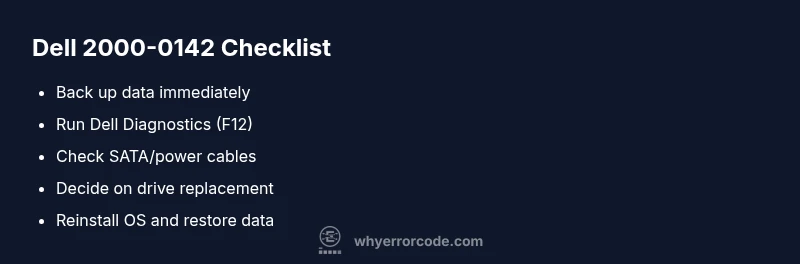
- Back up data immediately and securely store it off the failing drive. Always protect against data loss before taking hardware steps. Tip: use a USB-to-SATA adapter if you’re temporarily booting from a live OS.
- Power down, unplug, and remove the laptop battery (if applicable). Ground yourself to avoid static damage.
- Open the chassis (following manufacturer guidelines). Locate the HDD/SSD and inspect cables for looseness or damage. Reconnect or reseat the data and power cables if you find any issues.
- If the drive is detected but reports errors, try running a secondary HDD health utility from a live environment to confirm the drive’s status.
- Replace the drive with a compatible HDD or SSD. Install the OS from a recovery drive or installation media. After installation, restore data from your backup.
- Run a full system test and ensure the disk is healthy before returning to normal use. If possible, configure health monitoring to catch future issues early.
Estimated time for this repair path: a typical home-based repair can take roughly 60–150 minutes, depending on your familiarity with hardware and OS reinstall.
Alternative causes and fixes
Not every Dell error 2000-0142 means the disk is dead. Consider these alternate causes and remedies:
- Loose or damaged SATA/power cables: reseating cables can restore drive recognition and eliminate intermittent faults.
- BIOS misinterpretation or outdated firmware: check for BIOS updates from Dell and apply if available.
- Drive has minor bad sectors but remains readable: run a surface check and attempt data recovery before replacement if feasible.
- Controller or motherboard issues: in rare cases, the SATA controller on the motherboard may fail; this typically requires professional service and testing with alternate hardware.
In most cases, if the drive passes a robust health check yet you continue to see failures, keep a contingency plan ready for a drive replacement and OS reinstallation.
Safety, data protection, and when to call a professional
- Do not continue to use a failing drive after a 2000-0142 diagnosis; data loss risk increases with continued operation.
- Always back up data before attempting repairs, especially before any drive replacement or OS reinstall.
- If you’re under warranty or uncomfortable with hardware handling, contact Dell support or an authorized service provider. Professional service can prevent accidental data loss and ensure proper data recovery planning.
- Expect professional repair costs to vary based on parts and labor, and that timelines depend on part availability and service level.
Preventive measures to avoid 2000-0142 in the future
- Maintain regular backups and test restore procedures periodically to minimize data loss risk.
- Monitor disk health with SMART tools and vendor-provided utilities, and respond proactively to warnings.
- Avoid abrupt shutdowns and protect against power surges with a quality UPS when possible.
- Keep BIOS and firmware current, and use certified parts for upgrades to maintain system stability.
Resources and next steps
If you’ve arrived at this point, you likely need to decide between repair options. The Why Error Code team recommends following a structured diagnostic path, starting with data protection and then hardware assessment. For deeper guidance, consult Dell’s official support pages and trusted repair channels. Why Error Code’s guidance emphasizes methodical diagnostics, safe data handling, and timely escalation when hardware failure is confirmed.
Steps
Estimated time: 60-120 minutes
- 1
Back up your data
Immediately connect an external drive or use cloud backup to secure all accessible files. Do not write new data to the suspected drive. This preserves information in case the drive degrades further.
Tip: Use a separate, external power source if the laptop is unstable during backup. - 2
Power down and prepare hardware
Shut down completely, unplug, and remove the battery if removable. Ground yourself and gather the necessary tools. This reduces risk of electrical damage during inspection.
Tip: Work on a non-static surface and avoid touching the drive connectors with bare metal tools. - 3
Inspect and reseat connections
Open the chassis according to your service manual. Check that the SATA data and power cables are firmly connected to the drive and motherboard. Reseat if any looseness is observed.
Tip: If you’re not comfortable, consult a technician before applying pressure to cables. - 4
Run Dell Diagnostics again
Boot into Dell Diagnostics (F12 at startup) and run both quick and extended tests for the hard drive. Note any error codes for reference in future support interactions.
Tip: Document test results to help decision-making on repair vs. replacement. - 5
Decide on replacement vs. repair
If extended tests show drive failure, plan for a drive replacement and OS reinstall. If tests indicate controller issues, professional service may be required.
Tip: Consider upgrading to a solid-state drive for better reliability and performance. - 6
Reinstall OS and restore data
Install the OS from recovery media, then restore data from your backup. Verify that critical apps and files are functioning as expected.
Tip: Verify drivers after installation to ensure hardware works correctly.
Diagnosis: POST shows diagnostic error 2000-0142 indicating hard drive self-test failure
Possible Causes
- highHard drive failure or imminent failure
- mediumLoose or damaged SATA/power cables
- lowDisk controller or motherboard issue
Fixes
- easyBack up data and reseat drive cables; run Dell Diagnostics again
- hardReplace failing hard drive and reinstall OS
- mediumUpdate BIOS/firmware and test with extended diagnostics
Frequently Asked Questions
What does error code 2000-0142 mean on a Dell PC?
It indicates a hard drive self-test failure, usually pointing to a disk problem. Confirm with Dell Diagnostics and back up data immediately.
Dell 2000-0142 means the hard drive failed a self-check. Back up data now and run diagnostics to confirm.
Can I fix Dell error code 2000-0142 myself?
Some safe steps—like backing up data and reseating cables—can be done by a user. Hardware replacement should be left to those comfortable with PC repairs.
You can try some safe steps, but replacing the drive is best left to someone comfortable with hardware.
Is data recovery possible if the drive has failed?
Data recovery depends on the drive health. If there are unreadable sectors or mechanical damage, professional recovery may be needed.
Recovery can be possible in some cases, but not guaranteed; stop using the drive and seek professional help if needed.
Should I upgrade to an SSD when replacing the drive?
Upgrading to an SSD can improve performance and reliability. Ensure compatibility with your Dell model before upgrading.
An SSD upgrade is a common, beneficial option if compatible with your device.
What are typical costs and timeframes for repair?
Costs vary widely depending on parts and service level. Diagnostic fees may apply, and timelines depend on part availability and whether you replace the drive yourself or use professional service.
Costs and timelines vary; expect options from DIY to professional service with different durations.
Watch Video
Top Takeaways
- Back up data before any repair
- Run Dell Diagnostics to confirm the issue
- Replace the drive if tests indicate failure
- Seek professional help if unsure or out of warranty