Dell hard drive error code 155: Troubleshooting and Fix Guide
Learn how to diagnose and fix dell hard drive error code 155 with step-by-step checks, safe data recovery tips, common causes, and when to seek professional help.


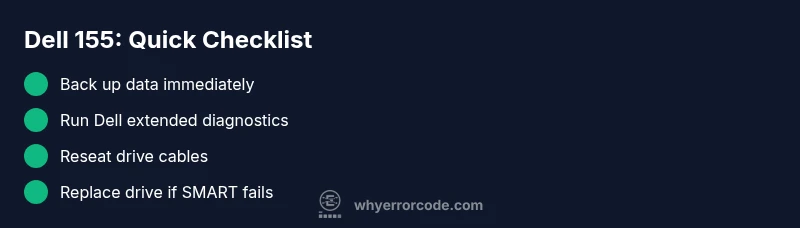
Dell hard drive error code 155 indicates a critical drive health issue detected during POST or Dell diagnostics. The immediate steps are to back up any accessible data, run Dell diagnostics to confirm disk health, and try basic fixes like reseating cables. If diagnostics fail or the drive shows SMART errors, expect drive replacement or professional data recovery.
What Dell Hard Drive Error Code 155 Means
Dell hard drive error code 155 signals a critical health warning that Dell diagnostics or the system BIOS can detect during startup. In practice, this code usually points to a disk that is failing or showing dangerous SMART attributes. It is not a vague software alert; it is a hardware health signal with real consequences for data integrity. When you encounter this error, your priority is to safeguard data and establish whether the drive can still be trusted for ongoing operation. The status often comes from the BIOS-level checks, so even if Windows boots, the underlying hardware reliability is compromised. For developers and IT pros, treat 155 as a high-priority hardware fault rather than a routine software hiccup, and plan for immediate data protection and a recovery strategy.
According to Why Error Code, this error should prompt a rapid triage: confirm the symptom with diagnostics, verify data backups, and assess the drive’s SMART status. In many Dell laptops and desktops, 155 correlates with sectors in danger or failed blocks that can escalate to data loss if the disk fails completely. With this in mind, the recommended outcome is to prevent further I/O on the drive and begin data preservation while you pursue repair or replacement options.
Common Symptoms You'll Notice
- System boots to POST but reports disk health issues or stalls during boot
- Dell diagnostics flag SMART failures or bad sectors associated with the drive
- Unusual noises from the drive (clicks, grinding) along with slow performance
- Frequent freezes, blue screens, or OS errors when reading/writing to the disk
- Windows or BIOS shows health warnings or seeks a backup-before-operation prompt
While not all symptoms appear together, the presence of any is a strong signal to stop heavy I/O and begin data protection while diagnosing further. Why Error Code notes that symptom patterns vary by model, but the underlying risk remains high. Monitor any changes and document the exact error messages for support or service interactions.
Immediate Quick Fixes You Can Try
- Back up any accessible data immediately to an external drive or cloud storage
- Run Dell built-in diagnostics (F12 during boot) to get SMART results and error codes
- Reseat the drive connections (data and power cables) and ensure the drive is properly seated
- Disconnect nonessential peripherals to rule out power or I/O conflicts
- If the drive tests show failure or uncertain health, prepare for replacement or professional recovery
These fixes are designed as fast-risk mitigations. They do not repair a physically failing disk but can sometimes stabilize access long enough to recover essential data. Always proceed with data backups first, as the primary preventive step.
Diagnostic Approach: What Dell Diagnostics Tells You
Dell diagnostics provide a structured picture of disk health by querying SMART attributes, surface tests, and read/write error logs. Begin with a full extended test to check for pending sectors and reallocated blocks. Note the SMART status and any failure IDs reported. If the test confirms errors, you should treat the drive as failing and move toward replacement. If the test passes but you still see 155 in BIOS, there may be a controller, cable, or firmware-related issue worth addressing in a staged manner.
For developers, consider correlating error IDs with known Dell BIOS versions and firmware release notes. In many cases, firmware updates for the drive/controller can mitigate intermittent failures, but if the SMART data show persistent degradation, replacement is the prudent path. Always keep a verified backup before making hardware changes.
Step-By-Step Fix: Safe Data Backup & Drive Repair
- Back up data from the affected drive to an external disk or cloud storage. Ensure critical files are copied in multiple locations if possible.
- Create a repair plan: determine whether you will reseat cables, replace the drive, or attempt a firmware update where supported by Dell.
- Power down and unplug the system. Ground yourself to prevent static damage.
- Open the case or service panel and carefully reseat SATA/data cables and power connectors to the drive.
- Run Dell Diagnostics again after reseating to verify if the issue persists.
- If SMART shows failing status, replace the drive with a compatible model and reinstall the operating system from backup or a clean image.
- Update BIOS/firmware and the drive’s firmware if available, then run a full diagnostic pass to confirm stability.
Estimated time: 60-120 minutes depending on hardware access and data backup size.
tip1AbbrevTip1_2
tip
Steps
Estimated time: 60-120 minutes
- 1
Verify with Dell Diagnostics
Power on the system and press F12 to access the Dell diagnostics menu. Run the extended diagnostic on the hard drive and note the SMART attributes and any error IDs. This confirms whether the issue is hardware-based.
Tip: Have a known-good backup handy before performing deep tests. - 2
Back up critical data
If the drive is still accessible enough for read/write, copy essential files to an external disk or secure cloud storage. Do not rely on a single backup location.
Tip: Prioritize irreplaceable files first. - 3
Reseat drive cables
Power down, unplug, and carefully disconnect and reconnect the SATA data and power cables. Ensure the connectors click firmly and no visible damage exists.
Tip: Static discharge strap helps prevent damage. - 4
Re-run diagnostics after reseating
Boot into diagnostics again and compare results to the initial pass. If errors persist, the problem is more likely the drive or controller.
Tip: Document any changes in test results. - 5
Decide on replacement
If SMART shows failing status or tests show unreadable sectors, plan for drive replacement. Prepare OS reinstall media or system image for restoration.
Tip: Keep warranty or service options in mind. - 6
Replace the drive and reinstall OS
Install the new drive, restore data from backups and perform a clean OS install or restore image. Verify system stability with another diagnostics pass.
Tip: Test critical apps after restore to ensure data integrity. - 7
Update firmware and BIOS
Update Dell BIOS and drive firmware if available, then re-run full diagnostics to confirm stability.
Tip: Restart after updates to ensure changes take effect.
Diagnosis: Boot or BIOS detects Dell hard drive error code 155 during POST
Possible Causes
- highFailing hard drive or bad sectors
- mediumLoose SATA cable or power connector
- lowController board or BIOS/firmware issue
Fixes
- easyRun Dell extended diagnostics to confirm SMART status
- easyPower down, reseat SATA/data cables and reconnect drive
- hardReplace the drive or reimage OS if diagnostics indicate failure
Frequently Asked Questions
What does Dell hard drive error code 155 mean?
Error code 155 indicates a critical drive health issue detected by Dell diagnostics or the BIOS. It often signals imminent failure or bad sectors, prompting backup and repair or replacement actions.
Error 155 means your drive is failing and needs attention; back up data and run diagnostics.
Can I fix error 155 myself?
You can perform non-destructive checks like reseating cables and running diagnostics, but a confirmed drive failure usually requires drive replacement and OS restoration.
You can try some quick checks, but replacement is often needed.
How much does a Dell hard drive replacement cost?
Costs vary by drive type and regional pricing. Expect ranges for parts and labor; consult Dell service or a trusted technician for an exact estimate.
Replacement costs vary; expect a range and check with a service provider.
When should I call a professional?
If diagnostics show persistent hardware failure, data is critical, or you cannot back up safely, contact a professional data recovery service or Dell support.
If data is irreplaceable or you’re unsure, contact a professional.
Is 155 the same on both laptops and desktops?
The underlying issue is similar across devices: a drive health problem. The remediation—backup, diagnostics, and drive replacement—follows the same logic, though physical access differs by form factor.
Whether laptop or desktop, the fix revolves around backup, diagnostics, and possible drive replacement.
Watch Video
Top Takeaways
- Back up data immediately.
- Run Dell diagnostics to confirm health.
- Replace the drive if SMART shows failure.
- Keep BIOS and firmware updated to prevent recurrence.