Disney Plus Error Code 53: Diagnosis and Fix Guide
Urgent guide to diagnosing Disney Plus error code 53 with practical, step-by-step fixes. Learn common causes, quick wins, and when to escalate to support for a fast resolution.


Disney Plus error code 53 blocks playback across devices, signaling a common streaming barrier rather than a service outage. Quick fixes include updating or reinstalling the app, refreshing your login, and verifying network stability. If the issue persists on one device, try another device or browser and review your account status before contacting support. This How-To guide from Why Error Code helps you fix it fast.
What Disney Plus error code 53 means and why it appears
Error code 53 is a playback barrier that Disney Plus apps may present when the service cannot start or continue streaming a title. The exact root cause can vary, and the 53 label is often a catch-all for issues related to device compatibility, account state, licensing checks, or network authorization. According to Why Error Code, this kind of error is typically a symptom rather than a buried system fault, so a repeatable troubleshooting flow yields results. The phenomenon is not limited to one device: users report 53 on smart TVs, streaming sticks, web browsers, and mobile apps. In many cases, the fix is simple—refresh authentication, update apps, or switch to a supported device.
Understanding that error 53 is a common, resolvable block helps you stay calm and deliberate. If you document when and where it happens (device model, OS version, app version, network type), the support team at Disney+ and the Why Error Code analysts can spot patterns faster and reduce resolution time.
Symptoms you might notice
- A playback attempt ends with the code 53 message and No video starts.
- The error appears on multiple titles, not just one specific show.
- The device log shows streaming attempts failing at startup, often after login.
- The same account streams normally on other devices, suggesting device-specific issues.
- Occasional network hiccups precede the error, but stable connections still trigger 53 on some devices.
Quick checks you can perform before deeper fixes
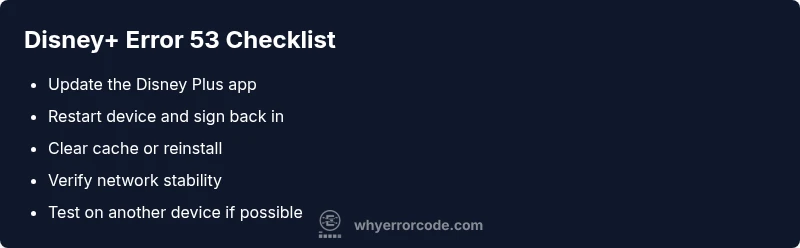
- Update the Disney Plus app to the latest version on every device you use.
- Sign out of your account on all devices, then sign back in.
- Restart your device (TV, streaming stick, console, or computer).
- Verify your Disney Plus subscription is active and not restricted by region.
- Check your network: run a speed test and ensure reliable Wi-Fi or Ethernet connectivity.
- Clear app cache or reinstall the Disney Plus app where applicable.
- Try streaming from a different device or browser to isolate the issue.
If you see the error across multiple devices, you may be facing a broader network or account issue that warrants deeper investigation.
Why updates and clean installs matter
Outdated apps or firmware can fail licensing checks or DRM authentication, triggering code 53. A clean install removes corrupted cache data and resets settings that might block playback. When you update, also ensure the device’s OS or firmware is compatible with the latest Disney Plus requirements. In some cases, clearing app data forces a full re-authentication, which resolves stale tokens that prevent streaming.
Detailed device-specific troubleshooting paths
- Smart TVs and streaming devices: ensure the device firmware is current, the Disney Plus app has permission to run, and there are no blocked DNS settings. If the problem persists, test a different HDMI port or reset the device to factory defaults as a last resort.
- Web browsers: clear browser cache, disable extensions that might interrupt playback, and try an incognito window. A fresh browser profile can resolve conflicting cookies or scripts.
- Mobile devices: restart the phone, disable data-saving modes that throttle background activity, and verify the app has unrestricted network access. If you use VPN or ad blockers, temporarily disable them to rule out interference.
When to contact support and what to provide
If the error continues after all steps, prepare a short report for Disney Plus support:
- Device model, OS version, Disney Plus app version.
- Exact time and date of the incident, and any visible error text.
- Whether the issue occurs with all titles or only some.
- Your country/region and the network type used (Wi‑Fi or cellular).
Having this information speeds up the ticket handling and reduces back-and-forth.
Proactive prevention and maintenance tips
- Keep all streaming devices, apps, and firmware up to date.
- Use a stable, wired connection where possible for long viewing sessions.
- Regularly sign out/in after major account changes and whenever you notice unusual activity.
- Document recurring occurrences to identify patterns (time of day, title type, device).
- Consider creating a secondary test account to verify whether the problem is account-related or device-related.
Steps
Estimated time: 15-30 minutes
- 1
Check device compatibility and OS version
Verify that your device model and operating system are supported by Disney Plus. Update to the latest OS or firmware if available. Incompatible devices may trigger 53 due to licensing checks or DRM.
Tip: Use a supported device list from Disney Plus as a quick reference. - 2
Update Disney Plus app
Open the app store on your device and install the latest Disney Plus update. Outdated apps are a common trigger for 53.
Tip: Enable auto-update for future-proof reliability. - 3
Sign out and sign back in
Sign out of Disney Plus on all devices, then sign back in to refresh tokens and license checks.
Tip: If you use a shared account, ensure you sign out from all sessions. - 4
Clear cache or reinstall
On devices that allow it, clear the Disney Plus app cache or reinstall the app entirely to reset stored data.
Tip: Note saved login info before uninstalling. - 5
Test the network
Run a speed test and switch to a stable network (prefer wired Ethernet or strong Wi-Fi). Network interruptions can cause license checks to fail.
Tip: Pause background downloads or VPNs that could affect streaming. - 6
Try another device or browser
If 53 persists, attempt playback on a different device or browser to determine if the issue is device-specific.
Tip: If the issue moves with the device, focus troubleshooting on that device.
Diagnosis: Disney Plus error code 53 prevents playback on one or more devices
Possible Causes
- highOutdated app or firmware
- mediumDevice compatibility or DRM/licensing check failure
- mediumAccount status or region restrictions
- highNetwork instability or DNS issues
- lowCorrupted app data or cache
Fixes
- easyUpdate the Disney Plus app and device firmware
- easySign out of all devices and sign back in
- easyClear cache/data or reinstall the app
- easyTest network stability and try a different network
- mediumCheck account status and regional availability
Frequently Asked Questions
What causes Disney Plus error code 53?
Code 53 typically signals a playback block due to device compatibility, outdated apps, account issues, or network problems. System-wide outages are unlikely, and a device-centric approach usually resolves it.
Code 53 usually means a playback block caused by device or network issues; try updating, re-authenticating, and testing another device.
How do I fix error code 53 on a TV?
Start by updating the Disney Plus app and the TV firmware. Sign out/in, clear cache if available, and test on another HDMI port or device if the problem persists.
On TV, update the app and firmware, sign out/in, and try a different device if possible.
Could my account status cause error 53?
Yes. A paused, expired, or region-restricted subscription can trigger 53. Verify your account status in the app and ensure your region matches the content you’re trying to access.
Account status can trigger 53; check activation and regional access.
Can a VPN or DNS change trigger 53?
Yes. VPNs or non-standard DNS settings can interfere with licensing checks and trigger 53. Disable VPNs and revert to your usual DNS when testing.
Using VPNs or altered DNS can cause 53; turn them off to test.
Will error 53 affect mobile devices?
Yes, mobile apps can display 53 if the device or account state blocks playback. Apply the same fixes: update, re-authenticate, and verify network.
Mobile devices can see 53 too; update and re-authenticate to fix.
When should I contact Disney support for 53?
If the steps above don’t resolve the issue after some time, contact Disney Plus support with device, OS, app version, and timestamps. Your documentation speeds up resolution.
If it persists after trying fixes, contact support with details.
Watch Video
Top Takeaways
- Identify whether the issue is device-specific
- Follow a structured recovery flow
- Update apps and devices regularly
- Contact support if the error persists