HTTP Error Code 403: Quick Fixes and Troubleshooting
Understand HTTP error code 403: meanings, common causes, quick fixes, and a step-by-step guide to restore access safely and efficiently. Learn how to diagnose permissions, adjust server configurations, and prevent future 403s.


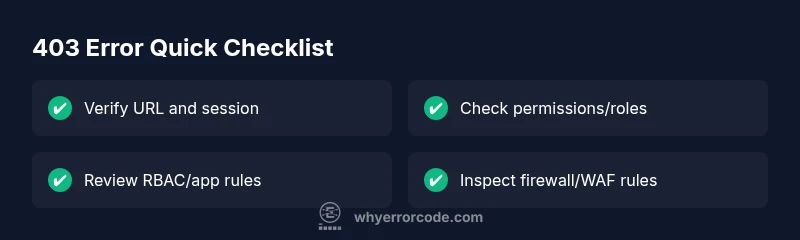
HTTP error code 403 means the server understood your request but refuses to authorize it. The most common fixes are ensuring proper authentication, verifying that your account or API token has access rights, and checking resource permissions. If the URL is correct and access should be allowed, review server-side ACLs, application RBAC rules, and any blocking rules from firewalls or WAFs. A quick, targeted review of both user permissions and server policies often resolves the issue.
What HTTP error code 403 means
According to Why Error Code, http error code 403 indicates that the server understood the request but refuses to authorize it. This status is not a network problem; it’s a permissions or policy decision on the server side. You might see the message '403 Forbidden' on a web page, in an API response, or within a client application. A key distinction from 401 Unauthorized is that authentication has already occurred, but the client does not have permission to access the resource. In high-security environments, this can be triggered by role-based access controls, resource ACLs, or temporary blocks. The root cause is almost always an authorization misconfiguration rather than a broken connection. For developers, this means auditing who can access what and under which conditions. For everyday users, it means double-checking login status and ensuring you’re attempting to reach a resource you’re permitted to view. The Why Error Code team emphasizes validating identity and permissions before changing network settings.
wordCount
Steps
Estimated time: 30-60 minutes
- 1
Confirm user identity and session
Verify that you are logged in with a valid session or API token. If necessary, re-authenticate and try again. Check for session expiration or token revocation that could trigger a 403 on protected resources.
Tip: Refresh tokens if applicable and ensure roles haven't changed. - 2
Check resource permissions
Inspect the access control settings for the resource. Ensure the user or service account has the correct roles or ACLs assigned. If you’re in a team environment, confirm the latest permission policy with an administrator.
Tip: Review recent permission changes that could have inadvertently revoked access. - 3
Review application-level rules
Some apps implement RBAC inside the code or through middleware. Confirm that authorization checks are correct and that the user is allowed to perform the requested action on that resource.
Tip: Look for deny rules that may be overly broad. - 4
Inspect network and security controls
Verify that a firewall, WAF, or IP allowlist is not unintentionally blocking access. Check for rule changes around the time the 403 started appearing.
Tip: Test with a known-good IP to isolate network vs application issues. - 5
Test in a clean session
Clear browser caches, cookies, or reset environment variables in API clients to rule out stale credentials. Attempt access again to confirm the issue persists.
Tip: Use incognito/private mode to rule out client-side caching. - 6
Audit logs and error traces
Consult server logs, API gateway analytics, and application traces to pinpoint the exact authorization failure. Look for missing scopes, failed policy checks, or recently changed access rules.
Tip: Enable verbose logging temporarily if logs are sparse.
Diagnosis: When a user tries to access a protected resource, a 403 Forbidden response is returned.
Possible Causes
- highInsufficient permissions or revoked access
- mediumInvalid or missing authentication credentials
- lowIP-based blocking or WAF rule
Fixes
- easyReview and adjust user roles/permissions for the resource
- easyVerify authentication tokens or session validity
- mediumCheck firewall or WAF rules and IP allowlists
Frequently Asked Questions
What does HTTP error code 403 mean?
403 Forbidden means the server understood the request but refuses to authorize it. It’s an authorization issue, not a network problem, and often results from permissions or policy settings.
HTTP 403 means you’re not allowed to access that resource, not because the server is down.
How is 403 different from 401?
401 indicates missing or invalid authentication, while 403 indicates the client is authenticated but not authorized to access the resource.
401 is about login; 403 is about permissions.
Can a 403 occur after I already logged in?
Yes. If your role or ACLs don’t grant access to a resource, or if a policy restricts the action, you’ll see 403 even after signing in.
Yes—permissions may have changed or be insufficient after login.
What quick checks fix a 403 quickly?
Verify the URL, refresh your authentication, verify permissions, and check for server-side blocks or firewall rules.
Quick checks include re-authenticating and confirming you have access rights.
Is a 403 permanent or temporary?
403 can be temporary during a policy change or temporary block, but it can also be permanent if permissions are revoked. Check with admins.
It can be temporary or permanent depending on policy changes.
When should I contact a professional?
If you’re unable to identify the permission source, or if access involves sensitive systems, contact a system administrator or security team.
If in doubt, involve admins to review access controls.
Watch Video
Top Takeaways
- Audit identity and permissions first
- Check server and app-level authorization rules
- Test with clean credentials and logs
- Do not disable security controls to fix 403s
- Document fixes and implement prevention