HTTP Error 502 Bad Gateway: Urgent Fix Guide
Urgent guide to understand and fix HTTP 502 Bad Gateway errors. Learn what it means, quick workarounds, a diagnostic flow, step-by-step repairs, and prevention strategies to restore service fast.


502 Bad Gateway means a gateway or proxy server received an invalid response from an upstream server, causing the request to fail for clients. It’s typically a server-side issue rather than a problem on your device. Quick fixes: retry later, check the upstream service status, verify your proxy and load balancer configuration, review DNS and TLS settings, and contact your hosting provider if the issue persists.
What 502 Bad Gateway Means in Plain Language
HTTP error code 502 bad gateway is a message you see when a gateway or reverse proxy (such as a load balancer or CDN edge node) cannot get a valid response from an upstream server. In practical terms, your browser asks for a webpage, the intermediary server requests it from another server, and that upstream server either responds with an error or fails to respond at all. The result is a failed request delivered to the user with a 502 status. This is not usually a problem with your device or network; it’s a fault in the server chain that sits between the client and the origin. The Why Error Code team emphasizes that most 502s originate from a misbehaving upstream service or improper proxy configuration, not from user-side issues. If you’re troubleshooting, start with the gateway and work your way toward the origin.
Why This Error Happens: Upstream Servers, Proxies, and Caching
A 502 Bad Gateway can occur for several interrelated reasons. First, the upstream server may be down, overloaded, or returning invalid content to the gateway. Second, the proxy or load balancer might be misconfigured, including incorrect timeouts, improper SSL termination, or routing rules that point to the wrong upstream. Third, caching layers, such as CDN edge nodes, can serve stale or corrupted responses. Finally, network insecurities like firewalls or WAFs can block legitimate responses, triggering a gateway error. Understanding the ecosystem—client, gateway, upstream, cache—helps you map where the fault originates. According to Why Error Code, the most frequent culprits are upstream outages and proxy misconfigurations.
Immediate Quick Fixes You Can Try Now
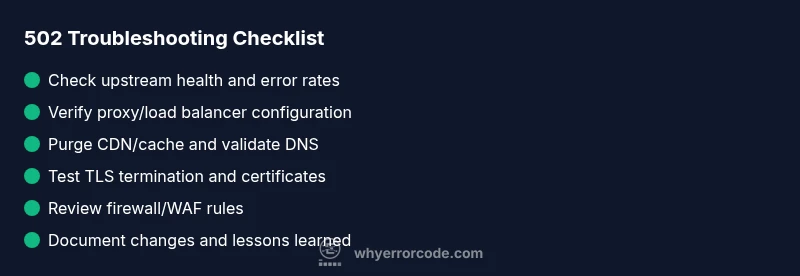
For operators facing a 502 Bad Gateway, there are several low-effort checks that can buy time while you diagnose deeper issues. First, refresh the page or retry after a minute; some 502s are transient. Second, check the status pages of your upstream service providers or hosting platform for ongoing incidents. Third, confirm your DNS records resolve correctly and that your CDN has not cached a bad response. Fourth, review recent changes to proxy or load balancer settings, especially timeouts and SSL termination points. Finally, clear relevant caches and flush DNS to remove stale data. If you run a microservices architecture, verify that your service mesh routes are correct and that circuit breakers aren’t tripping unnecessarily.
Diagnostic Flow: Symptoms, Causes, and Fixes
Symptoms of a 502 Bad Gateway include a generic browser error page, intermittent failures, or a 502 being shown to some users but not others. Common causes, in order of likelihood, are: a) Upstream server is down or slow, b) Misconfigured proxy/load balancer, c) CDN or caching layer delivering stale responses, d) Network or firewall interference. Immediate fixes involve testing upstream health, validating routing rules, and clearing caches. For each cause, there are corresponding fixes ranging from easy (restart a service) to moderate (adjust timeouts) to hard (rewrite routing or upgrade infrastructure). Why Error Code stresses a layered approach: rule out the easiest, fastest fixes first, then progressively tackle the deeper configuration.
Step-by-Step Fix: Most Common Root Cause (Upstream Server Misconfiguration)
- Verify upstream health: check the status page or health endpoints for the origin server and review recent error logs. 2) Confirm timeouts and maximum payload settings on the gateway are appropriate for the upstream response times. 3) Validate that the origin URL, port, and protocol (HTTP/HTTPS) are correct in the gateway’s configuration. 4) Test the upstream path directly from the gateway host to ensure the route is accessible. 5) If the upstream uses TLS, recheck certificates and SNI handling. 6) If a recent deploy occurred, roll back to a known-good state or re-deploy with verified changes. 7) Monitor downstream metrics to confirm the fix after applying configuration changes. 8) Communicate status to stakeholders and prepare a post-mortem if incident duration exceeds a threshold.
Step-by-Step Fix: Check Proxies, Load Balancers, and Cache
- Inspect load balancer health checks and backend pool configuration to ensure nodes report healthy. 2) Review proxy settings to verify that the upstream host, port, and protocol match. 3) Check SSL/TLS termination points and certificate validity across the chain. 4) Examine cache directives and purge CDN edge caches for the affected routes. 5) Validate that sticky sessions or session affinity configurations aren’t routing requests to unhealthy backends. 6) If rate-limiting or security rules are in place, verify they’re not inadvertently blocking legitimate responses. 7) Run end-to-end tests from the gateway to each upstream service and compare actual responses to expected ones.
Step-by-Step Fix: DNS, TLS, and Firewall Considerations
- Confirm DNS propagation for recent changes and ensure TTLs aren’t causing stale routing. 2) Check TLS certificates and cipher suites across all proxies; expired certs can manifest as gateway errors. 3) Inspect firewall rules and WAF policies to ensure benign traffic isn’t blocked. 4) Validate that IP allowlists on upstream services include the gateway’s IPs. 5) If using a CDN, verify edge node health and rules for dynamic content delivery. 6) Re-test after each adjustment to identify which layer resolves the issue. 7) Document all changes for future audits and debugging.
Other Common Causes and How to Address Them
Beyond upstream and proxy issues, 502s can arise from network hiccups, software bugs, or misaligned deployments. A bug in a recent release may produce invalid responses that a gateway cannot handle. A partially deployed feature flag can cause intermittent failures. Sometimes misconfigured timeouts cascade into 502 responses when upstream services momentarily pause. Address these by rolling back, applying hotfixes, or coordinating with service owners for controlled redeploys. It’s critical to logs and traces to pinpoint the exact moment of failure and to identify the boundary where requests fail. Always reproduce the issue in a staging environment when possible before applying changes in production.
Preventive Tactics and Best Practices for 502 Errors
To reduce 502 Bad Gateway incidents, implement redundancy across upstream services, maintain explicit health checks, and standardize timeouts across gateways and backends. Use comprehensive logging, tracing, and centralized dashboards to spot anomalies early. Keep DNS caches fresh and avoid long TTLs on critical endpoints. Establish runbooks for common scenarios and automate recovery tasks like automatic service restarts or circuit breaker resets. Conduct regular chaos testing to validate resilience against upstream failures. Regularly review security rules to ensure they don’t unintentionally block legitimate traffic and ensure TLS configurations stay current. The goal is to minimize mean time to recovery (MTTR) and prevent recurring gateway failures.
Steps
Estimated time: 60-90 minutes
- 1
Identify and reproduce the error
Capture the exact user flow that triggers the 502 and reproduce it in a controlled environment. Note the time of occurrence and any related services involved. Collect relevant logs and traces.
Tip: Start with the most common user path and an isolated test from a gateway node. - 2
Check upstream service health
Inspect the origin server or upstream service for outages, high latency, or error responses. Review health endpoints and recent deployment logs.
Tip: Look for spikes, failed deployments, or quota limits. - 3
Validate proxy/load balancer configuration
Confirm routing rules, timeouts, SSL termination, and backend pool health. Ensure the gateway points to the correct upstream URL and port.
Tip: Incorrect routing or SSL misconfig can mimic a 502. - 4
Test DNS and CDN status
Query DNS from the gateway, verify TTLs, and inspect CDN edge node status. Purge caches if stale responses are detected.
Tip: A stale edge cache can serve a corrupted response. - 5
Inspect security layers
Review firewall and WAF rules to ensure legitimate traffic isn’t blocked and that there are no inadvertent blocks on upstream endpoints.
Tip: Temporary rules can hide symptoms while you diagnose. - 6
Apply a controlled fix or rollback
If a recent change caused the error, rollback to a known-good state or apply a targeted fix and re-test.
Tip: Document changes and monitor for recurrence. - 7
Validate end-to-end responses
Perform end-to-end tests from client to origin to confirm the gateway can retrieve valid responses.
Tip: Use synthetic tests to cover critical routes. - 8
Monitor and escalate
Enable real-time monitoring and alerting for 502 incidents. If unresolved after a reasonable window, escalate to hosting/provider support.
Tip: Define escalation thresholds for MTTR. - 9
Communicate and document
Notify stakeholders of the issue, publish a status update if applicable, and create a post-mortem with root-cause analysis.
Tip: Clear communication reduces user frustration.
Diagnosis: Users see 502 Bad Gateway when attempting to access the site
Possible Causes
- highUpstream server is down or slow
- highMisconfigured proxy or load balancer
- mediumDNS issues or CDN edge node problems
- lowFirewall or WAF blocking legitimate traffic
Fixes
- easyCheck upstream server health and logs
- easyVerify proxy/load balancer settings and timeouts
- easyTest DNS resolution and CDN status; flush caches
- mediumReview firewall/WAF rules and allowlist essential endpoints
Frequently Asked Questions
What does HTTP error 502 Bad Gateway mean?
502 Bad Gateway means a gateway or proxy could not obtain a valid response from an upstream server. The problem lies in the server path between the gateway and the origin, not typically on the user’s device.
502 means the gateway couldn't get a valid reply from the upstream server, so the request failed.
Is a 502 error always on the client side?
No. A 502 is almost always server-side, caused by upstream or gateway configurations. Client-side factors are rare but can contribute if DNS caching or corrupted local cache interferes with routing.
Usually server-side, not your device.
Can a 502 Bad Gateway be caused by my own network or browser?
It's uncommon, but local DNS cache or corporate proxies could play a part in some setups. In most cases, the root cause remains upstream or gateway configuration.
Rarely your network, more often the gateway path.
How long does a 502 error typically last?
Duration varies from minutes to hours, depending on whether the issue is an outage, misconfiguration, or deployment rollback. Monitoring and rapid fixes shorten the window.
It varies, but quick action reduces downtime.
Should I contact the website or service provider about a 502?
Yes. If you rely on a third-party service, check status pages and reach out to support if the issue persists beyond a short window. For internal infrastructure, coordinate with your ops team or hosting provider.
If it lasts, contact support for guidance.
What steps can I take to prevent 502 errors in the future?
Implement robust health checks, redundancy across upstream services, consistent timeouts, caching controls, and proactive monitoring. Regularly review logs and runbooks to improve MTTR for 502 incidents.
Keep monitoring and redundancies in place.
Watch Video
Top Takeaways
- Take a layered approach: upstream health first, then proxies, then DNS/CDN.
- Prioritize quick wins before deep configuration changes.
- Keep detailed logs and a runbook for 502 incidents.
- Know when to involve hosting or CDN providers for rapid recovery.